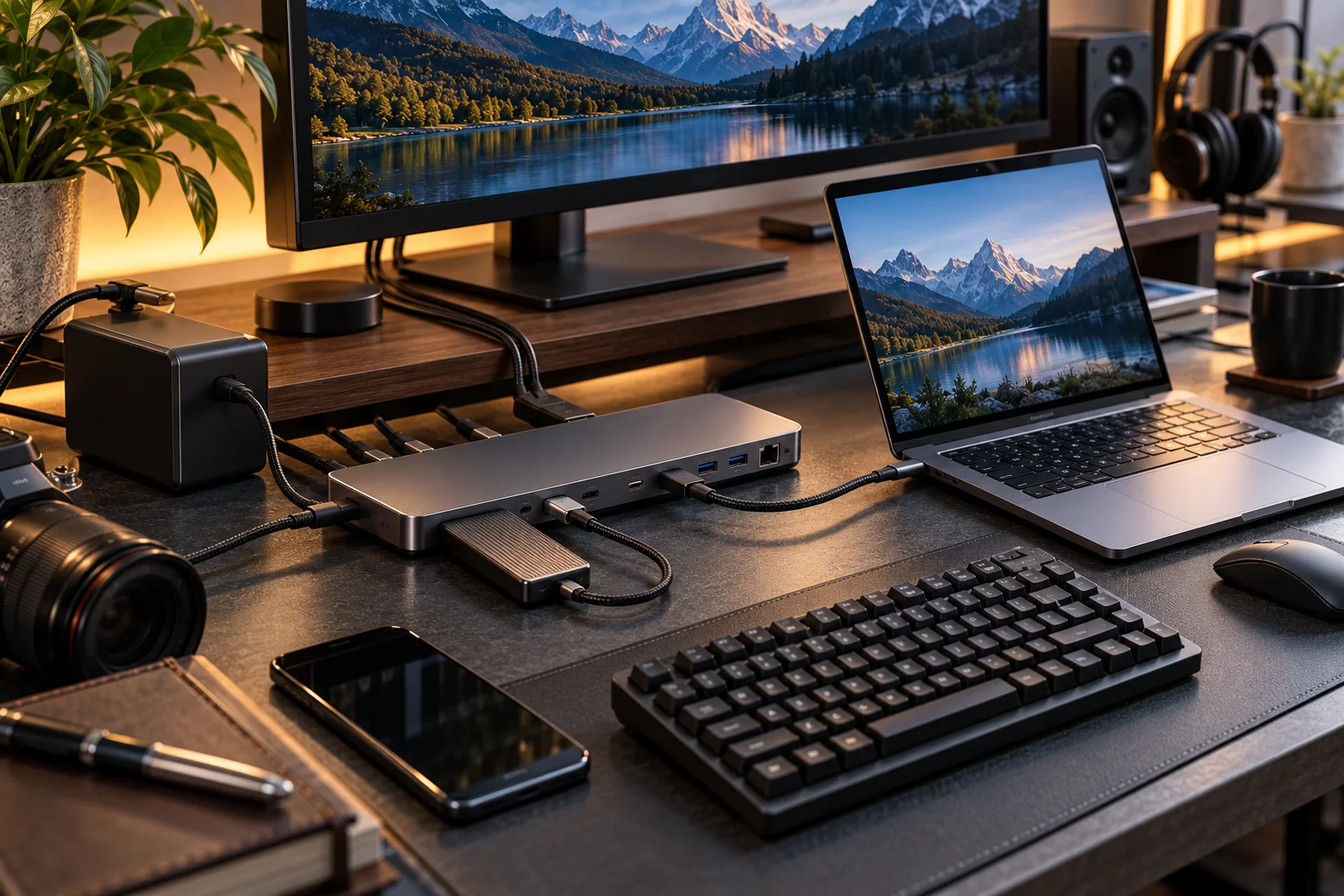
Two USB-C cables can look almost exactly the same and behave completely differently.
One might charge a laptop at up to 240W and transfer data at 40Gbps or more. Another might charge the same laptop while transferring data at only USB 2.0 speeds. A third might support high-speed data and charging but not provide the capabilities needed for a particular external display setup.
That's because USB-C describes the connector and physical interface, not a single performance level. USB-IF explicitly warns that USB-C cables don't all have the same capabilities and certifies cables for different purposes.
The result is one of the most confusing parts of modern consumer electronics: two cables can fit the same port while supporting completely different combinations of data speed, charging power, display connectivity and other functions.
Why Do USB-C Cables Have Different Capabilities?
USB-C is a connector standard, while USB data, USB Power Delivery and display functionality are separate capabilities that can be implemented over that connector.
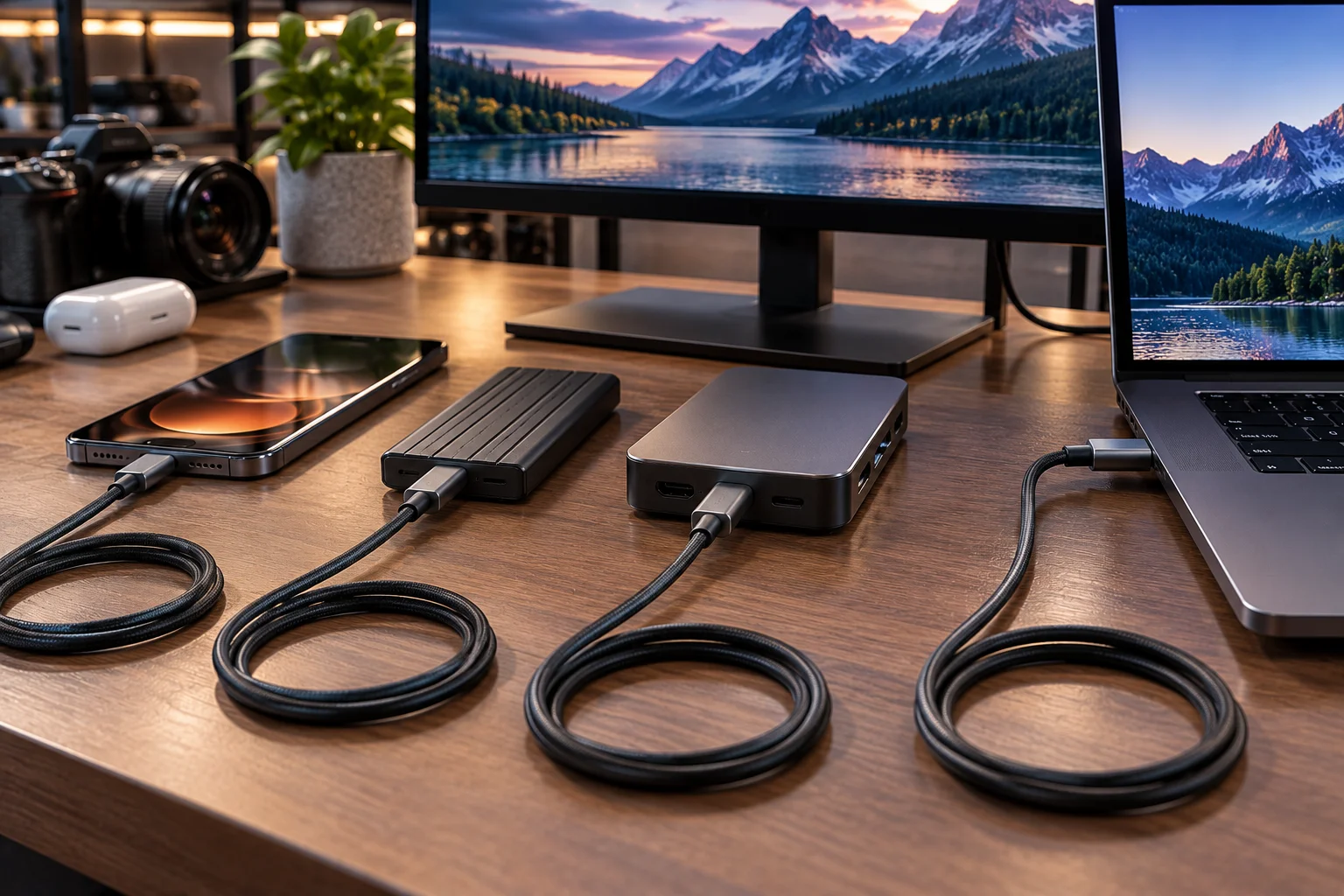
A USB-C cable can contain different internal wiring and electronics depending on what it is designed to support.
At the basic end, a USB-C cable may support USB 2.0 data. At the high-performance end, a certified USB4 cable can support much higher data rates and can carry multiple protocols through the same connection.
USB4 is specifically designed to share bandwidth between data and display protocols, while USB-C provides the physical connector used by these systems.
So the phrase "USB-C cable" isn't enough information to tell you what the cable can actually do.
What Are the Main Types of USB-C Cables?
There isn't one simple consumer-facing list of "USB-C cable types." Instead, cables can differ across several dimensions.
Capability | Possible differences |
|---|---|
Data | USB 2.0, USB 3.x, USB4 |
Data speed | From 480Mbps to much higher USB4 rates |
Charging | 60W, 240W and other capabilities |
Display | May support compatible display protocols or not |
Electronics | Passive or active designs |
Identification | Some high-capability cables use an E-marker |
Length | Longer high-speed cables can require more advanced construction |
This is why buying purely based on connector shape can be misleading.
USB 2.0 vs USB 3.x vs USB4: What's the Difference?
The biggest difference is how much data the cable can carry.
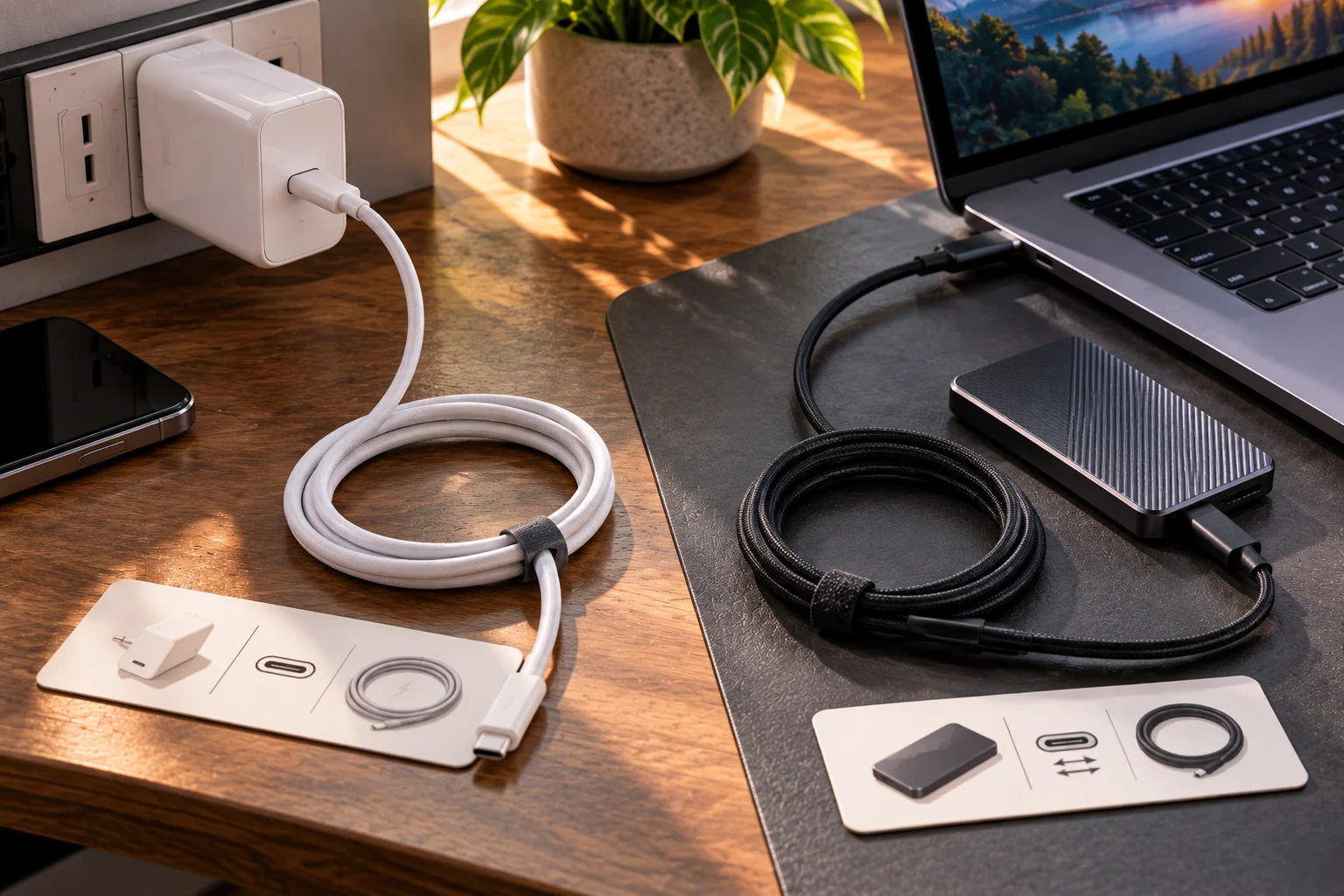
A basic USB-C cable can support USB 2.0, which has a theoretical signaling rate of 480Mbps.
USB 3.x introduces substantially higher data rates, while USB4 moves into even higher-performance territory.
USB-IF's current USB4 materials describe USB4 systems supporting up to 80Gbps operation over 80Gbps certified cables and dynamically sharing bandwidth between data and display protocols.
This creates an easy-to-miss problem.
You can connect a fast external SSD to a USB-C port using a cable that physically fits perfectly, yet the cable itself can become the bottleneck.
The computer might support very high-speed USB, but if the cable only supports USB 2.0, the connection won't magically become faster.
Why Can a USB-C Cable Charge Fast but Transfer Data Slowly?
Charging capability and data capability are separate properties.
A cable can be designed primarily for power delivery while having relatively limited data capability.
USB-IF's current cable certification program specifically requires USB-C-to-USB-C cables to carry power-capability markings, while higher-performance cables also carry appropriate data-rate markings. USB 2.0 high-speed USB-C-to-C cables are an exception to the mandatory data-rate marking requirement.
This explains a common experience: a cable can charge a laptop perfectly well but perform poorly when used with an external SSD.
The cable isn't necessarily defective. It may simply have been designed for a different job.
What Do 60W and 240W on a USB-C Cable Mean?
Those markings indicate the cable's certified power capability, not its data speed.
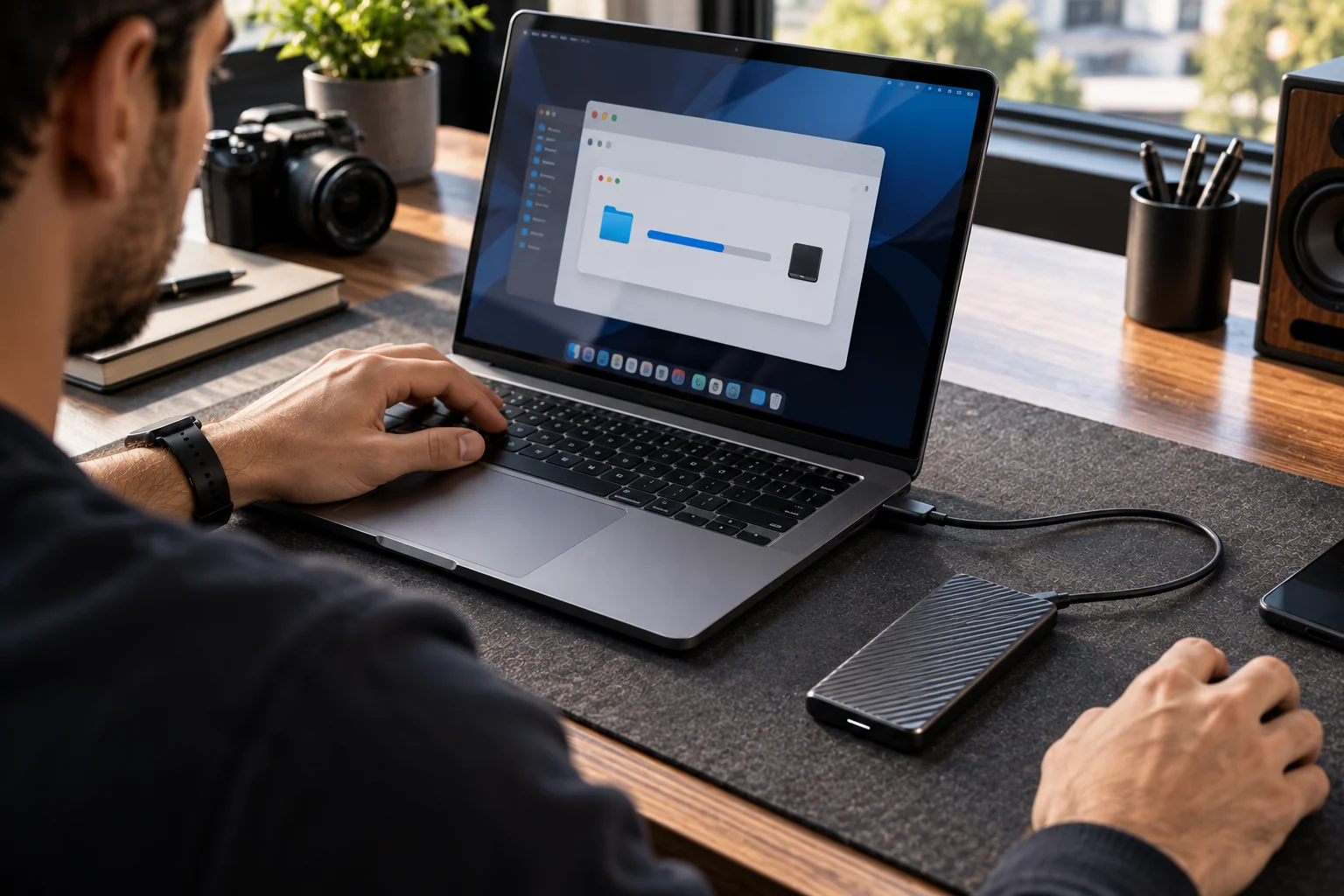
USB-IF's current USB-C cable program uses 60W and 240W power markings for certified USB-C-to-USB-C cables.
A 240W cable therefore doesn't automatically mean 40Gbps data.
Likewise, a high-speed data cable isn't automatically a 240W charging cable.
When buying a cable for a laptop, you should consider both specifications independently:
Power capability + data capability
rather than assuming one implies the other.
What Is an E-Marker in a USB-C Cable?
An E-marker is an electronic identification chip used in certain USB-C cables to communicate cable capabilities to the connected system.
It can provide information relevant to capabilities such as current handling and supported USB-C functions.
E-marked cables are particularly relevant when higher-power or high-performance USB-C configurations are involved. USB-IF's compliance documentation specifically includes additional testing requirements for cables implemented with an E-marker.
This doesn't mean every USB-C cable needs an E-marker. Basic cables can be implemented without one depending on their capabilities.
Can Every USB-C Cable Connect a Monitor?
No. The USB-C connector alone doesn't guarantee display output.
USB-C systems can carry display protocols using mechanisms such as DisplayPort Alt Mode, while USB4 can dynamically share bandwidth between data and display protocols.
For a USB-C monitor connection to work, the source device, monitor or adapter and cable must support the necessary functionality.
This is why one USB-C cable might successfully connect a laptop to a display while another apparently identical cable doesn't.
The connector fits. The required signal path may not exist.
Why Do Some USB-C Cables Cost So Much More?
Higher-performance cables can require more conductors, tighter signal integrity requirements, additional electronics and more demanding certification.
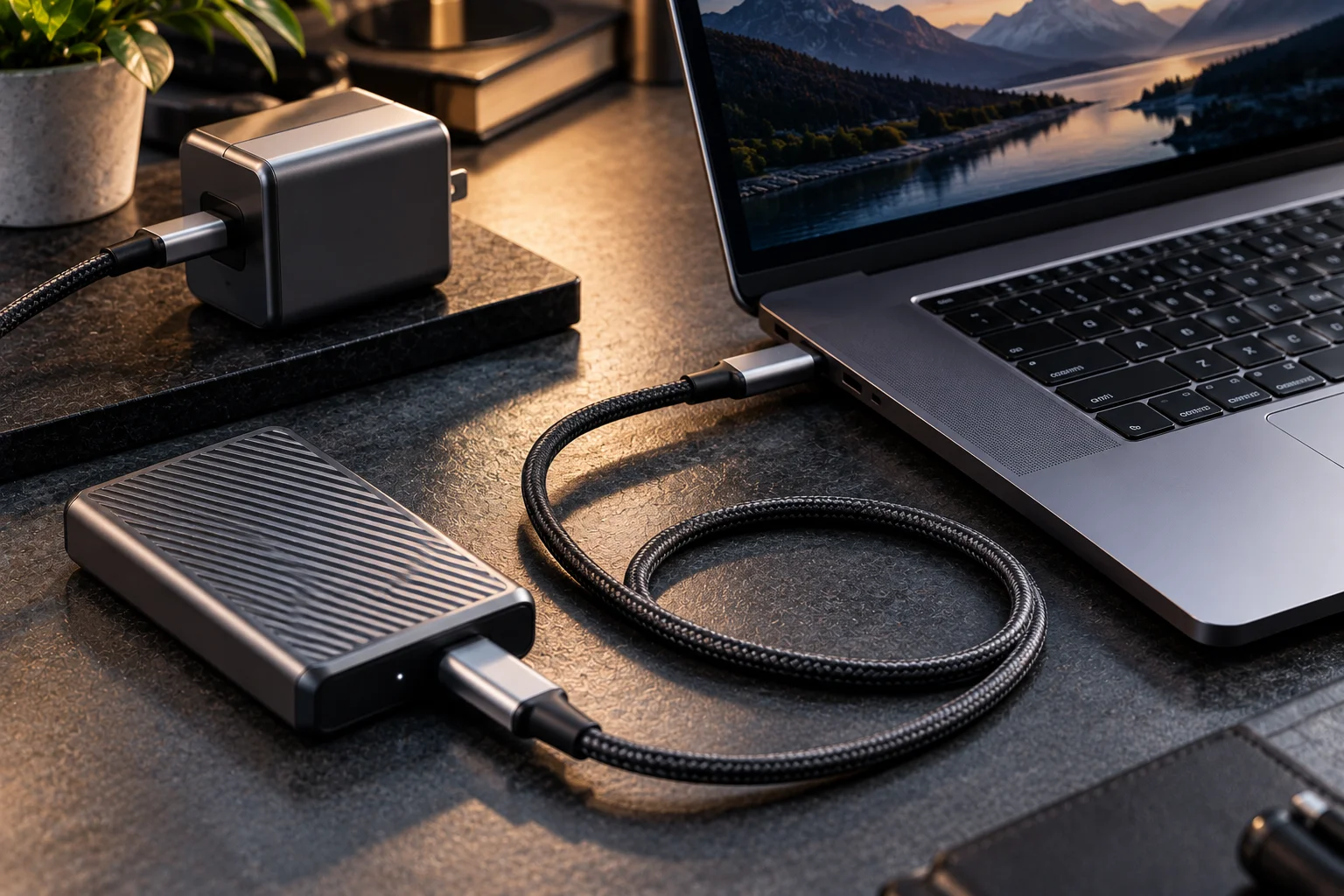
High-speed USB4 cables have to maintain signal quality at much higher frequencies than basic USB 2.0 cables.
Length also matters. Maintaining high-speed signal integrity becomes more difficult as cable length increases, which is one reason premium high-speed cables can use more sophisticated construction.
Active cables can include electronics to help maintain signal performance over longer distances, while passive cables rely more heavily on the physical cable design itself.
That doesn't mean an expensive cable is automatically better. It means you should pay for the capability you actually need.
How Do You Know What a USB-C Cable Supports?
Look for the cable's power and data markings, then verify the manufacturer's specifications.
For certified USB-C-to-USB-C cables, USB-IF's current requirements use power logos such as 60W or 240W, and applicable cables can also carry data-rate markings.
Don't rely on phrases such as:
"Fast charging cable"
"Premium USB-C cable"
"High-speed cable"
"Laptop cable"
Those descriptions don't tell you enough.
Instead, look for explicit specifications such as:
USB 3.2 20Gbps + 240W
or
USB4 40Gbps + 240W
The exact combination matters.
USB-IF also maintains a searchable database of certified products, although the organization notes that its public product list is limited to products certified to bear USB-IF logos.
What USB-C Cable Should You Buy?
Choose the cable according to the most demanding device you expect to connect.

For simple charging, a certified 60W cable may be sufficient.
For a laptop plus external SSD, you may want substantially faster data capability.
For high-performance docks, external displays and fast storage, USB4 becomes much more relevant.
A useful checklist is:
Phone charging: focus on required charging wattage.
Tablet: check charging plus data requirements.
Laptop: check maximum charging power.
External SSD: prioritize data speed.
Monitor: verify display compatibility.
Dock: check data, display and power requirements together.
One cable for everything: buy based on the highest requirement.
Frequently Asked Questions
Are all USB-C cables the same?
No. USB-C cables can have different charging, data and display capabilities despite using the same connector.
Can a USB-C cable support 240W but only USB 2.0 data?
Yes. Charging capability and data capability are separate specifications.
Can a USB-C cable charge a laptop but not connect its display?
Yes. The cable may support sufficient power but lack the required high-speed or display functionality.
Is USB4 the same as USB-C?
No. USB-C is the connector/interface system, while USB4 is a USB data architecture that operates through USB-C connections.
Do longer USB-C cables work at the same speed?
Not necessarily. Maintaining signal integrity becomes more challenging at higher speeds and longer distances, so cable construction and certification matter.
Should I buy the most expensive USB-C cable?
Not necessarily. Buy the capability you need. A basic charging cable is unnecessary for an expensive high-speed specification if you're only charging a phone, while a cheap low-specification cable can become a serious bottleneck for an SSD or dock.
The Bottom Line
USB-C solved the problem of having different physical connectors, but it didn't make every cable identical internally.
That's why the connector is only the beginning of the specification.
When choosing a USB-C cable, think about three separate questions: How much power can it carry? How fast can it transfer data? And does it support the display or other functionality you need?
Once you start reading those specifications instead of judging a cable by its appearance, the seemingly confusing USB-C ecosystem becomes much easier to understand.