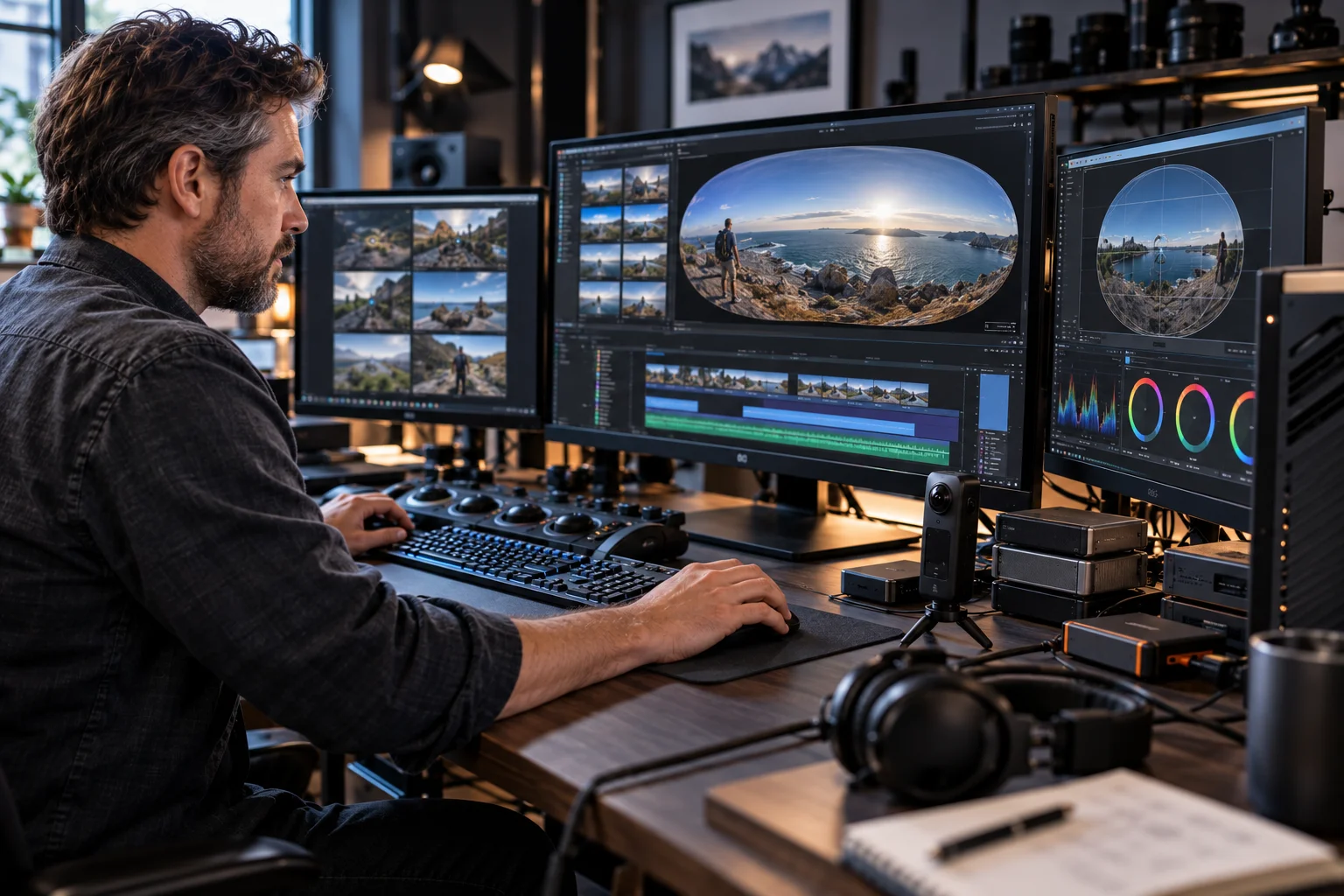
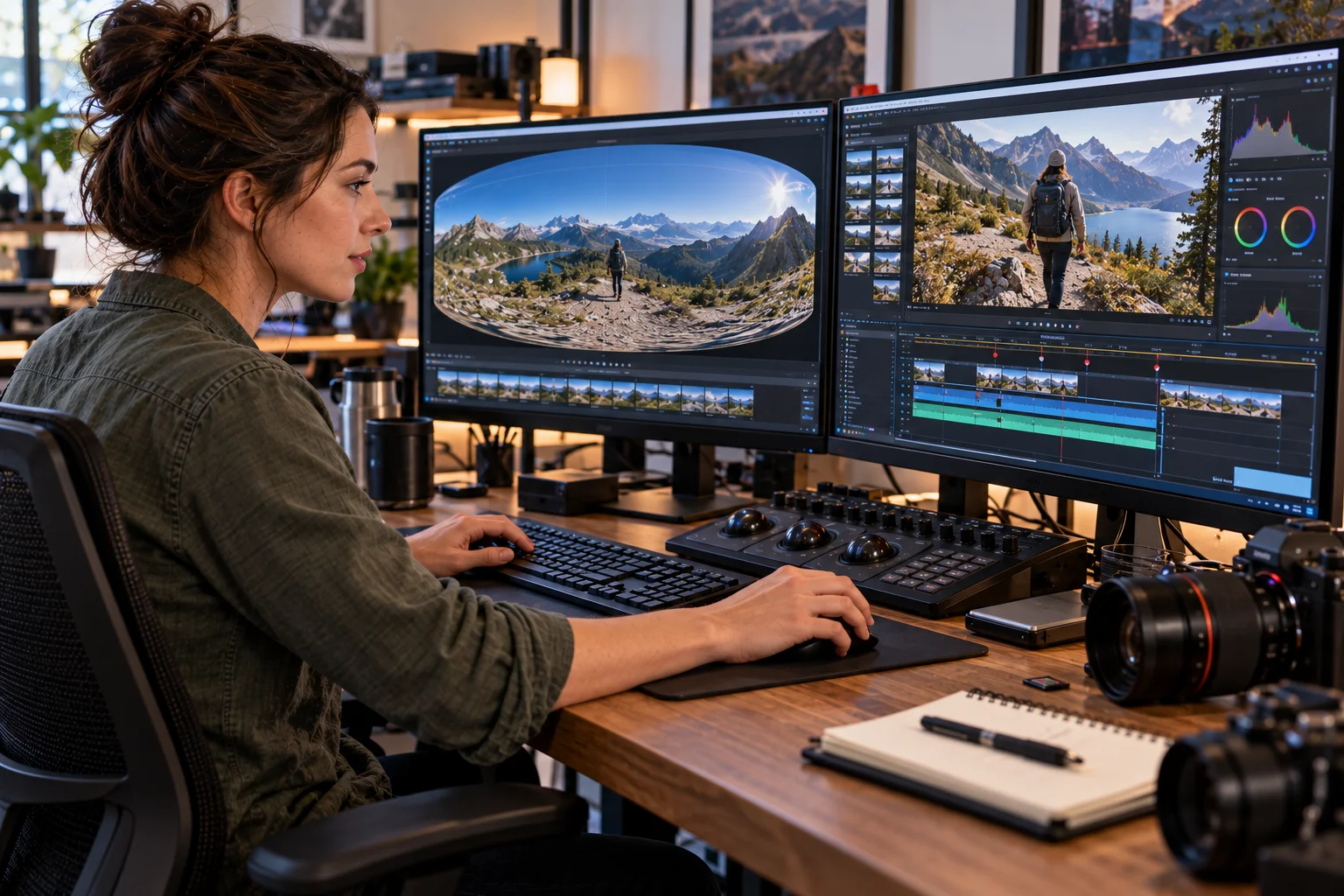
Editing 360 camera footage is different from editing a conventional video because the camera captures the entire scene around you rather than a single fixed frame. Instead of deciding where to point the camera while recording, you can make that decision later during editing.
The basic workflow is straightforward: import and stitch the 360 footage, choose the viewing direction, use keyframes to control how the camera moves through the scene, make your normal edits, and then export either a reframed flat video or a full 360 video.
Apps such as Insta360 Studio and Adobe Premiere Pro support dedicated 360 workflows. Insta360 Studio provides tools for adjusting perspective and field of view, while Premiere can recognize and edit 360 and VR footage directly.
The most important decision comes at the end. A reframed video behaves like an ordinary 16:9, 9:16 or square video. A 360 export preserves the spherical experience so viewers can look around after playback.
Understanding that difference makes the rest of the editing process much easier.
What is the difference between editing 360 footage and normal video?
A conventional camera records one fixed viewpoint, while a 360 camera records the entire surrounding sphere and lets you choose the viewpoint later.
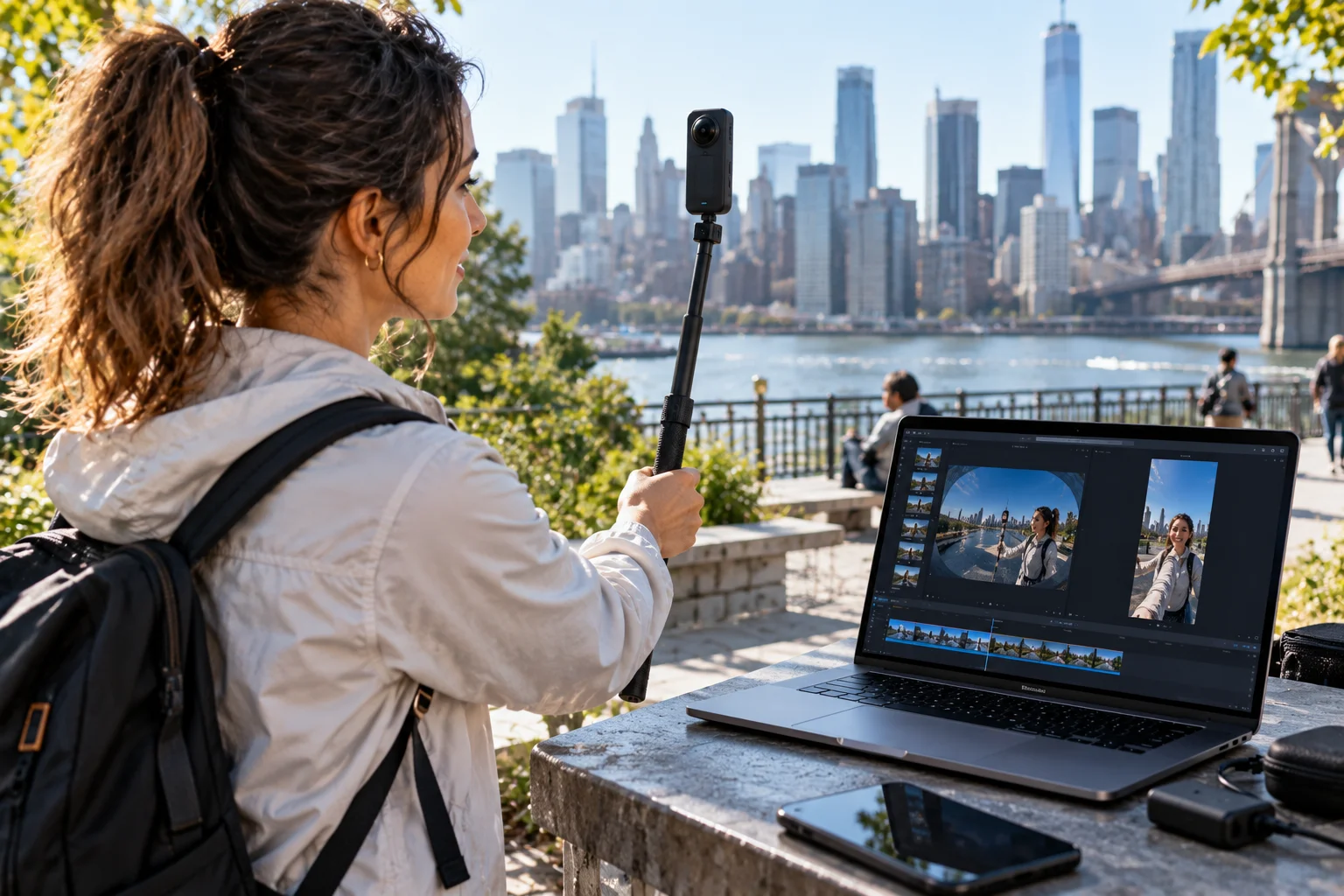
That means you don't necessarily need to worry about pointing the camera perfectly while recording.
Instead, you can decide during post-production:
Which direction the viewer should look
How wide the field of view should be
When the viewpoint should change
Which subject should remain centered
Whether the final video should be flat or interactive
In Insta360 Studio, for example, 360 footage can be reframed by changing perspective and adding keyframes. The software supports different field-of-view options, including Dewarp, Linear, UltraWide and other viewing styles.
Think of the original footage as a huge spherical canvas.
Editing determines which part of that canvas the audience sees.
How do you import and prepare 360 camera footage?
Start by importing the original 360 files into the camera manufacturer's editing software or another editor that properly supports 360 media.
For Insta360 cameras, Insta360 Studio can handle compatible 360 footage and export it as an MP4 for use in other editing applications.
Before doing anything else, check that the software recognizes the footage as 360.
This matters because 360 video has specific properties describing how the spherical image is arranged. If those properties are missing or incorrect, the footage can appear distorted or behave like ordinary flat video.
Premiere Pro allows users to check and correct VR properties through Modify > Interpret Footage when the information embedded in the clip is missing or incorrect.
If you're working with a large 5.7K, 8K or higher-resolution file and playback is sluggish, proxies can also make editing considerably easier.
How do you reframe 360 footage?
Reframing means choosing the portion of the 360-degree scene that becomes the viewer's visible frame.
This is usually the most important part of editing 360 footage.
Open the clip in a 360-aware editor and move through the timeline. At each important moment, choose the direction you want the audience to see.
You can then add a keyframe.
A second keyframe later in the clip can point toward another subject or direction. The software interpolates the movement between those points, creating a virtual camera movement.
Insta360's current workflow lets editors change perspective and add keyframes to control the viewing direction and field of view.
For example:
0 seconds: person enters from the left
3 seconds: camera view turns toward them
6 seconds: view moves toward the landscape
10 seconds: view returns to the person
You recorded all of those angles simultaneously.
Reframing simply decides when the audience sees each one.
How do you crop a 360 video?
You normally crop a 360 video by reframing it into a flat output rather than literally cropping the original spherical footage.
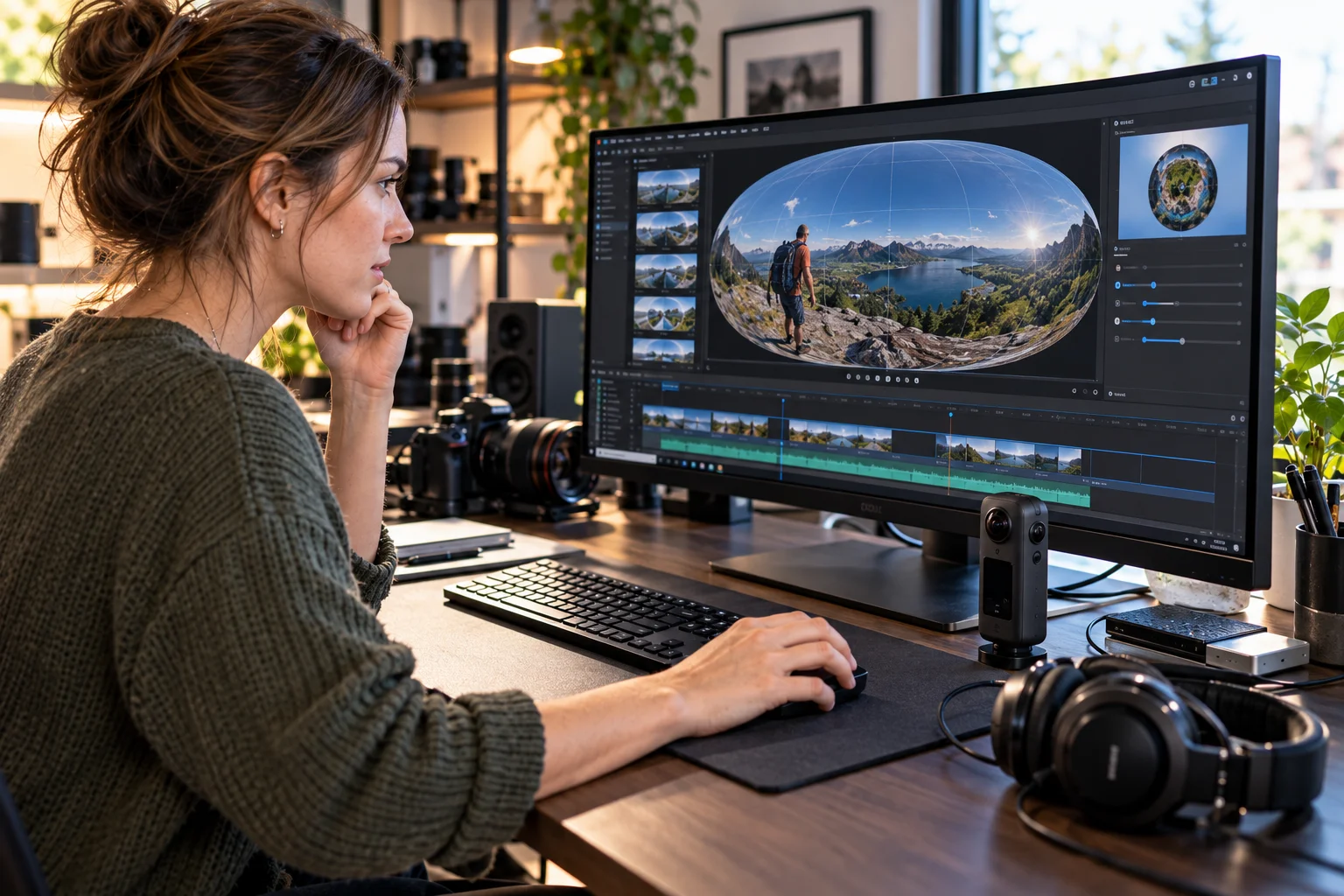
This distinction causes a lot of confusion.
If you're creating a normal social-media video, you might choose:
16:9 for YouTube or conventional video
9:16 for TikTok, Reels or Shorts
1:1 for square social content
You then control the viewing direction and field of view so the important subject remains visible inside that frame.
Adobe Premiere's Auto Reframe can also create sequences for different aspect ratios and automatically generate motion keyframes to keep the subject within the frame.
However, Auto Reframe should not be confused with 360 reframing itself.
The 360 workflow first determines which part of the sphere you're looking at. Standard cropping and aspect-ratio changes then determine how that chosen view fits the final frame.
How do you use keyframes to control a 360 camera movement?
Place keyframes whenever you want the virtual camera to change direction, zoom or field of view.
A common mistake is adding too many.
You usually get smoother results with fewer, intentional keyframes.
For example, imagine a cyclist riding past the camera.
Instead of adding a new keyframe every second, set one when the cyclist enters the scene and another when they reach the center.
The editor can create the transition between those points.
You can also change the field of view.
A wider view can establish the environment, while a narrower view can make the subject feel closer.
The trick is to think like a cinematographer who has an invisible camera floating inside the original 360 recording.
How do you make a 360 video look like a normal cinematic video?
Use controlled reframing, moderate field-of-view changes and deliberate virtual camera movements rather than constantly spinning around the scene.
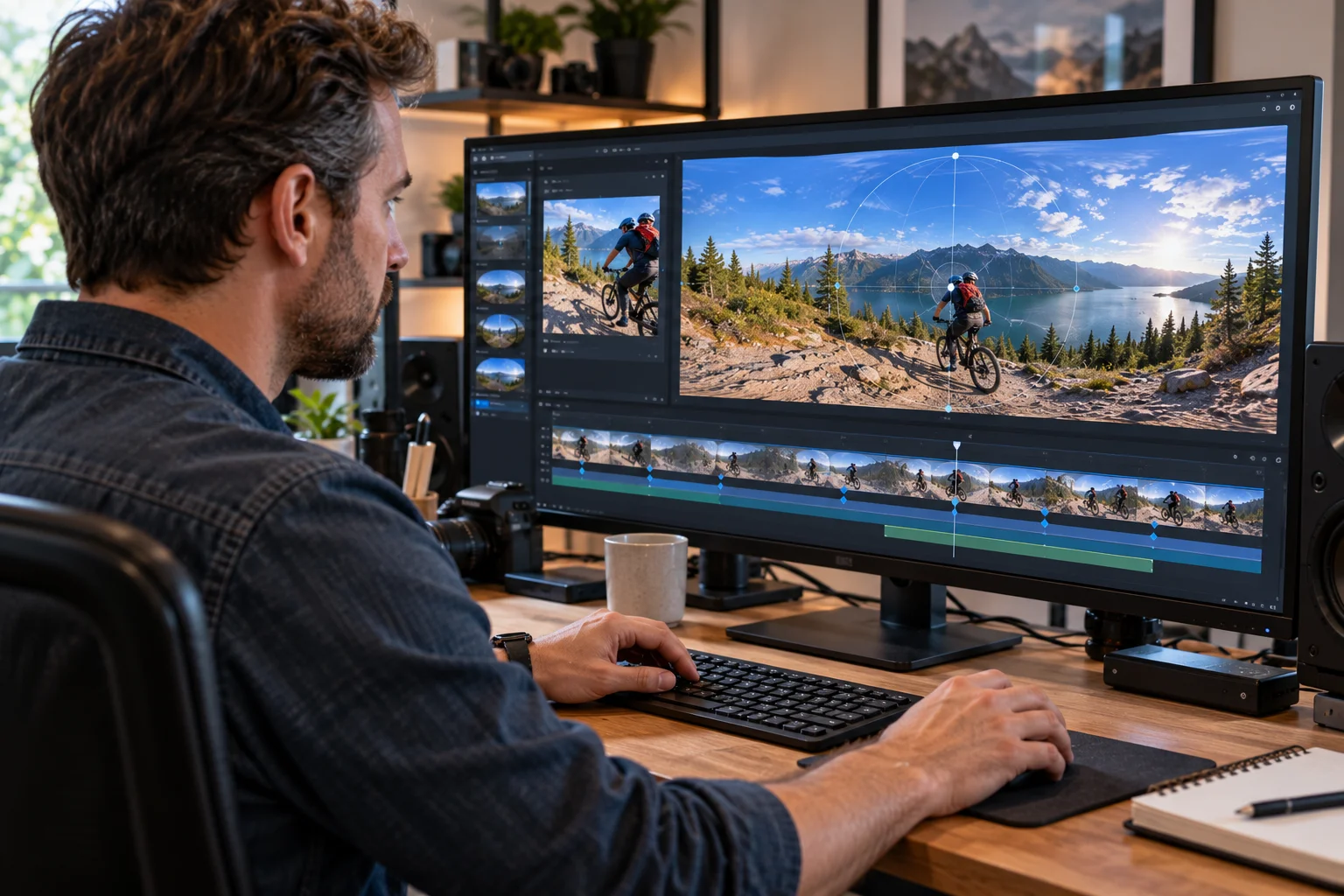
360 cameras give you enormous freedom, but that does not mean every direction change improves the video.
A good reframed sequence should still have visual logic.
Start with a wide establishing shot. Move toward the important subject. Hold the shot long enough for viewers to understand what they are seeing.
Then change direction when there is a reason to do so.
Fast, unpredictable movements can make reframed footage feel uncomfortable, especially when the field of view changes aggressively.
The technology gives you more choices. Good editing is knowing which choices to ignore.
Can you edit 360 footage in Adobe Premiere Pro?
Yes. Premiere Pro supports 360 and 180 video workflows, including viewing VR footage and editing it within a VR-aware sequence.
Premiere automatically detects VR properties when they are correctly embedded in the media or sequence. It also provides a VR viewer for monitoring the footage.
For more advanced work, Premiere provides VR-specific effects and controls.
Its VR Projection effect can be used to reorient a 360 video sphere through pan, tilt and roll controls.
Insta360 also provides a Reframe plugin for Premiere, allowing compatible 360 files to be reframed directly inside the editing application.
This can be useful if you're already doing your cutting, audio mixing, color work and graphics in Premiere.
Should you edit 360 footage in the camera manufacturer's app?
For straightforward reframing, the manufacturer's software is often the easiest starting point; professional editors may prefer Premiere or DaVinci Resolve for larger projects.
Insta360's app and Studio software provide dedicated 360 controls, including perspective adjustment, keyframes and reframing.
They are particularly convenient when you want to quickly turn a 360 recording into a conventional social video.
A desktop editor becomes more useful when the project involves:
Multiple camera angles
Detailed audio editing
Color correction
Advanced transitions
Motion graphics
Complex timelines
Professional delivery requirements
Insta360 currently provides plugins for both Premiere and DaVinci Resolve workflows.
What is the difference between a reframed export and a 360 export?
A reframed export produces a normal flat video, while a 360 export preserves the complete spherical video.
This is the most important export decision.
A reframed export is appropriate when you want a conventional video for platforms or formats that don't support interactive 360 playback.
Insta360 describes this as exporting a flat video based on your selected viewing direction, aspect ratio and other reframing adjustments.
A 360 export retains the full spherical image. Viewers can then change their viewing direction while watching on a compatible platform.
If you want people to look around the scene themselves, export the full 360 version.
If you want to control exactly what everyone sees, export a reframed version.
How do you export a 360 video?
For a true interactive 360 video, maintain the 360 layout and ensure the export retains the appropriate VR metadata.
In Insta360 Studio, a 360 project can be created with a 2:1 aspect ratio, edited and then exported using the appropriate platform preset.
Premiere Pro similarly provides VR export settings where you specify that the video is VR and select the layout corresponding to your source footage. It supports formats including H.264, HEVC and QuickTime depending on the workflow.
Don't accidentally export a normal flat sequence if your goal is an interactive 360 video.
The file may still look like a wide panoramic image, but the necessary information for interactive playback can be missing or incorrect.
What export settings should you use for a reframed 360 video?
Match the export resolution and aspect ratio to the platform you're publishing on, while preserving as much source quality as practical.
For a conventional video, common targets include:
Destination | Typical aspect ratio |
|---|---|
YouTube landscape | 16:9 |
YouTube Shorts | 9:16 |
TikTok | 9:16 |
Instagram Reels | 9:16 |
Square social posts | 1:1 |
The higher the original 360 resolution, the more flexibility you have when selecting a portion of the sphere.
This is one reason high-resolution 360 cameras can be useful even when the final video is only 1080p.
You're effectively using a very large source image to create a smaller conventional frame.
What are the most common 360 video editing mistakes?
The biggest problems are incorrect VR settings, excessive reframing, poor subject tracking and exporting the wrong type of file.
Watch for these issues:
Wrong projection or VR properties: The footage can appear distorted or behave incorrectly.
Too many keyframes: Constant camera movement can make the video difficult to watch.
Over-cropping: Reframing too tightly can reduce the visual quality of the final image.
Ignoring the stitching area: Subjects too close to the camera can cross stitching lines.
Wrong export type: A flat export won't preserve the interactive 360 experience.
Forgetting the destination: A video intended for Instagram should generally be treated differently from a VR upload.
The best workflow starts by deciding what the final viewer experience should be.
How do you edit 360 footage for social media?
Reframe the spherical footage into a standard vertical or horizontal video before exporting it for platforms that don't provide interactive 360 playback.
For a vertical video, choose a 9:16 sequence and use keyframes to follow the subject.
You can then add normal edits such as music, captions, color adjustments and transitions.
Insta360 specifically recommends exporting reframed video when sharing to platforms that don't support interactive 360 playback.
This approach gives you the creative flexibility of 360 capture without requiring the audience to understand how 360 video works.
360 Camera Editing FAQs
Can you crop 360 camera footage?
Yes. You can reframe the spherical footage into a conventional aspect ratio such as 16:9 or 9:16 and then crop the selected view as needed.
What is reframing in 360 video?
Reframing means choosing the direction and field of view that the viewer sees from the original 360-degree recording. Keyframes can be used to change that viewpoint throughout the clip.
Can you edit 360 video in Premiere Pro?
Yes. Premiere Pro supports 360 and 180 VR workflows, including VR viewing, editing and export.
Should I export 360 or reframed video?
Export 360 when you want viewers to look around the scene themselves. Export a reframed flat video when you want to control the composition and publish it as a conventional video.
What resolution should I export 360 video in?
Keep the highest practical resolution supported by your workflow and destination. Because the viewer only sees part of the spherical image at any one time, higher source resolution can provide more detail in the selected view.
Can I turn 360 footage into a vertical video?
Yes. Select a 9:16 output and use reframing keyframes to control which part of the 360 scene appears in the vertical frame.
Is 360 video difficult to edit?
The basic process is not particularly difficult once you understand reframing. The main difference is that you are controlling a virtual camera after recording rather than choosing a fixed camera angle while filming.