Apple CarPlay usually connects your iPhone to a compatible car display automatically, but several things can stop it from working. The problem might be as simple as a faulty USB cable or disabled Siri, or it could involve wireless connection settings, CarPlay restrictions, an outdated vehicle system or compatibility issues.
The good news is that you can usually narrow down the problem without immediately resetting everything.
Apple recommends checking the connection first, then restarting both the iPhone and car, confirming Siri and CarPlay settings, forgetting and reconnecting the vehicle, and checking for vehicle firmware updates.
The right fix depends on how you're connecting.
Wired CarPlay: start with the cable and USB port.
Wireless CarPlay: check Bluetooth, Wi-Fi and the CarPlay network.
If neither works, move on to the iPhone and vehicle settings.
Why Is Apple CarPlay Not Working?
Apple CarPlay may not work because of a bad cable, an incompatible USB port, wireless connection settings, disabled Siri, a CarPlay restriction, outdated software or a problem with the vehicle's infotainment system.
Before troubleshooting anything complicated, check three basics:
Your car actually supports CarPlay.
Your iPhone is running the latest available iOS version.
Your vehicle's infotainment system is compatible with your iPhone and CarPlay.
Apple specifically recommends confirming vehicle compatibility and keeping both the iPhone and vehicle software up to date.
If CarPlay worked previously and suddenly stopped, however, compatibility probably isn't the first thing to investigate. Start with the connection.
CarPlay Is Not Working With a USB Cable
If you're using wired CarPlay, the cable and USB port are the first things to test.
Try these steps:
Disconnect the iPhone.
Try a different USB cable.
Try another USB port in the car if available.
Unlock your iPhone before reconnecting.
Look for the CarPlay logo on the vehicle display.
If necessary, restart both the iPhone and car.
Apple specifically recommends trying a different USB cable and USB port when wired CarPlay doesn't work.
Also check whether the USB port you're using actually supports CarPlay. Some vehicles have multiple USB ports, but only one may provide the data connection required for smartphone integration.
A phone charging successfully doesn't necessarily prove that the connection is capable of CarPlay.
Why Is CarPlay Charging but Not Connecting?
If your iPhone charges but CarPlay doesn't appear, the USB connection may be providing power without establishing the required data connection.
This is particularly useful to remember when troubleshooting cables.
Try another known-good cable and another CarPlay-compatible USB port. Apple also recommends checking the iPhone's charging port for debris or damage when connection problems persist.
If you're using a USB-C iPhone with a USB-C-to-Lightning adapter, the adapter itself can also become part of the problem. Apple says some combinations of adapters, cables and vehicle entertainment systems can disrupt wired CarPlay and recommends a direct USB connection in those situations.
CarPlay Is Not Connecting Wirelessly
Wireless CarPlay uses more than Bluetooth alone.
For wireless CarPlay, Apple says Bluetooth and Wi-Fi should both be enabled, and the iPhone should have Auto-Join enabled for the CarPlay network.
Check:
Settings → Bluetooth
Make sure Bluetooth is enabled.
Then check:
Settings → Wi-Fi
Make sure Wi-Fi is enabled and that the CarPlay network is configured to Auto-Join.
You should also make sure the car's infotainment system is in wireless or Bluetooth pairing mode if required by the vehicle.
If the car still doesn't appear, go to:
Settings → General → CarPlay
and check whether your vehicle is listed.
CarPlay Does Not Start Automatically
Sometimes the connection exists but CarPlay simply doesn't launch.
In that situation, look for the CarPlay logo on the car's infotainment screen and select it manually. Apple specifically recommends this when CarPlay doesn't activate automatically.
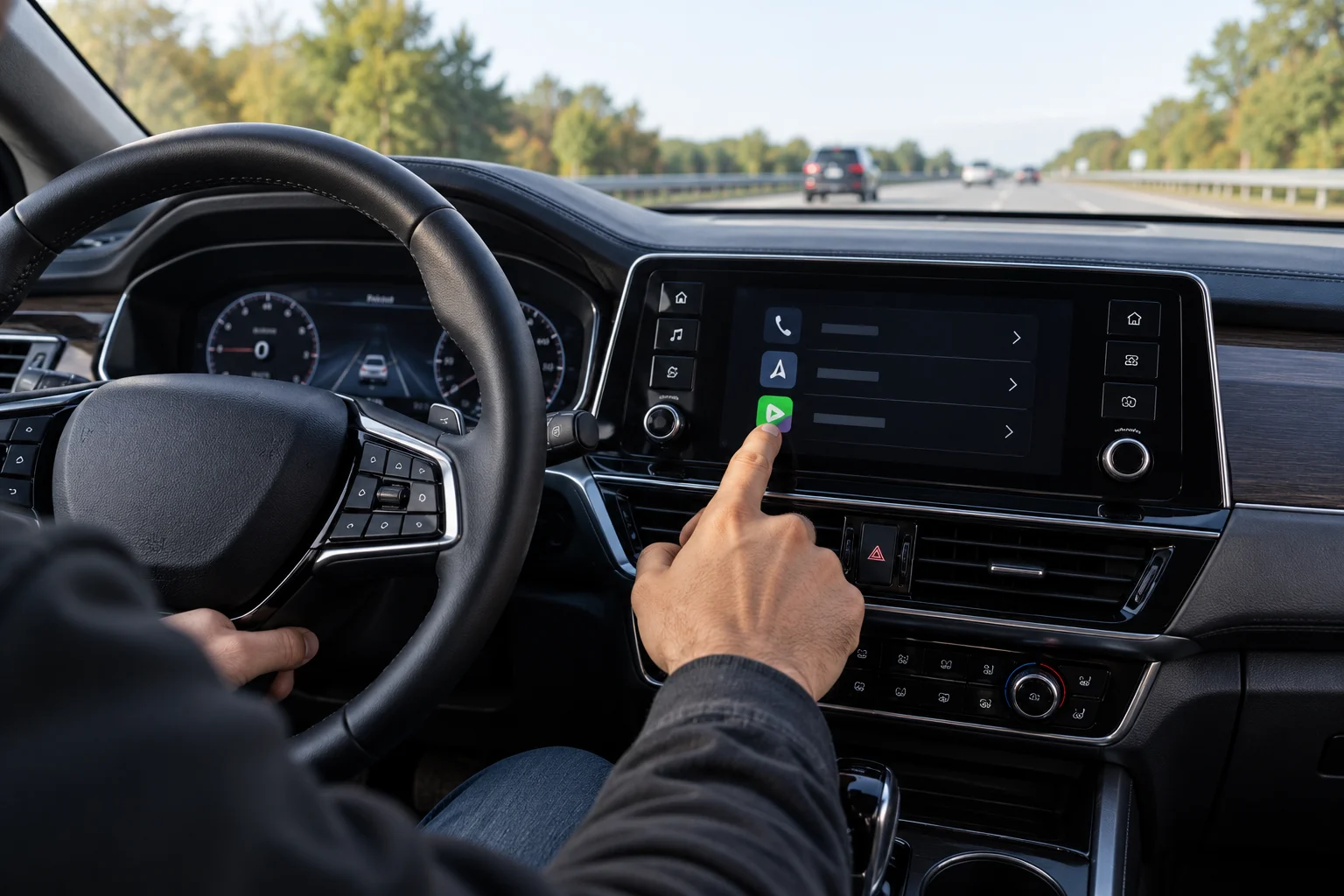
This can happen after switching between phones, changing connection methods or restarting the vehicle's infotainment system.
If CarPlay consistently requires manual activation, check the vehicle's infotainment settings and its owner's manual for connection preferences.
Siri Is Off
Siri needs to be enabled for CarPlay.
Check:
Settings → Siri
or, depending on your iOS version, Settings → Apple Intelligence & Siri
Make sure Siri is enabled and configured to respond to your voice.
Apple includes turning Siri on among its recommended CarPlay troubleshooting steps.
This is easy to overlook because CarPlay is primarily a display and connectivity feature, while Siri handles many of the voice interactions you use while driving.
CarPlay Is Restricted on Your iPhone
If CarPlay has disappeared or won't launch even though the connection seems fine, check whether it has been restricted by Screen Time.
Go to:
Settings → Screen Time → Content & Privacy Restrictions → Allowed Apps
Make sure CarPlay is enabled.
Apple specifically recommends checking this setting when an iPhone isn't detected by CarPlay.
This is particularly worth checking if CarPlay worked previously but stopped after changing Screen Time settings.
Forget Your Car and Set Up CarPlay Again
If the basic connection checks haven't solved the problem, remove the existing CarPlay pairing and create it again.
On your iPhone, go to:
Settings → General → CarPlay
Select your vehicle and choose Forget This Car.
Then reconnect the iPhone using your car's normal CarPlay setup process.
Apple recommends forgetting the vehicle and setting up CarPlay again as one of its troubleshooting steps.
This can help when the stored connection configuration has become corrupted or the phone and vehicle are no longer negotiating the connection correctly.
Restart Both Your iPhone and Car
It sounds basic, but restarting both sides can clear temporary connection problems.
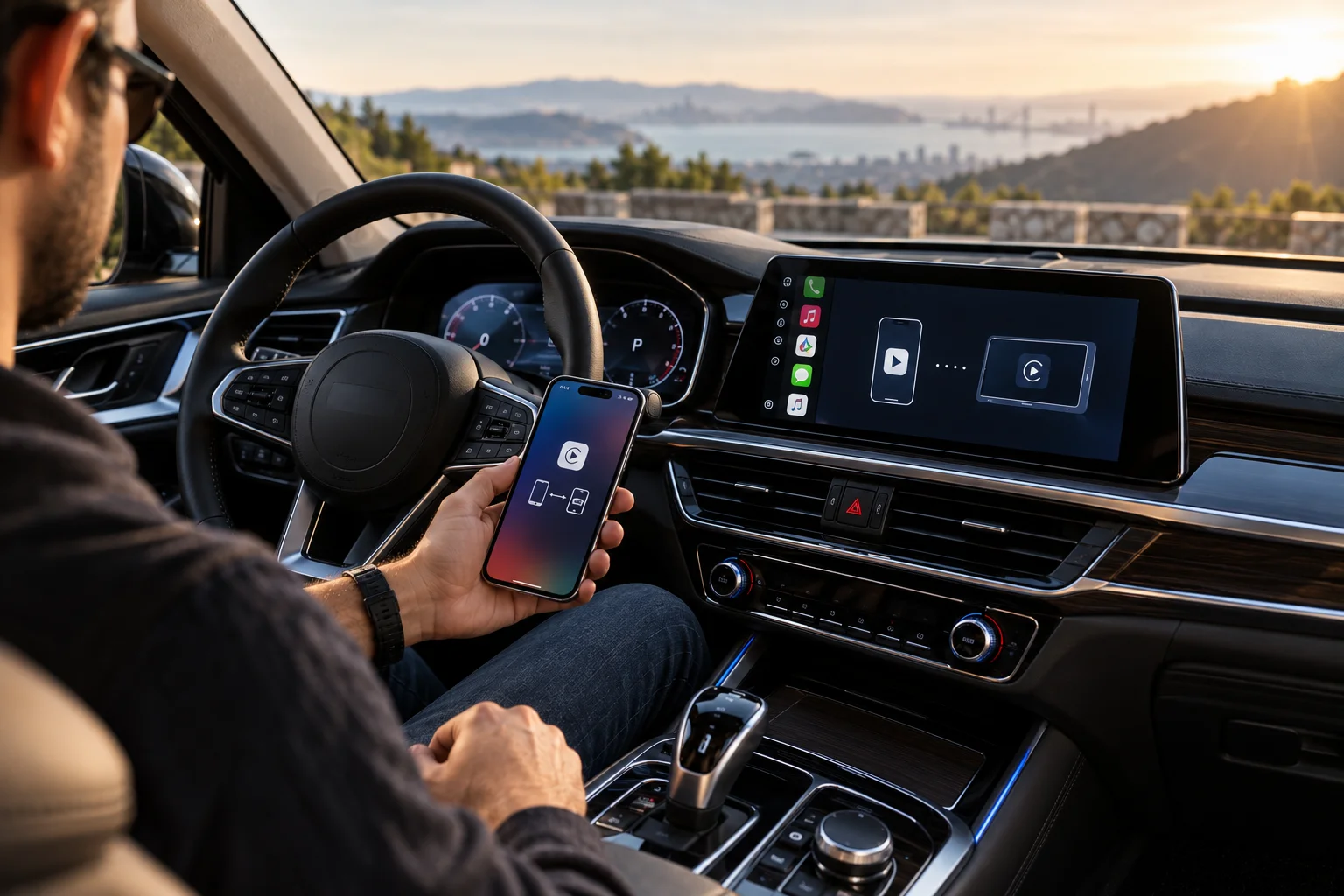
Turn off or restart your iPhone, then restart the vehicle's infotainment system according to the manufacturer's instructions.
Apple specifically includes restarting both the iPhone and car in its CarPlay troubleshooting sequence.
This is especially useful after an iOS update, infotainment-system update or failed wireless pairing attempt.
Check for an iOS or Car Software Update
An outdated iPhone or vehicle infotainment system can cause compatibility problems.
Apple recommends using the latest version of iOS and checking whether the car's stereo has a firmware update available from the vehicle manufacturer.
For the car, don't assume the infotainment system updates itself. Some manufacturers provide over-the-air updates, while others require a dealer visit or a USB-based update.
Check your vehicle manufacturer's instructions before installing firmware.
CarPlay Works but a Particular App Doesn't
If CarPlay itself works but Spotify, a podcast app, navigation app or another third-party application doesn't behave correctly, the problem may be with that app rather than CarPlay.
Apple recommends contacting the app developer when the problem is limited to a third-party app.
First try another CarPlay-supported app. For example, if music from one application doesn't play, test another audio app.
If the second app works normally, you've narrowed the problem considerably.
When Should You Suspect the Car's Infotainment System?
If you've tried a different cable, USB port, iPhone restart, CarPlay reset and software updates, the vehicle itself may be the problem.
Signs include:
CarPlay doesn't work with multiple compatible iPhones.
The infotainment system frequently freezes or restarts.
Other USB data functions also fail.
Wireless pairing repeatedly fails.
The CarPlay option disappears from the vehicle's settings.
The manufacturer has released a firmware update addressing connectivity problems.
If multiple iPhones fail to connect, testing another phone can be particularly useful because it helps separate an iPhone-specific problem from a vehicle-side problem.
Apple CarPlay Troubleshooting Checklist
Problem | First thing to try |
|---|---|
Wired CarPlay doesn't connect | Try another cable and USB port |
iPhone charges but CarPlay doesn't | Check whether the USB port supports data/CarPlay |
Wireless CarPlay won't connect | Turn on Bluetooth and Wi-Fi |
CarPlay doesn't launch | Select the CarPlay logo manually |
Siri doesn't respond | Make sure Siri is enabled |
CarPlay disappeared | Check Screen Time restrictions |
Previously paired car won't reconnect | Forget the car and pair again |
CarPlay suddenly stopped | Restart iPhone and vehicle |
Only one app fails | Test another CarPlay app |
Nothing works | Update iOS and vehicle firmware |
FAQs About Apple CarPlay Problems
Why does my iPhone connect to Bluetooth but not CarPlay?
Bluetooth pairing alone doesn't guarantee CarPlay will work. Wireless CarPlay also relies on Wi-Fi and the vehicle's CarPlay configuration. Check that Wi-Fi is enabled and that the CarPlay network can Auto-Join.
Why isn't CarPlay showing up on my car screen?
Make sure the car supports CarPlay, Siri is enabled, and the iPhone is properly connected. If it doesn't appear automatically, select the CarPlay logo on the vehicle display.
Can a bad USB cable cause CarPlay to stop working?
Yes. A cable can still charge an iPhone while failing to establish a reliable data connection. Apple recommends trying another cable and USB port when wired CarPlay doesn't work.
Should I reset my iPhone if CarPlay isn't working?
Usually, no. Try the connection, Siri, restrictions, restart and CarPlay pairing checks first. A full iPhone reset shouldn't be the first troubleshooting step.
The Bottom Line
When Apple CarPlay isn't working, don't immediately assume your iPhone or car has a serious fault.
Start with the simplest possibilities:
Cable → USB port → Bluetooth/Wi-Fi → Siri → CarPlay restrictions → restart → forget and reconnect → software updates.
For wired CarPlay, the cable and USB port deserve particular attention. For wireless CarPlay, Bluetooth, Wi-Fi and the saved CarPlay connection are the key places to look.
If you've worked through Apple's recommended troubleshooting steps and CarPlay still fails, test another compatible iPhone if possible. That single test can help determine whether you're dealing with an iPhone problem or something inside the vehicle's infotainment system.