A video editor can have a powerful CPU, a modern GPU and plenty of RAM and still take surprisingly long to export a project. That's because video editing isn't one workload.
Decoding the source footage, applying effects, scaling frames, running AI tools, compositing layers and encoding the final file can all use different parts of a computer.
That's where hardware-accelerated video editing becomes important.
Modern PCs and Macs can include dedicated media engines for video encoding and decoding. NVIDIA GPUs use NVENC and NVDEC, Intel processors and GPUs can use Quick Sync/media engines, AMD Radeon hardware includes dedicated video capabilities, and Apple's VideoToolbox provides access to hardware-accelerated encoding and decoding.
The result can be dramatically faster playback and exports, but only when the editing application, codec, hardware and project are compatible.
And there's another layer: NPUs.
NPUs are designed primarily for AI workloads, so they're increasingly useful for transcription, object recognition, noise reduction and other intelligent editing features. They don't simply make every H.264 or HEVC export faster.
What Does Hardware Acceleration Mean in Video Editing?
Hardware acceleration means moving specific video-processing tasks from general-purpose CPU software processing to specialized hardware that can perform those operations more efficiently.
A traditional software workflow might rely heavily on CPU cores to decode footage, process frames and encode the final video.
A modern system can divide the workload.
For example:
CPU → application logic and general processing
GPU compute → effects, compositing, color and certain processing
Media engine → video encode/decode
NPU → selected AI workloads
This division is important because a dedicated video encoder doesn't need to behave like a conventional CPU core or GPU shader.
NVIDIA, for example, describes NVENC as a hardware-based encoder separate from CUDA cores, while NVDEC handles hardware video decoding.
That means a GPU can be rendering an effect while a separate media engine handles the final H.264, HEVC or AV1 encoding.
What Actually Happens During a Video Export?
A video export is a pipeline of multiple operations, and the slowest important stage can determine the overall export time.
A simplified workflow looks like this:
Source footage
↓
Video decoding
↓
Timeline processing
↓
Effects and compositing
↓
Color processing
↓
AI or other specialized effects
↓
Scaling and frame conversion
↓
Video encoding
↓
File writing
Not every project uses every stage heavily.
A simple cut of two H.264 clips may spend much of its time decoding and encoding.
A complicated 4K project with noise reduction, stabilization, motion graphics and multiple effects may put substantially more pressure on the GPU and CPU.
That's why two computers with similar advertised specifications can produce very different export times.
What Does the GPU Actually Do in Video Editing?
The GPU is most useful when the editing application can parallelize demanding image-processing work across many compute units.
Typical GPU-accelerated tasks can include:
Color grading
Blur and sharpening
Noise reduction
Scaling
Compositing
Motion effects
Transitions
AI-assisted effects
3D graphics
Some rendering operations
The GPU can process many operations simultaneously, making it particularly effective for workloads involving large numbers of pixels.
AMD, for example, describes Radeon GPUs as accelerating playback, rendering and color grading in applications such as DaVinci Resolve and Premiere Pro.
But there's an important limitation.
A faster GPU doesn't automatically mean a proportionally faster H.264 export.
If the export is primarily limited by the dedicated encoder, storage or CPU processing, adding more GPU compute power may have relatively little effect.
What Are NVENC, Quick Sync and Other Video Engines?
These are specialized hardware blocks designed specifically to encode and decode video formats efficiently.
NVIDIA's NVENC handles hardware video encoding, while NVDEC handles decoding. Current NVIDIA documentation lists hardware support for codecs including H.264, HEVC and AV1, with capabilities varying by GPU generation.
Intel's media engines, commonly associated with Quick Sync Video, provide hardware-accelerated encoding and decoding independently of the main GPU compute engines. Intel notes that its media hardware can also handle functions such as scaling and format conversion.
Apple takes a similar approach through VideoToolbox, which provides applications with access to hardware-accelerated video encoding and decoding on supported Apple hardware.
These technologies are why a relatively thin laptop can sometimes export video much faster than its CPU specifications alone would suggest.
What Does the NPU Do in Video Editing?
The NPU is primarily useful for AI-powered editing features rather than conventional video encoding.
An NPU, or Neural Processing Unit, is designed to execute certain machine-learning operations efficiently.
In a video editor, that can mean workloads such as:
Speech transcription
Voice isolation
Object detection
Subject segmentation
Automatic reframing
Facial recognition
Generative or AI-assisted effects
Image enhancement
Scene analysis
The exact features depend on the application.
This creates an important distinction:
GPU acceleration can directly affect many visual processing tasks.
Dedicated media engines can directly accelerate video encoding and decoding.
NPU acceleration can speed compatible AI operations.
A computer with a powerful NPU isn't automatically going to encode a 4K H.264 file faster than a computer with a weaker NPU.
Does the Codec Affect Export Speed?
Yes. The codec you choose can substantially change both encoding workload and file size.
Common video codecs include:
Codec | Typical characteristic | Hardware support |
|---|---|---|
H.264/AVC | Extremely widespread compatibility | Very broad |
H.265/HEVC | Better compression than H.264 | Broad modern support |
AV1 | Strong compression efficiency | Increasing hardware support |
ProRes | Editing-oriented, high data rate | Strong support on Apple and professional hardware |
VP9 | Common in web/video ecosystems | Hardware support varies |
NVIDIA's current Video Codec SDK supports hardware encoding for H.264, HEVC and AV1 on supported GPUs.
AMD's current Radeon software documentation likewise lists hardware acceleration for AVC, HEVC and AV1 on supported graphics hardware, with specific capabilities varying by generation.
The practical consequence is simple:
A codec with hardware encoding support can export very differently from one that has to be processed primarily in software.
Why Can AV1 Be Slower Than H.264?
AV1 can require more computational work, particularly when hardware acceleration isn't available or when using demanding quality settings.
AV1 was designed to achieve high compression efficiency, which can reduce file size for a given quality level.
But encoding efficiency and encoding speed are different things.
A CPU-based AV1 encoder can be extremely computationally demanding.
A modern GPU with a dedicated AV1 encoder changes the equation considerably.
NVIDIA says its current NVENC hardware supports AV1 encoding, while its Blackwell generation adds further professional video capabilities.
So when comparing export times, always ask:
Which codec?
Which encoder?
Hardware or software encoding?
Which quality preset?
Without those details, an export-time comparison isn't very meaningful.
Why Does Hardware Decoding Matter Before You Even Export?
Hardware decoding can make editing itself smoother by reducing the CPU workload required to turn compressed footage into editable frames.
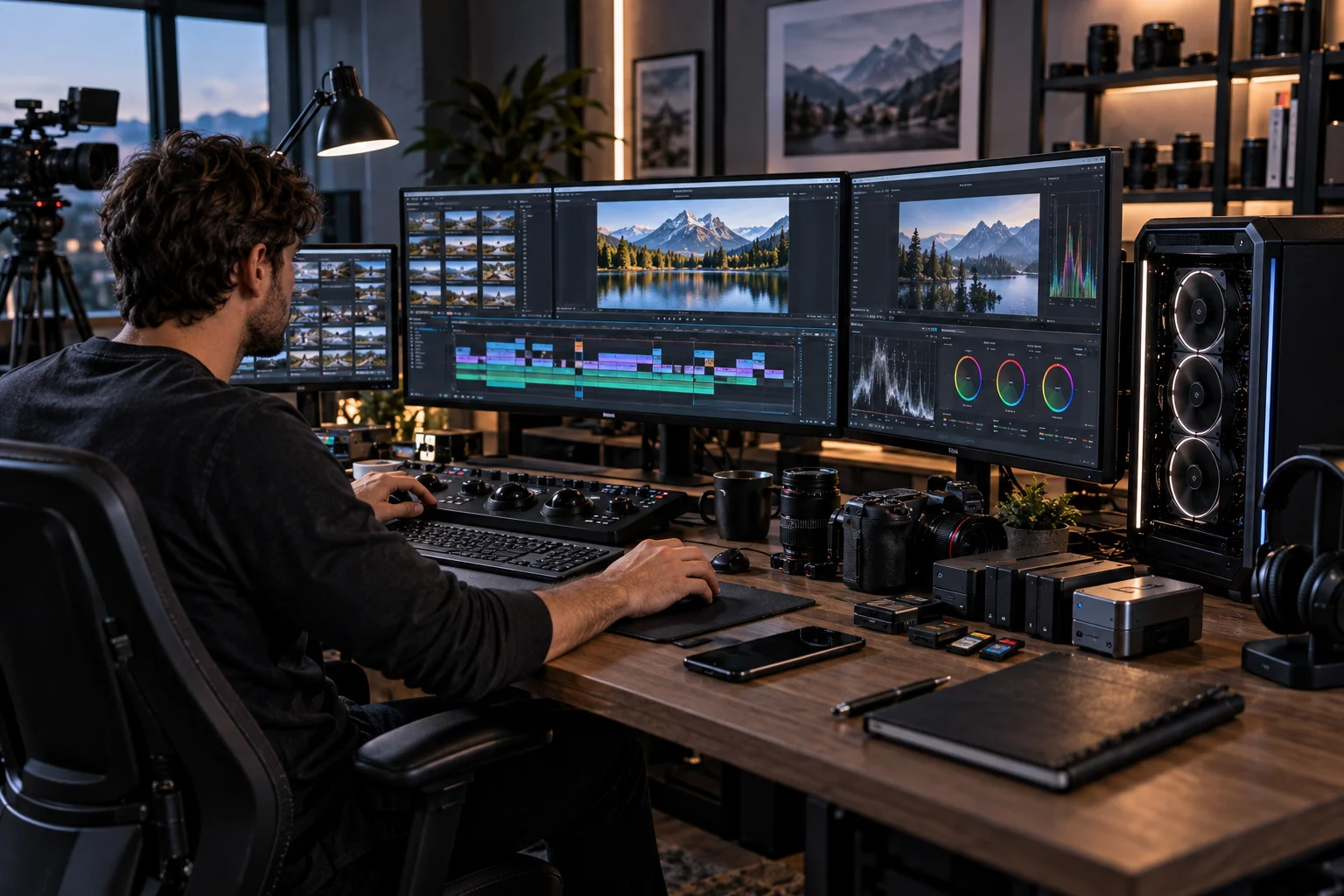
Suppose you're editing 4K HEVC footage.
Before your editor can apply an effect, it needs to decode the compressed video.
If the CPU does most of that work, playback can become difficult, particularly with multiple streams.
A compatible hardware decoder can perform that work much more efficiently.
NVIDIA's NVDEC, Intel media engines and Apple's VideoToolbox all provide hardware decoding capabilities for supported formats.
This can affect:
Timeline responsiveness
Scrubbing
Multi-camera playback
CPU utilization
Battery consumption
Real-time preview performance
In other words, hardware acceleration can improve the editing experience even before the final export begins.
Why Doesn't Every Export Become Faster With a Better GPU?
Because video exports are often limited by the least-accelerated part of the workflow.
Imagine a project where:
Decoding is hardware accelerated.
Most effects are GPU accelerated.
AI segmentation uses an NPU.
Final H.264 encoding uses a dedicated media engine.
That's a highly accelerated pipeline.
Now imagine a project where:
The source codec isn't hardware decoded.
A particular effect is CPU-only.
AI processing isn't supported on the NPU.
The final codec doesn't use hardware encoding.
The same computer could suddenly behave very differently.
This is why benchmark results from one editing application shouldn't automatically be applied to another.
Apple's VideoToolbox documentation, for example, explicitly exposes whether hardware acceleration is available for a particular codec and whether a hardware decoder or encoder is being used.
CPU vs GPU vs NPU vs Media Engine for Video Editing
The fastest editing computer isn't necessarily the one with the strongest single processor; it is the one whose hardware matches the software's workload.
Hardware | Best suited to | Effect on video workflow |
|---|---|---|
CPU | General processing, effects without GPU support, application logic | Important everywhere |
GPU compute | Effects, color, compositing, rendering, AI workloads | Major for complex projects |
Media encoder | H.264, HEVC, AV1 and other supported codecs | Can dramatically accelerate export |
Media decoder | H.264, HEVC, AV1 and other supported codecs | Improves playback and scrubbing |
NPU | AI inference | Speeds supported AI features |
RAM | Frames, applications and large projects | Helps avoid memory bottlenecks |
SSD | Media access and caching | Important for large/high-bitrate projects |
This is why buying a computer for video editing based only on CPU core count can be misleading.
What Matters More for 4K and 8K Editing?
For high-resolution editing, the combination of GPU memory, media-engine support, storage speed, CPU performance and software compatibility matters more than any single specification.
4K video contains four times as many pixels as 1080p.
8K contains four times as many pixels as 4K.
That increases the amount of data the system has to decode, process and move.
A suitable GPU can help with effects and timeline processing, while hardware decoding can prevent the CPU from becoming overwhelmed by compressed footage.
For professional workflows, codec support becomes particularly important.
For example, NVIDIA's current Blackwell video hardware supports additional 4:2:2 decode/encode capabilities for certain workflows, while AMD and Intel offer different codec and format combinations across their respective generations.
The exact footage format matters enormously.
Why Do Some Export Settings Take Much Longer?
Export quality settings can change the amount of work required even when the resolution and codec remain the same.

A higher-quality encoding mode can require more analysis of each frame.
Other factors include:
Bitrate
Constant vs variable bitrate
Encoding preset
Two-pass encoding
Frame rate
Resolution
Chroma subsampling
Bit depth
HDR
B-frames
GOP structure
Noise reduction
AI effects
Apple's VideoToolbox documentation exposes controls for things such as keyframe intervals, frame reordering and temporal compression, illustrating how encoding decisions affect the final compression process.
So “4K H.265 export” isn't a sufficiently detailed benchmark description.
The exact encoding settings matter.
How Should You Choose a Laptop or PC for Video Editing?
Choose hardware around your actual footage and editing software rather than buying the largest CPU or GPU you can afford.
For a modern editing system, check:
1. Your source codecs
Know whether you shoot H.264, HEVC, AV1, ProRes or another format.
2. Hardware decode support
This can have a major effect on timeline performance.
3. Hardware encode support
Check whether your target export codec is accelerated.
4. GPU performance
Important for effects, color grading, compositing and supported AI tasks.
5. VRAM or unified memory
Large projects and high-resolution effects can require substantial memory.
6. NPU capability
Useful when your editing software actually supports NPU-accelerated AI features.
7. SSD performance and capacity
Video files can become enormous, particularly with high-bitrate production codecs.
8. Software compatibility
Premiere Pro, DaVinci Resolve, Final Cut Pro and other applications don't necessarily use hardware in exactly the same way.
How Can You Tell What Is Actually Limiting Your Export?
Monitor CPU, GPU, memory, media-engine and storage utilization during an export rather than guessing from specifications.
If CPU utilization is near its limit while GPU utilization remains low, the workload may be CPU-heavy.
If GPU utilization is high during effects processing, a stronger GPU may help.
If a dedicated video encoder is busy, upgrading GPU compute cores may not produce the expected improvement because the media engine is already doing the encoding work.
If storage utilization is consistently saturated, faster or better-configured storage may matter more.
The goal is to identify the bottleneck rather than simply buying more hardware.
Frequently Asked Questions About Hardware-Accelerated Video Editing
Does a GPU make video exports faster?
Often, yes, but it depends on the editing software, effects and encoding pipeline. A GPU can accelerate effects and rendering, while dedicated hardware encoders can accelerate supported codecs.
Is GPU encoding faster than CPU encoding?
Hardware encoding can be substantially faster for supported codecs and settings, but CPU encoding can sometimes provide different quality, compression or feature characteristics. The comparison depends on the encoder and settings.
Does an NPU speed up video rendering?
An NPU can accelerate supported AI features, but it isn't a general-purpose replacement for the GPU or dedicated video encoder.
Is NVIDIA better for video editing because of NVENC?
NVENC is a major advantage for supported hardware-encoding workflows, but overall editing performance also depends on GPU compute, VRAM, CPU performance, application support and the specific codecs and effects in your project. NVIDIA provides dedicated hardware encoding and decoding through NVENC and NVDEC.
Does Intel Quick Sync still matter for video editing?
Yes. Intel's media engines provide dedicated hardware video encode/decode capabilities, and supported configurations can process video independently of the main GPU compute engines.
Do MacBooks have hardware video acceleration?
Yes. Apple provides hardware-accelerated video encoding and decoding through VideoToolbox on supported hardware, and Apple platforms provide hardware decoding for formats such as H.264 and HEVC.
Why is my video export still slow with a powerful GPU?
The bottleneck may be CPU-only effects, unsupported codecs, software encoding, storage, AI processing, memory constraints or an editing application that isn't fully using the available hardware.
The Bottom Line
Hardware-accelerated video editing is about matching the right processor to the right stage of the video pipeline.
The CPU remains important for general processing. The GPU handles many effects, compositing and rendering workloads. Dedicated media engines such as NVENC/NVDEC, Intel media engines and Apple's VideoToolbox accelerate compatible video encoding and decoding. NPUs increasingly handle AI-specific workloads.
The codec matters just as much.
A computer with excellent AV1 hardware can behave very differently when exporting AV1 than when exporting a format that falls back to software encoding. Likewise, a powerful GPU won't necessarily shorten an export if the dedicated encoder or a CPU-only effect is the bottleneck.
So when comparing editing systems, don't ask only:
“Which computer has the fastest GPU?”
Ask:
“Can its hardware decode my source footage, accelerate my effects, run my AI tools and encode my chosen delivery codec efficiently?”
That's the difference between buying impressive specifications and buying a machine that actually makes your editing workflow faster.