Social media video has changed dramatically.
A creator can record a clip on a phone in the morning, edit it during a lunch break, add captions, resize it for different platforms and publish it the same day.
But creating consistently good content requires more than a camera.
The editing software you choose can affect how quickly you work, how polished your videos look, how easily you can reuse content and how much time you spend on repetitive tasks.
That makes choosing the right Video Editing software an important part of a modern creator workflow.
In 2026, creators have more options than ever. There are professional desktop applications, mobile first editors, browser based platforms and AI assisted tools designed specifically around short form content.
Some are ideal for quick TikTok and Instagram edits. Others are better for YouTube creators producing longer videos that can later be turned into Shorts or Reels.
The best choice depends on the type of content you create, the devices you use and how much control you want over the final result.
What Should Social Media Creators Look for in Video Editing Software?
Social media editing has different requirements from traditional filmmaking.
A creator may need to move quickly from raw footage to a finished post.
Important features include:
• Vertical video support
• Automatic captions
• Fast trimming
• Multiple aspect ratios
• Music and sound tools
• Text and title animation
• Templates
• Background removal
• AI assisted editing
• Easy exports
• High quality audio
• Social platform compatibility
It is also useful to think about your publishing routine.
If you create five short videos every week, speed and templates may matter more than advanced color grading.
If you produce interviews, podcasts or educational videos, a professional desktop timeline may be more valuable.
Best Video Editing Software at a Glance
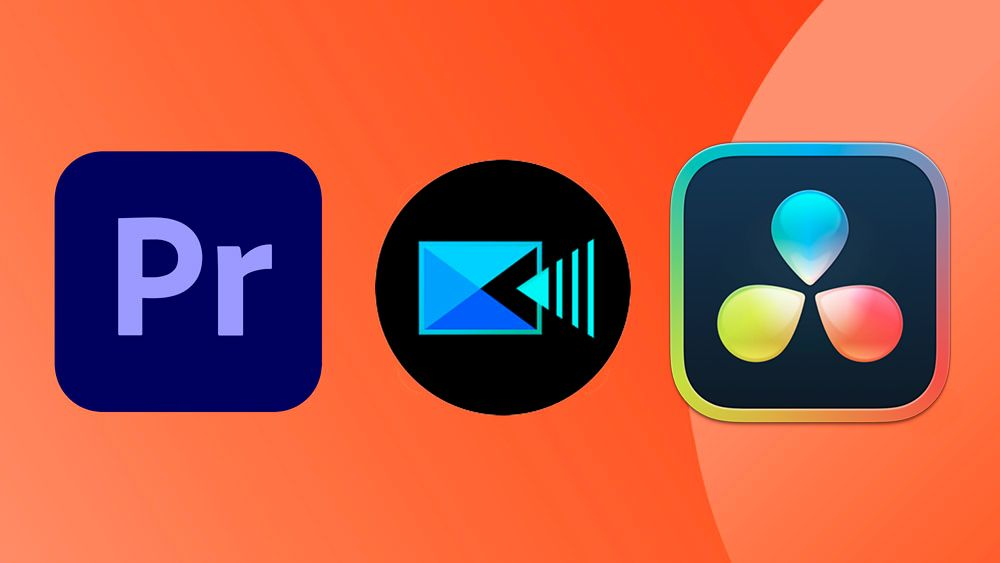
Software | Main Platform | Best For | Learning Curve |
|---|---|---|---|
CapCut | Desktop, browser and mobile | Short form social content | Low |
Adobe Premiere | Desktop and iPhone | Professional creator workflows | Moderate |
DaVinci Resolve | Desktop | Advanced editing and color | Moderate to high |
Canva | Browser and mobile | Branded social content | Low |
Adobe Premiere on iPhone | Mobile | Social first mobile editing | Low to moderate |
InShot | Mobile | Quick mobile content | Low |
These are not ranked from best to worst.
Each platform approaches Video Editing differently, so the right option depends on your workflow.
CapCut
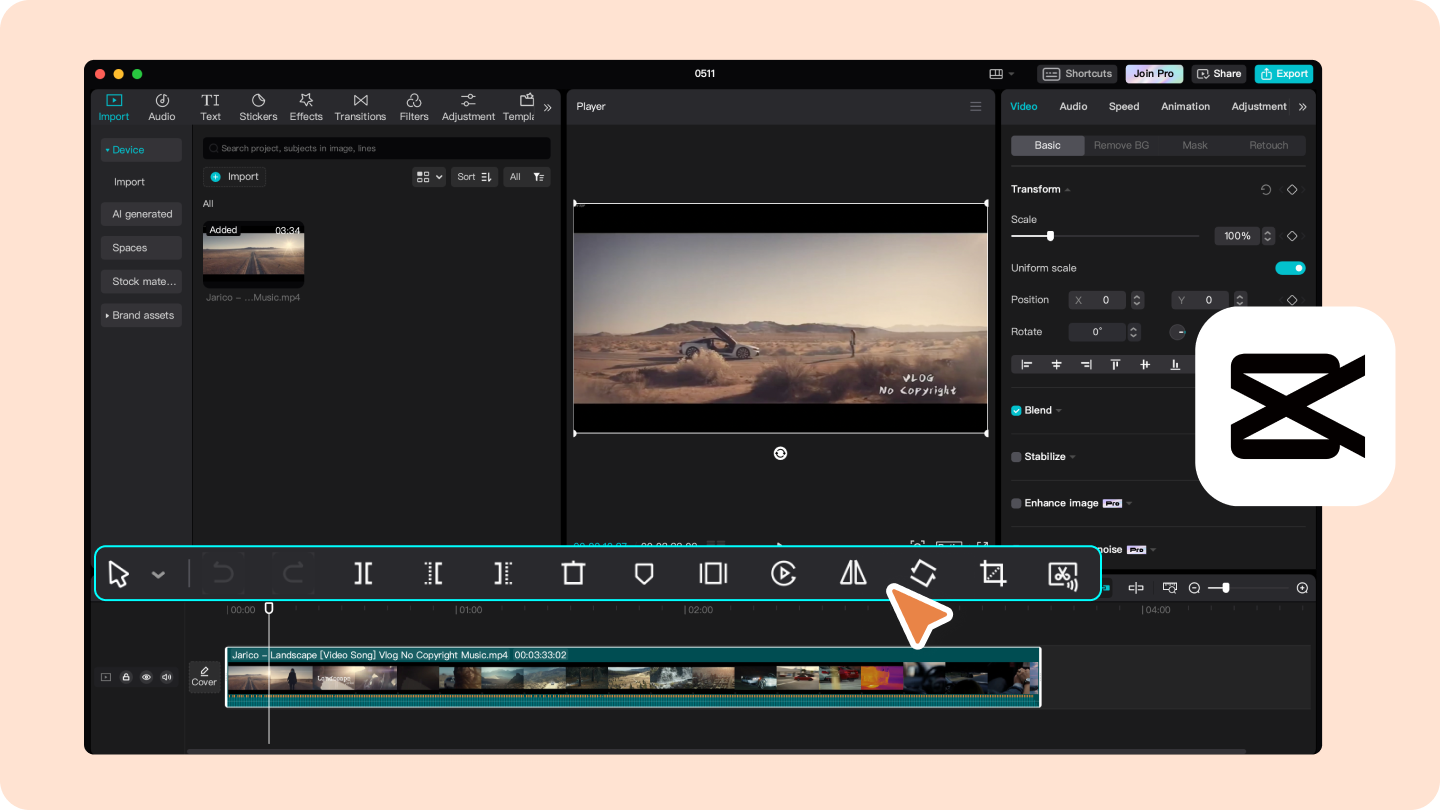
CapCut has become closely associated with short form social video.
Its workflow is designed around quick editing, effects, captions, templates and other tools that can help creators turn raw footage into social content.
CapCut describes its editor as beginner friendly, with drag and drop editing, templates, filters, transitions, music and AI powered features such as automatic captions and text to speech.
The platform is also available across different environments, which can be useful for creators who move between mobile and desktop workflows.
CapCut's own 2026 trend guidance highlights formats such as short form storytelling, beat synced edits, AI powered templates, cinematic edits and fast paced social content.
Best for: TikTok videos, Instagram Reels, YouTube Shorts, quick edits and creators who prioritize speed.
Adobe Premiere
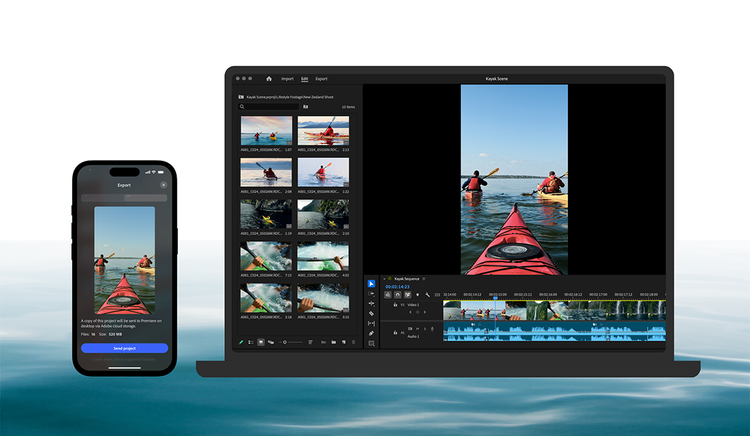
Adobe Premiere provides a much more extensive editing environment for creators who want professional control.
It supports detailed timeline editing, audio, captions, effects, color workflows and social publishing tools.
Adobe's current Premiere features include Auto Reframe for adapting videos to different aspect ratios, direct social publishing and integrations designed to support collaborative workflows.
Its AI features can also help with tasks such as transcription, caption translation, audio organization, reframing and other repetitive editing work. Adobe currently highlights AI features including Object Mask, Generative Extend, text based editing and caption translation.
For a creator building a serious content business, this broader workflow can be valuable.
You can produce a long YouTube video, create short clips from it, adapt the aspect ratio and prepare multiple versions without moving everything into a completely different editing environment.
Best for: Professional creators, YouTubers, agencies and creators who want detailed control.
Adobe Premiere on iPhone
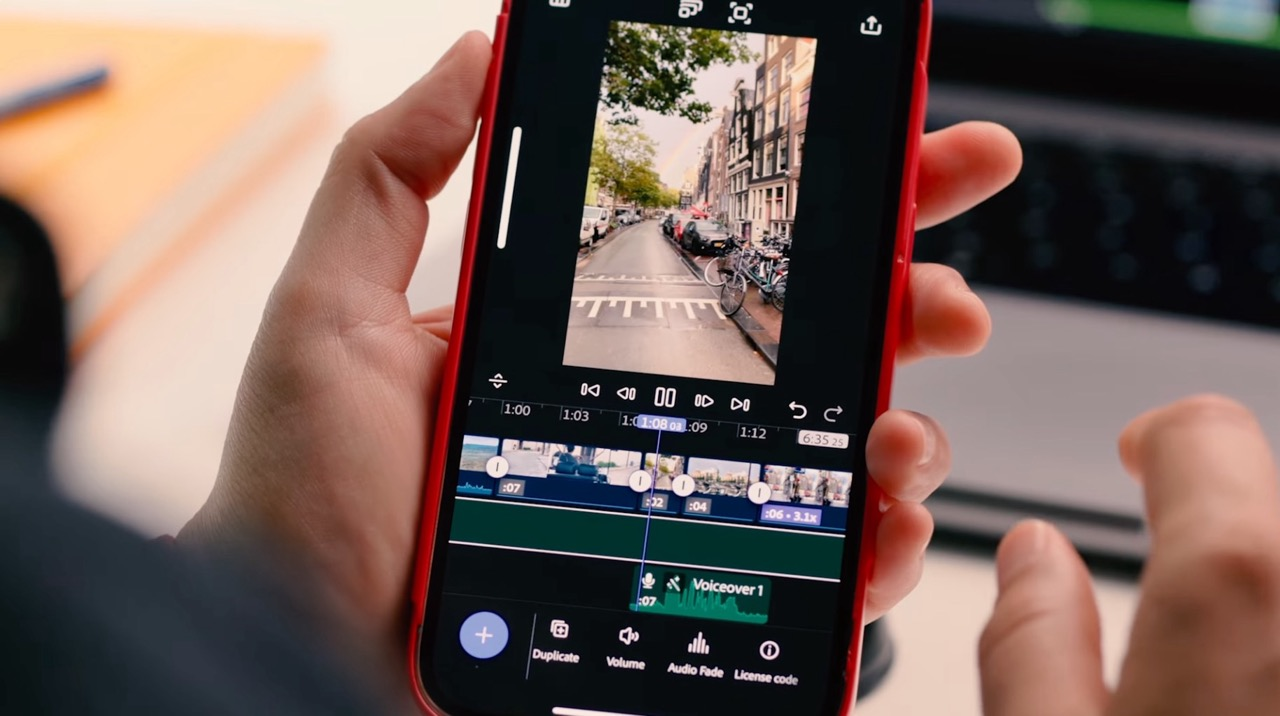
Adobe's mobile Premiere application brings a more advanced editing approach to the smartphone.
Adobe describes Premiere on iPhone as a free mobile video editing application with a multi track timeline, unlimited tracks, captions, effects and tools designed specifically for social content.
It is particularly interesting for creators who want to record and edit on the same device without giving up timeline control.
The application also includes features for YouTube Shorts, including templates, effects, transitions and title presets.
Adobe has continued adding mobile features during 2026. Recent updates include Speed Curves, improved background removal, audio keyframes, stabilization, Auto Reframe and Beat Detection.
Adobe currently lists the mobile Premiere application as available on iPhone, with Android availability still being developed.
Best for: iPhone creators who want social first editing with a more professional timeline.
DaVinci Resolve
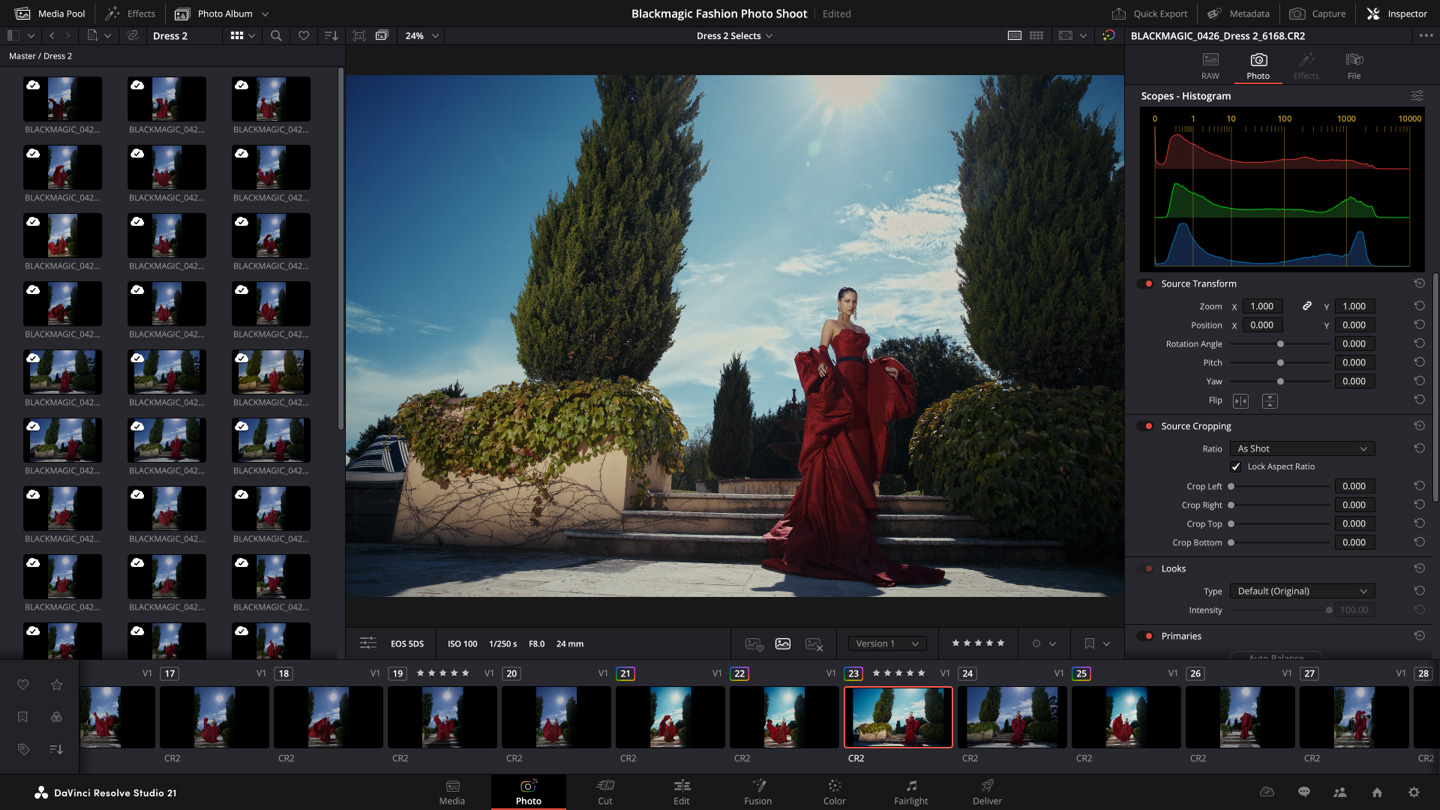
DaVinci Resolve is traditionally associated with professional video production and color grading, but it is also increasingly useful for social creators who want more control.
Blackmagic Design's current Resolve updates include dedicated vertical and square resolutions for platforms such as TikTok, Instagram, X, YouTube Shorts and Snapchat.
Resolve also supports Smart Reframe and direct uploads to services including YouTube, TikTok, Vimeo and X.
This makes Resolve more relevant to social media creators than its professional reputation might initially suggest.
The biggest consideration is complexity.
Someone creating a fifteen second Reel may not need the depth of Resolve.
A creator producing long form YouTube videos, podcasts, interviews and cinematic social clips may appreciate having more advanced tools available.
Best for: Advanced creators who want professional editing, color and audio control.
Canva
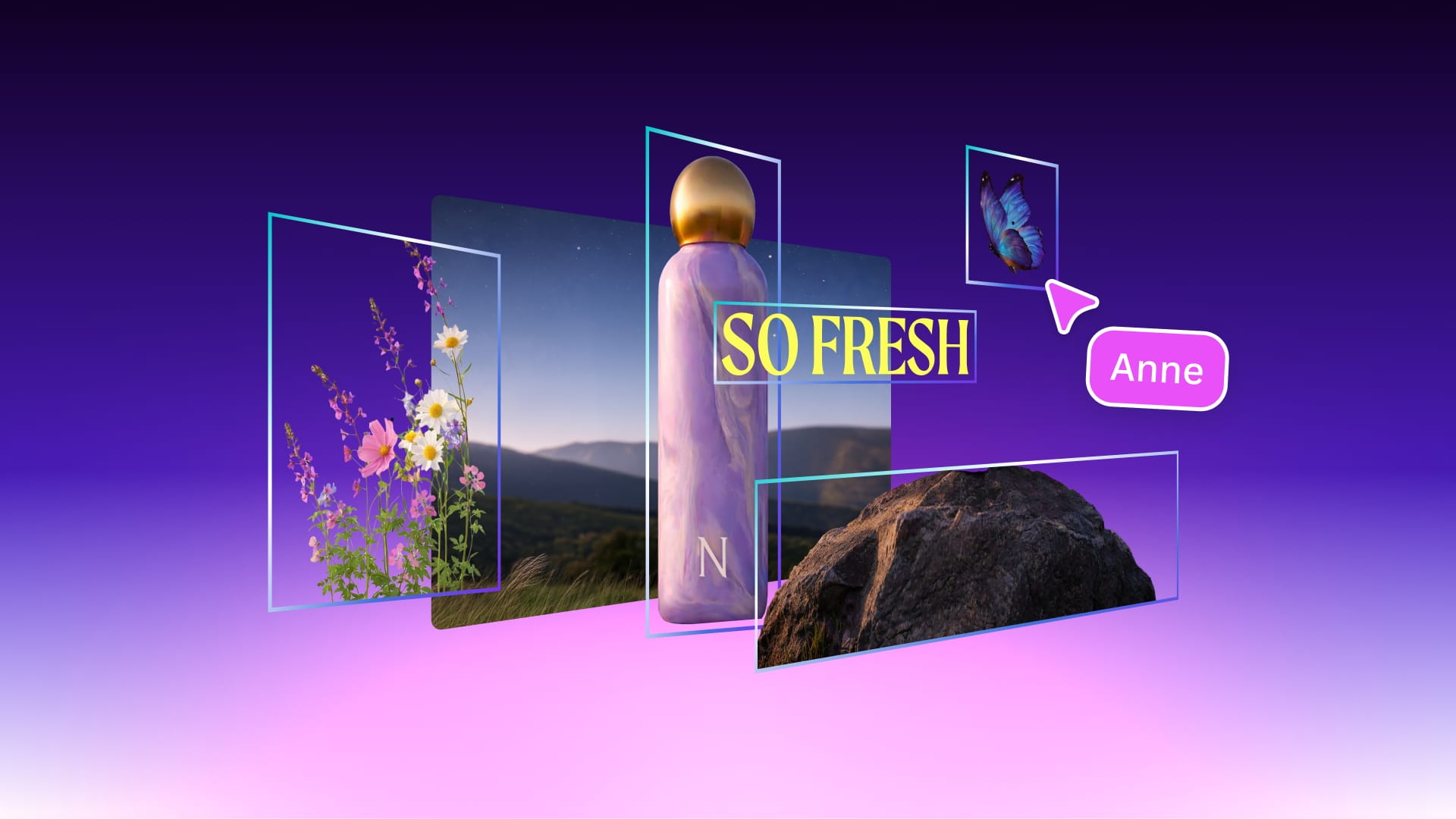
Canva approaches Video Editing from a design perspective.
That makes it particularly useful for creators and businesses that rely heavily on branded visuals.
You can combine video footage with:
• Logos
• Fonts
• Graphics
• Animated text
• Templates
• Brand elements
• Promotional information
This can make Canva useful for social media managers, small businesses, marketers and creators who want their video content to match an established visual identity.
It is not necessarily the first choice for complex filmmaking, but that is not its primary purpose.
Best for: Branded social content, promotional videos, marketers and small businesses.
InShot
InShot focuses heavily on mobile convenience.
Its appeal comes from being relatively straightforward for creators who want to edit videos directly on their phone.
Typical uses include:
• Instagram Reels
• Short tutorials
• Travel videos
• Personal content
• Product clips
• Simple promotional videos
For creators who do not need a complex desktop timeline, this can make the editing process faster.
The tradeoff is that advanced projects with many layers, complex sound design or extensive color work may eventually benefit from desktop software.
Best for: Beginners and mobile creators who want fast editing.
Why Vertical Video Matters in 2026
Vertical video is no longer a niche format.
It is a central part of social content across platforms such as Instagram, TikTok and YouTube Shorts.
That means creators should think about the final format before they start editing.
A landscape video can sometimes be converted into vertical content, but framing matters.
A person standing in the center of the frame may work well.
A wide group shot may not.
Modern Video Editing tools increasingly include features designed to make this conversion easier.
Adobe Premiere offers Auto Reframe, while DaVinci Resolve provides vertical and square project resolutions alongside Smart Reframe.
AI Video Editing in 2026
AI has become one of the biggest changes in Video Editing.
Instead of manually performing every repetitive action, creators can increasingly use AI for tasks such as:
• Captions
• Transcription
• Background removal
• Audio enhancement
• Scene organization
• Reframing
• Beat detection
• Generative visuals
• Voice and sound tools
• Translation
Adobe's current Premiere AI features include Object Mask, Generative Extend, text based editing, AI audio features and automatic caption translation.
CapCut also highlights AI video creation, automatic captions, text to speech and other AI powered editing features.
The important point is that AI should reduce repetitive work rather than replace creative judgment.
A creator still needs to decide which moments matter, what story the video tells and whether the final edit feels authentic.
Automatic Captions
Captions have become an important part of social video editing.
Many people watch social content without sound, while captions can also make videos more accessible.
Automatic captioning can save significant time because creators no longer need to type every line manually.
Adobe Premiere on mobile currently offers unlimited auto captions, while its desktop AI tools include caption translation into multiple languages.
Regardless of the software, captions should always be reviewed.
Names, technical terms and accents can cause transcription errors.
A small mistake can change the meaning of an entire sentence.
Audio Editing for Social Creators
Great visuals cannot compensate for poor audio.
Background noise, inconsistent volume and unclear dialogue can make a video difficult to watch.
Modern Video Editing software increasingly provides audio enhancement tools.
Adobe Premiere on mobile includes AI powered audio features designed to improve dialogue and reduce background noise.
Desktop Premiere also uses AI to identify audio categories and streamline audio workflows.
Creators should learn a few basic audio principles:
Keep dialogue clear.
Avoid sudden volume changes.
Reduce distracting background noise.
Keep music underneath speech.
Listen to the final export before publishing.
Good audio often makes a simple video feel considerably more polished.
Video Editing for YouTube Shorts
Shorts require a different editing rhythm from long form YouTube videos.
The opening moments matter.
Creators need to establish context quickly and avoid unnecessary pauses.
Adobe Premiere on iPhone currently provides a dedicated YouTube Shorts editing area with templates, effects, transitions and title presets.
Desktop tools such as Premiere and DaVinci Resolve are better suited to creators who produce long form videos and then extract Shorts from the same source material.
That creates an efficient content pipeline:
Long video
Create the main YouTube video.
Highlight
Identify the strongest moments.
Vertical edit
Reframe the selected section.
Captions
Add readable subtitles.
Short
Export the finished vertical version.
One recording can therefore produce several pieces of content.
Video Editing for Instagram Reels
Reels often benefit from fast pacing and strong visual consistency.
Creators can use templates, captions, music synchronization and text animation to establish a recognizable style.
CapCut's current tools and trend guidance are heavily oriented toward short form formats, including beat synced edits, templates and mini vlog styles.
Adobe Premiere on mobile also provides tools specifically designed for social content, including captions, effects, transitions and Auto Reframe.
For brands, Canva can be particularly useful when Reels need to follow consistent typography, colors and visual branding.
Video Editing for TikTok
TikTok creators often prioritize speed.
Trends can change quickly, so spending hours on every short video may not be practical.
This is where fast editing environments can be useful.
Templates, automatic captions, quick transitions, beat synchronization and reusable styles can reduce production time.
CapCut's 2026 guidance specifically identifies AI powered templates, beat synchronization, short form storytelling and remix culture among current editing trends.
However, creators should avoid letting templates completely determine their content style.
The strongest long term identity usually comes from a recognizable voice, visual approach and storytelling style.
Repurposing One Video Across Multiple Platforms
One of the smartest Video Editing strategies for creators is repurposing.
Instead of creating every social post from scratch, start with a larger piece of content.
For example, a ten minute tutorial might become:
• One YouTube video
• Three Shorts
• Two Instagram Reels
• Several educational clips
• A short product demonstration
• A teaser for another platform
The challenge is that each platform may require different framing, pacing and presentation.
Auto Reframe and other AI assisted tools can reduce the mechanical work of adapting footage. Adobe Premiere includes Auto Reframe, while DaVinci Resolve provides Smart Reframe and social focused resolution options.
Choosing Between Mobile and Desktop Video Editing
Mobile Editing
Best when speed and portability matter.
It works particularly well for:
• Reels
• TikTok
• Shorts
• Travel content
• Behind the scenes videos
• Quick product clips
Desktop Editing
Better suited to:
• Long YouTube videos
• Interviews
• Podcasts
• Documentary style content
• Complex multi track projects
• Advanced color correction
• Detailed audio work
You do not necessarily have to choose one.
Many serious creators use mobile editing for quick social posts and desktop software for larger productions.
Free vs Paid Video Editing Software
Free software can be enough for many social creators.
The important question is what you actually need.
Before paying for an editor, check:
• Export resolution
• Watermarks
• Available templates
• Caption features
• AI tools
• Storage
• Supported formats
• Mobile availability
• Desktop compatibility
• Commercial usage conditions
Adobe Premiere on iPhone currently provides core editing and watermark free exports without charge, while certain generative AI features use credits.
DaVinci Resolve also provides a free version alongside its paid Studio edition.
The right choice depends on your content requirements rather than whether a product is free or paid.
A Simple Social Media Video Editing Workflow
A repeatable workflow can save more time than learning dozens of advanced features.
Step One: Organize Your Footage
Keep original clips in clearly labeled folders.
Step Two: Select the Best Moments
Remove unnecessary takes before building the final edit.
Step Three: Create the Rough Cut
Arrange the strongest clips in the desired sequence.
Step Four: Improve the Pacing
Remove pauses and sections that do not contribute to the story.
Step Five: Add Captions
Use automatic captions where appropriate, then review them manually.
Step Six: Improve Audio
Make dialogue clear and control background music.
Step Seven: Add Branding
Use consistent fonts, colors and graphic elements where appropriate.
Step Eight: Reframe
Create the correct version for each platform.
Step Nine: Watch the Final Export
Check captions, audio, framing and visual quality before publishing.
Common Video Editing Mistakes Social Creators Make
Too Many Effects
Effects should support the content rather than distract from it.
Weak Opening
A long introduction can make short form content feel slow.
Poor Audio
Even attractive footage becomes difficult to watch when the dialogue is unclear.
Tiny Captions
Text should remain readable on a phone screen.
Inconsistent Branding
Using completely different styles in every video can make a creator's content less recognizable.
Overusing Templates
Templates can speed up production, but relying on them too heavily can make content feel repetitive.
Ignoring Aspect Ratio
A video designed for landscape viewing may not automatically work as a vertical post.
How AI Can Change the Creator Workflow
The biggest benefit of AI may not be generating entire videos.
It may be reducing the repetitive work surrounding video creation.
Imagine a creator recording a thirty minute interview.
AI could potentially help:
Transcribe
Turn speech into searchable text.
Identify
Find sections that appear relevant.
Edit
Create a rough sequence from selected material.
Caption
Generate subtitles.
Translate
Prepare captions for additional languages.
Reframe
Adapt the footage to different screen formats.
Enhance
Improve aspects of audio and image quality.
Adobe already offers several of these types of AI assisted workflows, including text based editing, caption translation, audio categorization, Object Mask and Auto Reframe.
This gives creators more time to concentrate on storytelling and creative decisions.
What Should Beginners Choose?
A beginner does not need the most powerful editor available.
If your main goal is short form social content, a straightforward editor such as CapCut, Canva or a mobile focused application can provide an easier starting point.
If you expect to develop more advanced editing skills, DaVinci Resolve or Adobe Premiere may provide a stronger long term environment.
If you create primarily on an iPhone, Adobe Premiere on iPhone is another option worth considering, particularly if you want a more structured multi track workflow.
Start with the software that makes you want to create.
You can always add more advanced tools later.
Final Thoughts
The best Video Editing software for social media creators in 2026 depends less on the number of features and more on the type of content you publish.
CapCut is built around fast social editing, templates and AI assisted workflows.
Adobe Premiere provides a professional environment for creators who want deeper control and a broader production workflow.
Adobe Premiere on iPhone brings multi track editing and social focused tools to mobile creators.
DaVinci Resolve provides advanced editing, color and social format support for creators who want professional capabilities.
Canva is particularly useful when video needs to work alongside branded graphic design.
InShot keeps mobile editing straightforward for creators who prioritize convenience.
The important thing is to choose a workflow you can use consistently.
A great editor does not automatically create great content.
Strong ideas, clear storytelling, good audio, thoughtful pacing and consistency still matter.
The right software simply makes it easier to turn those ideas into videos that are ready for the social platforms where your audience spends its time.
Frequently Asked Questions
What is the best Video Editing software for social media?
There is no single best option for every creator. CapCut is designed around accessible short form editing, Adobe Premiere offers a broader professional workflow, DaVinci Resolve provides advanced desktop tools, while Canva focuses heavily on design and branded content.
Which Video Editing software is best for Instagram Reels?
Mobile and social focused editors can be convenient for Reels. CapCut and Adobe Premiere on mobile both provide tools for short form vertical content, captions and effects. Adobe Premiere also includes Auto Reframe for adapting footage to different formats.
Is CapCut good for social media creators?
CapCut provides beginner friendly editing, templates, effects, transitions and AI powered features such as automatic captions and text to speech. Its tools are particularly oriented toward short form content.
Is DaVinci Resolve suitable for social media?
Yes. Although DaVinci Resolve is known for professional editing and color work, its current version includes vertical and square resolutions, Smart Reframe and direct uploads to several social platforms.
Is Adobe Premiere good for social media?
Yes. Adobe Premiere includes social focused capabilities such as Auto Reframe and direct publishing, while its AI tools can assist with captions, transcription, audio, reframing and other editing tasks.
Can I edit social videos entirely on my phone?
Yes. Mobile editors can handle many social workflows, including trimming, captions, effects, audio and vertical video. Adobe Premiere on iPhone, for example, provides a multi track timeline and social focused editing features.
Does AI replace video editors?
AI can automate or accelerate repetitive editing tasks, but creative decisions still require human input. Storytelling, pacing, visual selection and brand decisions remain important parts of the editing process.
What video format should social creators use?
Vertical video is commonly used for short form social content, but the ideal format depends on the destination platform and type of content. Modern editors increasingly provide tools for adapting one video to multiple aspect ratios.
Should I use free or paid Video Editing software?
Free software can be sufficient for many creators. Consider paying when you need specific advanced features, higher production requirements, additional assets, professional workflows or capabilities that are unavailable in the free version.
How can I edit one video for multiple social platforms?
Create a clean master edit first, then produce platform specific versions. Reframe the footage, adjust captions and text placement, modify pacing where necessary and export according to each platform's requirements. Tools such as Adobe Auto Reframe and DaVinci Resolve Smart Reframe can help with some of the mechanical work.