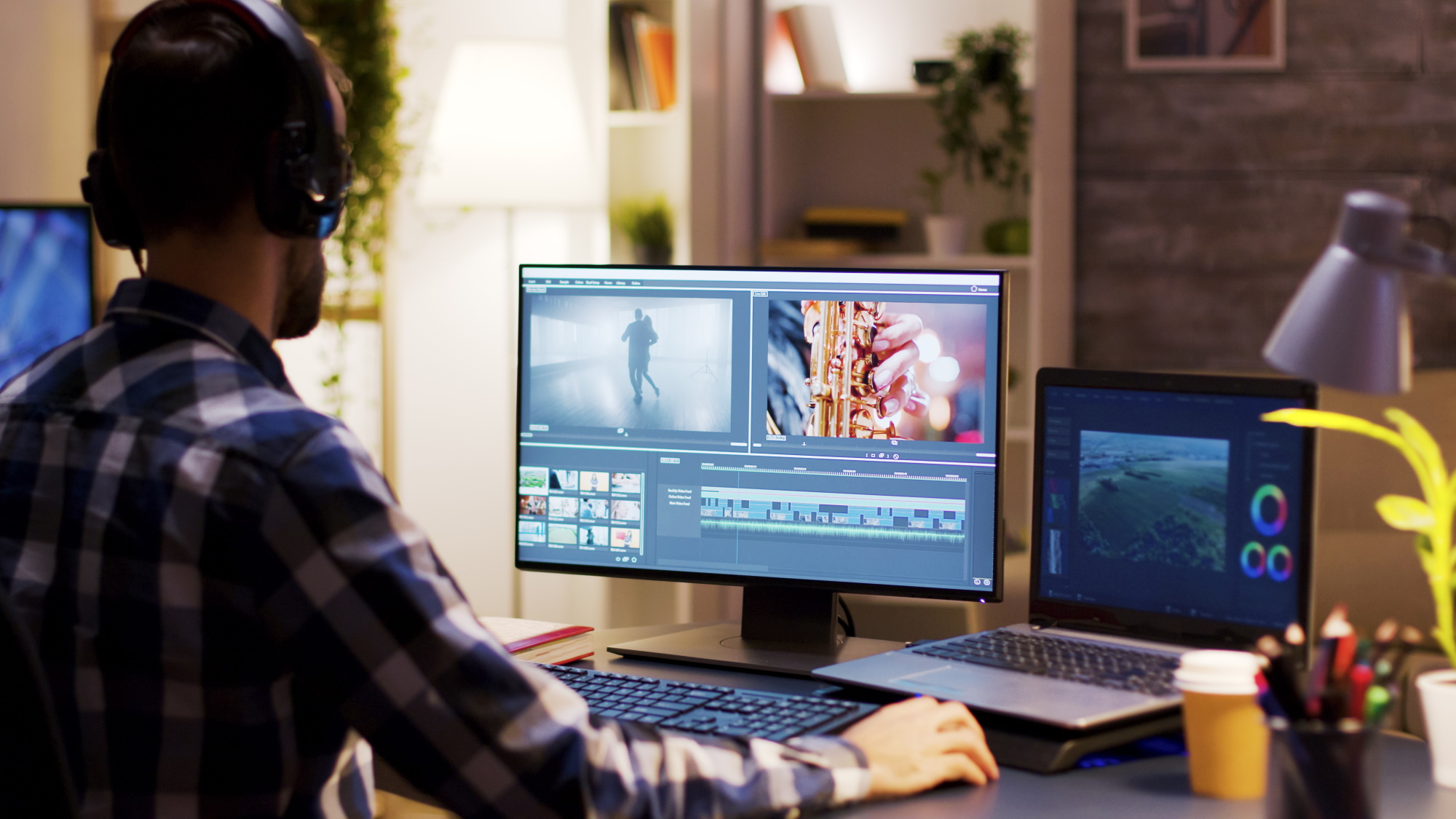
Video editing used to feel like a skill reserved for filmmakers, production studios and experienced creators.
Today, that has changed.
A smartphone can record high quality footage. Social platforms encourage people to publish short videos regularly. Businesses use video for marketing and training. Freelancers create promotional content for clients. Even casual users may want to turn holiday clips, family recordings or travel footage into something worth sharing.
The challenge is no longer finding a way to edit video.
It is choosing from the huge number of Video Editors available across computers, browsers and mobile devices.
Some applications are designed around simplicity, while others provide professional timelines, color correction, audio tools and advanced effects. Some work entirely in a browser. Others are built specifically for phones and tablets.
For beginners, the most important question is not necessarily which editor has the most features.
It is which editor makes the learning process manageable while still giving you enough room to improve.
What Should Beginners Look for in Video Editors?
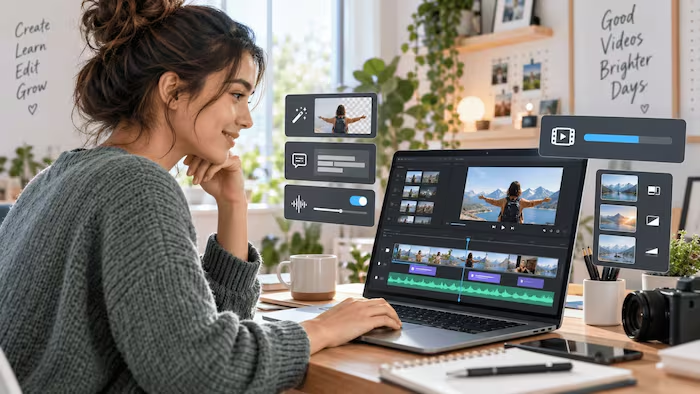
A beginner friendly editor should make the basic editing process understandable.
Look for tools that make it easy to:
• Import video clips
• Trim unwanted footage
• Rearrange scenes
• Add music
• Adjust audio
• Add text
• Use transitions
• Create captions
• Export videos in common formats
The interface matters too.
A program can have hundreds of professional features and still be a poor starting point if a new user cannot understand the timeline.
It is also worth thinking about where you plan to edit.
Someone creating short social videos on a phone has different requirements from a YouTube creator producing twenty minute tutorials on a desktop computer.
Desktop Video Editors
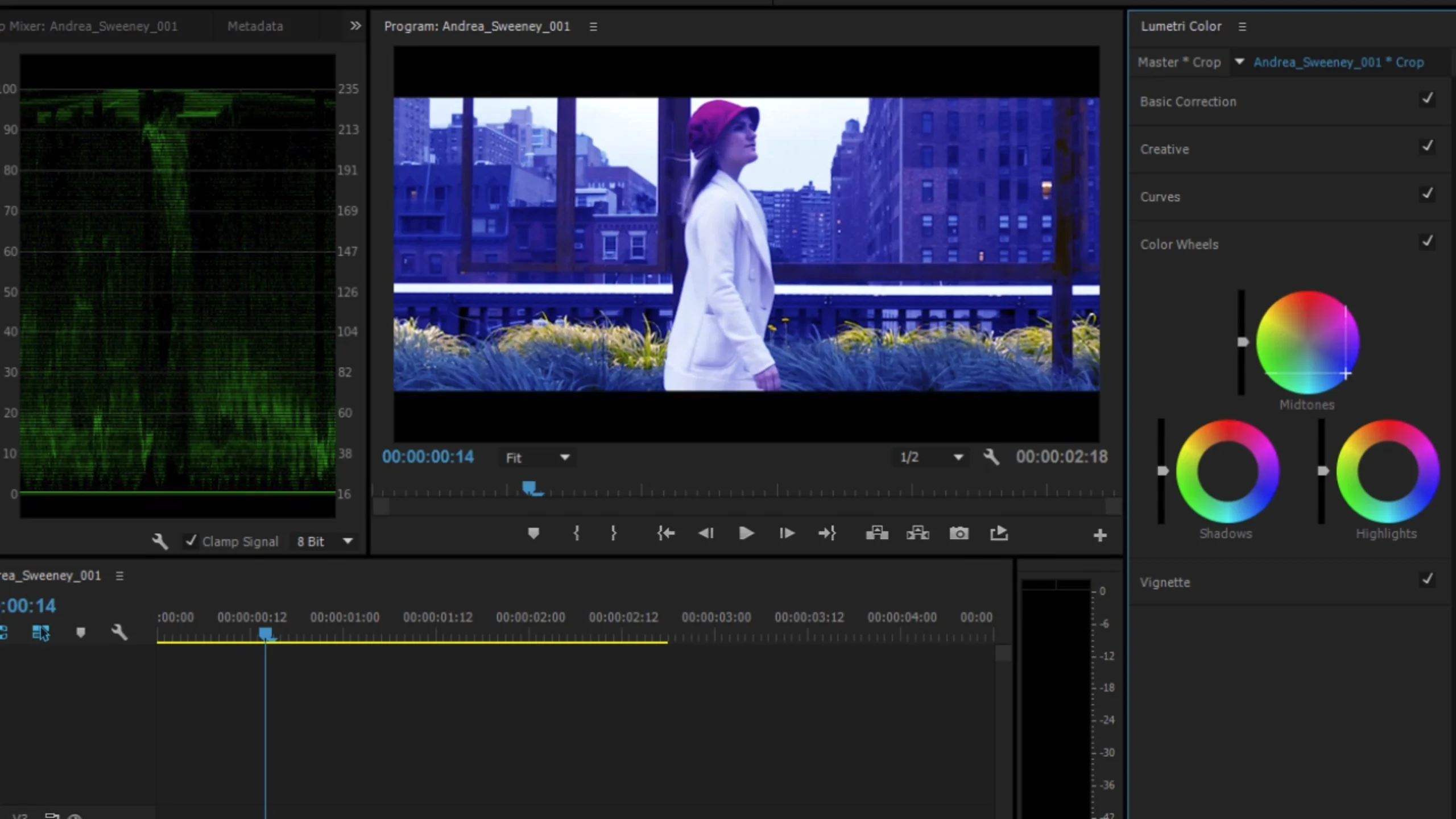
Desktop software generally provides the greatest amount of control.
A larger screen makes it easier to work with multiple video tracks, audio, effects, captions and detailed timelines.
Desktop editors are particularly useful for:
• YouTube videos
• Tutorials
• Interviews
• Long form content
• Business videos
• Short films
• Travel videos
• Professional client projects
The tradeoff is that desktop applications can have a steeper learning curve.
For someone who wants to develop editing skills seriously, however, learning a desktop workflow can provide a useful foundation.
DaVinci Resolve

DaVinci Resolve is one of the most capable options for beginners who want software they can continue using as their skills develop.
Blackmagic Design describes the Edit page as intuitive for new users while also providing professional editing controls. It includes drag and drop editing, traditional editing tools, transitions, effects and titles. A free version is also available.
One of its biggest advantages is the amount of functionality available within one application.
Users can eventually explore editing, color correction, visual effects, motion graphics and audio production.
That makes Resolve interesting for someone who does not want to switch editors as their projects become more ambitious.
The downside is the learning curve.
A beginner who only wants to trim clips and add captions may find Resolve more complicated than necessary.
Best suited to: Beginners who want to learn serious desktop editing and grow into advanced projects.
Adobe Premiere
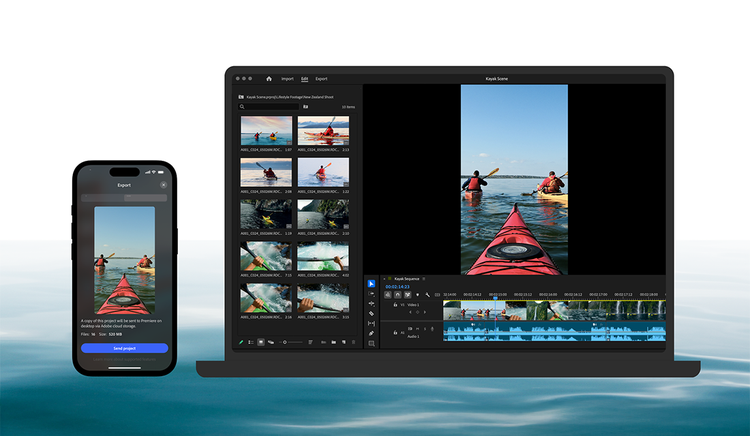
Adobe Premiere is designed for professional video production but also provides resources for people learning the software.
Adobe describes Premiere as its professional video editing application for projects ranging from social content to film, television and branded video. It supports detailed editing, titles, effects, audio workflows, captions and a broad range of formats.
For beginners, one advantage is the ecosystem around the software.
Someone who eventually wants to combine video editing with Photoshop, After Effects or other Adobe applications can build a connected creative workflow.
Adobe also provides training resources for Premiere users.
The main consideration is cost and complexity. Premiere is designed to support professional workflows, so it may be more software than a casual creator needs.
Best suited to: Beginners who want a professional editing environment or expect to work within the Adobe creative ecosystem.
CapCut
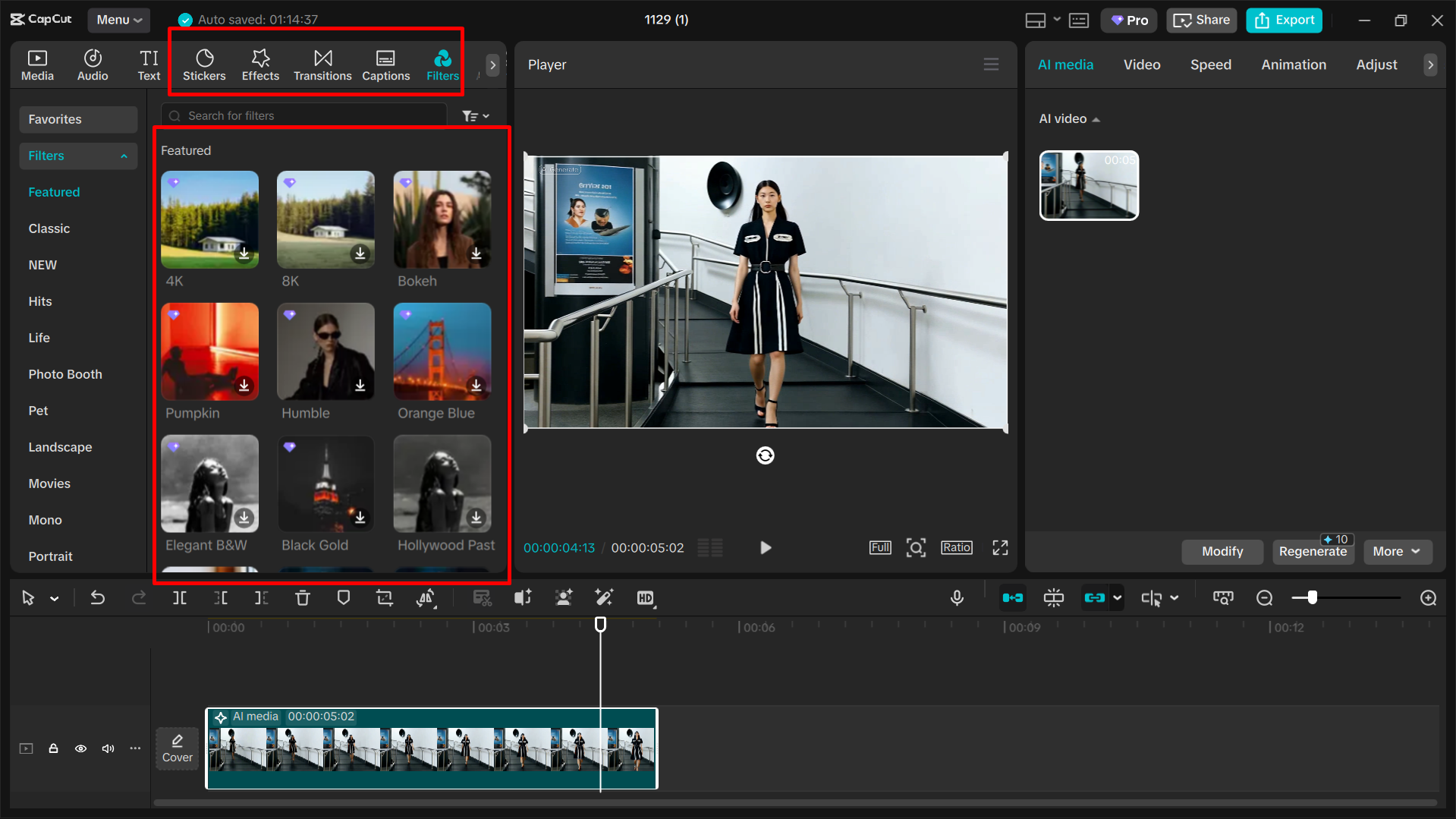
CapCut has become particularly visible among social media creators because it is available across desktop, browser and mobile environments.
Its beginner focused tools include templates, effects, transitions, captions and AI assisted features. CapCut's own beginner guide emphasizes streamlined controls and use cases such as short form videos, social content, tutorials, vlogs and business videos.
For someone making social content, the relatively accessible interface can make the first editing session less intimidating.
It is also useful for creators who want to move between devices.
However, users should always check the current features and export conditions available on their particular plan before building a long term workflow.
Best suited to: Beginners creating social media videos, short form content and quick edits.
Browser Based Video Editors
Browser based Video Editors remove one of the biggest barriers to getting started.
There is no large desktop installation.
You simply open the service, upload or access your media and begin editing.
This can be particularly useful for:
• Students
• Freelancers
• Small businesses
• Remote teams
• Occasional creators
• People using shared computers
Browser editors also make collaboration easier in some workflows because projects can live online rather than being tied to one computer.
The tradeoff is that browser based editing can depend heavily on internet speed, browser performance and cloud storage.
Canva
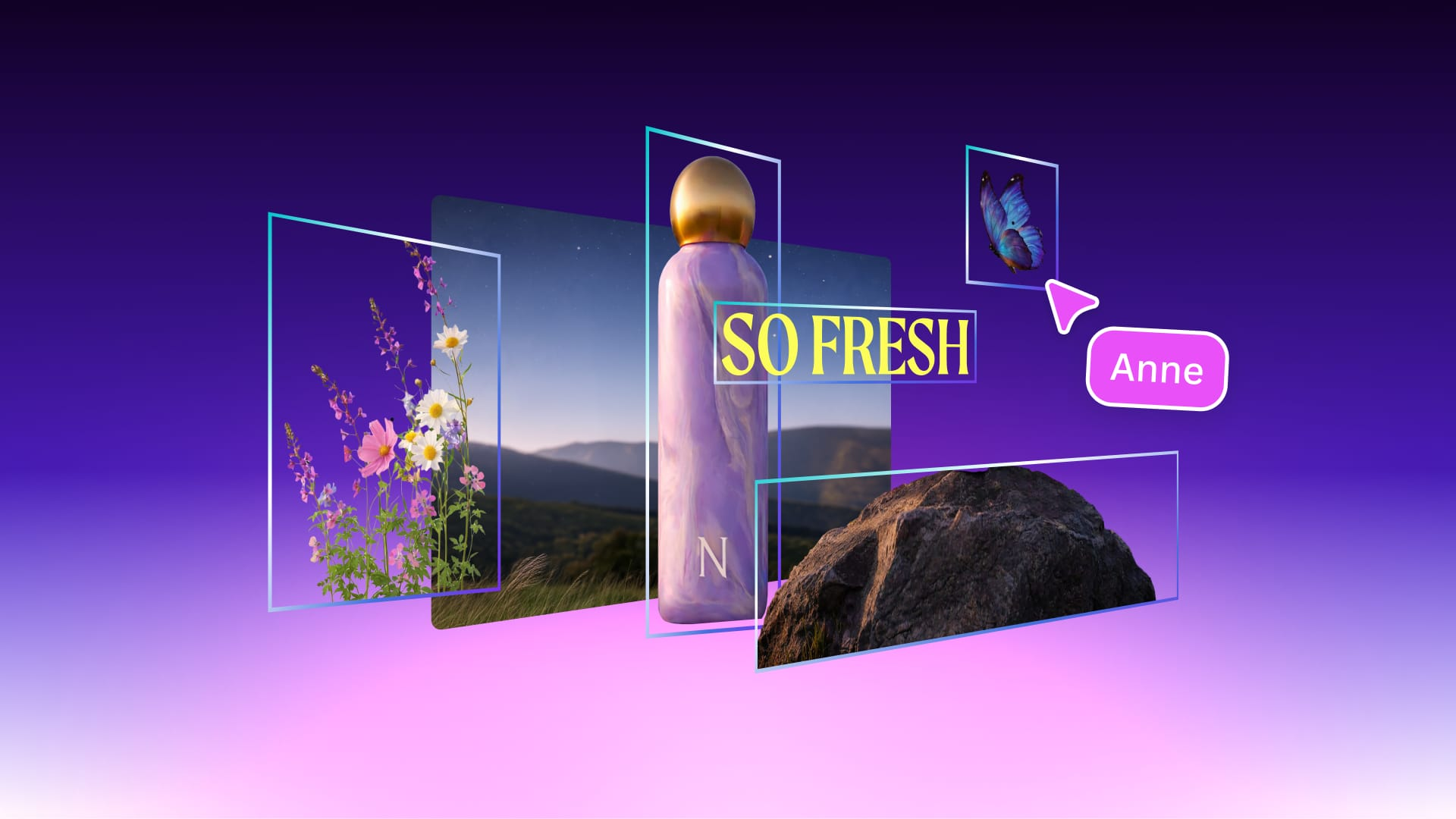
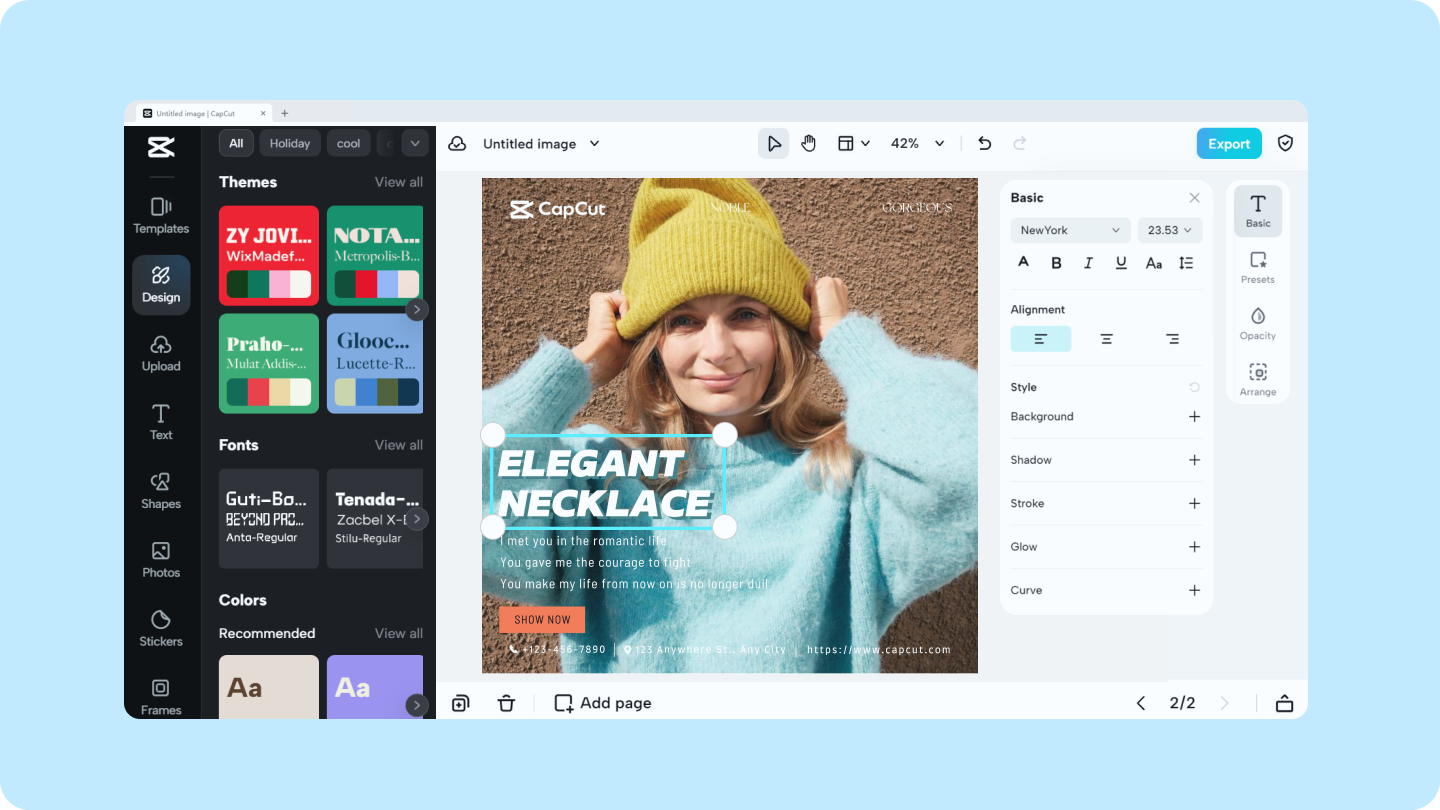
Canva is widely known as a design platform, but it also provides video editing capabilities through its web based creative environment.
Its approach is particularly useful for beginners who want to combine video with graphic design elements.
For example, a small business might create:
• Promotional videos
• Social media clips
• Product videos
• Presentation videos
• Short advertisements
• Educational content
The benefit is that users can combine video clips with templates, text, graphics and other visual elements without learning a traditional professional editing application.
Canva is therefore particularly interesting for people who care as much about visual design and branding as they do about detailed timeline editing.
Best suited to: Beginners, marketers, freelancers and small businesses creating design focused video content.
Browser Based CapCut
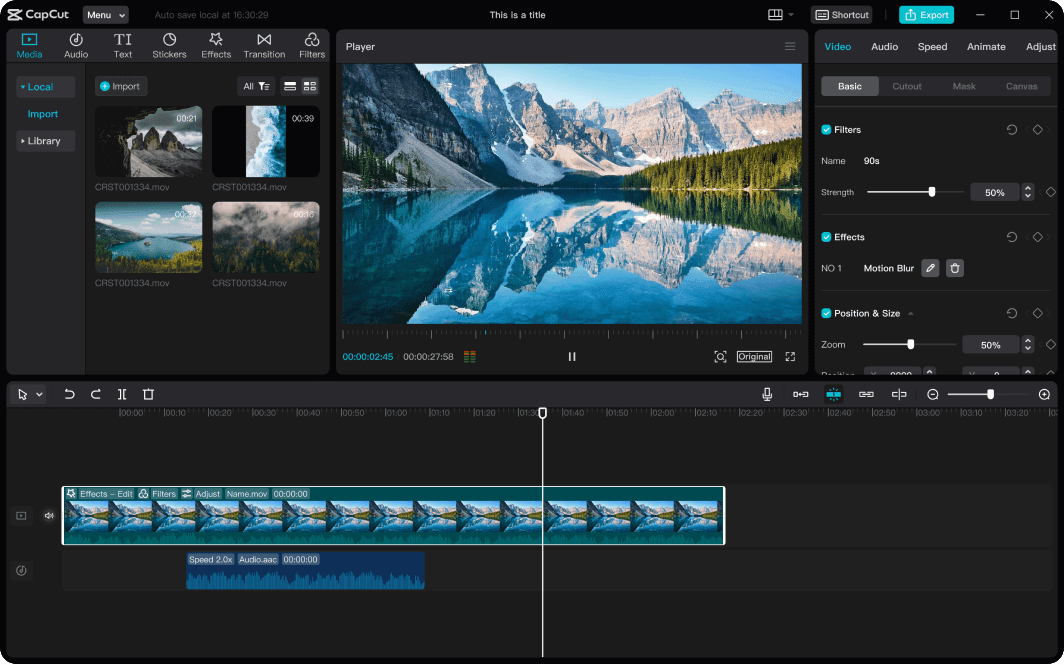
CapCut is also available through the web, giving users a browser based way to work with video.
Its cross platform approach can be useful for creators who do not want their editing workflow tied to one device.
A beginner might start a project using a browser and later move to a desktop or mobile workflow depending on the project.
The platform is particularly oriented toward content creation and social media, with tools designed around fast editing, effects, captions and templates.
Best suited to: Social creators who want browser access and a relatively straightforward editing experience.
Mobile Video Editors
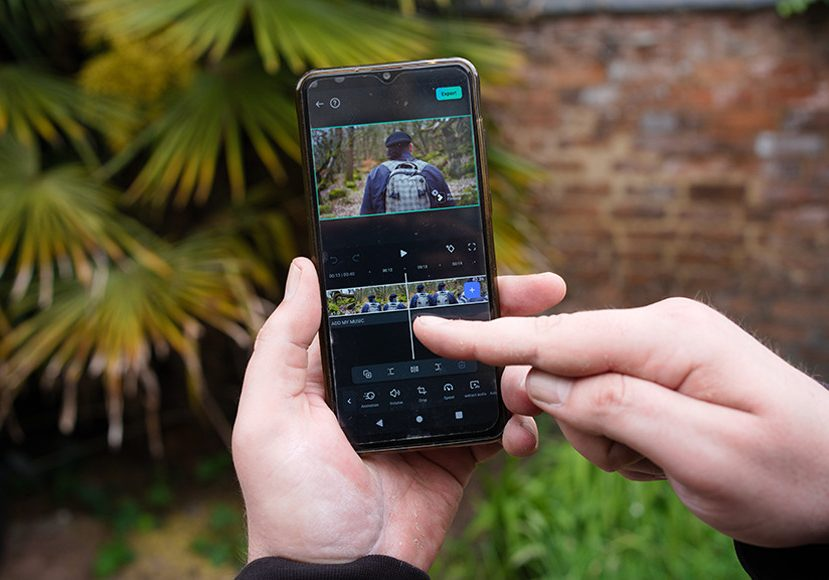
Mobile Video Editors have changed the way people create content.
Instead of recording on a phone and transferring everything to a computer, creators can record, edit and publish from the same device.
This makes mobile editing particularly useful for:
• Instagram Reels
• YouTube Shorts
• TikTok videos
• Travel content
• Event clips
• Product videos
• Personal projects
The main advantage is speed.
You can edit while traveling, during a break or immediately after recording.
The smaller screen does make detailed editing more difficult, particularly for long projects.
Adobe Premiere on Mobile
Adobe has expanded Premiere beyond the traditional desktop environment with a dedicated mobile application.
Adobe says Premiere on mobile provides a multi track timeline, frame accurate controls, effects, transitions, captions and other editing tools. The mobile application is available on iPhone and Android, although some features differ between platforms.
Adobe also positions the mobile application as part of a workflow that can move projects between mobile and desktop Premiere.
That makes it interesting for creators who want to start editing on a phone and continue with more advanced tools on a computer.
The core mobile editing functions are available without requiring a traditional desktop workflow, while certain generative AI features use Adobe Firefly credits.
Best suited to: Beginners who want mobile simplicity with a path toward desktop editing.
InShot
InShot is designed around quick mobile editing.
Its appeal is simplicity.
A beginner can generally focus on the essentials:
• Cutting clips
• Adding music
• Adding text
• Applying filters
• Adjusting video dimensions
• Creating social media content
This makes it suitable for someone who wants to create a short video without learning a professional desktop timeline.
The tradeoff is that mobile focused simplicity can become limiting when projects require complex multi track editing or highly detailed audio and color work.
Best suited to: Casual creators and beginners who prioritize quick smartphone editing.
Video Editors Compared
Video Editor | Platform | Beginner friendliness | Best suited to |
|---|---|---|---|
DaVinci Resolve | Desktop | Moderate | Learning advanced editing |
Adobe Premiere | Desktop and mobile | Moderate | Professional creative workflows |
CapCut | Desktop, browser and mobile | High | Social and short form content |
Canva | Browser and mobile | High | Design focused videos |
Adobe Premiere on mobile | Mobile | High | Mobile editing with desktop potential |
InShot | Mobile | High | Quick social and personal videos |
The comparison is based on workflow and intended use rather than an overall ranking.
A beginner making short social videos may value speed and templates.
Someone learning filmmaking may care much more about timeline control, color and audio.
What Is the Easiest Video Editor for a Beginner?
There is no single answer because “easy” depends on the type of video you want to make.
For simple social videos, a mobile or browser editor can provide a relatively gentle introduction.
For more structured projects, a desktop editor can be worth learning from the beginning.
A useful rule is:
Short social video
Consider a mobile or browser editor.
YouTube tutorial
Consider desktop software.
Travel vlog
Mobile can work for quick edits, while desktop provides more control.
Professional client work
A more capable desktop editor may be appropriate.
Graphic heavy business video
A design focused platform can be particularly useful.
The right choice should follow the project rather than the popularity of the application.
Free vs Paid Video Editors
Many beginners naturally want to start with free software.
That is sensible.
Before choosing a free editor, however, check several details.
Watermarks
Some free plans may add branding to exported videos.
Export Resolution
Check whether the free version supports the resolution you need.
Features
Certain effects, templates or AI tools may require payment.
Storage
Cloud based editors may limit available storage.
Project Limits
Some services restrict the number or type of projects available on free plans.
DaVinci Resolve, for example, provides a free version alongside its paid Studio edition. Adobe Premiere uses a subscription model for desktop, while its mobile application has a separate free editing experience with optional generative AI credits.
The cheapest option is not always the most useful.
Consider the workflow you want to build.
Video Editing Features Beginners Should Learn First
New users often become distracted by advanced effects.
They are not the first things you need to learn.
Start with the fundamentals.
Cutting
Learn how to remove unnecessary footage.
Timeline Organization
Understand how video and audio clips are arranged.
Transitions
Learn when a transition improves the flow and when a simple cut works better.
Audio
Good audio can have a major effect on perceived video quality.
Text and Captions
Learn how to add readable titles and subtitles.
Color
Start with basic exposure and color adjustments before experimenting with complex grading.
Export
Understand resolution, frame rate, aspect ratio and file formats.
Once these fundamentals become comfortable, advanced features become much easier to understand.
How to Choose Between Desktop, Browser and Mobile
The decision becomes easier when you think about how you work.
Choose Desktop If
You create longer videos, want detailed control or expect to develop serious editing skills.
Choose Browser If
You want accessibility, simple collaboration and do not want to install large applications.
Choose Mobile If
You prioritize speed, portability and social media content.
You do not necessarily have to choose only one.
A creator might edit short clips on a phone and use desktop software for longer YouTube projects.
A Beginner Video Editing Workflow
A simple workflow can make learning much less intimidating.
Step One: Organize Your Footage
Put your clips in one clearly named folder.
Step Two: Create a Rough Cut
Remove footage that you definitely do not need.
Step Three: Arrange the Story
Put the remaining clips into a logical sequence.
Step Four: Improve the Audio
Reduce obvious noise and make dialogue understandable.
Step Five: Add Text
Use titles and captions where they genuinely help.
Step Six: Adjust the Visuals
Correct exposure, color and framing where necessary.
Step Seven: Export
Choose settings appropriate for the platform where the video will be published.
This approach teaches the fundamentals without overwhelming a beginner with every feature at once.
Common Beginner Video Editing Mistakes
Using Too Many Effects
Effects should support the story rather than distract from it.
Ignoring Audio
Viewers may tolerate average visuals more easily than difficult to understand sound.
Making Every Clip Too Long
Remove pauses and unnecessary sections.
Using Excessive Transitions
A simple cut is often enough.
Exporting at the Wrong Size
Choose the aspect ratio and resolution appropriate for your destination.
Buying Software Too Early
Try the free version or trial where available before committing.
Learning Everything at Once
Focus on cutting, audio, text and exporting first.
Video Editors for YouTube
YouTube creators often benefit from desktop Video Editors because longer videos require more precise organization.
For example, a tutorial may contain:
• Main camera footage
• Screen recordings
• Background music
• Voiceover
• Graphics
• Captions
• B roll
Managing these elements becomes easier with a larger timeline.
However, mobile editors can still be perfectly adequate for Shorts and simple videos.
The best software therefore depends on whether you are creating short form or long form YouTube content.
Video Editors for Social Media
Social content often rewards speed.
Creators may need to turn raw footage into a finished vertical video quickly.
Mobile and browser based Video Editors are therefore particularly convenient for this type of work.
Look for features such as:
• Vertical video presets
• Captions
• Quick trimming
• Templates
• Text animation
• Music tools
• Background removal
• Easy export
Adobe Premiere on mobile, for example, is specifically designed for social content and includes tools for captions, effects, transitions and vertical content workflows.
What About AI Video Editing?
AI is becoming an increasingly visible part of modern Video Editors.
Depending on the platform, AI can assist with:
• Automatic captions
• Background removal
• Audio enhancement
• Scene detection
• Reframing
• Transcription
• Generative effects
• Content creation
Adobe Premiere on mobile includes AI assisted features such as automatic captions, background removal and audio enhancement, while additional generative features are powered through Adobe Firefly.
AI can save time, but it does not replace editorial judgment.
A generated caption can be wrong.
An automatic cut can remove important context.
A background removal tool can produce imperfect edges.
Treat AI as an assistant rather than an automatic replacement for reviewing the final video.
How Long Does It Take to Learn Video Editing?
You can learn basic editing surprisingly quickly.
The first goal should not be mastering every feature.
Instead, create a small project.
Record several short clips.
Import them.
Cut them.
Arrange them.
Add music.
Add a title.
Improve the audio.
Export the result.
Then create another video.
Repeated practice teaches the interface faster than simply watching tutorials.
Once basic editing becomes comfortable, you can gradually learn color correction, audio mixing, motion graphics and other advanced techniques.
Final Thoughts
Choosing between Video Editors does not need to be complicated.
The best starting point depends on what you want to create, where you want to edit and how much control you expect to need.
Desktop applications such as DaVinci Resolve and Adobe Premiere provide room for more advanced workflows. Browser based options can make editing accessible without installing traditional software. Mobile applications make it possible to record, edit and publish from almost anywhere.
For beginners, the most important feature may simply be confidence.
Choose an editor you can understand.
Start with a small project.
Learn the timeline.
Master cutting and audio.
Then gradually explore everything else.
The goal is not to become an expert in every editing application.
It is to find the tools that let you turn your footage into clear, engaging videos without making the editing process harder than it needs to be.
Frequently Asked Questions
What are Video Editors?
Video Editors are applications that allow users to cut, arrange, enhance and export video footage. Depending on the software, they can also provide tools for audio, captions, effects, color correction, graphics and AI assisted editing.
What is the easiest video editor for beginners?
The easiest option depends on the type of content. Mobile and browser based editors can be easier for short social videos, while desktop applications may be more appropriate for longer and more complex projects.
Is DaVinci Resolve good for beginners?
DaVinci Resolve provides an Edit page that Blackmagic Design describes as easy and intuitive for new users while also offering professional editing controls. Its free version makes it an option for beginners who want to learn advanced desktop editing.
Is Adobe Premiere good for beginners?
Adobe Premiere is professional software, so it has more complexity than many basic editors. However, beginners can learn it gradually, and Adobe provides training resources. It can be particularly useful for people who expect to create more advanced projects over time.
Can I edit videos without installing software?
Yes. Browser based editors allow users to perform many common editing tasks through a web browser. This can be useful for occasional creators, students, freelancers and teams.
Are mobile Video Editors good enough for YouTube?
They can be suitable for Shorts, simple videos and straightforward projects. Longer YouTube productions with multiple video, audio and graphics tracks may be easier to manage on a desktop.
Are free Video Editors worth using?
Yes. Free editors can be excellent for learning the fundamentals. Before choosing one, check export resolution, watermarks, available features, storage limits and supported formats.
Should beginners use AI Video Editors?
AI tools can save time with captions, audio enhancement, background removal and other repetitive tasks. Beginners should still review AI generated results rather than assuming they are automatically correct.
Should I choose desktop, browser or mobile editing?
Choose based on your workflow. Desktop is generally better suited to detailed projects, browser editing can be convenient and accessible, while mobile is particularly useful for quick social content and editing on the go.