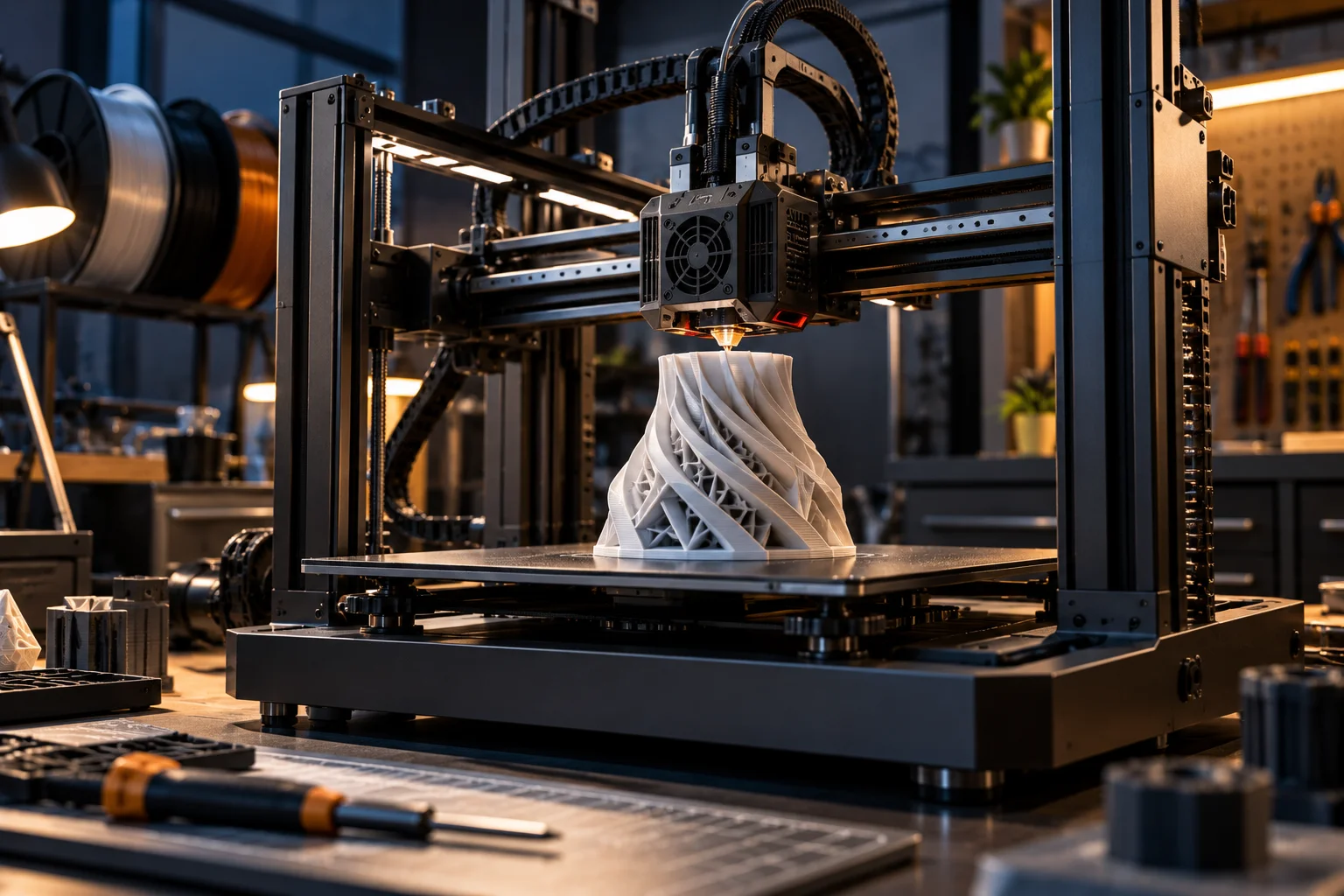
For a first 3D printer, you usually don't need the biggest build volume, the highest advertised print speed or support for every possible filament. A reliable FDM printer with automatic bed leveling, a sensible build area, good PLA and PETG support, and an easy-to-use slicer is enough for most beginners.
The 3D printer market has changed quickly.
Modern entry-level machines can arrive mostly assembled, calibrate themselves, connect over Wi-Fi and print dramatically faster than older hobbyist printers. Current models from manufacturers such as Creality and Prusa also offer automatic calibration, input shaping, filament sensors and broader material support at prices that would have been associated with more advanced machines a few years ago.
That sounds great until you start comparing specifications.
One printer advertises 600 mm/s.
Another offers a 300 × 300 × 330 mm build volume.
Another supports dozens of materials.
Another includes automatic leveling, a camera and multi-color printing.
It's easy to conclude that you need the most feature-packed machine you can afford.
You probably don't.
For your first printer, the better strategy is to ask:
What am I actually going to print, how large will those objects be, how much tinkering do I want to do, and which materials will I realistically use?
Should Your First 3D Printer Be FDM or Resin?
For most beginners interested in household objects, prototypes, toys, organizers and functional parts, an FDM printer is the more practical starting point.
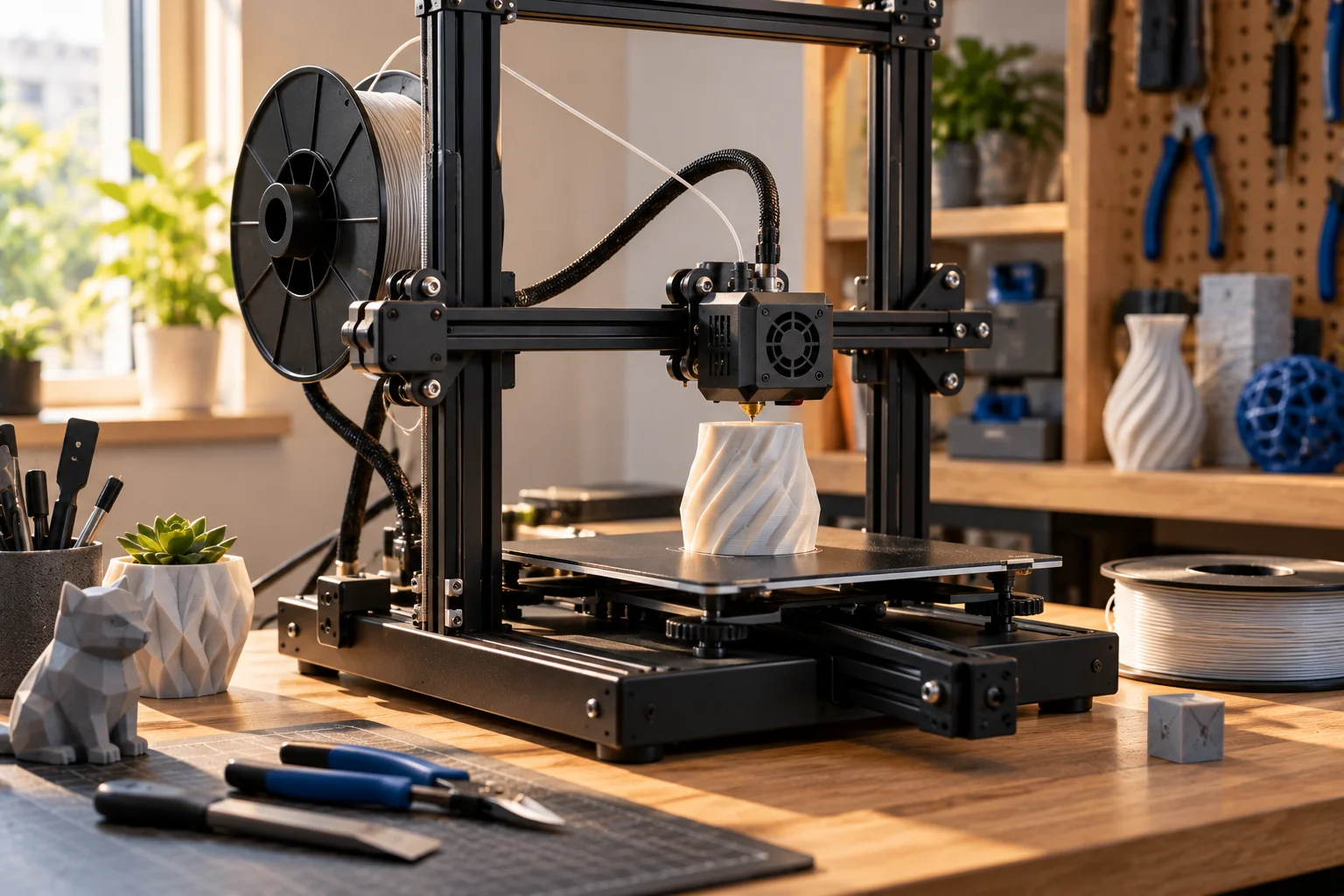
FDM, or fused deposition modeling, melts filament and deposits it layer by layer.
The process is relatively straightforward, and common materials such as PLA are forgiving.
Resin printers work differently. They cure liquid photopolymer resin using light and can produce very fine details, making them attractive for miniatures, jewelry prototypes and highly detailed models.
But resin printing involves more post-processing and handling.
You generally need to:
Wash prints
Cure prints
Handle uncured resin carefully
Manage ventilation and workspace cleanliness
Dispose of resin-related waste properly
For a first general-purpose printer, FDM usually offers a simpler path.
Prusa's current beginner guidance recommends starting with standard PLA and choosing a printer that handles calibration for you.
How Much Build Volume Do You Actually Need?
A medium-sized build volume is enough for most first-time users, while larger printers make sense when you already know you'll print large objects.
Build volume is normally expressed as:
X × Y × Z
For example:
220 × 220 × 250 mm
means the printer can theoretically create an object up to roughly 220mm wide, 220mm deep and 250mm tall within its printable area.
A current Creality Ender-3 V3, for example, has a 220 × 220 × 250 mm build volume. Its larger Ender-3 V3 Plus expands that to 300 × 300 × 330 mm.
That difference is significant.
A 300mm printer isn't simply "a little bigger."
It gives you considerably more printable volume and can reduce the need to split larger models into multiple pieces.
But there's a trade-off.
Larger printers generally need:
More desk space
More vertical clearance
More physical room around the machine
Larger print beds to heat
More material for some test prints
A larger workspace
So don't buy a huge printer simply because its build volume looks impressive.
What Build Volume Is Good for a Beginner?
Around 220 × 220 × 250 mm is a useful starting class for many beginners, while 250 × 250 mm or larger becomes attractive for bigger functional projects and models.
A roughly 220mm-class machine can handle plenty of everyday projects:
Phone stands
Desk organizers
Replacement brackets
Small storage boxes
Toys
Decorative objects
Plant accessories
Mechanical prototypes
If you want to print:
Large helmets
Cosplay components
Large figurines
Big mechanical parts
Furniture-scale prototypes
then a larger build volume becomes much more useful.
But remember:
A large model can often be divided into smaller pieces.
Prusa's current buying guidance makes the same point: a medium-sized printer covers many everyday projects, and large objects can often be printed in sections and assembled afterward.
Don't Buy Build Volume You Don't Have Space For
The printer's physical dimensions matter almost as much as its printable dimensions.
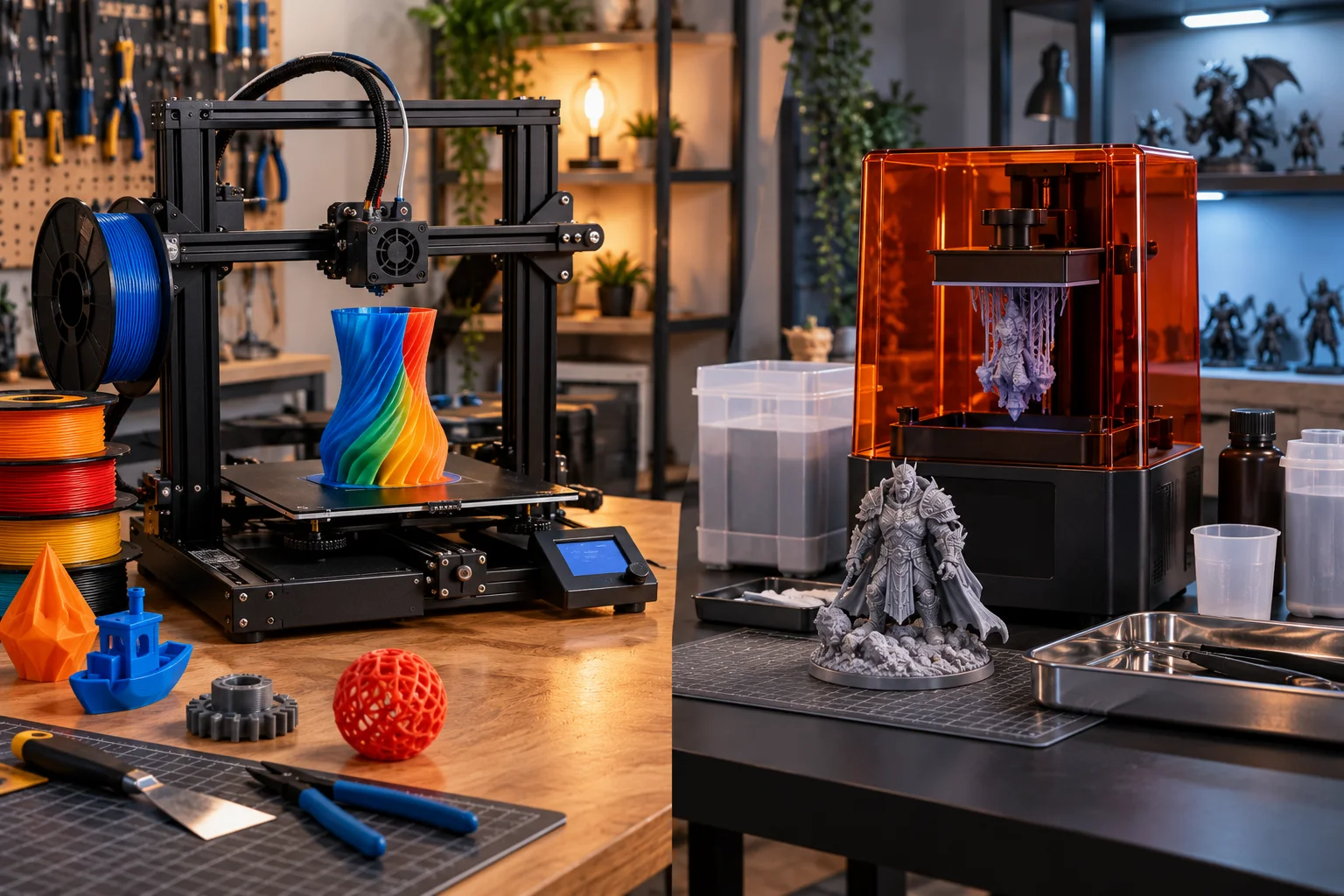
A printer with a 300 × 300 × 330mm build volume may occupy substantially more desk space than its printable area suggests.
You also need room for:
Filament spool
Power cable
USB access
Ventilation
Bed movement
Door access if enclosed
Maintenance
A printer can technically fit on your desk while being practically unusable because you can't reach the rear, remove prints or load filament comfortably.
Measure the space first.
How Important Is Print Speed?
Print speed matters, but maximum advertised speed is usually less important than how reliably the printer can maintain useful speed while producing good-quality parts.
Modern printers can advertise extraordinary numbers.
Creality's Ender-3 V3, for example, lists a maximum speed of 600 mm/s, while the company says its typical speed for the machine is around 300 mm/s.
Its Ender-3 V3 Plus also lists up to 600 mm/s, while its specifications identify a lower typical operating context.
This distinction matters.
Maximum speed is often a laboratory or specific-profile figure.
Actual print speed depends on:
Model geometry
Layer height
Acceleration
Material
Nozzle size
Cooling
Extrusion capacity
Printer motion system
Quality settings
A printer that can theoretically move at 600 mm/s doesn't mean every model should be printed at 600 mm/s.
Why Acceleration Can Matter as Much as Speed
Acceleration determines how quickly the printer reaches its target speed, which matters because many 3D prints contain frequent direction changes and short movements.
Imagine a tiny model with lots of corners.
The printhead may never have enough distance to reach its maximum advertised speed.
Instead, it repeatedly:
accelerates → moves → slows down → changes direction → accelerates again
That's why modern printer specifications increasingly mention acceleration and technologies such as input shaping.
Creality's current Ender-3 V3, for example, lists acceleration up to 20,000 mm/s² and uses input shaping to reduce ringing caused by vibration.
The practical lesson:
Don't compare printers on maximum mm/s alone.
Look at the whole motion system.
What Is Auto-Leveling and Why Does It Matter?
Automatic bed leveling measures the print surface and helps compensate for variations so the first layer can be laid down correctly.
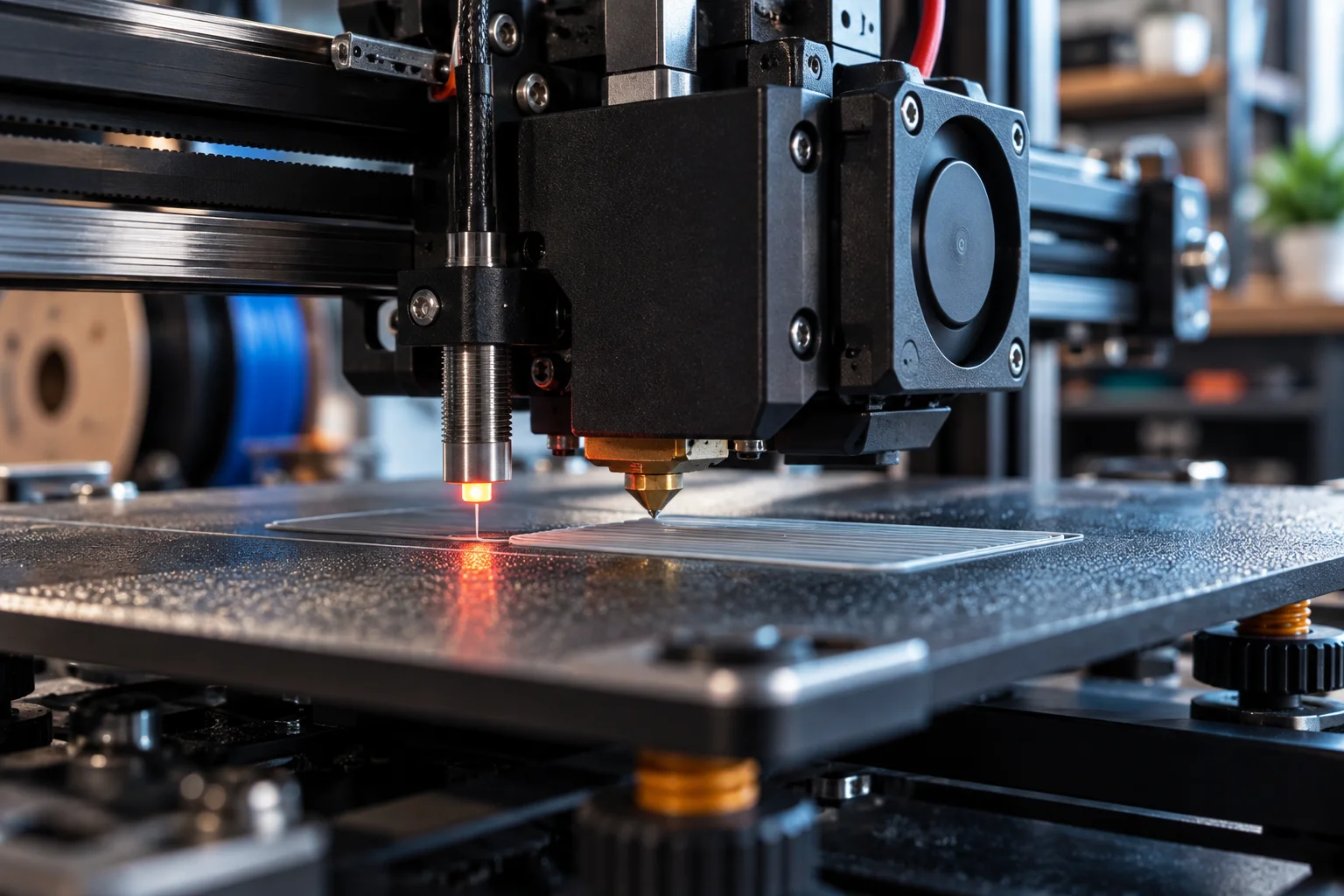
The first layer is one of the most important parts of a successful print.
If the nozzle is:
Too far from the bed
the filament may not stick properly.
If it's:
Too close
the filament may be excessively compressed or fail to extrude correctly.
An automatic leveling system can measure the bed and compensate for variations.
Current beginner-oriented printers increasingly make this process automatic. Creality's Ender-3 V3, for example, combines automatic Z offset and leveling with an automatic input-shaping test.
Prusa's current CORE One+ similarly uses automatic calibration and handles leveling and sensor checks during setup.
For a first printer, this is one feature worth paying for.
Is Auto-Leveling Really Necessary?
No, but it's one of the most useful convenience features for beginners.
Manual leveling isn't inherently bad.
In fact, learning how a printer's bed, nozzle and first layer interact can teach you a lot.
But if your goal is:
"I want to design something and print it without spending an hour calibrating the machine,"
automatic calibration is valuable.
Think of it as reducing the number of variables between:
unboxing
and
successful first print.
For most first-time buyers, that's money better spent than paying extra for extreme maximum speed.
What Is Input Shaping?
Input shaping is a motion-control technique designed to compensate for printer vibrations and reduce artifacts such as ringing or ghosting at higher speeds.
Fast movement creates vibration.
That vibration can appear on the printed object's surface as repeated echoes around sharp features.
Input shaping measures or models those vibrations and modifies the printer's movement commands to reduce their effect.
Modern printers increasingly automate this process.
Creality's Ender-3 V3 uses a G-sensor for input shaping, while the Creality Hi also uses input shaping to reduce ringing at higher speeds.
For a beginner, you don't need to understand the mathematics.
The buying takeaway is:
A well-calibrated fast printer is more useful than a printer that is merely capable of moving quickly.
Which Filament Should a Beginner Start With?
PLA is usually the easiest filament for a first-time user.
PLA is popular because it generally:
Prints easily
Has relatively low warping
Doesn't require an enclosed printer for normal use
Produces good-looking models
Is widely available
Has a large range of colors
Prusa describes PLA as its go-to beginner material and calls it forgiving and easy to print.
For your first spool, PLA is a sensible choice.
You don't need carbon-fiber filament, nylon or advanced engineering materials just because the printer supports them.
Learn the basics first.
What About PETG?
PETG is a useful second filament because it offers more toughness and flexibility than PLA while remaining relatively accessible to beginners.
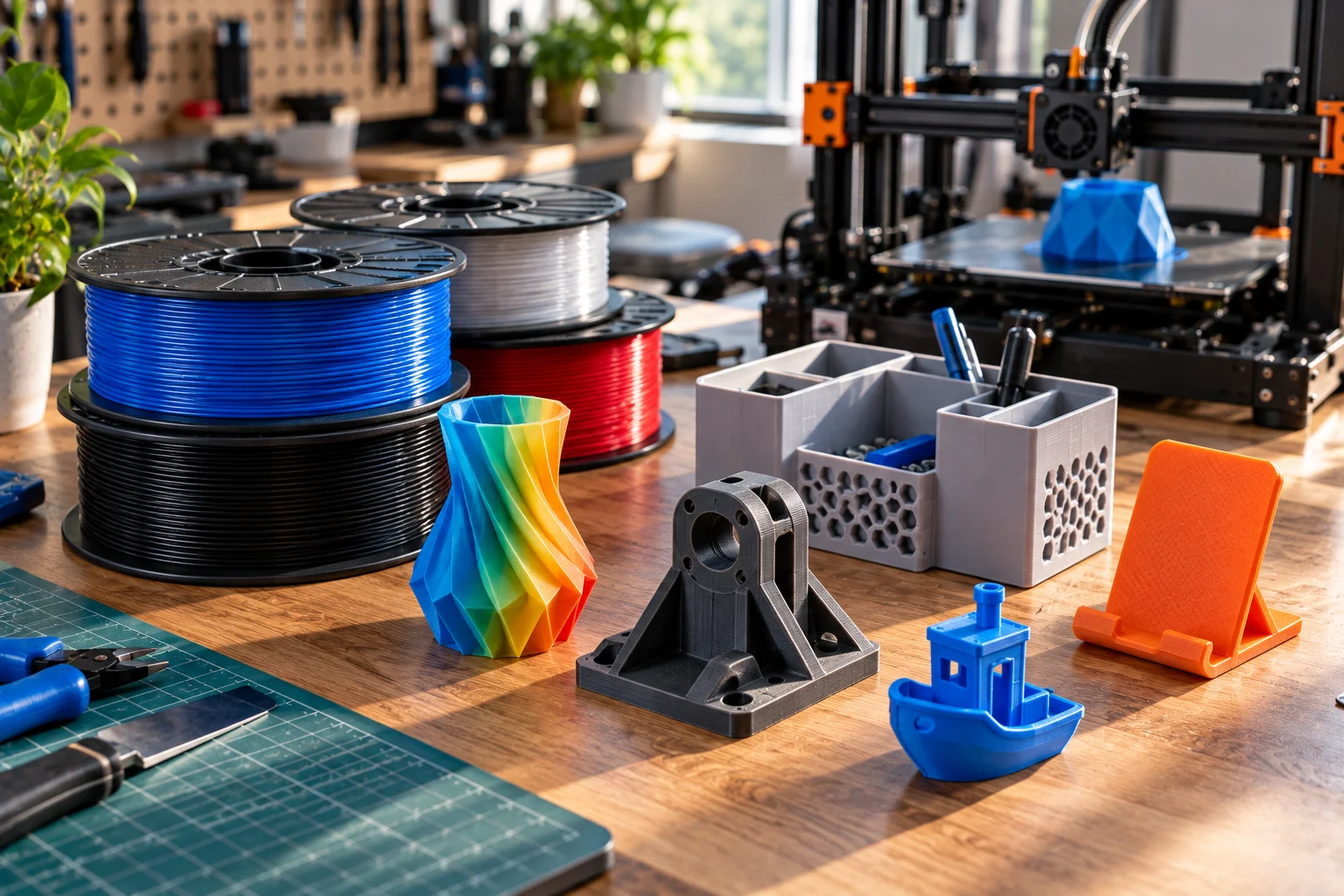
PETG can be useful for:
Functional brackets
Mechanical parts
Containers
Workshop accessories
Parts exposed to more demanding conditions
Prusa describes PETG as stronger and more flexible than PLA and suitable for functional parts and mechanical components.
Once you've learned how your printer handles PLA, PETG is a logical next step.
Do You Need ABS, ASA or Nylon?
Not unless your projects actually require their properties.
ABS and ASA can provide useful heat and weather resistance, but they can be more demanding to print.
Prusa currently classifies ASA and ABS as more moderate materials and recommends an enclosed chamber for those applications.
Nylon and other engineering materials can be even more demanding.
They can require:
Higher nozzle temperatures
Higher bed temperatures
Controlled environments
Dry filament
Enclosures
More careful calibration
If your goal is printing desk organizers and household accessories, buying an expensive high-temperature machine purely because it supports nylon may be unnecessary.
Does Filament Support Mean Anything Beyond the Material List?
Yes. A printer's material compatibility depends on more than whether the manufacturer lists a filament name.
For example, printing higher-temperature materials may require:
Higher nozzle temperature
Higher bed temperature
Hardened nozzle
Enclosure
Appropriate extruder
Better heat management
Creality's Ender-3 V3 Plus supports materials including PLA, TPU, PETG, ABS and carbon-fiber-reinforced materials, but the manufacturer specifically notes that an additional enclosure is required for ABS and other high-temperature filaments.
So don't read:
"Supports ABS"
as:
"ABS will be as easy as PLA."
Those are very different statements.
Do You Need a Hardened Nozzle?
You need a hardened or wear-resistant nozzle when you plan to print abrasive materials such as carbon-fiber-filled filaments regularly.
Standard brass nozzles are fine for common materials such as PLA and PETG.
Abrasive additives can wear softer nozzles over time.
If you're only printing PLA, don't pay extra for an advanced nozzle system simply because it sounds more professional.
If you know you'll print carbon-fiber composites, a hardened nozzle becomes much more relevant.
What About Flexible TPU Filament?
TPU is useful for flexible parts such as grips, feet, gaskets and protective components, but it can be more demanding than PLA.
Flexible filament behaves differently as it moves through the extruder.
A direct-drive extruder can make flexible materials easier to handle.
Creality's Ender-3 V3 Plus, for example, supports TPU 95A alongside PLA, PETG and other materials.
If flexible printing isn't part of your immediate plan, don't make TPU support the primary reason for choosing a printer.
But if you already know you want flexible parts, check the extruder design before buying.
Do You Need a Multi-Color 3D Printer?
Probably not for your first printer unless you specifically want multi-color models or automated multi-material workflows.
Multi-color systems can be fun and useful.
But they can also introduce:
More hardware
More setup
More filament management
More purge waste
Higher purchase cost
More potential points of failure
A current Creality Hi Combo, for example, can support up to 16 filaments when used with four CFS units, while the printer itself supports a single filament without the CFS.
That's impressive capability.
But if 95% of your projects are single-color functional parts, you may be paying for a system you rarely use.
Start with one filament.
Add complexity when you have a reason.
Is a Camera Important on a First 3D Printer?
A camera is useful for remote monitoring and detecting obvious print problems, but it isn't essential for producing good prints.
A camera can let you:
Check print progress remotely
Monitor long prints
Capture time-lapses
See whether a print has failed
Some modern printers integrate cameras into their ecosystems.
Creality's Hi, for example, includes a monitoring camera.
But if your budget is limited, spend first on:
Reliable mechanics + automatic calibration + good software
before adding a camera.
Do You Need Wi-Fi?
Wi-Fi is convenient but not essential.
A basic printer can work perfectly well through:
USB drive
SD card
Local storage
Wi-Fi becomes useful when you want to:
Send prints remotely
Monitor progress
Manage multiple printers
Access cloud libraries
Update firmware more conveniently
Current printers such as the Ender-3 V3 and Ender-3 V3 Plus support wireless file transfer alongside USB options.
For a first printer, Wi-Fi is a quality-of-life feature rather than a requirement.
What Software Should You Look For?
A good slicer and reliable printer profile can save more time than another 100 mm/s of advertised print speed.
The slicer converts a 3D model into the instructions the printer understands.
Popular ecosystems include:
PrusaSlicer
OrcaSlicer
Creality Print
Cura-based workflows
Manufacturer-specific software
Look for:
Reliable profiles
Easy temperature controls
Layer-height options
Support generation
Filament profiles
Brim/raft controls
Calibration tools
Good model preview
Prusa's current CORE One+ ecosystem includes factory-tuned material settings in PrusaSlicer, while Creality's current machines use Creality Print with predefined filament support.
For a beginner, good default profiles are extremely valuable.
How Much Should You Spend on Your First 3D Printer?
Spend enough to get reliable automation and the build volume you need, but don't pay for advanced capabilities you won't use.
Your budget should cover more than the printer.
Remember to include:
Filament
Spare nozzle
Replacement build surface if needed
Basic tools
Digital calipers
Cleaning supplies
Storage for filament
Potential enclosure
A $300 printer that requires another $200 in upgrades isn't really a $300 setup.
Likewise, a $700 printer that already includes automation you value may be cheaper than buying a $400 printer and upgrading it repeatedly.
What Features Should You Prioritize?
For most beginners, automatic calibration, reliable first layers, sensible build volume and good PLA/PETG support deserve priority over extreme speed or exotic material support.
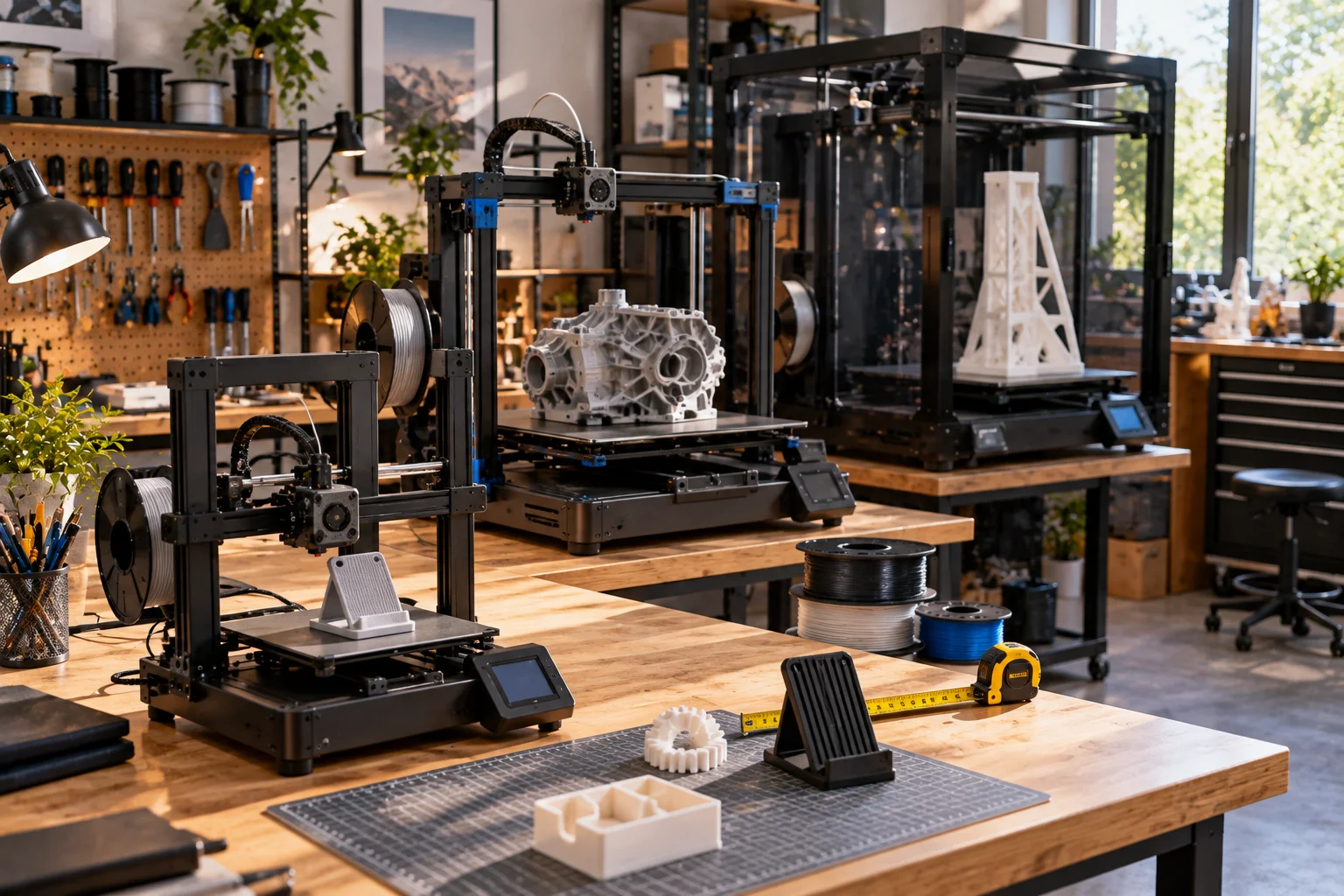
Here's a useful hierarchy:
Feature | Beginner priority |
|---|---|
Automatic bed leveling/calibration | Very high |
Reliable first layer | Very high |
PLA support | Essential |
PETG support | High |
Build volume around 220mm class or larger | High |
Good slicer profiles | High |
Easy setup | High |
Filament runout sensor | Useful |
Power-loss recovery | Useful |
Wi-Fi | Convenient |
Camera | Optional |
Multi-color | Optional |
500–600 mm/s maximum speed | Nice to have |
Advanced engineering materials | Only if needed |
This keeps your budget focused on things you'll actually experience.
What Should You Avoid Overspending On?
Avoid paying extra for specifications that don't solve a problem you currently have.
Huge build volume
Unless you print large models.
Extreme speed
Unless you print frequently and have a workflow that benefits from it.
Multi-color systems
Unless multi-color printing is one of your main goals.
High-temperature materials
Unless your projects require them.
Advanced cameras
Unless remote monitoring matters to you.
Excessive automation
Automation is useful, but don't pay for features that don't improve your workflow.
The goal isn't to buy the most advanced printer.
It's to buy the printer that makes your projects easier.
A Good First 3D Printer Setup
A practical beginner setup is simpler than many product pages make it seem.
A sensible starting package could be:
FDM printer
Automatic bed leveling
Around 220 × 220 × 250 mm or larger build volume
PLA filament
PETG later
Reliable slicer profile
Spare nozzle
Basic tools
That's enough to start learning.
You don't need a workshop full of equipment.
Your First 3D Printer Buying Checklist
Before buying, answer these ten questions.
1. What will I print?
Decorative models, toys, organizers, prototypes or functional parts?
2. How large will they be?
Choose build volume based on actual projects.
3. Do I want FDM or resin?
For general-purpose beginner printing, FDM is usually simpler.
4. Does it have automatic leveling?
Prefer it if you want less manual calibration.
5. What is the realistic print speed?
Look beyond the maximum number.
6. Which filaments can it handle?
At minimum, check PLA and consider PETG.
7. Does it need an enclosure?
Important for some materials.
8. What software does it use?
Check whether profiles and slicers are easy to use.
9. How much space does it need?
Measure the complete printer footprint and clearance.
10. What will the entire setup cost?
Include filament, tools and likely accessories.
FAQ: Choosing Your First 3D Printer
What is the best type of 3D printer for beginners?
For general-purpose projects, an FDM printer using PLA is usually the easiest place to start. Resin printers are better suited to highly detailed models but require more post-processing and handling.
How much build volume does a beginner need?
A roughly 220 × 220 × 250 mm build area is enough for many everyday projects. Larger 300mm-class printers become useful for large models and functional parts, but they require more space. Current Creality models illustrate the difference between 220 × 220 × 250 mm and 300 × 300 × 330 mm machines.
Is 600 mm/s too fast for a beginner?
You don't need to print at 600 mm/s. Maximum speed is a specification, not a guarantee that every model will print well at that speed. Reliable motion, acceleration, cooling and input shaping matter too.
Is auto-leveling worth paying for?
Yes, for many beginners. Automatic leveling and Z-offset calibration can reduce one of the most common setup problems: getting a consistent first layer.
Should I start with PLA?
Yes. PLA is generally forgiving and easy to print, making it a sensible first material.
Is PETG harder to print than PLA?
Generally, yes. PETG is still accessible to beginners but usually requires more careful temperature and bed settings. Its strength and flexibility make it useful for functional parts.
Do I need an enclosed 3D printer?
Not for basic PLA printing. An enclosure becomes more useful when you plan to print materials such as ABS or ASA that benefit from controlled thermal conditions.
Do I need a multi-color printer?
No. Multi-color printing is useful if you specifically want it, but a single-filament printer is simpler and cheaper to start with.
Is a camera necessary?
No. A camera is mainly useful for monitoring and convenience.
Should I buy the fastest 3D printer I can afford?
Not necessarily. Reliability and successful first layers are usually more valuable to a beginner than maximum advertised speed. Prusa specifically recommends considering reliability rather than simply chasing maximum speed.
What filament should I buy first?
Start with a good-quality PLA. Once you've learned the printer and slicer, add PETG if you need stronger or more functional parts.
Do I need a hardened nozzle?
Not for ordinary PLA printing. Consider one if you plan to print abrasive materials such as carbon-fiber-filled filament regularly.
The Bottom Line: Buy the Printer That Removes Problems, Not the One With the Biggest Spec Sheet
Your first 3D printer doesn't need to be a miniature manufacturing facility.
For most beginners, the sweet spot is a reliable FDM machine with:
Automatic leveling
A sensible build volume
Good PLA support
PETG compatibility
Reliable print profiles
Reasonable speed
Easy setup
That's enough to make everything from desk organizers and phone stands to functional brackets, toys and prototypes.
Build volume should match your projects.
Print speed should be judged by reliable real-world printing, not the biggest number on the product page.
Auto-leveling is worth prioritizing because first-layer problems can quickly turn a fun hobby into a calibration exercise.
And filament support should be based on what you actually plan to make.
Current machines demonstrate just how much capability has moved into relatively accessible printers. Creality's Ender-3 V3, for example, combines automatic calibration, input shaping, Wi-Fi and high advertised speeds, while Prusa's current beginner-oriented machines emphasize automatic calibration, reliable workflows and factory-tuned material profiles.
But you don't need every feature.
The best first 3D printer is the one that gets you from "I have an idea" to "I have a finished object" with as little unnecessary friction as possible.
Spend your money on reliability first.
Add complexity when your projects demand it.