
Upgrading your SSD or RAM can make a computer feel significantly faster, but the best upgrade depends on what is slowing your system down. An NVMe SSD can reduce boot times and speed up file transfers, while additional RAM can improve multitasking, gaming and demanding applications when your current memory is insufficient.
At PcComponentes, shoppers in Spain can compare NVMe SSDs, SATA drives, DDR4 memory and DDR5 RAM across different capacities and performance levels. The retailer's SSD catalogue and RAM selection feature products from brands including Kingston, Samsung, WD, Corsair, Kioxia and Lexar.
Current SSD listings include the Kingston NV3 1TB PCIe 4.0 NVMe drive, the WD Black SN7100 1TB and the Samsung 990 Pro. PcComponentes also lists RAM kits for desktop PCs and laptops. Prices and stock can change, so check the live product page and compatibility details before buying.
This guide explains which upgrades are worth the money, how to check compatibility and how to choose the right capacity and speed for your computer.
Is an SSD or RAM Upgrade Better for Your PC?
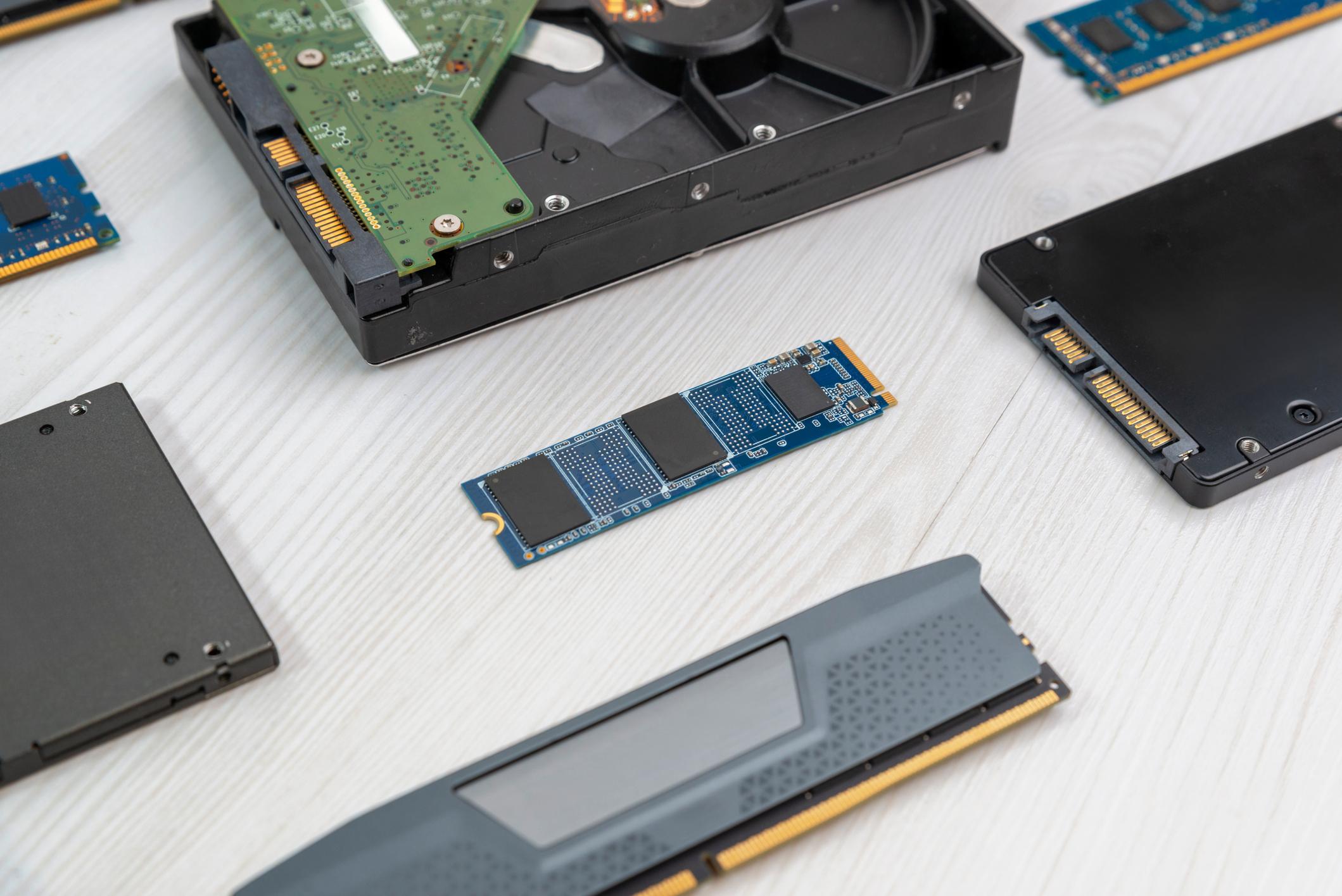
Choose an SSD upgrade if your computer still uses a hard drive or regularly runs out of storage; choose more RAM if memory usage is consistently high and applications become sluggish during multitasking. These upgrades solve different problems, so identifying the bottleneck first helps avoid unnecessary spending.
An SSD is particularly useful if Windows takes a long time to start, applications load slowly or files take too long to open. Replacing a mechanical hard drive with an SSD can make even an older compatible PC feel more responsive.
RAM upgrades are most useful when your system struggles with multiple browser tabs, large spreadsheets, creative software or modern games. If your computer already has sufficient RAM, adding more may make little difference to everyday speed.
Check Task Manager in Windows while using your usual applications. Consistently high memory usage may indicate that additional RAM would help. If storage activity is high and the system still uses a hard drive, an SSD may deliver the more noticeable improvement.
Best SSD Deals: NVMe vs SATA and Which Capacity to Choose
An NVMe SSD is usually the best choice for a compatible modern PC, while a SATA SSD can be an effective upgrade for older systems. The right drive depends on your motherboard, available connections and storage requirements.
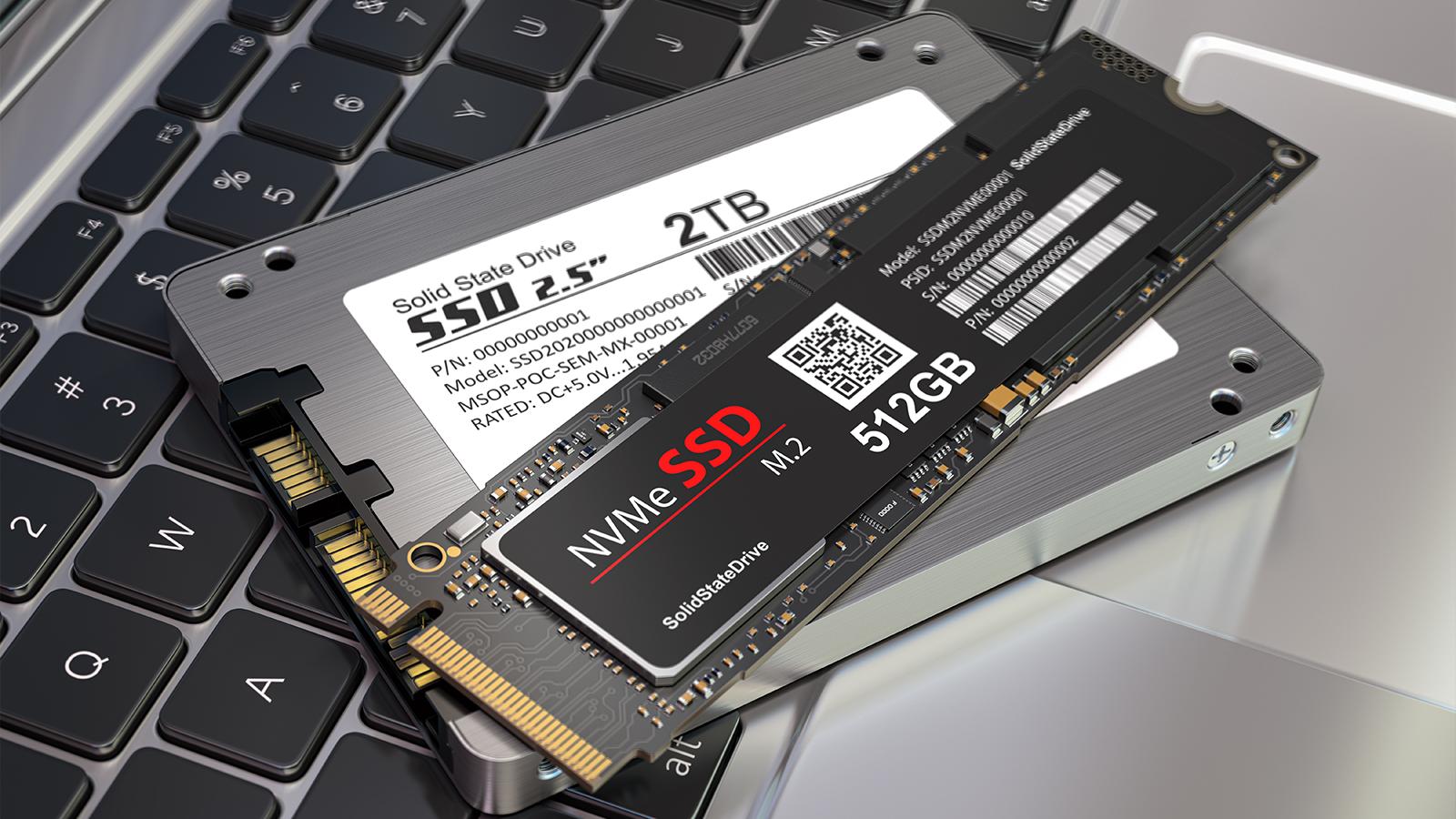
PcComponentes' SSD catalogue includes examples such as:
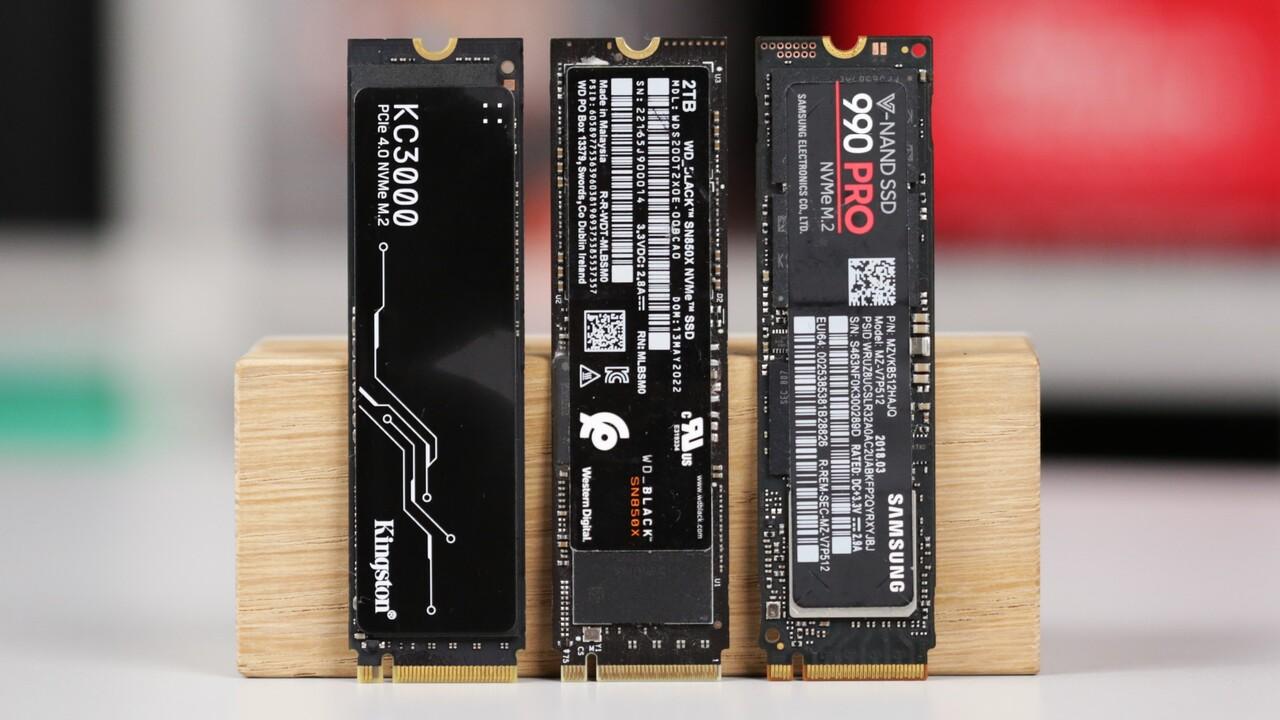
Kingston NV3 1TB: A PCIe 4.0 NVMe drive suited to general PC upgrades and everyday computing.
WD Black SN7100 1TB: A faster PCIe 4.0 option for users who regularly move large files or want a performance-focused drive.
Samsung 990 Pro 1TB: A premium PCIe 4.0 NVMe SSD aimed at demanding workloads.
Kioxia Exceria SATA SSD: An option to consider for systems that support SATA storage but lack a suitable M.2 NVMe connection.
The catalogue showed the Kingston NV3 1TB at approximately €149.95 and the WD Black SN7100 1TB at around €193 during research. These are observed prices, not guaranteed promotional prices, and may change with stock and seller.
For capacity, 1TB is a practical target for many users, while 2TB is worth considering if you install large games, keep extensive media libraries or work with video files. A 500GB drive may suit a basic office PC, but can fill quickly when several modern games are installed.
Remember that advertised sequential read speeds do not tell the whole story. Real-world performance also depends on the workload, drive design, temperature and the rest of your computer.
Which NVMe SSD Speed Do You Actually Need?
A PCIe 4.0 NVMe SSD is a strong all-round choice for a modern gaming or productivity PC, while PCIe 5.0 is mainly worth considering for specialised workloads. A faster specification does not automatically make everyday tasks proportionally faster.
SSD type | Typical advertised sequential speeds | Best suited for |
|---|---|---|
SATA SSD | Up to around 550 MB/s | Older PCs and basic upgrades |
PCIe 3.0 NVMe | Around 2,000–3,500 MB/s | Everyday computing and budget builds |
PCIe 4.0 NVMe | Around 5,000–7,500 MB/s | Gaming, productivity and large files |
PCIe 5.0 NVMe | Can exceed 10,000 MB/s | High-throughput professional workloads |
Actual performance varies by model. Check the drive's specifications rather than assuming every SSD in a category reaches the upper end of the range.
For gaming, moving from a hard drive to an SSD can make a substantial difference to loading times. Upgrading from a good PCIe 4.0 SSD to a premium PCIe 5.0 model usually offers less noticeable improvement in ordinary gameplay than the headline speed figures suggest.
DDR4 vs DDR5 RAM: Which Should You Buy?
Buy DDR4 if your existing motherboard supports DDR4 and you want an economical upgrade; choose DDR5 when your platform requires it or you are building a compatible newer system. DDR4 and DDR5 are physically and electrically different, so they cannot be substituted for one another.
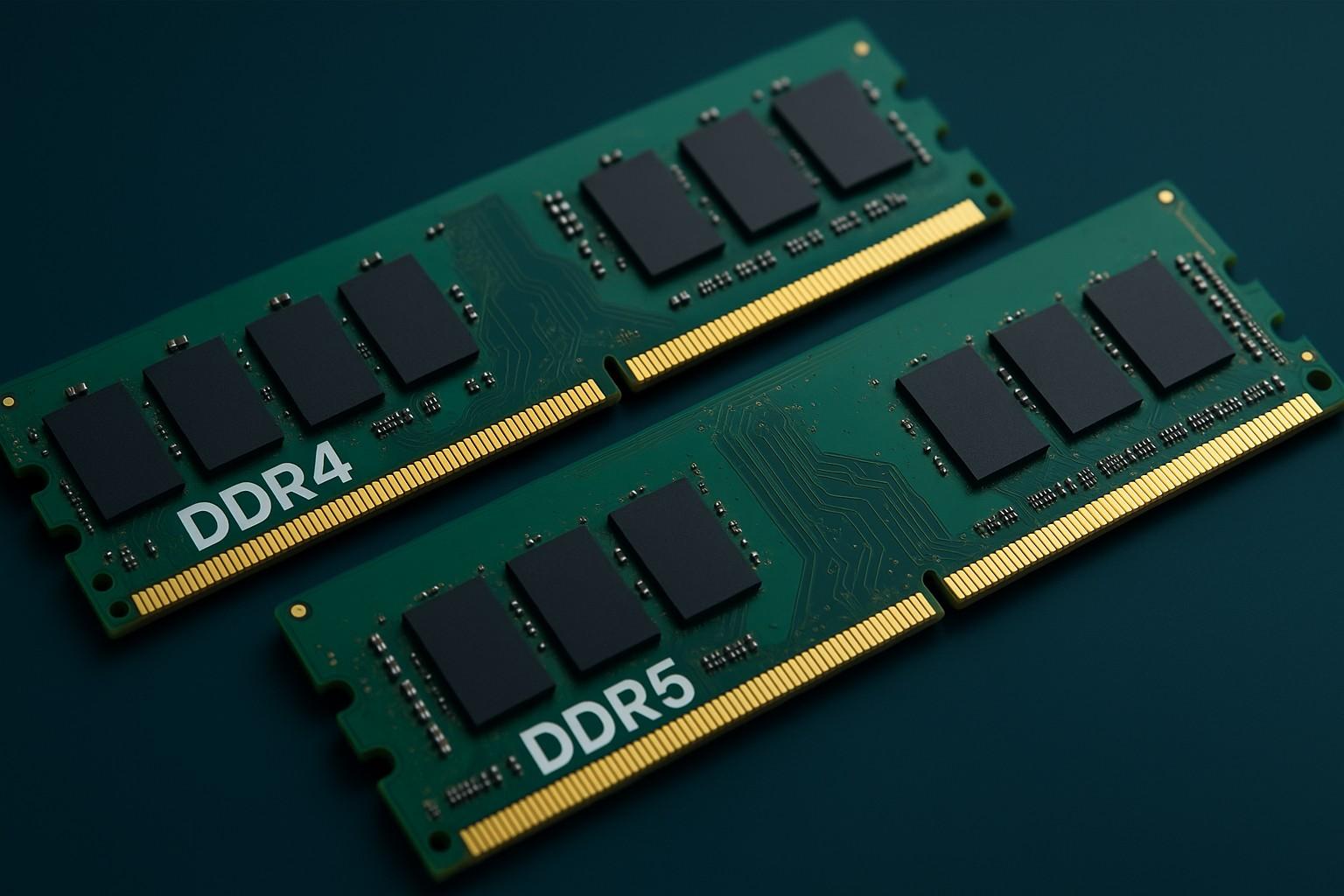
PcComponentes lists both DDR4 and DDR5 RAM, including desktop DIMM modules and laptop SO-DIMM memory.
Before buying, check:
Motherboard compatibility: Confirm the supported memory generation and maximum capacity.
Processor support: The CPU and motherboard determine which memory standards and speeds are available.
Capacity: 16GB is a practical starting point for general use, while 32GB suits many modern gaming and multitasking setups.
Speed and latency: Compare the supported data rate and timings rather than focusing only on the MHz figure.
Memory profiles: Intel XMP and AMD EXPO can help configure compatible memory kits at their advertised performance settings.
Do not buy DDR5 simply because it is newer. If your existing computer supports only DDR4, a compatible DDR4 upgrade may provide better value than replacing the motherboard and memory together.
How Much RAM Do You Need for Gaming and Everyday Work?
For most new desktop gaming builds, 32GB is a sensible target, while 16GB can still work for everyday computing and less demanding games. More memory is useful when your applications genuinely need it, but additional capacity does not automatically increase performance.
Use these guidelines:
8GB: Basic browsing and light office tasks, although it can feel restrictive with modern applications.
16GB: Everyday productivity, study and many gaming setups.
32GB: Modern gaming, heavy multitasking, development and many creative workflows.
64GB or more: Demanding video editing, professional applications and specialised workloads.
If you already have 16GB and rarely approach its capacity, upgrading to 32GB may deliver only a modest improvement. If memory usage regularly approaches the limit and applications slow down, the upgrade is more likely to help.
For many desktop systems, a matched two-module kit can enable dual-channel operation. Check the motherboard manual for recommended slots and supported configurations before installation.
How to Check SSD and RAM Compatibility Before Buying
Confirm the physical format, interface and platform requirements before ordering any upgrade. Even a highly rated component will not help if it cannot fit or operate correctly in your computer.
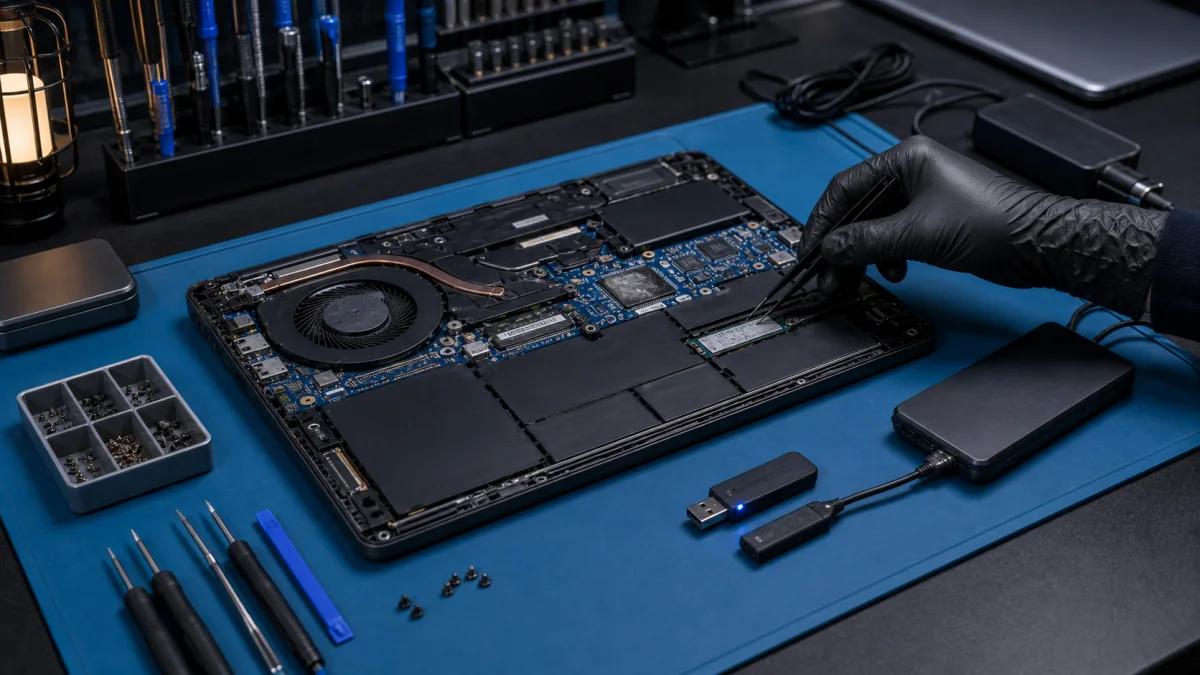
For an SSD, check whether your system supports a 2.5-inch SATA drive, an M.2 SATA drive or an M.2 NVMe drive. An M.2 connector alone does not guarantee support for every interface. Also check the supported PCIe generation, available slots and physical drive length.
For RAM, identify whether your system requires desktop DIMM or laptop SO-DIMM modules. Check the maximum supported capacity, compatible memory generation and whether the existing memory can be upgraded.
Laptop upgrades need particular care because some models have soldered RAM or limited storage expansion. Consult the manufacturer's documentation or your computer's service manual before purchasing.
If you plan to replace your main SSD, back up your files first. You may need to clone your existing drive or reinstall Windows, depending on your upgrade method.
How to Find Genuine SSD and RAM Offers at PcComponentes
Compare current prices for equivalent specifications and check the seller, stock and promotion terms before purchasing. PcComponentes provides dedicated categories for SSD drives and RAM modules, where you can filter by capacity, interface, generation and other features.
Its broader PC components catalogue is also useful when planning a combined upgrade.
Before buying:
Compare the same capacity and product model.
Check whether the product is sold directly by PcComponentes or a marketplace seller.
Review current stock, delivery costs and return conditions.
Compare speed and capacity alongside price.
Check whether a compatible heatsink or other accessory is required.
RAM and SSD prices can fluctuate significantly. A product advertised as discounted is not necessarily the best value if a similar drive offers more capacity or a better performance profile for a comparable price.
Conclusion: Which PC Upgrade Should You Buy?
Upgrade your SSD first if your computer uses a slow hard drive, and prioritise RAM if your current memory capacity is holding back multitasking or demanding applications. For a modern PC, a 1TB PCIe 4.0 NVMe SSD and 32GB of compatible RAM are useful targets, but you do not necessarily need both.
Start by checking your existing hardware and identifying the problem you want to solve. Then compare suitable options through PcComponentes and choose the upgrade that provides the greatest practical improvement for your budget.
FAQs
Is an NVMe SSD better than a SATA SSD?
NVMe SSDs can deliver substantially higher transfer speeds and are generally preferable for compatible modern PCs. SATA SSDs remain useful for older systems and can still provide a major improvement over mechanical hard drives.
Is 1TB enough storage for a gaming PC?
For many users, 1TB is a good starting point. If you install numerous large games or work with substantial video files, 2TB may be more convenient.
Is DDR5 RAM faster than DDR4?
DDR5 offers higher potential memory bandwidth and newer platform features. However, actual performance depends on the processor, application, memory configuration and supported speed.
Should I upgrade from 16GB to 32GB RAM?
Consider upgrading if your games or applications regularly use most of your available memory. If your current system runs comfortably within 16GB, adding more may have limited benefits.
Will a faster SSD increase gaming FPS?
Usually, not significantly. An SSD can reduce loading times and improve responsiveness, but average frame rates depend much more on the processor and graphics card in most games.
Can I install an NVMe SSD in any computer?
No. The motherboard or laptop must support the relevant M.2 NVMe interface and physical format. Check the manufacturer's specifications before purchasing.