
A PC doesn't need to be brand new to run Windows 11.
Microsoft's official minimum requirements are surprisingly modest: a compatible 64-bit processor running at 1GHz or faster with at least two cores, 4GB of RAM, 64GB of storage, UEFI firmware with Secure Boot capability, TPM 2.0 and a DirectX 12-compatible graphics processor with a WDDM 2.0 driver.
But there's an important catch.
Running Windows 11 is not the same as supporting every modern Windows 11 feature.
An older PC may be perfectly capable of running the operating system while missing the hardware needed for newer AI experiences. Microsoft's Copilot+ category, for example, requires a 40+ TOPS NPU, 16GB of RAM and at least 256GB of storage. Features such as Recall and Click to Do depend on that class of hardware.
That creates three practical categories in 2026:
Older but officially supported Windows 11 PCs
Newer Windows 11 PCs with some AI acceleration
Copilot+ PCs capable of the newest on-device AI experiences
Understanding the difference can help you decide whether an older computer needs an upgrade, a workaround or replacement.
What Are the Minimum Windows 11 Hardware Requirements?
A Windows 11 PC officially needs a supported 64-bit processor, 4GB RAM, 64GB storage, TPM 2.0, UEFI/Secure Boot capability and DirectX 12-compatible graphics.
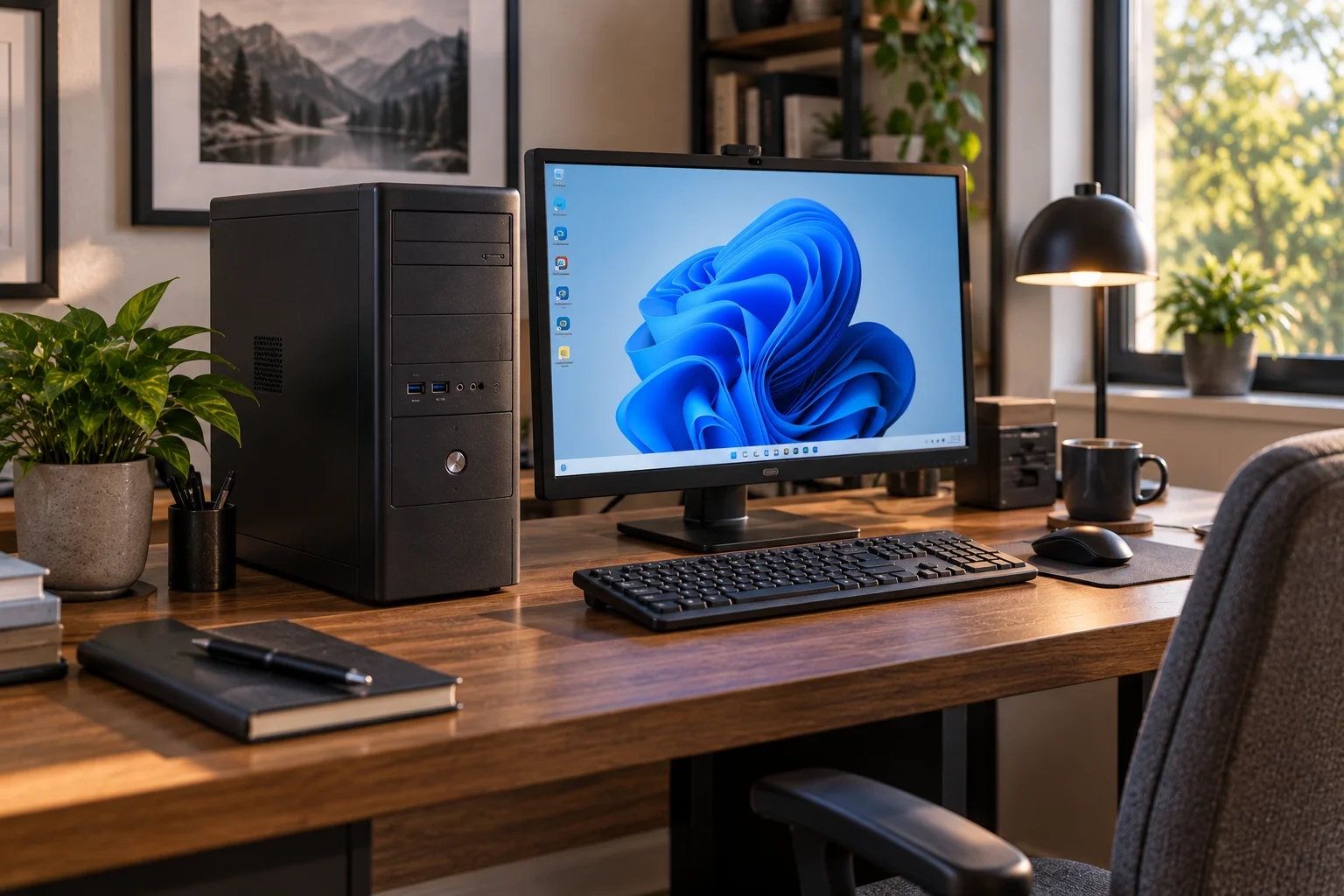
Here is Microsoft's current baseline:
Component | Windows 11 minimum |
|---|---|
Processor | 1GHz+, 2+ cores, compatible 64-bit CPU/SoC |
RAM | 4GB |
Storage | 64GB |
Firmware | UEFI, Secure Boot capable |
Security | TPM 2.0 |
Graphics | DirectX 12 or later + WDDM 2.0 driver |
Display | 720p, larger than 9 inches |
Internet | Required for updates; Home requires internet + Microsoft account during setup |
The word compatible is crucial.
A processor being fast enough isn't sufficient by itself. Microsoft maintains lists of supported processor families, and the company says those lists represent the minimum supported processor generations and are updated as new Windows releases arrive.
So a very old 3GHz CPU isn't automatically eligible just because its clock speed exceeds 1GHz.
Why Does Windows 11 Require TPM 2.0?
TPM 2.0 provides hardware-backed security capabilities that Windows 11 uses as part of its security architecture.
TPM, or Trusted Platform Module, can securely handle cryptographic keys and support features such as device encryption, Windows Hello and measured boot.
Microsoft says TPM 2.0 has been required for new Windows device models since 2016.
The good news for owners of older PCs is that TPM 2.0 may already exist but simply be disabled in firmware.
On Intel systems it may appear under names such as:
Intel PTT
Platform Trust Technology
On AMD systems it may appear as:
AMD fTPM
Firmware TPM
The exact menu depends on the motherboard manufacturer.
That means "TPM missing" and "TPM disabled" are not necessarily the same problem.
Before replacing a computer, check the UEFI/BIOS settings and run Microsoft's compatibility checker.
Does Secure Boot Matter for Windows 11?
Yes. Windows 11 requires system firmware to be UEFI and Secure Boot capable.
Secure Boot helps prevent unauthorized boot software from loading before Windows.
An older computer may have a UEFI-capable motherboard but still be configured in legacy BIOS/CSM mode.
That creates an important distinction:
Old hardware may sometimes be configurable for Windows 11 without actually being replaced.
However, changing legacy boot configuration can affect an existing Windows installation, so you should back up important files before changing firmware or partition settings.
Which Older CPUs Can Still Run Windows 11?
The answer depends on Microsoft's supported processor lists, not simply CPU age or clock speed.
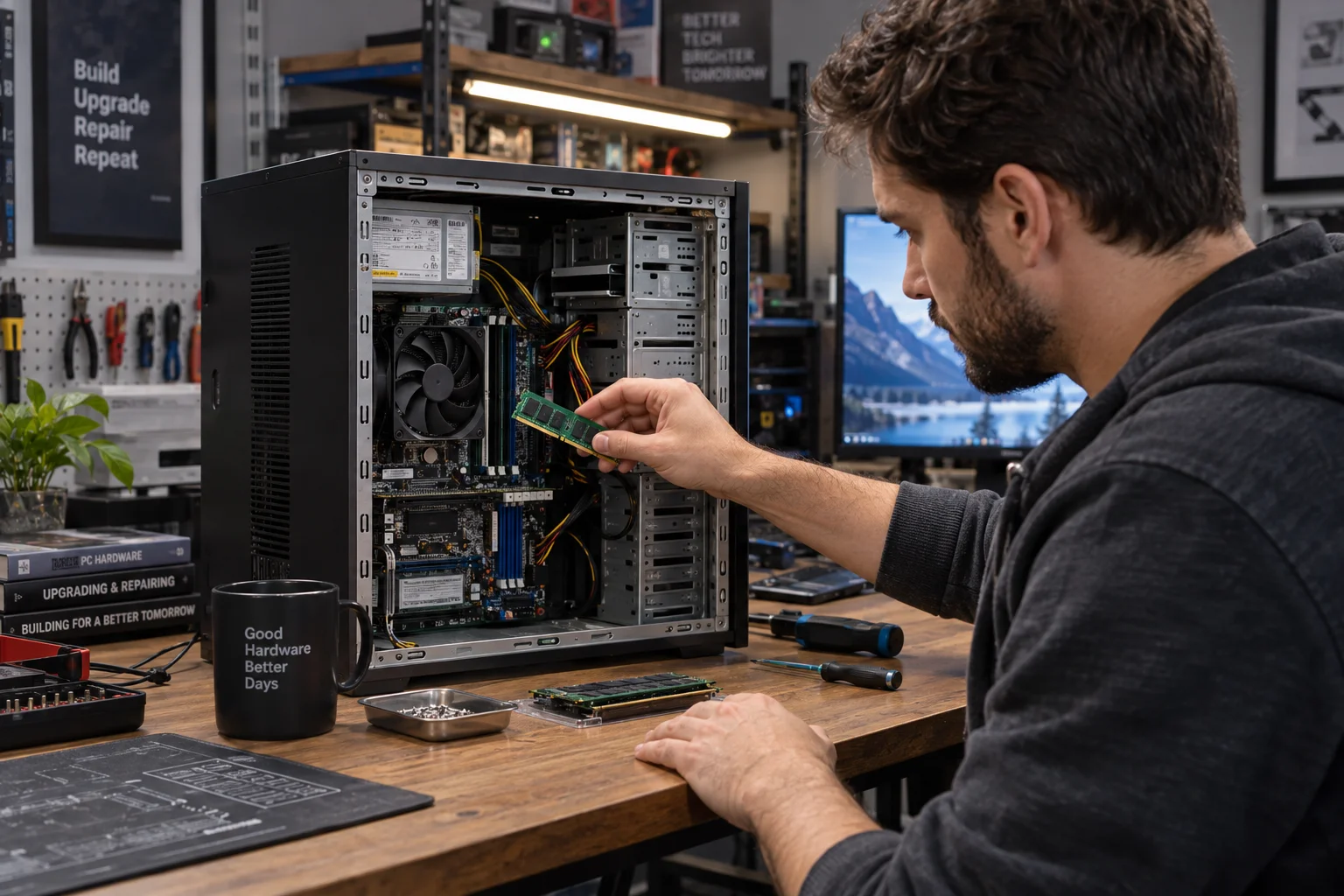
There isn't a universal rule such as "all PCs from 2018 work."
Intel and AMD have extensive processor lists covering multiple generations and product families. Microsoft's 26H1 processor documentation also states that later processors meeting the same design principles can become supported even before appearing in the published list.
For an older machine, check the exact processor model.
For example, don't simply search:
"Can a 10th-generation Intel PC run Windows 11?"
Instead, identify the exact CPU:
Intel Core i5-10400
Then compare that processor against Microsoft's supported list.
The same approach applies to AMD Ryzen systems.
Is 4GB of RAM Enough for Windows 11?
4GB is the official minimum, but it isn't a sensible target for a modern Windows 11 computer.
Windows 11 can meet its minimum requirement with 4GB, but modern browsers, communication apps, office software and multitasking can quickly consume available memory.
For a practical 2026 system, 8GB should be viewed as a basic floor and 16GB as a much more comfortable target.
And if you're interested in Microsoft's newest Copilot+ experiences, the requirement rises to 16GB RAM.
This is one reason an older PC with upgradeable RAM can remain useful.
If your computer has:
4GB → upgrade to 8GB or 16GB if supported
you may improve everyday usability substantially without replacing the entire machine.
RAM upgrades cannot, however, turn an unsupported CPU into a supported one.
Can an Older PC Run Windows 11 Without an NPU?
Yes. An NPU is not required for basic Windows 11.
This distinction is becoming increasingly important.
Microsoft's standard Windows 11 requirements do not list an NPU.
A conventional Windows 11 PC can still run:
Desktop applications
Web browsers
Microsoft Office
File Explorer
Windows Update
Traditional games
Standard productivity software
Many Windows 11 features
But certain newer AI experiences require substantially more capable hardware.
That's where Copilot+ enters the picture.
What Is a Copilot+ PC and Why Does It Need More Hardware?
A Copilot+ PC is a Windows 11 computer with hardware designed specifically for advanced local AI workloads.
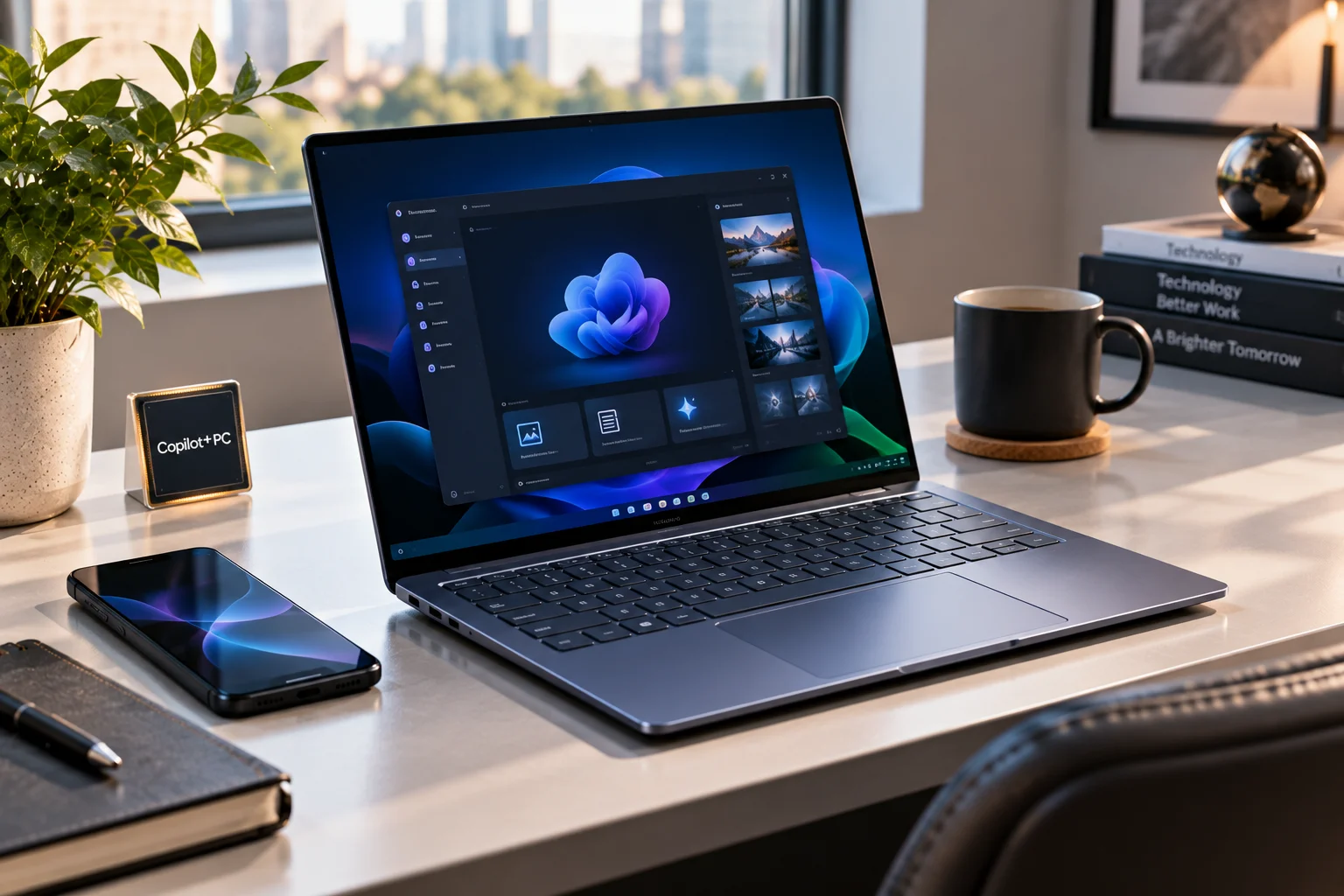
Microsoft currently defines the hardware around:
40+ TOPS NPU
16GB RAM
256GB SSD or UFS storage
Compatible Windows 11 hardware/software
Current processor families include Qualcomm Snapdragon X-series systems, Intel Core Ultra 200V/300V series and AMD Ryzen AI 300/400 series.
The important component is the NPU, or Neural Processing Unit.
Unlike a traditional CPU, which handles general computing, or a GPU, which excels at highly parallel workloads, an NPU is designed to perform certain AI operations efficiently.
That can allow compatible AI features to run locally while reducing the workload placed on the CPU and GPU.
Which Windows 11 Features Need a Copilot+ PC?
Some of the newest Windows AI features require Copilot+ hardware rather than merely Windows 11.
Recall is one of the clearest examples.
Microsoft lists these minimum requirements for Recall:
Copilot+ PC
40 TOPS NPU
16GB RAM
8 logical processors
256GB storage
At least 50GB free space to enable Recall
Device encryption or BitLocker
Windows Hello Enhanced Sign-in Security with biometric authentication
Click to Do also requires Copilot+ hardware with a 40 TOPS NPU, 16GB RAM, 8 logical processors and 256GB storage.
So an older Core i7 desktop with 32GB RAM and an SSD could outperform an entry-level Copilot+ laptop in conventional applications and still not qualify for these specific AI features.
The bottleneck isn't traditional processing power.
It's the presence of the required AI hardware.
What About Windows Studio Effects?
Windows Studio Effects can use an NPU to process camera and microphone effects such as background blur, eye contact and auto framing.
Microsoft's documentation says Windows Studio Effects requires Windows 11 22H2 or newer and a supported NPU with manufacturer support and the appropriate driver.
Microsoft's current specifications also distinguish between different levels of Studio Effects: some effects can work with NPUs offering 10+ TOPS, while additional effects are available on Snapdragon X-series Copilot+ PCs.
This illustrates an important point:
Not every AI feature has the same hardware threshold.
A PC can have some AI acceleration without qualifying as a Copilot+ PC.
Can You Upgrade an Old PC to Get Copilot+ Features?
Usually not, because an NPU is generally integrated into the processor or system platform rather than being a simple RAM or SSD upgrade.
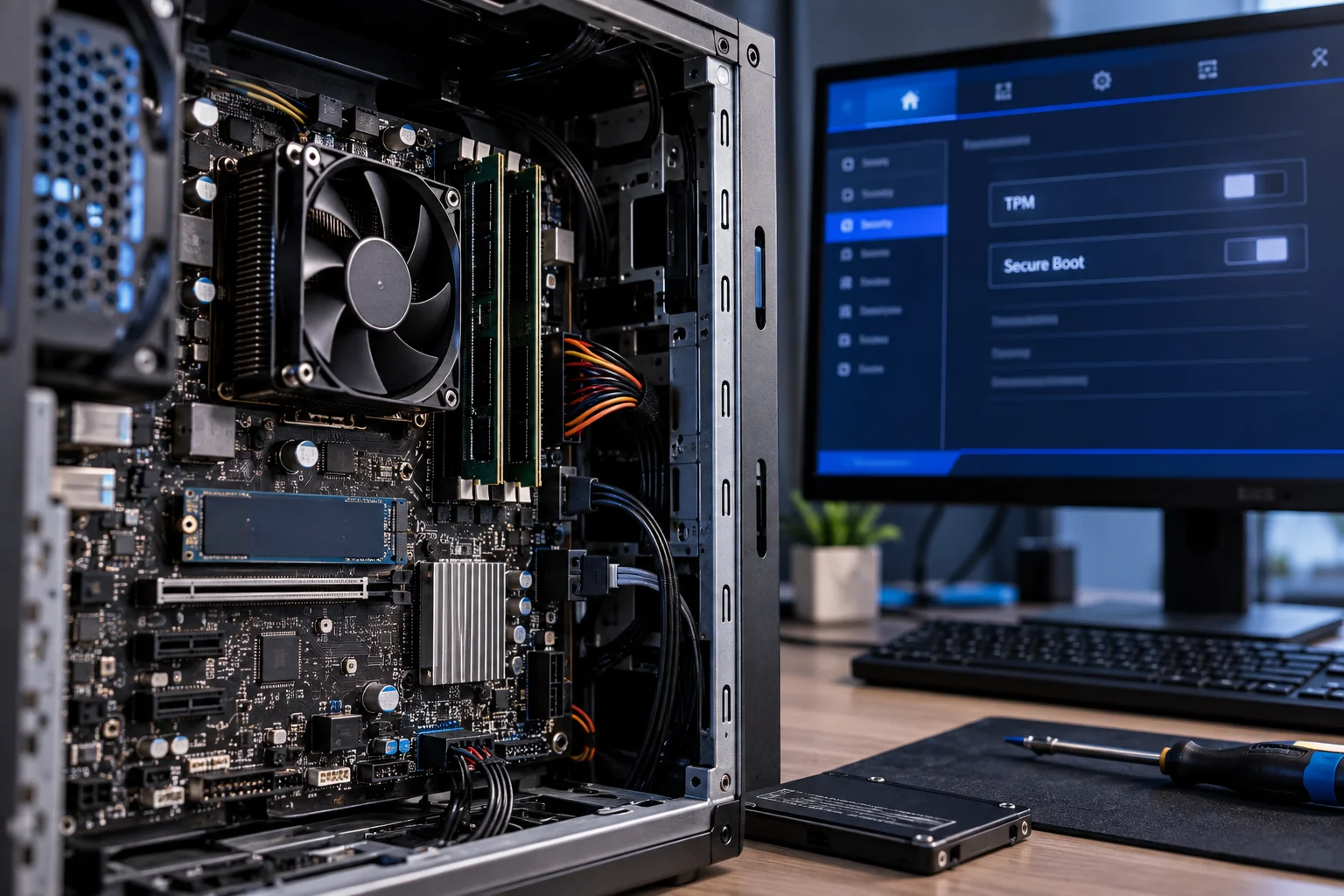
You can often upgrade:
RAM
SSD
HDD
Sometimes the CPU
Sometimes the GPU
But adding a Copilot+ class NPU to an older motherboard isn't normally a practical upgrade path.
That makes AI capability fundamentally different from storage capacity.
If your older PC has:
8GB RAM + 256GB SSD + compatible CPU
you may be able to improve it with more RAM or storage.
If it lacks the required NPU:
A RAM upgrade won't make it a Copilot+ PC.
What Happens If Your PC Fails Windows 11's Hardware Check?
Microsoft does not recommend installing Windows 11 on hardware that fails the minimum requirements.
There are unofficial methods for installing Windows 11 on unsupported systems, but Microsoft explicitly says that such devices are not supported and aren't guaranteed to receive updates, including security updates.
That distinction matters more now than it did when Windows 11 first launched.
An unsupported installation might appear to work perfectly today.
The bigger question is:
What happens after the next feature update, driver change or security update?
Microsoft's official position remains that unsupported hardware carries compatibility and update risks.
For a secondary test machine, that may be an acceptable experiment.
For a primary work computer containing important files, it's a different calculation.
What Should You Upgrade on an Older Windows 11 PC?
Upgrade the component that is actually limiting your system, but don't spend heavily trying to overcome a fundamental CPU or platform incompatibility.
A practical decision tree looks like this:
Problem | Possible upgrade |
|---|---|
Less than 8GB RAM | Add RAM |
Slow mechanical HDD | Replace with SSD |
Nearly full storage | Larger SSD |
TPM disabled | Enable TPM 2.0 in UEFI if supported |
Secure Boot disabled | Configure UEFI/Secure Boot if supported |
Unsupported CPU | Usually requires platform replacement |
No NPU | Usually requires a newer platform |
Weak GPU | Upgrade GPU if desktop supports it |
Very old motherboard | Consider replacing the PC |
An SSD and additional RAM can transform an older computer's everyday responsiveness.
They cannot change the fundamental Windows 11 processor-support status.
How Do You Check Whether Your PC Supports Windows 11?
The simplest official approach is Microsoft's PC Health Check tool.
You should check these components individually:
CPU model
RAM capacity
Storage capacity
TPM 2.0
UEFI/Secure Boot
Graphics compatibility
Windows version
Microsoft specifically recommends PC Health Check for determining Windows 11 eligibility.
If the computer fails, don't immediately assume it needs replacement.
Find out why it failed.
A disabled TPM is a very different problem from an unsupported processor.
Windows 11 Hardware Tiers in 2026
Hardware level | Windows 11 | Newer AI features | Best use |
|---|---|---|---|
Older supported PC | Yes | Limited | Web, Office, everyday use |
Modern CPU + SSD + 16GB | Yes | Some hardware-accelerated AI | General productivity |
PC with 10+ TOPS NPU | Yes | Selected AI features | AI-enhanced productivity |
Copilot+ PC, 40+ TOPS NPU | Yes | Advanced Windows AI | Local AI + modern Windows features |
Unsupported CPU/TPM | Not officially supported | Not guaranteed | Upgrade/replace |
The important takeaway is that Windows 11 isn't one hardware target anymore.
There is a basic operating-system requirement and a much higher hardware threshold for some of Microsoft's newest experiences.
Should You Upgrade an Older PC or Buy a New One?
If the PC already meets Windows 11's official requirements, a RAM or SSD upgrade can extend its useful life. If the processor or platform is fundamentally incompatible, replacement usually makes more sense than chasing workarounds.
For example:
Older PC + supported CPU + 8GB RAM + HDD
A RAM and SSD upgrade could make considerable sense.
But:
Older PC + unsupported CPU + no TPM 2.0
The upgrade path is much less attractive because the problem involves the platform itself.
And if your goal is specifically to use Recall, Click to Do and other Copilot+ experiences, upgrading RAM and storage isn't enough.
You'll need hardware that meets Microsoft's Copilot+ requirements.
Frequently Asked Questions About Windows 11 Hardware Requirements
Can a 10-year-old PC run Windows 11?
Possibly, but age alone doesn't determine eligibility. The exact processor, TPM 2.0 support, UEFI/Secure Boot capability, graphics support and other requirements matter.
Is 4GB RAM enough for Windows 11?
4GB is Microsoft's minimum requirement, but 8GB or more is much more practical for everyday use. Copilot+ PCs require at least 16GB.
Does Windows 11 require an NPU?
No. Standard Windows 11 does not require an NPU. An NPU becomes important for certain newer AI features, with Copilot+ requiring at least 40 TOPS.
Can I add TPM 2.0 to an old PC?
Some older motherboards already have firmware-based TPM functionality that can be enabled in UEFI. Others may not meet the requirement. Check the motherboard manufacturer's documentation before buying hardware.
Can I install Windows 11 on an unsupported PC?
Unofficial installation methods exist, but Microsoft does not recommend running Windows 11 on hardware that doesn't meet its minimum requirements. Such systems aren't supported and aren't guaranteed to receive updates.
Does an SSD make an old Windows 11 PC faster?
An SSD can dramatically improve boot, application-launch and file-access responsiveness compared with a mechanical hard drive. It won't, however, solve an unsupported CPU or missing NPU.
Can an old Windows 11 PC use Copilot?
The availability and capabilities of Copilot and other AI features depend on the specific feature, software version, region and hardware. Copilot+ features have substantially higher hardware requirements than Windows 11 itself.
What is the biggest Windows 11 hardware requirement for older PCs?
For many older systems, the processor and TPM 2.0 are the key barriers. For the newest AI features, the major additional requirement is a sufficiently capable NPU.
The Bottom Line
Windows 11 can run on surprisingly modest hardware, but modern Windows features increasingly depend on hardware beyond the operating system's minimum requirements.
A supported older PC with an SSD and enough RAM can still be perfectly useful in 2026.
But there are limits.
TPM 2.0 and a supported processor determine whether the PC officially qualifies for Windows 11.
RAM and storage determine how comfortable everyday Windows use feels.
An NPU determines whether the machine can access an expanding class of local AI experiences.
And 40+ TOPS of NPU performance, 16GB RAM and 256GB storage form the current Copilot+ hardware threshold for Microsoft's newest Windows AI experiences.
So don't judge an older PC simply by its age.
Check its CPU, TPM, firmware, RAM, storage and NPU capability.
A seven-year-old PC that passes the official requirements may still have useful life left.
A newer PC without the hardware needed for the features you actually want may be a very different story.