If Windows 11 has suddenly started feeling slow, the problem may not be Windows itself. A nearly full SSD, too many startup programs, insufficient RAM, background processes, outdated drivers, malware, or aging hardware can all make a PC feel sluggish.
The first step is to identify what is actually being overloaded. Windows 11's Task Manager can show whether CPU, memory, disk, or another resource is consistently under heavy load. Microsoft also recommends checking storage, startup programs, updates, malware and overall hardware capability when troubleshooting poor performance.
The good news is that many slow-PC problems can be fixed without reinstalling Windows or buying a new computer.
1. Check Task Manager Before Changing Anything
Task Manager is the quickest way to find out what is slowing your PC down.
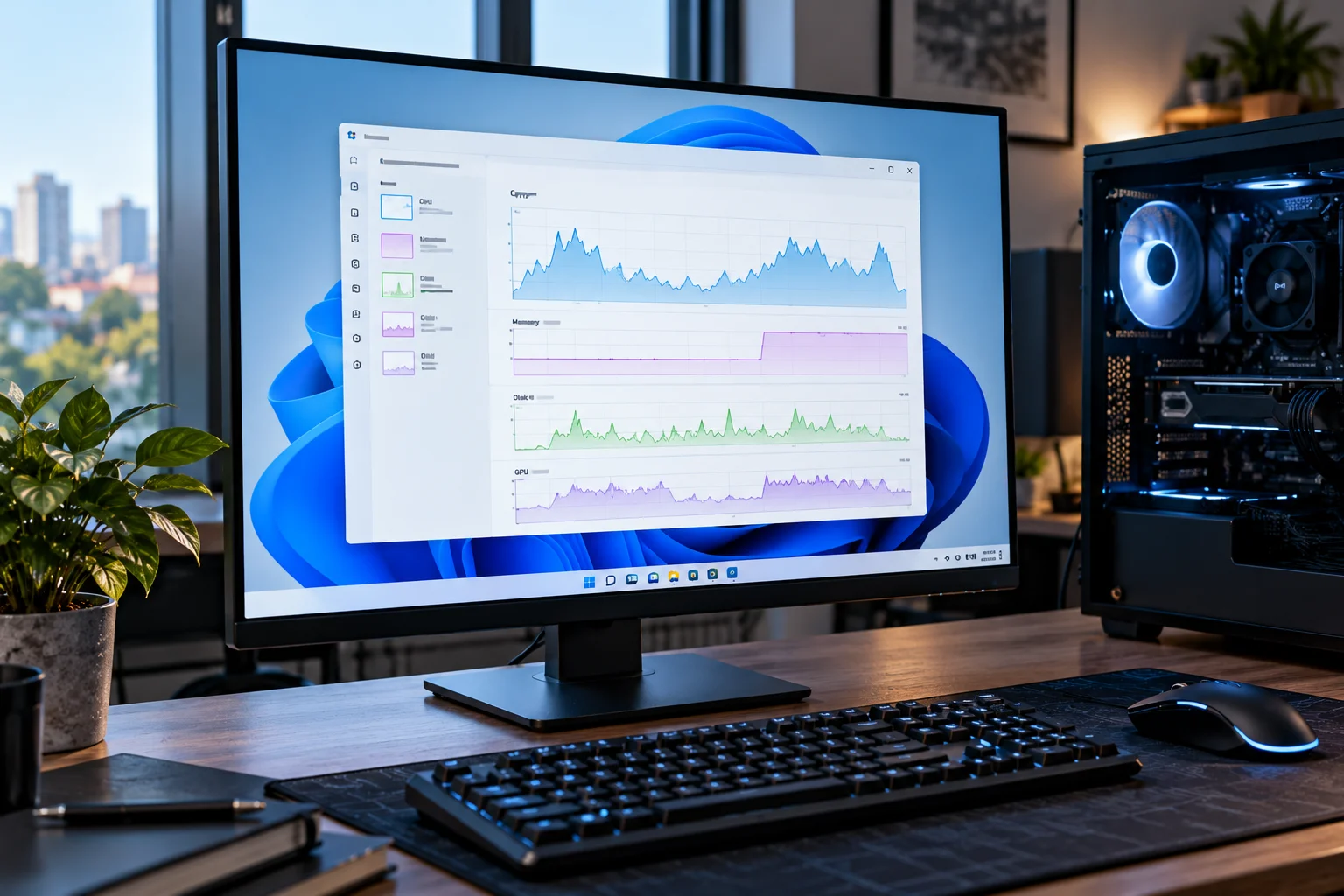
Press Ctrl + Shift + Esc and open the Processes tab. Look at CPU, Memory, Disk and GPU usage.
Pay attention to processes that consistently consume unusually large amounts of resources.
What is high? | Possible cause |
|---|---|
CPU | Heavy application, background process, update or malware |
Memory | Too many apps, browser tabs or insufficient RAM |
Disk | Heavy file activity, updates, background applications or storage problems |
GPU | Gaming, video processing or graphics-heavy software |
Don't immediately terminate an unfamiliar Windows process simply because it is using resources. First identify what the process belongs to.
Microsoft specifically recommends using Task Manager to monitor resource usage and identify processes that may be affecting performance.
2. Too Many Startup Apps Can Make Windows Feel Slow
Programs that launch automatically can increase boot time and keep using resources after Windows starts.
Open Task Manager > Startup apps and look through the list.
You can disable applications you don't need to launch automatically. This is particularly useful for software that you only use occasionally.
Common examples include:
Game launchers
Messaging applications
Cloud-storage utilities
Creative software
Update helpers
Manufacturer utilities
Don't disable security software or system components unless you know exactly what they do.
Microsoft specifically recommends disabling unnecessary startup applications to reduce background activity and improve startup performance.
3. A Nearly Full SSD Can Affect Performance
Low free storage is one of the easiest things to overlook when Windows becomes sluggish.
Go to Settings > System > Storage to see what's consuming space.
Windows provides tools such as Storage Sense and Cleanup recommendations for removing unnecessary temporary files, unused applications and other files. Microsoft notes that low storage can contribute to slower performance and can also create problems when installing Windows updates.
Look for:
Temporary files
Large downloads
Unused applications
Old installation files
Large videos and photos
Recycle Bin contents
You don't need to delete personal files blindly. Start with Windows' own storage recommendations so you can see what is taking up space.
4. Too Many Browser Tabs Can Consume Your RAM
A browser can become one of the largest memory users on a modern PC.
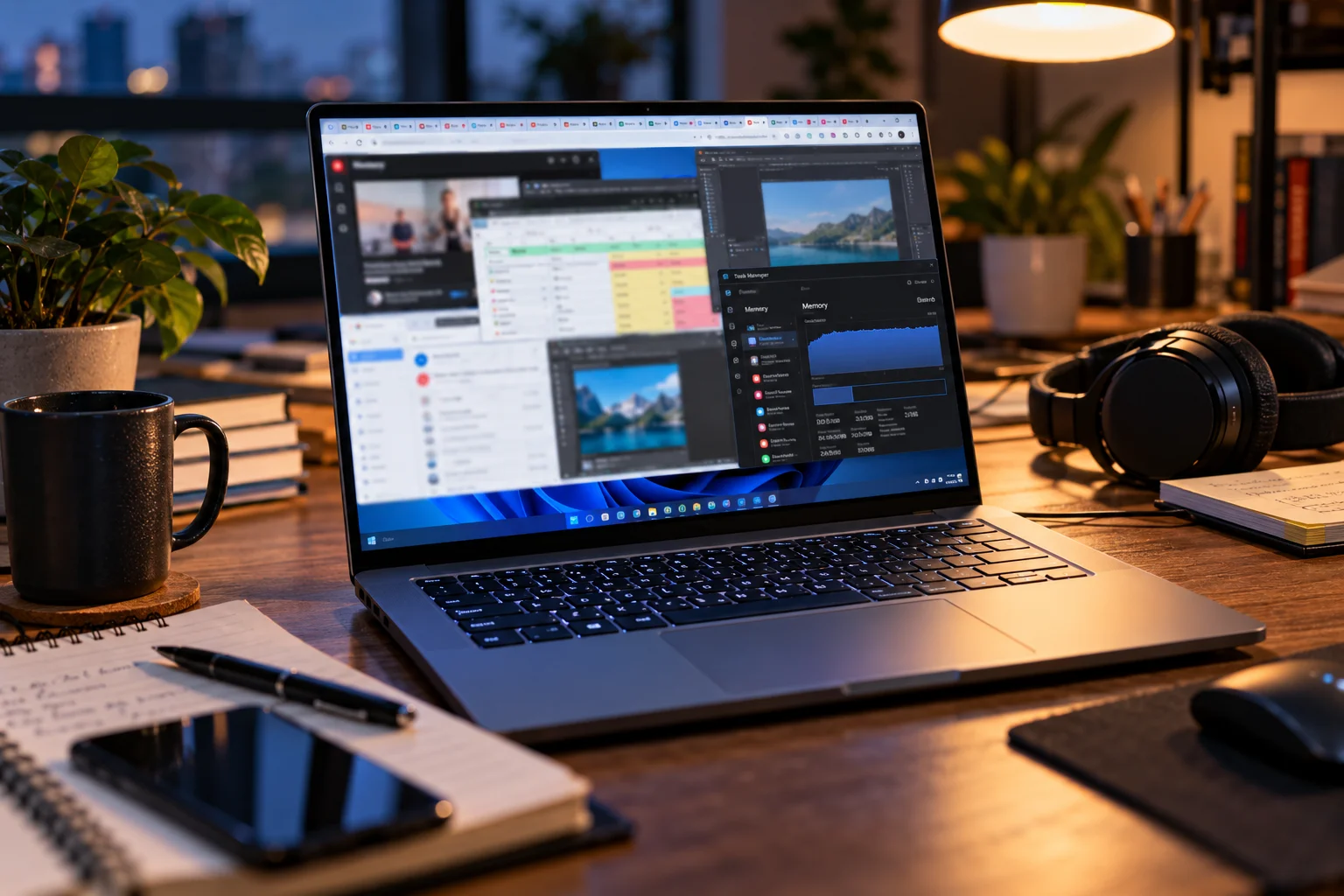
Having dozens of tabs open, especially with web applications, video streaming, online editors or complex dashboards, can consume substantial RAM.
If Task Manager shows memory usage consistently near its limit, try:
Closing unused tabs
Removing unnecessary browser extensions
Restarting the browser
Using built-in memory-saving features
Checking whether another application is consuming the majority of RAM
If your PC regularly runs out of physical memory during normal workloads, adding RAM may provide a more meaningful improvement than software tweaking.
5. Background Apps Can Keep Your PC Busy
Some applications continue running processes even when you're not actively using them.
Cloud synchronization, messaging software, game launchers, update services and other utilities can consume CPU, memory, disk or network resources in the background.
Windows provides controls for managing background activity for supported applications. Microsoft recommends reviewing unnecessary background activity when troubleshooting performance.
You can also check Task Manager after a fresh restart to see which applications immediately begin consuming resources.
6. Windows or Driver Updates May Be Missing
Keeping Windows and relevant drivers updated can resolve bugs and performance problems.
Go to:
Settings > Windows Update > Check for updates
Microsoft also recommends checking Advanced options > Optional updates for available driver updates when troubleshooting performance.
Don't install random driver packages from unknown websites simply because they promise a faster PC. For graphics drivers, chipset drivers and other important components, use Windows Update or the hardware manufacturer's official support channel.
7. Malware Can Make a PC Surprisingly Slow
Malware can consume CPU, memory and disk resources while running in the background.
If the slowdown is unexplained, run a scan through:
Settings > Privacy & security > Windows Security > Virus & threat protection
Microsoft specifically recommends running a malware scan when troubleshooting slow performance because malicious software can consume system resources.
Be especially suspicious if the slowdown appeared alongside:
Unknown applications
Unexpected browser redirects
New browser extensions
Pop-ups
Unusual network activity
Programs launching without your permission
8. Your PC May Be Running Hot
Thermal throttling can make a normally fast computer behave like a much slower one.
If your CPU or GPU becomes too hot, the system may reduce operating speeds to control temperatures.
Look for symptoms such as:
Fans constantly running at high speed
Performance dropping after several minutes of gaming
Sudden frame-rate drops
The PC becoming unusually hot
Loud fans during light workloads
Dust buildup, blocked airflow, failing fans, an aging CPU cooler or poor thermal contact can all contribute to overheating.
For a desktop, cleaning dust from filters, fans and heatsinks can help airflow. For a laptop, blocked vents can be more difficult to address safely.
9. An Old Hard Drive Can Be the Real Bottleneck
If your Windows installation still runs from a mechanical hard drive, storage may be the biggest reason the PC feels slow.
Modern Windows workloads involve frequent reads and writes. An SSD generally provides much faster access than a traditional hard disk drive, particularly for booting Windows, opening applications and handling many small files.
If you're still using an HDD as the system drive, moving Windows to an SSD can produce a much larger improvement than many software tweaks.
Before upgrading, however, back up important data and check whether your motherboard supports the SSD type you plan to install.
10. Visual Effects Can Add Some Overhead
Windows 11 uses visual effects that can consume some system resources.
Microsoft provides a setting that lets you prioritize performance over visual effects.
Search Windows for:
“Adjust the appearance and performance of Windows”
Then select Adjust for best performance under the Visual Effects settings.
This can help older or resource-constrained PCs, although modern hardware usually doesn't need aggressive visual-effect reductions.
11. Your Power Mode May Limit Performance
Windows can prioritize battery life or energy efficiency instead of maximum performance.
On compatible devices, go to:
Settings > System > Power & battery > Power mode
Selecting Best performance can prioritize performance when you need it. Microsoft notes that this can increase power consumption and heat, particularly on laptops.
For a desktop permanently connected to power, this setting is less of a concern than it is on a laptop.
12. Restart the PC Instead of Leaving It Running Forever
A restart can clear temporary processes and resolve some short-term performance problems.
If your computer has been running for a long time and has accumulated applications, background processes or pending updates, restarting can sometimes immediately improve responsiveness.
Microsoft also recommends closing unused applications and restarting when troubleshooting slow Windows performance.
If the computer becomes slow again shortly after every restart, however, look for an underlying cause rather than repeatedly rebooting.
13. Check Whether Your Hardware Is Simply Too Old
Sometimes Windows isn't the problem; the hardware has reached its practical performance limit.
Microsoft identifies consistently high CPU, memory or disk usage, long startup times, declining application performance and limited storage among the signs that an older PC may need an upgrade or replacement.
Possible upgrades include:
Adding RAM
Replacing an HDD with an SSD
Expanding storage
Upgrading the CPU, where the platform allows it
Upgrading the GPU for graphics-heavy workloads
For many older desktops, an SSD and additional RAM can extend useful life considerably.
14. Repair Windows System Files If Problems Persist
Corrupted Windows system files can sometimes cause unusual system problems, including performance or update issues.
Microsoft provides built-in repair tools such as DISM and System File Checker (SFC).
From an administrator Command Prompt, Microsoft recommends the following sequence for repairing the Windows image and system files:
DISM.exe /Online /Cleanup-image /Restorehealth
sfc /scannow
These tools should not be treated as generic "PC speed boosters." They're useful when there is reason to suspect Windows system-file corruption or related problems. Microsoft documents these commands as part of its Windows troubleshooting guidance.
A Simple Windows 11 Slow-PC Troubleshooting Order
If you don't know where to begin, work through these steps in order:
Restart the PC
Check Task Manager
Disable unnecessary startup apps
Free up storage
Close unnecessary browser tabs and applications
Install Windows and relevant driver updates
Run a Windows Security malware scan
Check temperatures and cooling
Check whether you're using an HDD
Consider a RAM or SSD upgrade
Repair Windows system files if necessary
Consider resetting or replacing the PC if hardware is the limiting factor
This approach starts with the easiest and least disruptive fixes before moving toward hardware changes.
Frequently Asked Questions
Why is Windows 11 slow even with an SSD?
An SSD doesn't eliminate other bottlenecks. High RAM usage, background applications, CPU-heavy processes, overheating, malware or outdated hardware can still make Windows feel slow.
How do I find out what is slowing down my PC?
Open Task Manager with Ctrl + Shift + Esc and check CPU, Memory, Disk and GPU usage. Look for resources that remain unusually high while you're experiencing the slowdown.
Does freeing storage make Windows 11 faster?
It can help when the system drive is running low on space. Windows specifically identifies low disk space as a potential performance issue and provides Storage Sense and Cleanup recommendations to free space.
Will adding RAM make Windows 11 faster?
It can if your current system regularly runs out of memory. If RAM usage isn't the bottleneck, adding more memory may have little effect on everyday responsiveness.
Should I use a PC cleaner to speed up Windows 11?
You generally don't need aggressive third-party "PC cleaner" software. Windows already includes Storage Sense, Cleanup recommendations, Task Manager and other tools for diagnosing and managing common performance problems.
When should I consider replacing my PC?
Consider replacement when performance remains poor after reasonable troubleshooting and the hardware is too old or limited to upgrade economically. Persistent high CPU, memory or disk usage, very slow startup and declining performance across everyday tasks are signs worth considering.
Final Takeaway
A slow Windows 11 PC doesn't automatically mean you need to reinstall Windows or buy a new computer.
Start with Task Manager to identify the bottleneck. Then check startup applications, RAM usage, storage space, updates, malware and temperatures. If the PC still struggles, look at the hardware itself, particularly the system drive and available memory.
For older machines, the biggest improvement may come from a hardware upgrade rather than another round of Windows cleanup. And if your PC consistently struggles even after sensible upgrades, that is when replacing it starts to make more sense.