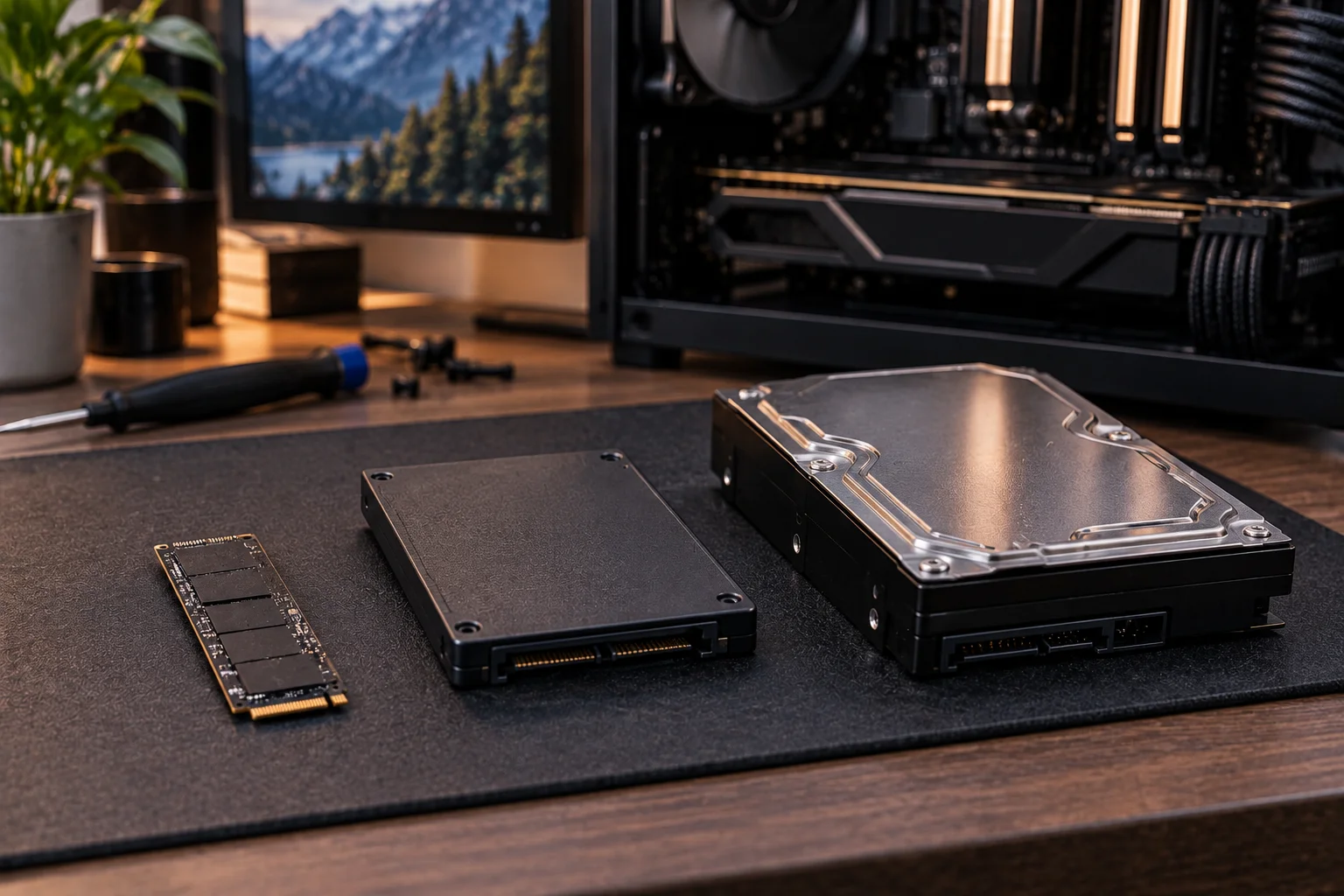
An SSD and an HDD do the same basic job: they store your operating system, applications, documents, photos, videos and other files.
The difference is how they do it.
An SSD uses flash memory with no moving parts, while an HDD uses spinning magnetic platters and mechanical read and write heads. That difference affects almost everything you notice when using a computer, from how quickly Windows starts to how long an application takes to open.
For most people buying a new computer in 2026, an SSD is the better primary drive. HDDs still make sense when maximum storage capacity matters more than speed, particularly for large media libraries, backups and other files that do not need to be accessed constantly.
SSD vs HDD: What will you actually notice?
The biggest everyday difference is responsiveness. An SSD makes a computer feel considerably quicker, particularly when starting the operating system, opening applications and accessing lots of small files.
Category | SSD | HDD | Winner |
|---|---|---|---|
Boot time | Very fast | Slower | SSD |
App loading | Very fast | Noticeably slower | SSD |
File transfers | Faster | Slower | SSD |
Everyday responsiveness | Excellent | Acceptable to slow | SSD |
Noise | Silent | Audible mechanical sounds | SSD |
Power efficiency | Better for many PC uses | Generally higher consumption | SSD |
Resistance to shock | Better | More vulnerable | SSD |
Large-capacity storage | More expensive at high capacities | Strong | HDD |
Cost per GB | Higher | Lower | HDD |
Best overall choice | Primary system drive | Bulk storage | SSD |
The important point is that the difference is not just a benchmark number.
It changes how the computer feels.
Why does an SSD feel so much faster?
An SSD can access data electronically, while an HDD has to physically move a read/write head over spinning platters.
With an HDD, the drive may need to wait for the platter to rotate and the mechanical head to reach the right location. An SSD has no equivalent mechanical movement.
That matters particularly when your computer is accessing many small files.
It is why replacing an old HDD with an SSD can make an older laptop feel dramatically more responsive even when the processor and RAM remain unchanged. Kingston notes that even entry-level SSDs can be substantially faster than spinning HDDs for accessing programs and files.
Will an SSD make Windows start faster?
Yes. This is one of the first differences you are likely to notice.
An operating system needs to access many files during startup. An SSD is much better suited to that type of workload than a mechanical HDD.
The same applies when waking the computer, opening large applications or launching software that needs to load lots of files.
That does not mean an SSD fixes every performance problem. A computer with insufficient RAM, an old processor or too many background applications can still feel slow. Microsoft notes that slow Windows performance can have multiple causes, including limited storage space, background applications and outdated hardware.
But when storage is the bottleneck, moving from an HDD to an SSD can be one of the most noticeable upgrades available.
Do applications really open faster on an SSD?
Yes, especially applications that need to load lots of data from storage.
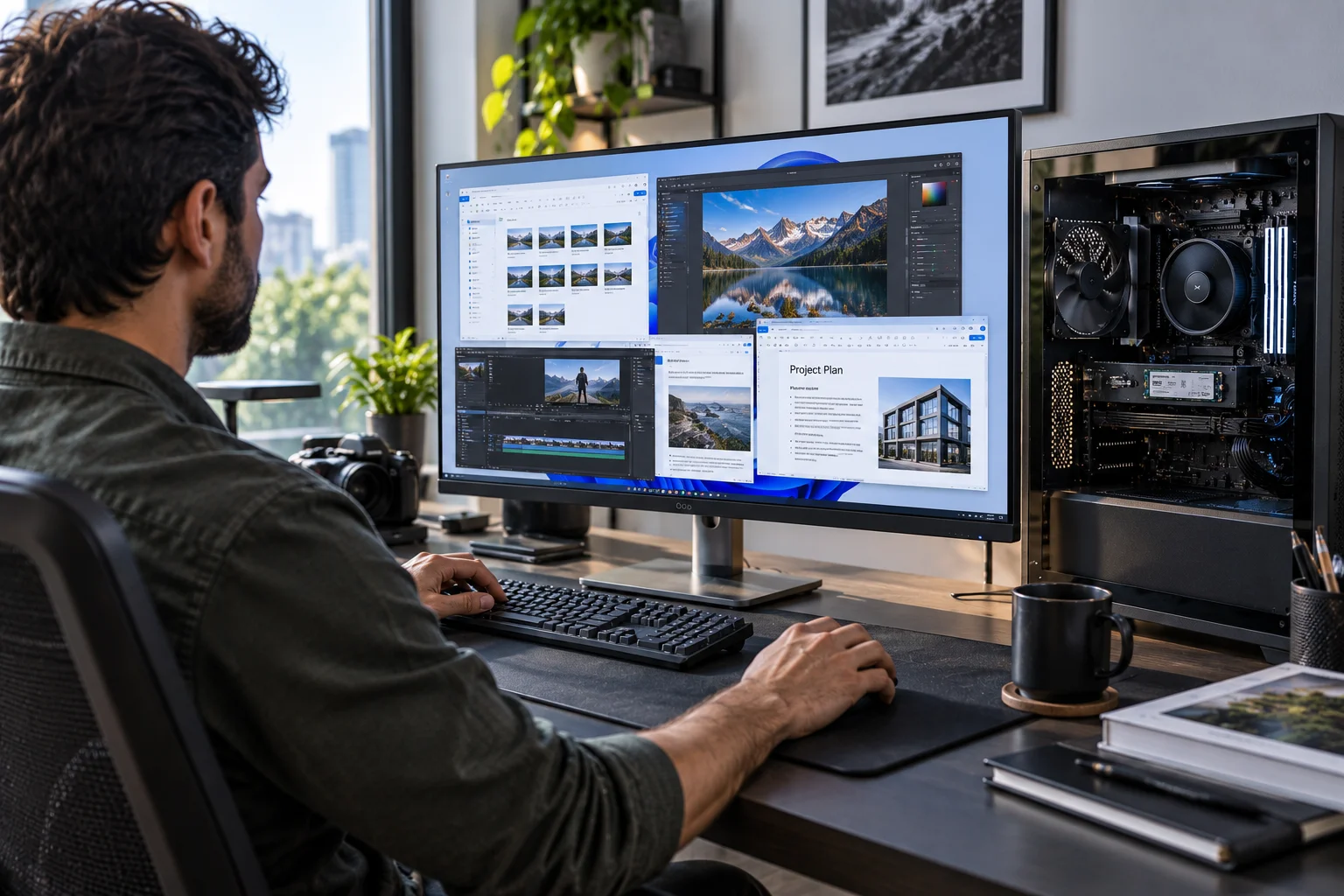
Web browsers and basic office applications may already open reasonably quickly on a modern computer, so the difference can vary.
More demanding software is where you are more likely to notice it.
Video-editing applications, large creative programmes, development environments and games often involve substantial amounts of data being read from storage. An SSD reduces that storage-related waiting time.
The practical experience is simple: click the application and start working rather than waiting for the drive to catch up.
What about copying photos and large files?
SSD wins here too, although the exact improvement depends on the type of SSD, HDD and connection being used.
A SATA SSD can deliver much higher transfer rates than a typical mechanical hard drive, while modern NVMe SSDs can go considerably further. Kingston cites more than 500MB/s for many SATA SSDs and up to around 7,000MB/s for high-performance NVMe drives, compared with much lower speeds from mechanical HDDs.
That difference becomes obvious when moving large video files, photo libraries or game installations.
However, there is an important catch.
You will not always get the SSD's maximum advertised speed in the real world. The source drive, destination drive, USB connection, network and file type can all become bottlenecks.
Is an SSD better for gaming?
Yes, primarily because games load faster.
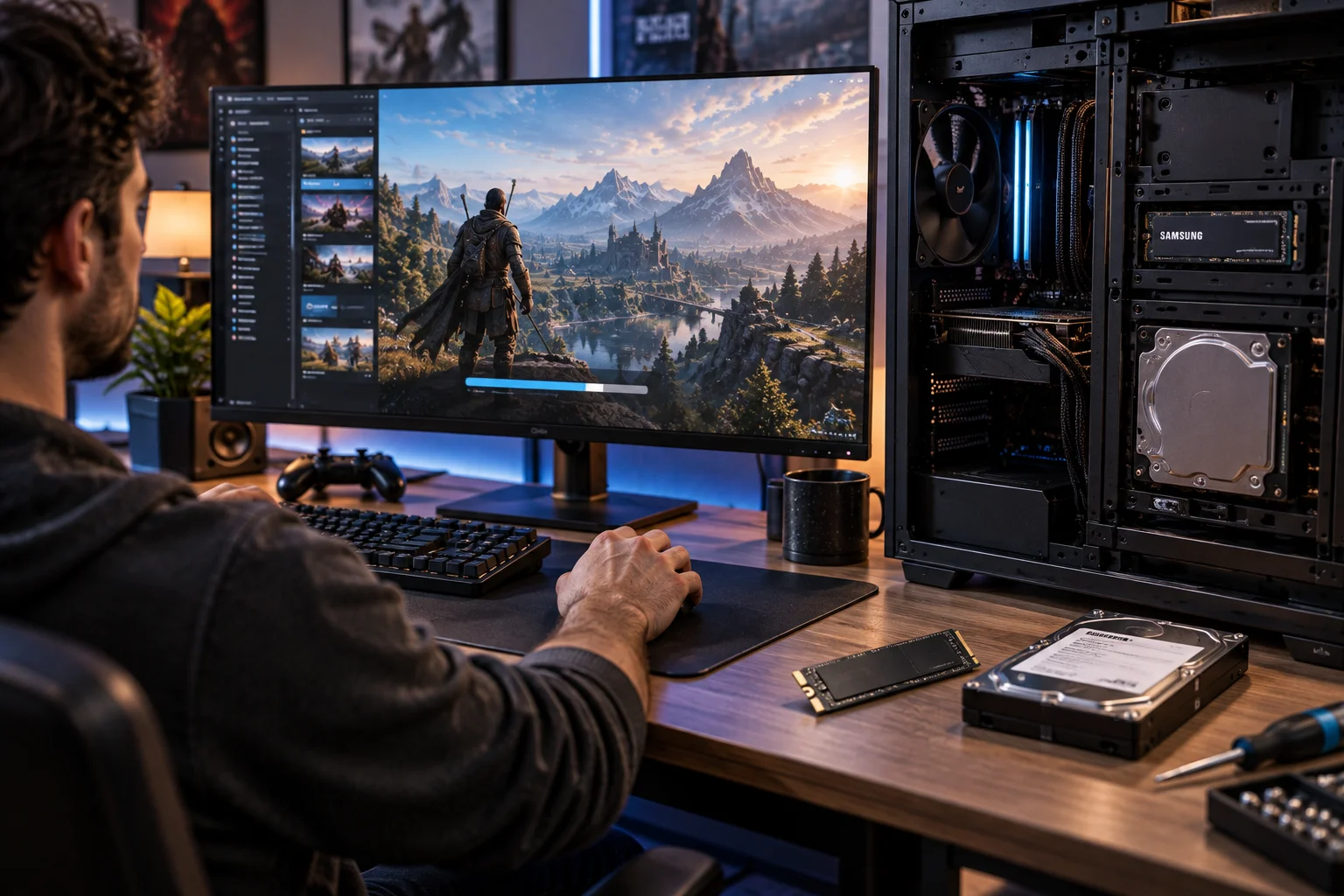
An SSD can reduce the time spent waiting for a game to launch and for large levels or assets to load. Seagate specifically recommends SSD storage when fast game loading and access are priorities, while HDDs remain useful for storing larger game and media libraries at lower cost.
But an SSD does not automatically mean higher frame rates.
Your graphics processor and processor still determine most rendering performance. The SSD mainly improves the loading and general responsiveness around the game.
That distinction is important because a buyer can spend heavily on an expensive SSD and see little difference in average FPS.
Is an SSD quieter?
Yes. An SSD is effectively silent because it has no moving mechanical parts.
HDDs use spinning platters and moving heads, so they can produce audible clicks, whirring or vibration.
For a desktop sitting under a desk, that may not matter much.
For a laptop beside you on a quiet desk, the difference can be more noticeable.
This also contributes to why modern thin laptops overwhelmingly use SSD storage.
Does an SSD improve laptop battery life?
It can reduce storage-related power consumption, which is particularly useful in laptops.
SSDs do not have to keep spinning platters and moving mechanical components, and storage manufacturers generally identify lower power consumption as one of their advantages.
However, don't expect an SSD upgrade to transform a laptop's battery life.
The processor, display, wireless radios, cooling system and software workload can consume much more power than the storage drive.
Think of SSD efficiency as another advantage rather than the main reason to buy one.
Which is more durable: SSD or HDD?
SSD generally has the advantage for portable use because there are no spinning mechanical components that can be damaged by physical shock or vibration.
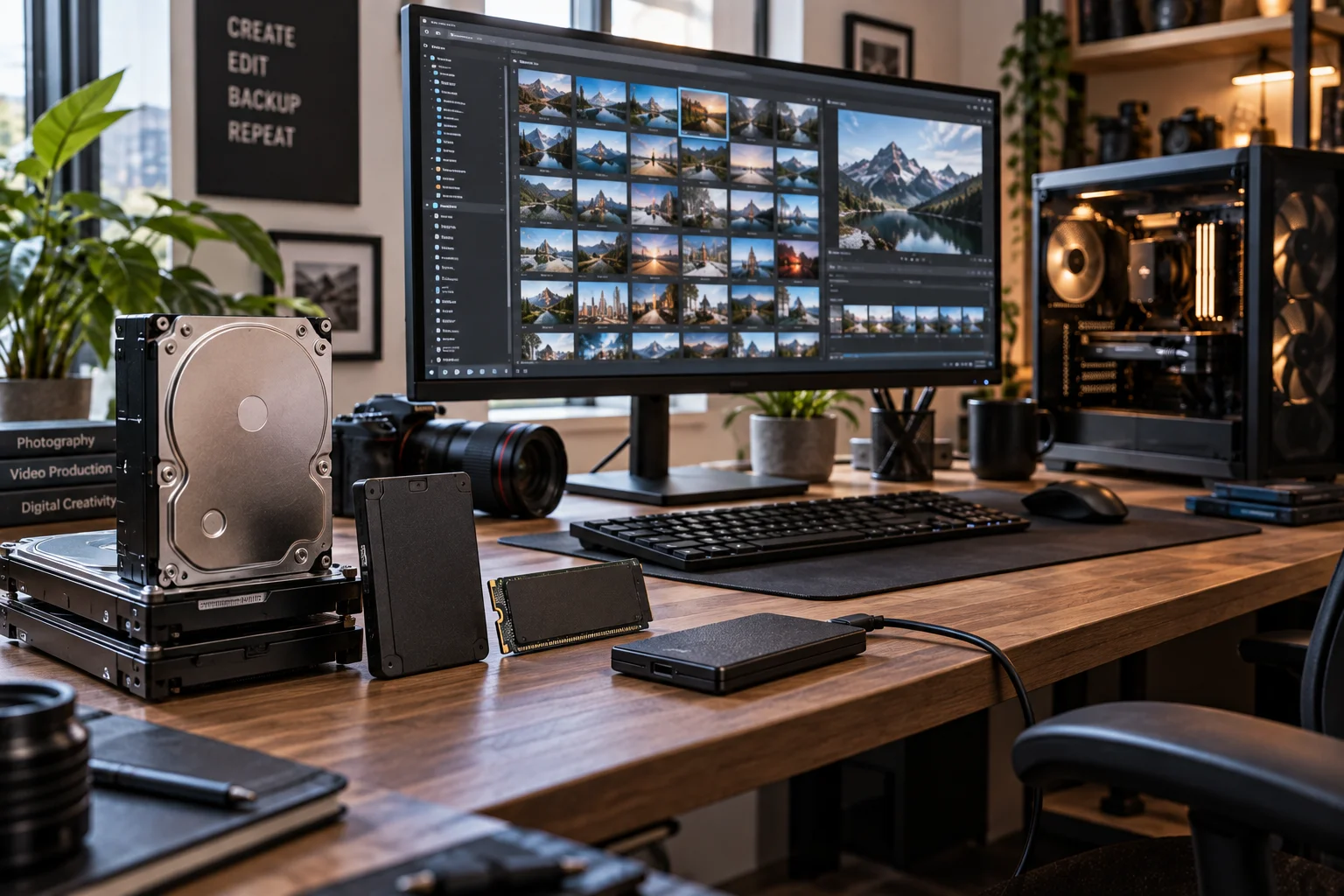
HDDs contain moving parts, including spinning disks and mechanical read/write heads. That makes them more vulnerable to physical impacts while operating.
That is particularly relevant for laptops and portable external drives.
An external HDD being carried between a home, office and college campus faces much more movement than a desktop drive sitting in one location.
That does not make SSDs indestructible. Both technologies can fail, which is why important files should always have a separate backup.
Do SSDs last longer than HDDs?
There is no simple rule that one technology will always last longer. They tend to fail in different ways.
SSDs have flash memory cells with finite write endurance, commonly expressed through metrics such as terabytes written. HDDs have mechanical components that can wear out or fail unexpectedly.
For an ordinary consumer, this usually should not be the deciding factor.
Instead, look at the specific drive's warranty, endurance rating where provided, workload and reliability history.
And never treat a drive's expected lifespan as a replacement for backups.
Why are HDDs still useful?
Because an HDD remains attractive when you need lots of storage without paying SSD prices for every terabyte.
This is where the comparison becomes less one-sided.
Suppose you have thousands of family photos, downloaded videos, old projects, backups and other files that you rarely open.
You do not necessarily need all of that data sitting on your fastest storage.
Seagate still positions HDDs as a strong option for high-capacity storage, while recommending SSDs for operating systems and frequently used applications.
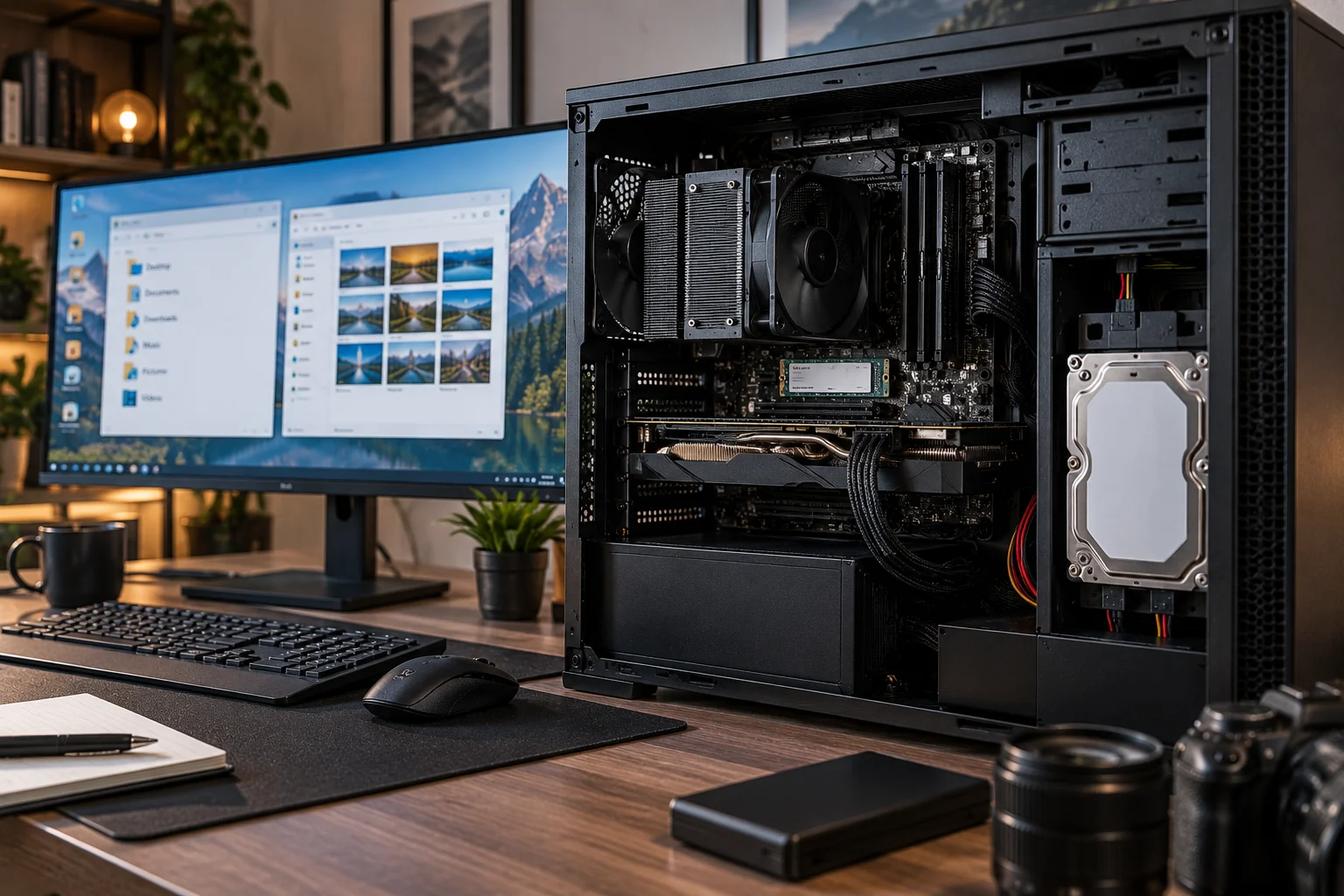
That is why a mixed-storage computer can make excellent sense.
Is it better to use an SSD and HDD together?
For a desktop with enough drive bays, this can be one of the best combinations.
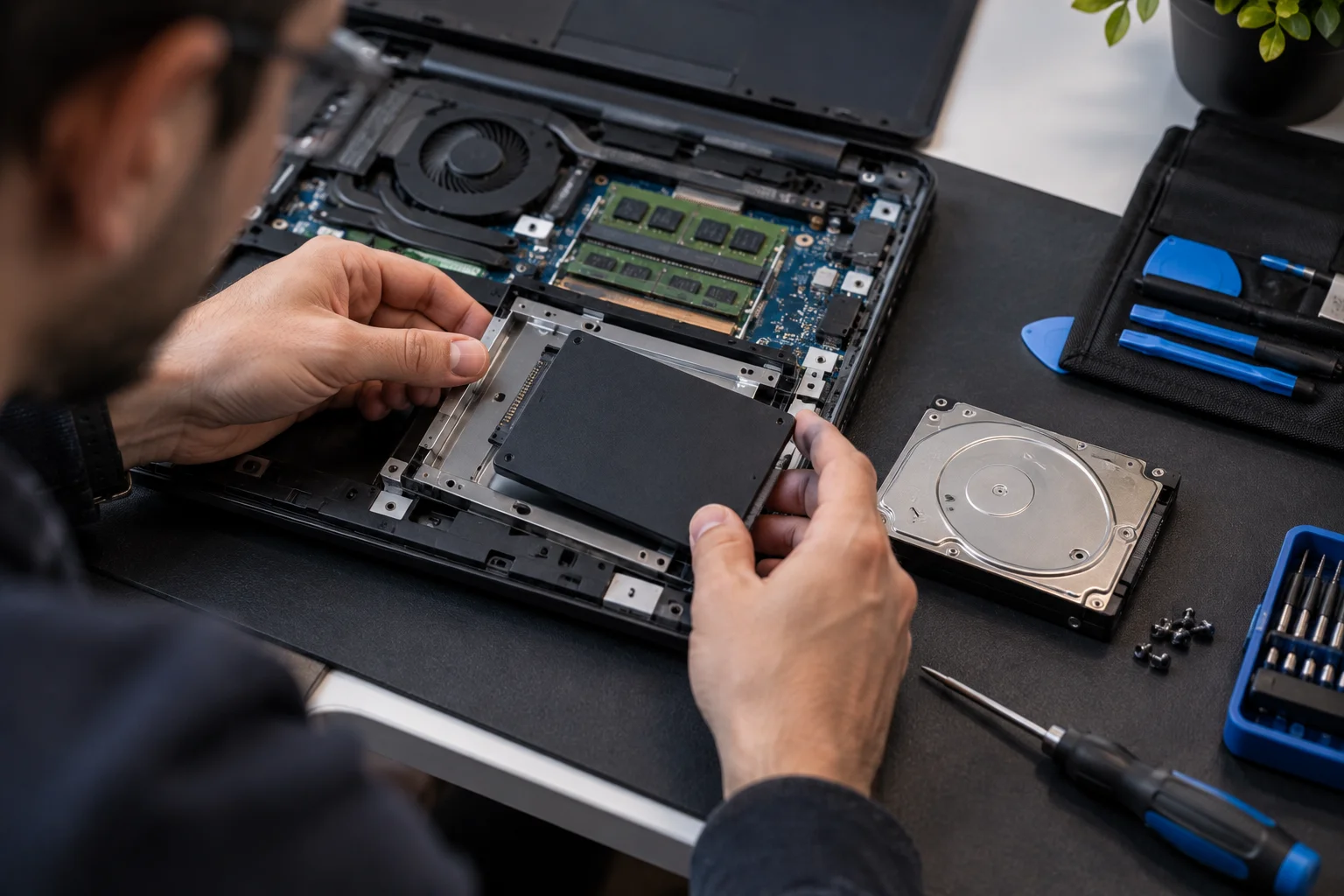
Use the SSD for:
Windows or another operating system
Applications
Games you play regularly
Frequently accessed files
Current projects
Use the HDD for:
Photos and videos
Backups
Large archives
Older projects
Files that are accessed less frequently
This gives you the responsiveness of an SSD without requiring every terabyte of storage to come from comparatively expensive solid-state storage. Seagate specifically recommends this type of arrangement for balancing speed and capacity.
SSD vs HDD: What about NVMe and SATA SSDs?
Once you decide to buy an SSD, the next question is usually whether you need SATA or NVMe.
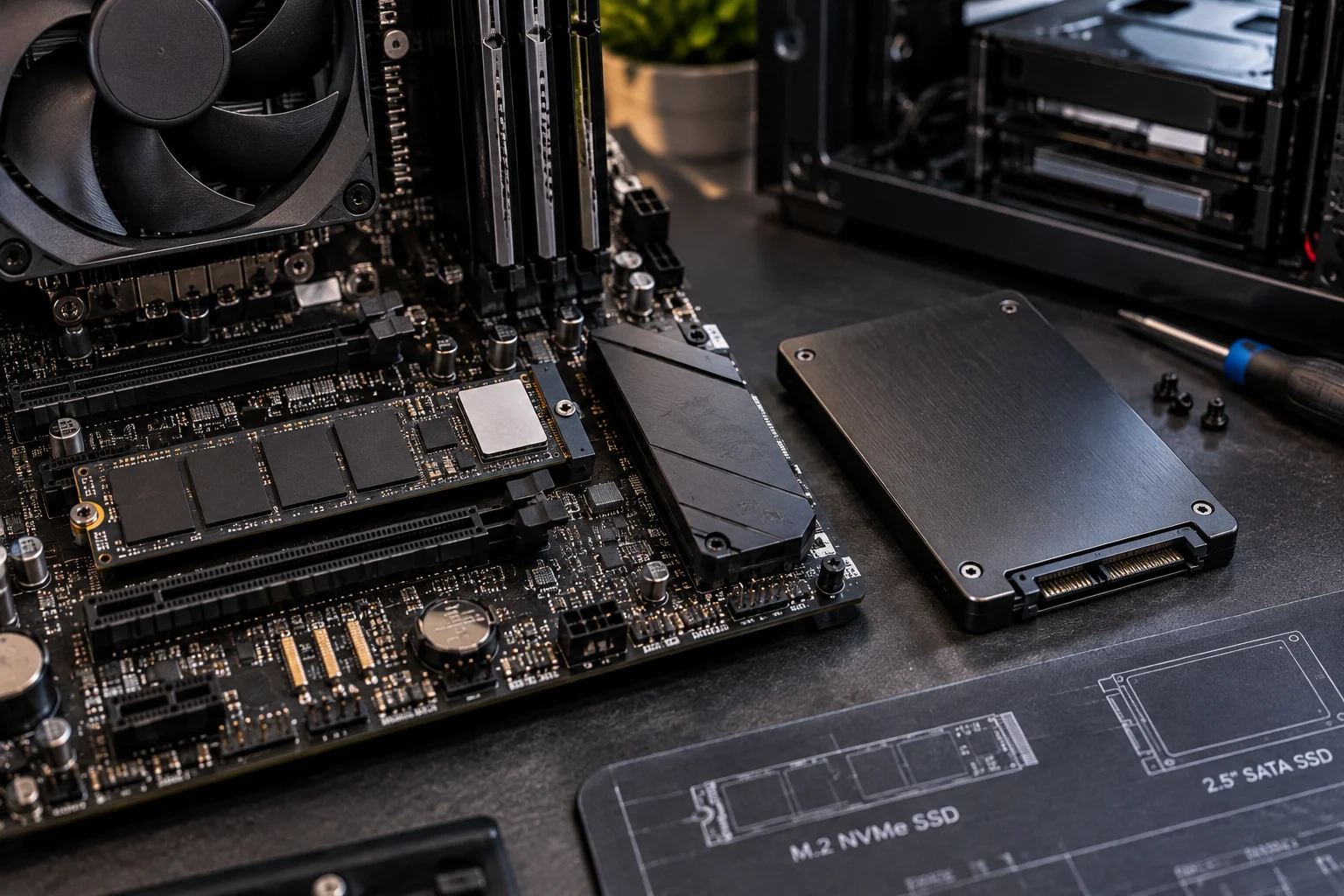
Both are SSD technologies, but they communicate with the computer differently.
A SATA SSD is already dramatically faster than a traditional HDD and can be an excellent upgrade for an older laptop or desktop that supports it. NVMe SSDs use faster interfaces and can deliver substantially higher sequential speeds.
For everyday web browsing, documents, email and streaming, you may not notice the full difference between a good SATA SSD and a good NVMe SSD.
For large file transfers, video editing and other storage-heavy workloads, NVMe's higher bandwidth becomes more useful.
Should you replace an HDD with an SSD?
For an older computer that still has otherwise adequate hardware, replacing the system HDD with an SSD can be a very worthwhile upgrade.
This is particularly true if the computer feels slow while starting Windows, launching applications or opening files.
Before buying, check what type of drive the computer supports.
Some older laptops use 2.5-inch SATA drives. Newer systems increasingly use M.2 NVMe drives. The physical connector and supported interface matter, so an SSD is not automatically compatible with every computer.
Also make sure you have a reliable backup before moving your operating system or important files.
What should you buy: SSD or HDD?
The answer depends on what you are storing.
Choose an SSD when speed and responsiveness matter most.
That includes laptops, desktop system drives, gaming PCs, work computers and almost any computer where you regularly open applications and files.
Choose an HDD when maximum capacity and lower storage cost matter most.
That makes sense for desktop archives, backups, large media collections and secondary storage.
Choose both when you want the best balance.
A fast SSD for your operating system and regularly used files combined with a high-capacity HDD can give you both performance and plenty of storage.
SSD vs HDD FAQs
Is an SSD really that much faster than an HDD?
Yes. The difference is particularly noticeable during booting, application loading and workloads involving lots of small files because SSDs do not rely on mechanical movement.
Will an SSD make my old laptop faster?
It can make a major difference when the existing HDD is the main storage bottleneck. It will not compensate for an extremely old processor, insufficient RAM or other hardware limitations.
Is HDD better for storing photos and videos?
HDDs can be an economical choice for large photo and video collections because they provide high capacity at lower cost per gigabyte.
Is SSD better for gaming?
Generally yes for game storage because games can launch and load levels faster. It does not necessarily increase graphics frame rates.
Are SSDs completely silent?
Yes. SSDs have no spinning platters or moving read/write heads, so they do not generate the mechanical drive noise associated with HDDs.
Are SSDs more reliable than HDDs?
They have different failure characteristics. SSDs avoid mechanical failures, while their flash memory has finite write endurance. HDDs have mechanical components that can fail. Neither should be treated as a substitute for backups.
Should Windows be installed on an SSD?
Yes. Installing the operating system and frequently used applications on an SSD is one of the most effective ways to benefit from SSD performance.
Is NVMe always worth it over SATA SSD?
Not for every user. NVMe can be much faster for storage-intensive workloads, but ordinary users may notice a much larger improvement going from HDD to any good SSD than going from SATA SSD to a high-end NVMe model.
Final Thoughts
The SSD vs HDD debate is no longer really about which technology is better at everything.
They are good at different jobs.
An SSD is the clear choice for everyday computer performance. It makes booting, application loading and file access feel faster, while its lack of moving parts also makes it quieter and better suited to portable computers.
An HDD still earns its place when capacity matters more than speed.
For a new laptop, an SSD should be the default. For a desktop, using an SSD as the primary drive and an HDD for bulk storage can be an excellent combination.
The most important thing to remember is that storage speed is only one part of overall computer performance.
But when your computer still has a traditional hard drive, upgrading to an SSD is one of the few changes where you are likely to notice the difference almost every time you turn the machine on.