
When you're shopping for a hard drive, capacity and price are usually the first specifications you notice. But there's another specification that can have a major effect on how a drive behaves: the recording technology used to store data.
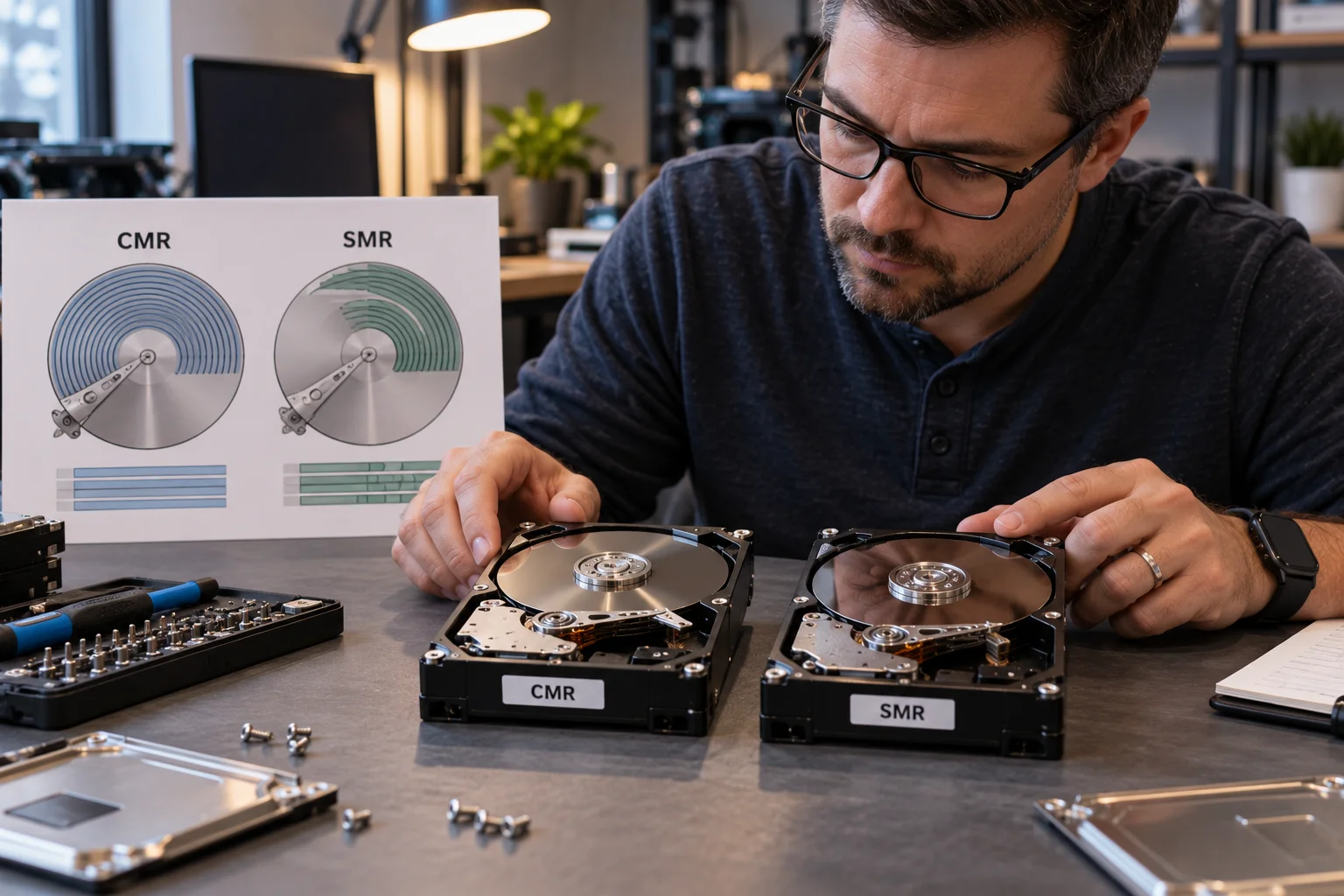
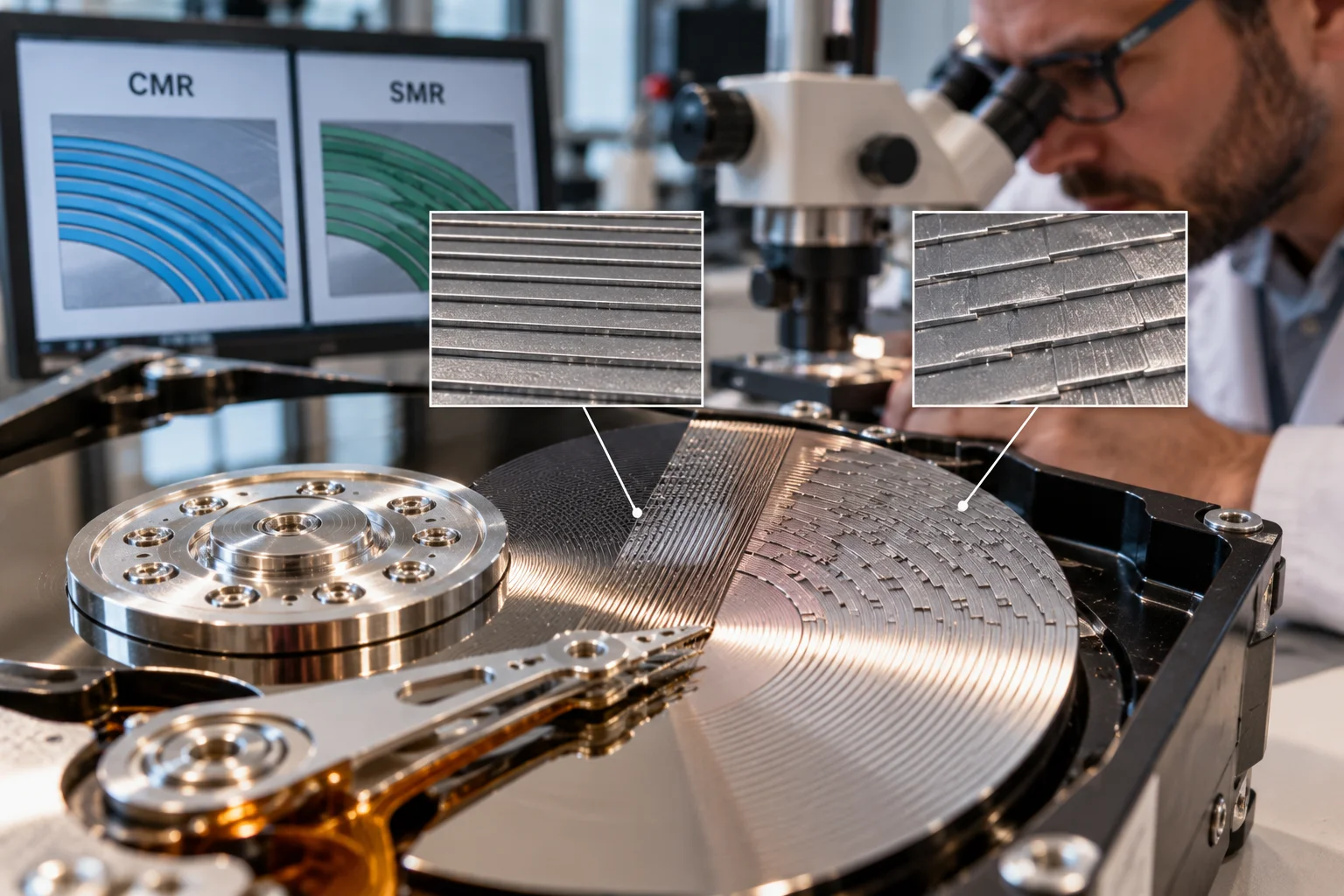
CMR and SMR are two different ways of arranging magnetic tracks on a hard drive. CMR, or Conventional Magnetic Recording, keeps tracks separated so they can be rewritten more independently. SMR, or Shingled Magnetic Recording, overlaps tracks to increase storage density.
That difference is especially important when a drive handles frequent or sustained writes. CMR generally provides more predictable write behavior, making it a better fit for NAS systems, RAID arrays, demanding desktop workloads and frequent file updates. SMR can make sense when maximizing capacity and minimizing cost matter more, particularly for sequential, archival or read-heavy workloads.
So, which should you buy?
For most people building a NAS, RAID array or workstation that regularly writes large amounts of data, CMR is the safer choice. SMR can be perfectly useful for the right workload, but you should know what you're buying before choosing it simply because it offers more terabytes for the money.
What is the difference between CMR and SMR hard drives?
CMR writes data to separate tracks, while SMR overlaps tracks to fit more data onto the same physical disk surface.

The difference comes down to how those tracks are arranged.
With CMR, tracks are written side by side with space between them. This allows the drive to update an individual track without having to rewrite neighboring tracks.
SMR takes advantage of the fact that a hard drive's write head is wider than its read head. By overlapping tracks, manufacturers can increase areal density and put more data onto the same platter.
The trade-off appears when existing data needs to be changed.
Because SMR tracks overlap, rewriting one area can require additional data to be rewritten. The drive manages this through zones and internal data-management processes, but sustained random writes can become considerably more complicated.
That's the fundamental reason CMR and SMR can behave differently even when their advertised interface and capacity look similar.
How does CMR work?
CMR stores tracks independently enough that the drive can perform random rewrites without needing to reorganize large neighboring areas of the disk.
This makes CMR well suited to workloads where data changes frequently.
Imagine a NAS receiving hundreds of small file updates throughout the day. Or a RAID array rebuilding after a failed drive. Or a workstation constantly saving project files.
Those workloads can generate many writes that aren't conveniently arranged as one continuous stream.
CMR handles this type of activity more predictably because the drive doesn't have the same overlapping-track constraint as SMR. Western Digital specifically describes CMR as suitable for active workloads, NAS systems, RAID arrays and frequent data updates.
How does SMR work?
SMR overlaps magnetic tracks to increase storage density, but this can make sustained random writes more complicated.
Think of roof shingles.
Each track partially overlaps the previous one. This arrangement reduces unused space and allows more data to fit onto a platter.
The benefit is higher capacity.
The downside is that modifying one track can affect adjacent tracks. The drive therefore has to reorganize and rewrite data within its zones when necessary. Western Digital explains that this makes SMR particularly sensitive to workloads involving repeated random writes.
That doesn't make SMR a bad technology.
It makes it a technology with a more specific workload profile.
Seagate recommends SMR for workloads such as large media repositories, backup tiers, compliance archives and object storage where data is written sequentially and then read relatively infrequently.
Is CMR faster than SMR?
CMR is generally more consistent for sustained and random write workloads, while read performance can be much more similar between the two technologies.
This is an important distinction.
You might copy a large file to an SMR drive and see perfectly reasonable performance. Problems tend to become more apparent when the workload involves lots of smaller writes, rewriting existing data or sustained write activity.
Western Digital notes that the primary performance difference between CMR and SMR is in writing rather than reading.
So don't assume an SMR drive will always feel slow.
For sequential storage, it can perform perfectly well.
The question is what happens when the workload becomes less predictable.
Which is better for a NAS: CMR or SMR?
CMR is generally the better choice for a NAS, especially when multiple drives are used in RAID or the NAS handles frequent writes.
A NAS isn't simply an external hard drive connected to your network.
It may continuously synchronize files, run applications, create snapshots, handle multiple users and rebuild data after a drive failure.
Those operations can create sustained or random write activity.
Western Digital recommends CMR-based Red Plus and Red Pro drives for more demanding NAS environments, including systems using ZFS, because sustained random writes during operations such as RAID rebuilding can be problematic for device-managed SMR drives.
SMR can still work for simpler home-storage scenarios where the drive spends much of its time reading or sitting idle.
But if you're deliberately building a multi-drive NAS, CMR removes an important source of potential performance problems.
Is CMR better for RAID?
CMR is generally preferable for RAID because rebuilds can involve sustained write activity across large portions of the array.
A RAID rebuild is one of the situations where the differences between recording technologies can become especially noticeable.
When a drive fails, the system may need to reconstruct a large amount of data onto a replacement drive.
That is very different from occasionally copying a movie to an archive drive.
Western Digital specifically points to sustained random writes during ZFS resilvering as a workload where SMR drives can struggle to complete their internal data-management operations efficiently.
For this reason, CMR is commonly the safer choice for RAID and NAS arrays.
Is SMR good for backups?
SMR can be a good fit for backups when the workload is primarily sequential and the drive is not constantly rewriting existing data.
Consider a drive used once a week to create a large backup.
The computer might write hundreds of gigabytes or several terabytes in a relatively organized stream. Afterward, the drive may sit unused until the next backup.
That's much closer to the workload SMR is designed to handle efficiently.
Seagate specifically lists backup tiers and large media repositories among suitable SMR workloads.
The situation changes if the backup system constantly modifies files, performs random updates or maintains an active database.
In that case, CMR becomes more attractive.
Which is better for media storage?
SMR can make sense for large, mostly read-only media libraries, while CMR is preferable if the drive is also used for frequent editing or active file management.
A movie archive is a good example of an SMR-friendly workload.
You copy large video files onto the drive, organize them and then mostly read them later.
The data doesn't constantly change.
A video-editing workstation is different.
Large media projects can involve repeated writes, temporary files, caches and frequent modifications. A CMR drive is generally better suited to that environment.
The same principle applies to photography libraries, music collections and other large archives.
Ask yourself whether you're storing data or actively working with data.
Does CMR or SMR affect drive reliability?
CMR and SMR are recording technologies rather than simple reliability ratings, so the recording method alone should not be treated as a guarantee of drive lifespan.
Other factors matter, including the drive's design, workload rating, vibration environment, firmware, temperature and intended use.
A properly designed SMR drive can be appropriate for an archival workload.
Likewise, a CMR drive can be unsuitable if it is being used outside its intended operating environment.
This is why choosing a drive by recording technology alone isn't enough.
Look at the manufacturer's specifications and make sure the drive is designed for the workload you're giving it.
How can you tell if a hard drive is CMR or SMR?
Check the exact model number against the manufacturer's product specifications or data sheet rather than guessing from the capacity or product family.
This is particularly important because manufacturers can sell different capacities within the same family using different recording technologies.
Seagate's current product listings, for example, show some product families containing both CMR and SMR models. Its BarraCuda range includes both technologies at different capacities, while IronWolf NAS drives are listed as CMR.
Western Digital similarly recommends checking the product data sheet for specific WD families to determine whether an individual model uses CMR or SMR.
Don't assume that two drives with the same branding use the same recording technology.
The exact model number matters.
CMR vs SMR: Which hard drive should you buy?
Choose CMR if you need consistent write performance, NAS or RAID compatibility, frequent file updates or a demanding workstation. Choose SMR when low cost and high capacity are priorities for sequential, archival or read-heavy storage.

Use case | Recommended type |
|---|---|
NAS | CMR |
RAID array | CMR |
ZFS storage | CMR |
Video editing | CMR |
Frequent file updates | CMR |
Desktop general use | CMR preferred |
Large media archive | SMR can work |
Backup drive | SMR can work |
Read-mostly storage | SMR can work |
Maximum capacity per drive | SMR can be attractive |
The price difference can make SMR tempting.
And for the right workload, that isn't necessarily a bad decision.
But if you're buying a hard drive for a system that will be actively writing data every day, the additional flexibility of CMR is usually worth considering.
What should you check before buying a hard drive?
Don't choose based on capacity and price alone. Check the recording technology, workload, intended environment and exact model.
Before buying, check:
CMR or SMR: Identify the actual recording technology.
Workload: Determine whether the drive will mostly read, write sequentially or perform frequent random writes.
NAS/RAID compatibility: Check the manufacturer's recommendations.
Capacity: Consider both your current storage needs and future growth.
RPM and performance: These affect responsiveness and throughput independently of CMR/SMR.
Warranty and workload rating: Especially important for always-on systems.
Exact model number: Never assume the recording technology from a product family name alone.
That last point is easy to overlook.
A few minutes checking the manufacturer's specification can save you from buying a drive that isn't appropriate for your workload.
CMR vs SMR Hard Drives FAQs
Is CMR better than SMR?
CMR is generally better for demanding write workloads because it provides more consistent random and sustained write behavior. SMR can be a better fit for sequential, archival and read-heavy workloads.
Is SMR bad for NAS?
Not necessarily, but it can be problematic in demanding NAS environments, particularly when sustained random writes or RAID/ZFS rebuild operations are involved. CMR is generally the safer choice for those systems.
Is SMR good for external hard drives?
It can be. If an external drive is mainly used for storing and reading large files or periodic backups, SMR can provide a useful combination of capacity and cost.
Does SMR make a hard drive slower?
SMR does not necessarily make every operation slower. Read performance can be similar to CMR, but sustained and random write workloads can be more affected because of the way overlapping tracks are managed.
Is CMR worth paying more for?
For NAS, RAID, video editing, frequent backups with changing data and other write-intensive workloads, CMR can be worth the additional cost because of its more predictable write behavior.
Can I use an SMR drive for backups?
Yes. SMR can be well suited to sequential backup workloads where large amounts of data are written and then primarily read later.
How do I know whether my hard drive is CMR or SMR?
Find the exact model number and check the manufacturer's specification sheet or support documentation. Western Digital specifically recommends using its product data sheets to identify CMR and SMR models.
Which should you buy: CMR or SMR?
For most active storage, NAS and RAID applications, choose CMR. For large, inexpensive, read-mostly archives or sequential backups, SMR can be a sensible option.
The important thing isn't that one technology is universally better. It's that the recording technology should match the workload.