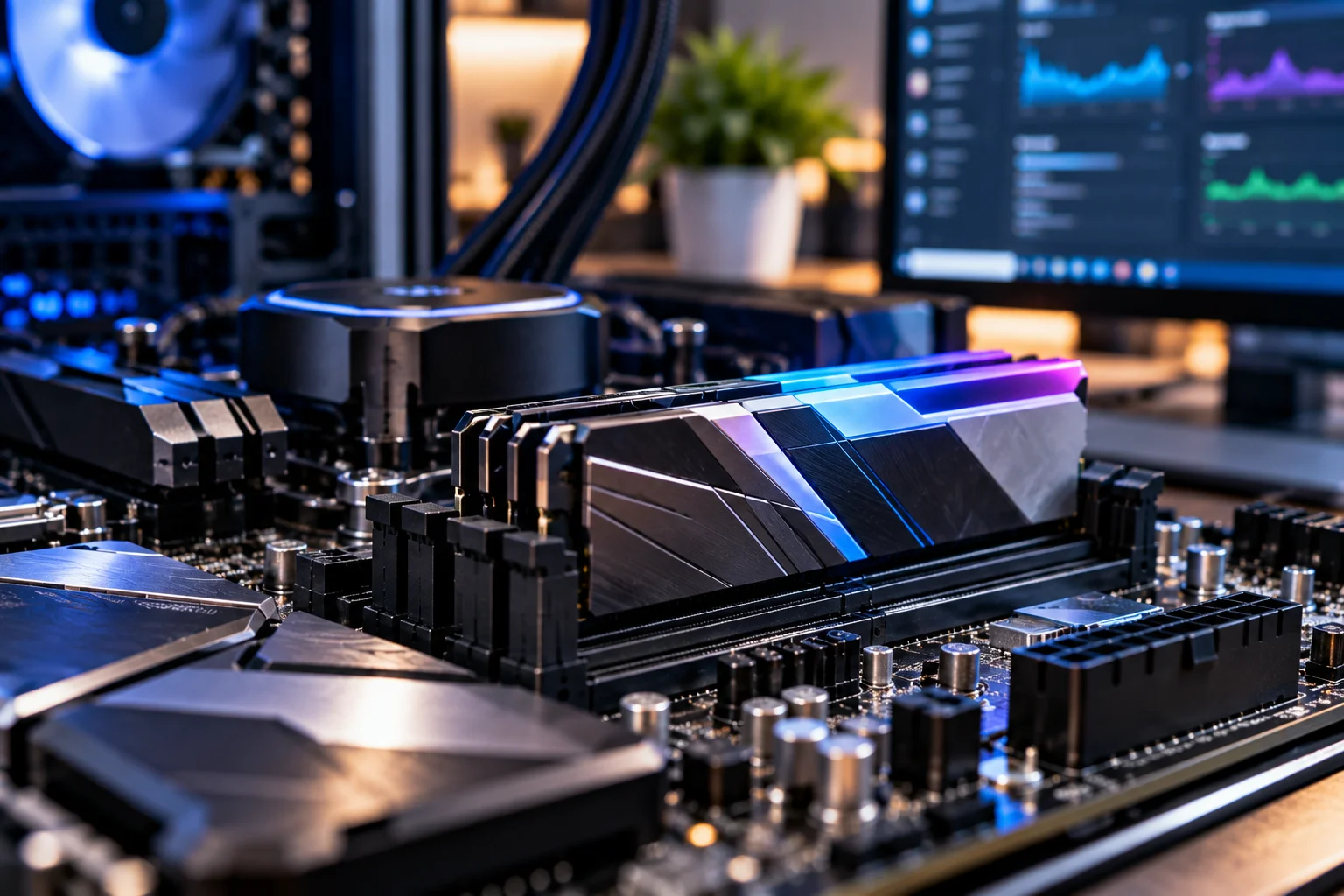
Upgrading RAM is one of the simplest ways to improve a desktop PC when you regularly run out of memory, multitask heavily, or use demanding applications. But buying RAM is not simply a matter of choosing the largest or fastest kit you can afford.
You need to check your motherboard's supported memory generation, available DIMM slots, maximum capacity, supported memory speeds, and the type of RAM already installed. DDR4 and DDR5 are physically and electrically different, so they cannot be mixed on the same motherboard.
You should also pay attention to how your modules are installed. Using two matching sticks in the correct motherboard slots can enable dual-channel operation, while adding mismatched modules can sometimes reduce the memory speed or create compatibility problems.
Here's what to check before buying anything.
1. Check How Much RAM Your PC Already Has
Start by finding out how much memory is currently installed and how it is being used.
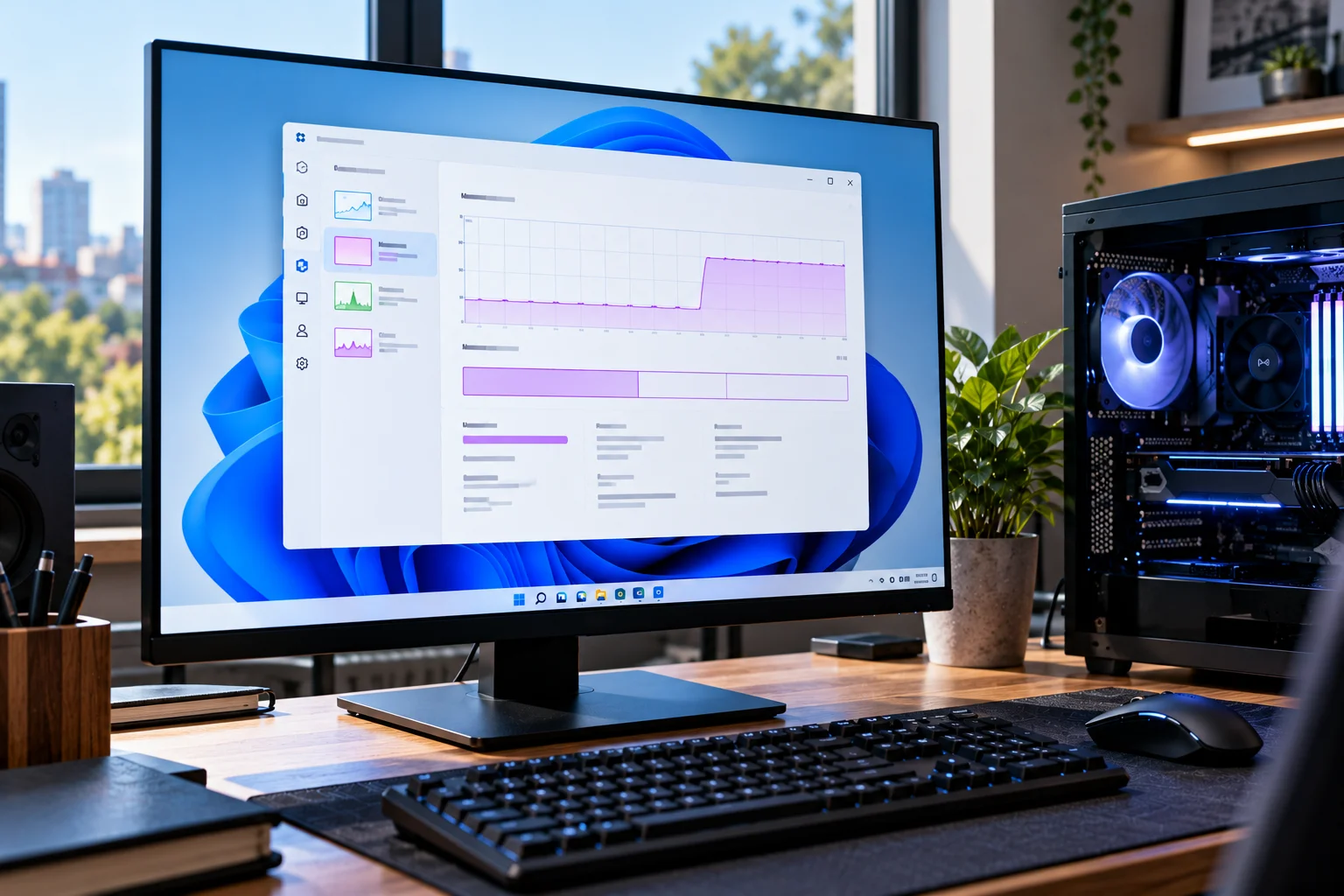
In Windows, press Ctrl + Shift + Esc to open Task Manager, then select Performance > Memory. You can see the total installed RAM and monitor how much is being used while your normal applications are running. Microsoft identifies Task Manager as a tool for monitoring memory and other system resources.
For example, if your PC has 8GB and frequently approaches its memory limit while you have a browser, office applications, games and other programs open, increasing capacity can make a noticeable difference.
However, more RAM does not automatically make every computer faster. It mainly helps when your existing memory is becoming a limitation.
2. Find Out Whether Your PC Uses DDR4 or DDR5
This is the first major compatibility check.
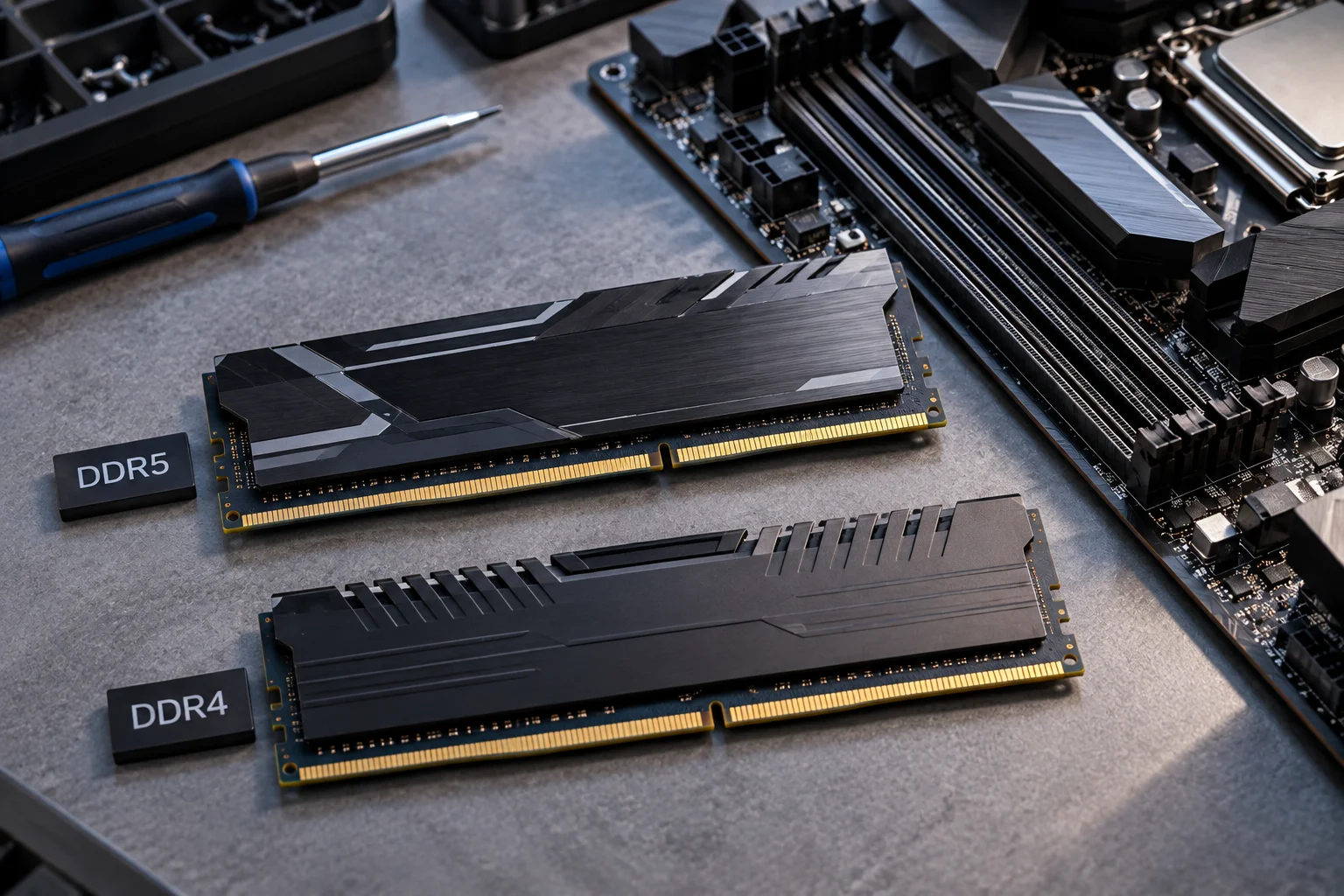
DDR4 and DDR5 are different memory standards with different physical keying, electrical characteristics and signaling. A DDR4 motherboard requires DDR4 memory, while a DDR5 motherboard requires DDR5 memory. They cannot simply be swapped or mixed.
Memory type | What to know |
|---|---|
DDR4 | Common in older and some mid-generation desktops |
DDR5 | Used by newer desktop platforms |
DDR4 + DDR5 | Cannot be mixed on the same motherboard |
Don't rely only on the appearance of the RAM. Check the exact motherboard model or your PC manufacturer's specifications.
3. Check How Many RAM Slots Are Available
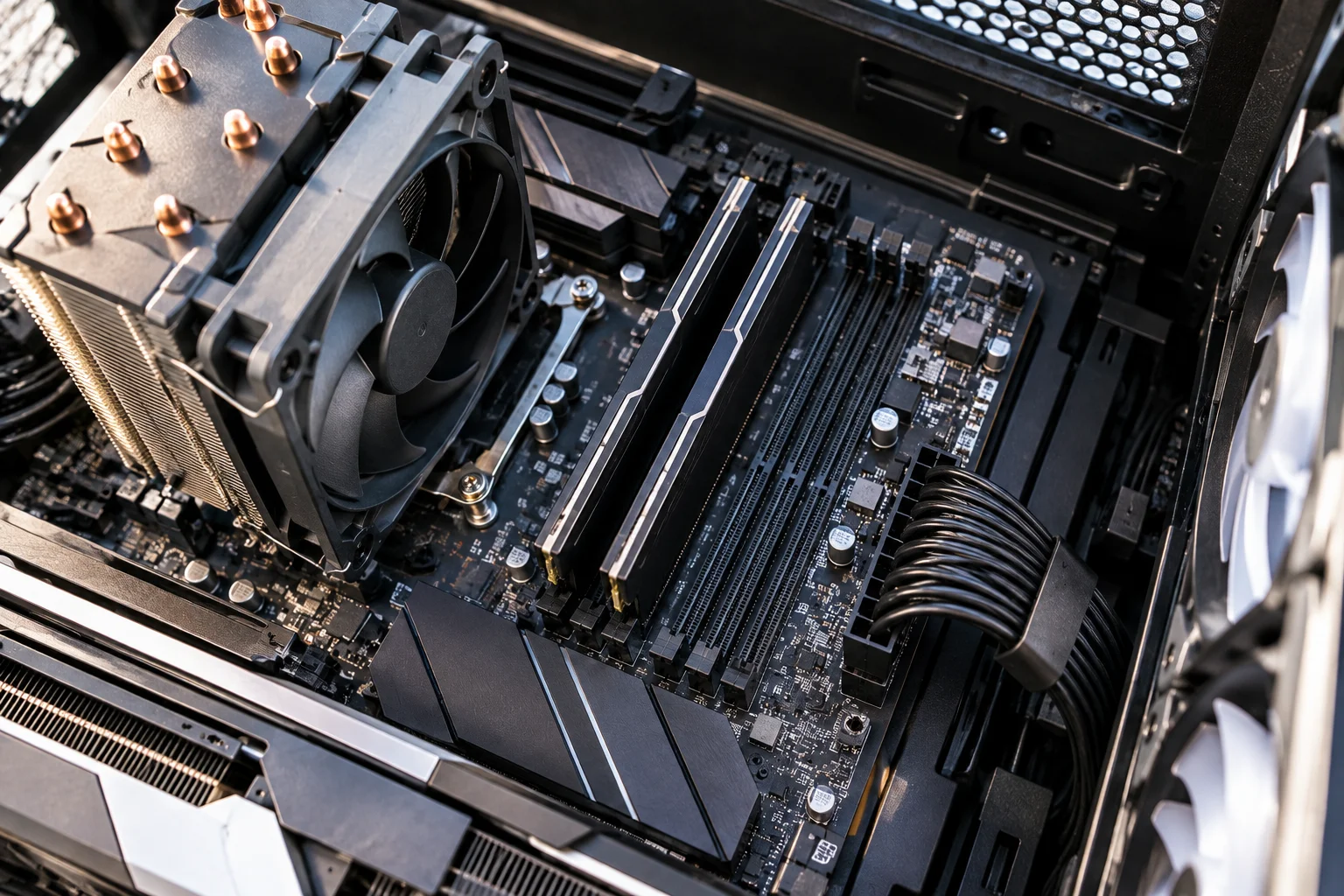
Open your PC case and look at the motherboard, or check its manual/specification page.
Most desktop motherboards have two or four DIMM slots, although workstation and enthusiast boards can have more. If you have two empty slots, you may be able to add another pair of modules without removing your existing RAM.
If all slots are occupied, upgrading may require replacing your current modules rather than simply adding more.
The slot arrangement also matters. Motherboards often have specific recommended sockets for two-module configurations. Kingston notes that these positions can vary between motherboards, so the motherboard manual should take priority.
4. Check Your Motherboard's Maximum RAM Capacity
Don't assume that a motherboard can accept unlimited memory.
Check the manufacturer's specifications for:
Maximum supported RAM
Maximum capacity per DIMM slot
Number of supported DIMMs
Supported memory generation
Supported memory speeds
ECC or non-ECC support, if applicable
This becomes particularly important with older systems and high-capacity modules. Some platforms can have limitations related to the density of the memory chips used on newer modules.
If you're unsure, use your exact motherboard model with the manufacturer's compatibility information or a reputable memory configurator.
5. Decide How Much RAM You Actually Need
The right capacity depends more on your workload than on the idea that "more RAM is always better."
Usage | Practical starting point |
|---|---|
Basic browsing and office work | 16GB |
Heavy multitasking | 32GB |
Modern gaming | 32GB |
Photo editing | 32GB or more |
Video editing | 32GB–64GB+ |
3D, professional workloads and local AI | 64GB+ |
These aren't hard requirements. A well-configured 16GB system can still be perfectly usable for everyday computing, while demanding professional workloads may benefit from substantially more capacity.
The important question is whether your current workload is actually running short of memory.
6. Check RAM Speed, Not Just Capacity
RAM is sold with a rated speed, commonly expressed in MT/s on modern memory specifications.
For example, you may encounter DDR5-5600 or DDR5-6400 memory. But your motherboard and processor determine which speeds your system can officially support.
Installing faster memory does not necessarily mean it will run at that advertised speed. A system can automatically operate memory at a lower supported speed, and motherboard population rules can also affect the maximum achievable speed.
So don't pay a large premium for extremely fast RAM unless your platform can actually take advantage of it.
7. Should You Add RAM or Replace Your Existing RAM?
This depends on your current configuration.
Suppose your desktop has 2 × 8GB for a total of 16GB and four slots. You could potentially replace it with 2 × 16GB for 32GB, leaving two slots available.
Alternatively, if your system has 1 × 16GB, adding another matching 16GB module may increase capacity while also enabling dual-channel operation.
Using matched modules is generally preferable for multi-channel configurations. Kingston recommends buying kits when possible because the modules in a kit are matched for the intended configuration.
8. Be Careful When Mixing Different RAM
Mixing memory isn't always disastrous, but it can introduce variables.
Different modules may have different:
Speeds
Timings
Capacities
DRAM densities
Voltages
Memory ranks
When different-speed modules are installed, the system may run them at the slower supported speed. Certain combinations can also cause instability or prevent the computer from booting.
For the least complicated upgrade, a matched kit is usually the cleaner approach.
9. Check DIMM Type and Special Features
Desktop PCs generally use DIMMs, while laptops typically use smaller SO-DIMMs. Make sure you're buying desktop memory.
You should also check whether your motherboard requires or supports features such as:
ECC
Non-ECC
Unbuffered memory
Registered memory
Don't assume that physically fitting RAM means it is electrically compatible. Different memory types aren't necessarily interchangeable.
10. Check the Motherboard Manual Before Installing
Once you've purchased the correct RAM, installation is straightforward.
Shut down the PC and disconnect power.
Open the case.
Locate the DIMM slots.
Release the slot latches.
Align the notch on the RAM with the slot.
Press the module firmly into place until the latches lock.
Install paired modules in the motherboard's recommended slots.
Close the case and reconnect power.
Boot the PC and verify the new capacity in Windows.
Kingston specifically recommends following the motherboard's installation order because incorrect slot placement can affect performance or, in some cases, prevent the system from booting.
What Should You Check Before Buying RAM?
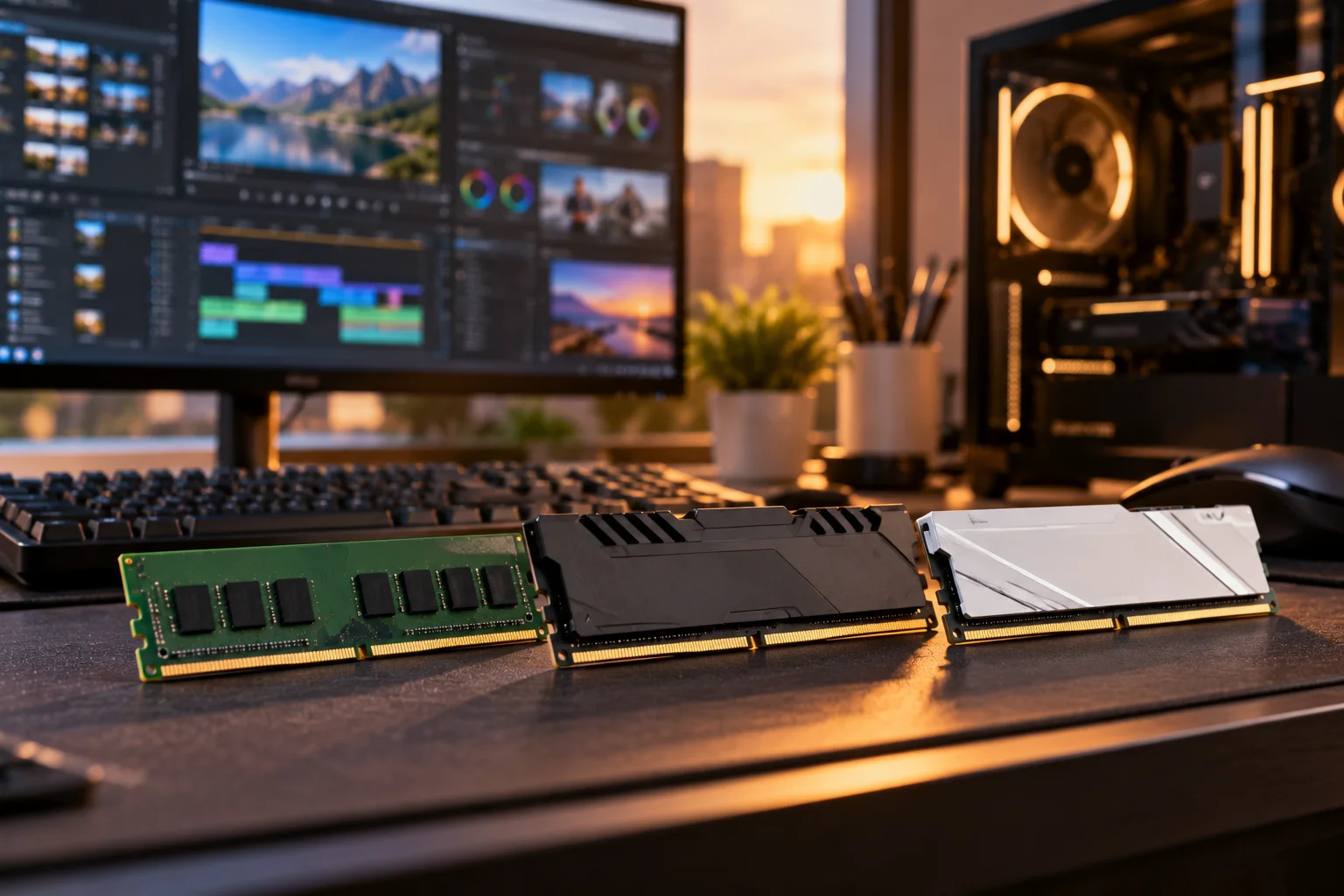
Use this checklist before placing your order:
DDR generation: DDR4 or DDR5
Motherboard model: Check exact compatibility
Available slots: Determine whether you can add or must replace
Maximum capacity: Check the motherboard limit
Capacity per module: Make sure individual sticks are supported
Speed: Match your platform's supported specifications
DIMM type: Desktop DIMM, not laptop SO-DIMM
ECC: Verify whether your system requires it
Existing RAM: Check capacity, speed and configuration
Channel configuration: Follow the motherboard's recommended slots
BIOS: Older platforms may require updates for newer memory configurations
Frequently Asked Questions
Can I mix two different brands of RAM?
Sometimes, yes, but matching modules is generally preferable. Different modules can have different specifications and may run at the slower module's supported settings or cause compatibility problems.
Can I mix DDR4 and DDR5 RAM?
No. DDR4 and DDR5 use different physical and electrical specifications and cannot be installed together on the same motherboard.
Is 32GB of RAM enough for a gaming PC?
For many modern gaming PCs, 32GB provides comfortable headroom for games alongside other applications. Your specific games and background workloads can change the requirement.
Is faster RAM better than more RAM?
Only if you already have enough capacity. If your PC is regularly running out of memory, increasing capacity can matter more than moving to a slightly faster memory kit.
Should I buy two RAM sticks or one?
Two matched modules are often preferable on mainstream dual-channel desktop platforms because they can provide greater memory bandwidth than a single module. Follow your motherboard's recommended slot configuration.
Do I need to change BIOS settings after installing RAM?
Not necessarily. Many systems automatically detect compatible memory. However, some memory configurations may require BIOS updates or settings adjustments, particularly on newer or older platforms with specific compatibility requirements.
Final Takeaway
The safest RAM upgrade starts with compatibility, not capacity. Find your motherboard model, determine whether it uses DDR4 or DDR5, check the available slots and maximum supported capacity, and then choose a memory configuration that matches your workload.
If you're buying new RAM for a modern desktop, a matched kit is often the simplest route. If you're adding memory to an existing system, check the specifications of your current modules first rather than assuming any RAM with the same DDR generation will work perfectly.