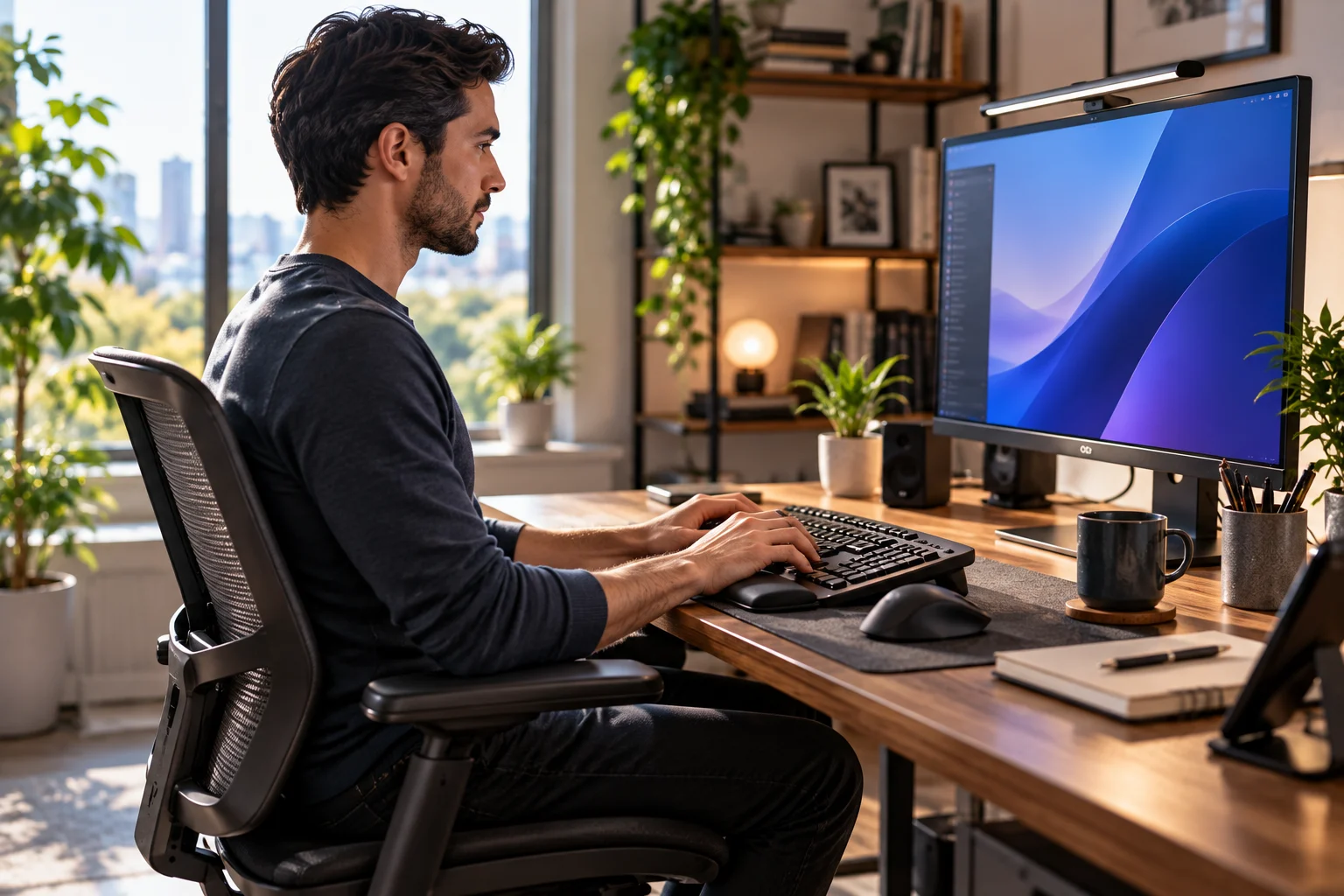
An ergonomic keyboard and mouse are better for long workdays when their shape, size, positioning and adjustability help you keep your wrists straight, elbows relaxed and shoulders close to your body.
The word ergonomic gets attached to almost every computer accessory these days. Split keyboards, curved mice, vertical mice, wrist rests and unusual key layouts are all marketed as ways to make working at a computer more comfortable.
But the shape alone isn't what makes a device ergonomic.
The real goal is to reduce awkward wrist and arm positions, excessive reaching, unnecessary force and repetitive strain. OSHA recommends arranging keyboards and pointing devices so the hands and wrists can remain in neutral positions and the elbows stay close to the body.
That means the best ergonomic keyboard or mouse is the one that fits your hands, your posture, your desk and the way you work.
What Makes a Keyboard Ergonomic?
An ergonomic keyboard is designed to make a neutral hand and wrist position easier to maintain while typing.
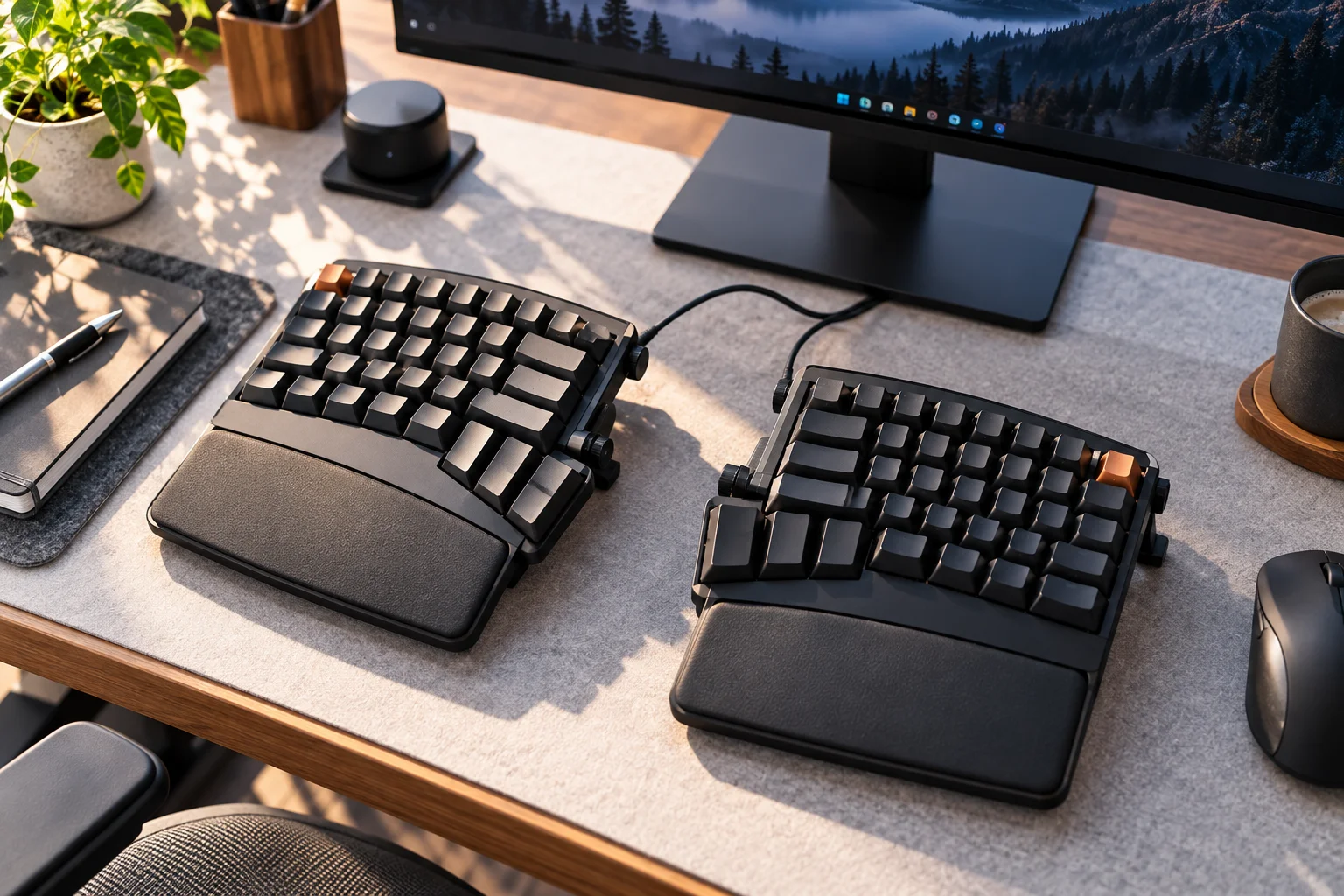
A conventional keyboard keeps your hands relatively close together and generally parallel to the front edge of the desk. For some people, that position works perfectly well. For others, it can encourage the wrists to bend outward or the shoulders to rotate inward.
Ergonomic keyboards can address this through features such as:
Split layouts
Angled key sections
Tented designs
Negative or adjustable tilt
Lower-profile construction
Different key layouts
Integrated palm support
The goal isn't to make the keyboard look unusual. The goal is to let your hands approach the keys in a more natural position.
OSHA's workstation guidance recommends keyboards that can be positioned horizontally or with a slight negative slope and arranged so the hands remain aligned with the forearms.
Why Does a Split Keyboard Feel Different?
A split keyboard separates the left and right key sections so each hand can sit at a more natural angle.
Instead of forcing both hands toward the center of the keyboard, the two halves can be positioned to better match your shoulders and forearms.
This can be particularly useful if you spend most of the day:
Writing
Programming
Editing documents
Working with spreadsheets
Answering emails
Doing other keyboard-heavy work
Some split keyboards also allow each half to be moved independently, giving you more control over shoulder and elbow positioning.
But a split design isn't automatically more comfortable. It can take time to learn, particularly if you have spent years using conventional keyboards.
What Does Keyboard Tenting Do?
Tenting raises the center of the keyboard so the palms face each other more naturally instead of lying completely flat.
Imagine holding your hands in front of you as if you're about to shake someone's hand.
That is closer to a neutral forearm and wrist orientation than placing both palms completely flat on a desk.
A tented keyboard attempts to bring the keyboard closer to that position.
The amount of tenting that feels comfortable varies considerably between users, which is why adjustable ergonomic keyboards can be useful.
Is a Wrist Rest Actually Ergonomic?
A wrist or palm rest can improve comfort, but it shouldn't be used to force your wrists into a particular position while you type.
OSHA notes that wrist and palm supports can increase comfort and may facilitate more neutral wrist angles when used appropriately.
A good palm rest should generally support the palm rather than create a hard pressure point underneath the wrist.
During active typing, your hands should still be able to move naturally.
If the keyboard is too high, simply adding a wrist rest won't necessarily solve the underlying problem. OSHA specifically warns that an incorrectly positioned keyboard can force the wrists into extreme angles.
What Makes an Ergonomic Mouse Different?
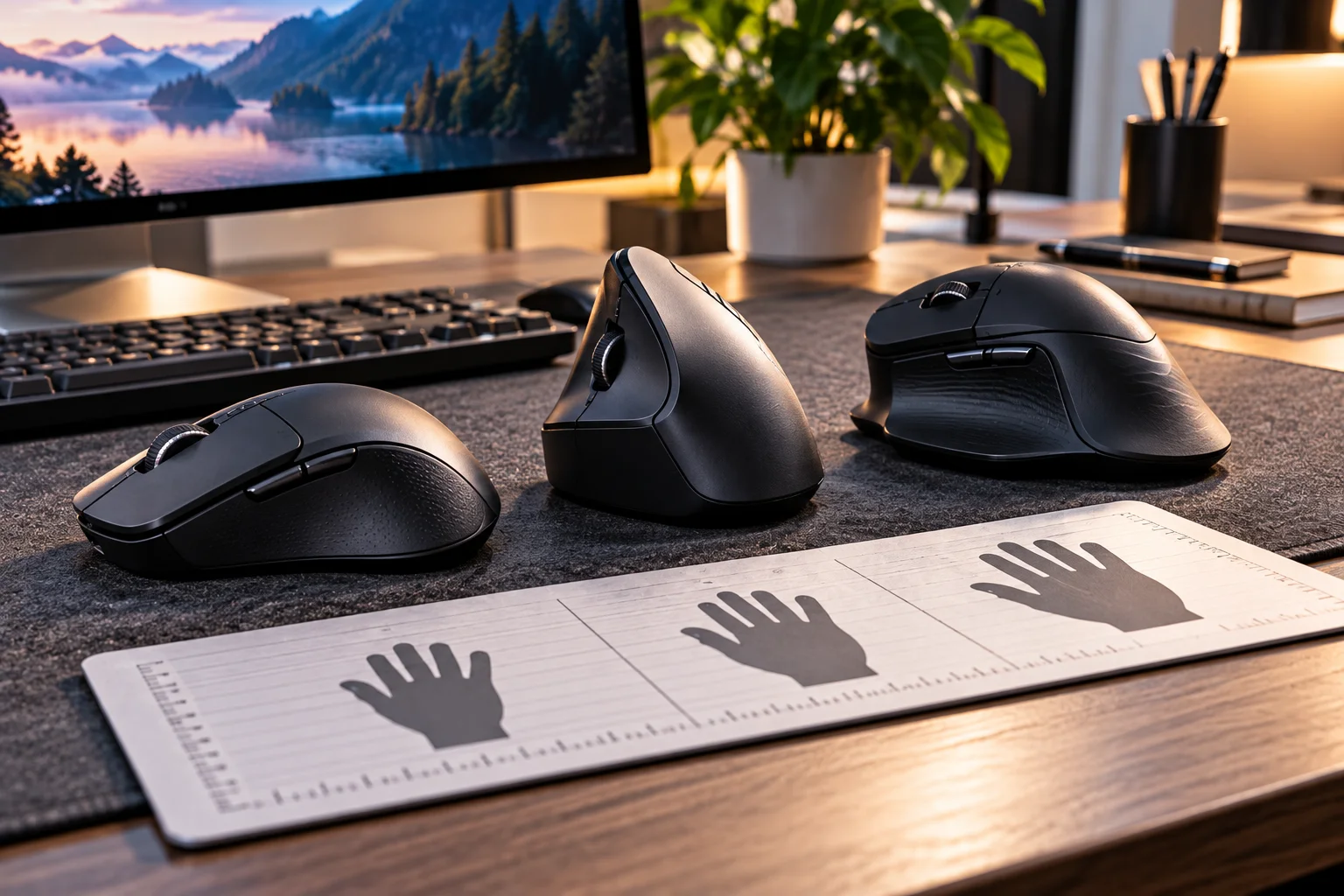
An ergonomic mouse changes the shape or orientation of the device so your hand can operate it with less awkward wrist positioning.

Common designs include:
Traditional ergonomic mouse
These have a contoured shape that supports the palm and fingers.
Vertical mouse
A vertical mouse positions the hand in a more upright orientation, similar to a handshake.
Trackball mouse
A trackball lets you control the pointer without moving the entire mouse across the desk.
Ambidextrous mouse
These can be used with either hand, which can make it easier to alternate hands during long periods of computer work.
OSHA specifically recommends considering alternative pointing devices such as trackballs and positioning the pointing device close enough that you don't have to repeatedly reach for it.
Why Does Mouse Shape Matter So Much?
Mouse size and shape determine how much your fingers, wrist and forearm have to work to control it.
A mouse that is too small can encourage your fingers to curl tightly around it.
A mouse that's too large may force you to stretch your fingers or grip it awkwardly.
The correct size allows your hand to rest naturally while your fingers reach the buttons without excessive movement.
This is one reason there isn't a universally “best” ergonomic mouse.
A design that feels excellent in a large hand may feel awkward in a smaller one.
Is a Vertical Mouse Better for Long Workdays?
A vertical mouse can be useful if its more upright position feels more natural for your wrist and forearm, but it isn't automatically better for everyone.
Its main design difference is that your palm faces more sideways rather than downward.
For some users, that can reduce the amount of forearm rotation required to operate the mouse.
For others, a conventional ergonomic mouse may feel more natural.
The important test is simple: can you operate the mouse without gripping it tightly, bending your wrist sideways or reaching unnecessarily?
If yes, the shape is probably working for you.
What Actually Matters More: The Keyboard or the Desk Setup?
Your workstation arrangement can matter as much as the keyboard and mouse themselves.
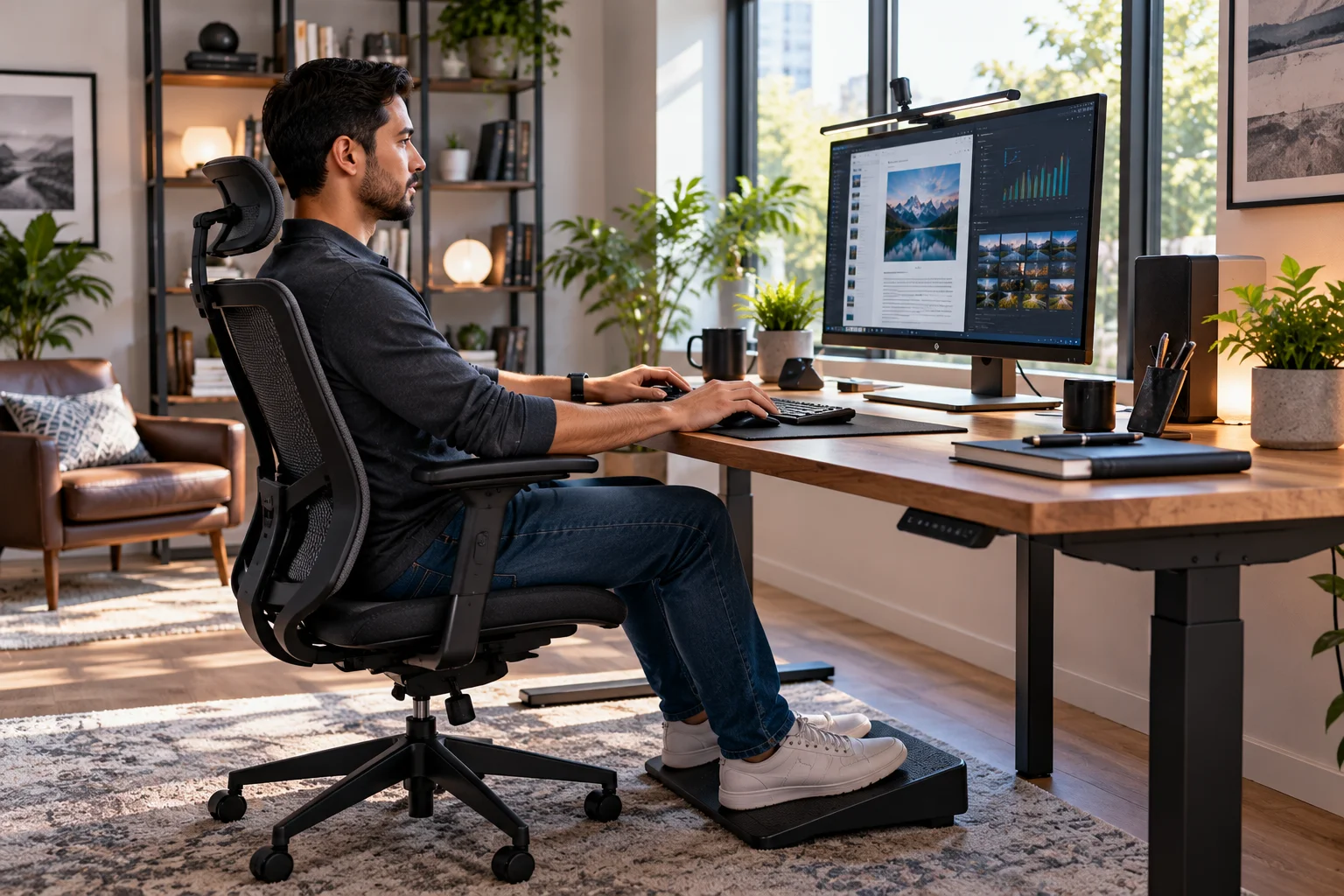
Even an expensive ergonomic keyboard cannot compensate for a desk that is too high or a chair that leaves your elbows unsupported.
OSHA recommends a neutral workstation in which:
Hands, wrists and forearms are roughly straight and aligned
Shoulders are relaxed
Elbows remain close to the body
Elbows are roughly 90–120 degrees
Feet are supported
The back has appropriate support
The head remains balanced over the torso
This is why buying an ergonomic mouse without changing a poor workstation setup may produce disappointing results.
How Should You Position Your Keyboard and Mouse?
Keep the keyboard and mouse close enough that your elbows remain near your body and your wrists can stay straight.
A simple setup looks like this:
Chair → elbows close to body → keyboard directly in front → mouse immediately beside keyboard.
Avoid placing the mouse far away from the keyboard.
Repeatedly reaching sideways for a mouse can increase shoulder and arm fatigue. OSHA specifically recommends positioning the mouse close to the keyboard to reduce unnecessary reaching.
Your keyboard should also be low enough that you're not forced to bend your wrists upward.
Does an Ergonomic Keyboard Prevent Wrist Pain?
Not necessarily. It can help reduce awkward positioning, but no keyboard can guarantee that you won't experience pain or repetitive-strain problems.
Long computer sessions involve more than keyboard design.
Repetition, static posture, force, insufficient breaks and poor workstation positioning can all contribute to discomfort. OSHA recommends varying tasks and taking short recovery breaks rather than maintaining the same computer posture indefinitely.
Research on computer work and musculoskeletal disorders has also found that the relationship is complex, with evidence varying by condition and exposure rather than supporting a simple claim that keyboard or mouse use directly causes every type of pain.
So think of an ergonomic device as one part of a better workstation, not a medical solution.
Do You Need an Ergonomic Keyboard for an 8-Hour Workday?
If you type for many hours every day, an ergonomic keyboard can be worth considering, particularly if your current keyboard forces an uncomfortable wrist or shoulder position.
You don't necessarily need a dramatically split or tented keyboard.
Start by checking your current setup.
Ask yourself:
Are my wrists bent upward?
Are they bent sideways?
Are my elbows far away from my body?
Are my shoulders raised?
Is the mouse too far away?
Do I grip the mouse tightly?
Does the keyboard feel too high?
Do I remain in the same position for hours?
If several answers are yes, changing the workstation may produce more benefit than simply buying a different keyboard.
Mechanical vs Ergonomic: Are They the Same Thing?
No. Mechanical and ergonomic describe different characteristics.
Mechanical describes the keyboard's switch mechanism.
Ergonomic describes how the keyboard is designed to interact with your body.
You can therefore have:
Mechanical + ergonomic
Mechanical + conventional
Membrane + ergonomic
Membrane + conventional
A split ergonomic keyboard can use mechanical switches, for example.
So don't confuse typing feel with ergonomic design.
If you prefer mechanical switches, you don't have to give them up to get an ergonomic layout.
What Should You Look for in an Ergonomic Keyboard?
Prioritize adjustability and the ability to maintain a neutral wrist position rather than buying the keyboard with the most dramatic shape.
Look for:
Feature | Why it matters |
|---|---|
Split layout | Can reduce forced inward hand positioning |
Adjustable tenting | Lets you find a comfortable wrist angle |
Negative or low tilt | Can reduce upward wrist bending |
Palm support | Can improve comfort when positioned correctly |
Appropriate keyboard height | Helps keep wrists neutral |
Programmable keys | Can reduce repetitive mouse movement |
Compact layout | May bring mouse closer to your body |
Good key feel | Makes long typing sessions easier |
The last point is easy to overlook.
If you dislike the keys, you may tense your fingers or press harder than necessary.
What Should You Look for in an Ergonomic Mouse?
Choose a mouse that fits your hand naturally and lets you control the pointer without excessive gripping or wrist movement.
Pay attention to:
Mouse size
Palm support
Shape
Weight
Button placement
Scroll-wheel position
Tracking
Wireless battery life
Hand orientation
For long workdays, fit matters more than having the largest number of buttons.
A lightweight mouse with a comfortable shape may be preferable to a feature-heavy model that forces your hand into an awkward position.
Should You Take Breaks Even With an Ergonomic Setup?
Yes. An ergonomic keyboard and mouse don't eliminate the need to move and change positions.
OSHA recommends frequent short pauses and variation in tasks because prolonged repetitive activity can limit recovery for muscles and tendons.
During the workday, you can:
Stand up periodically
Walk for a few minutes
Stretch your hands and fingers
Alternate tasks
Switch between keyboard shortcuts and mouse use
Change your sitting position
Move the mouse with the whole arm rather than only the wrist
The objective isn't to find one perfect posture and freeze in it for eight hours.
A good workstation makes it easy to change position.
Ergonomic Keyboard and Mouse: What Actually Matters?
Factor | What to prioritize |
|---|---|
Keyboard shape | Neutral wrist and forearm position |
Keyboard height | Low enough to avoid wrist extension |
Keyboard angle | Flat or slightly negative can help |
Mouse shape | Fits your hand without excessive gripping |
Mouse position | Close to the keyboard |
Desk height | Allows relaxed shoulders and elbows |
Chair | Supports back and allows proper arm position |
Breaks | Short, regular movement periods |
Adjustability | Lets you change posture throughout the day |
This is why an expensive “ergonomic” product can still be a poor choice if it doesn't fit you.
FAQs About Ergonomic Keyboards and Mice
Are ergonomic keyboards actually better?
They can be, particularly when their design helps you maintain a neutral wrist and arm position. The benefit depends on how well the keyboard fits your body and work style.
Is a split keyboard better for typing?
A split keyboard can make it easier to position each hand independently, but there is an adjustment period and not everyone prefers the layout.
Is a vertical mouse better than a normal mouse?
A vertical mouse can reduce the amount of forearm rotation required for some users. Comfort and hand fit ultimately determine whether it works better for you.
Should your wrists rest on a keyboard wrist rest?
A palm or wrist rest can improve comfort, but it shouldn't force your wrists into an awkward angle. Proper keyboard height and positioning still matter.
Does an ergonomic mouse prevent carpal tunnel syndrome?
No keyboard or mouse can guarantee prevention. Ergonomic equipment can help reduce awkward postures and repetitive strain, but workstation setup, task variation and breaks also matter.
How often should you take breaks from computer work?
Short, frequent pauses are preferable to remaining in the same position for long uninterrupted periods. OSHA recommends incorporating micro-breaks and task variation into computer work.
The Bottom Line
The best ergonomic keyboard and mouse are the ones that make a neutral, relaxed working position easier to maintain.
Don't choose a keyboard because it looks futuristic or a mouse because it has “ergonomic” printed on the box.
Look at what happens to your body when you actually use it.
Your wrists should stay relatively straight, your elbows should remain close to your body, your shoulders should stay relaxed, and the mouse should be close enough that you don't have to repeatedly reach for it.
And remember that ergonomics isn't about holding one perfect position all day.
The best workstation is adjustable enough that you can move, change posture and vary your tasks throughout the day.
That is ultimately what makes an ergonomic keyboard and mouse useful: they don't make long workdays harmless, but they can make a well-designed workstation easier to use comfortably for longer periods.