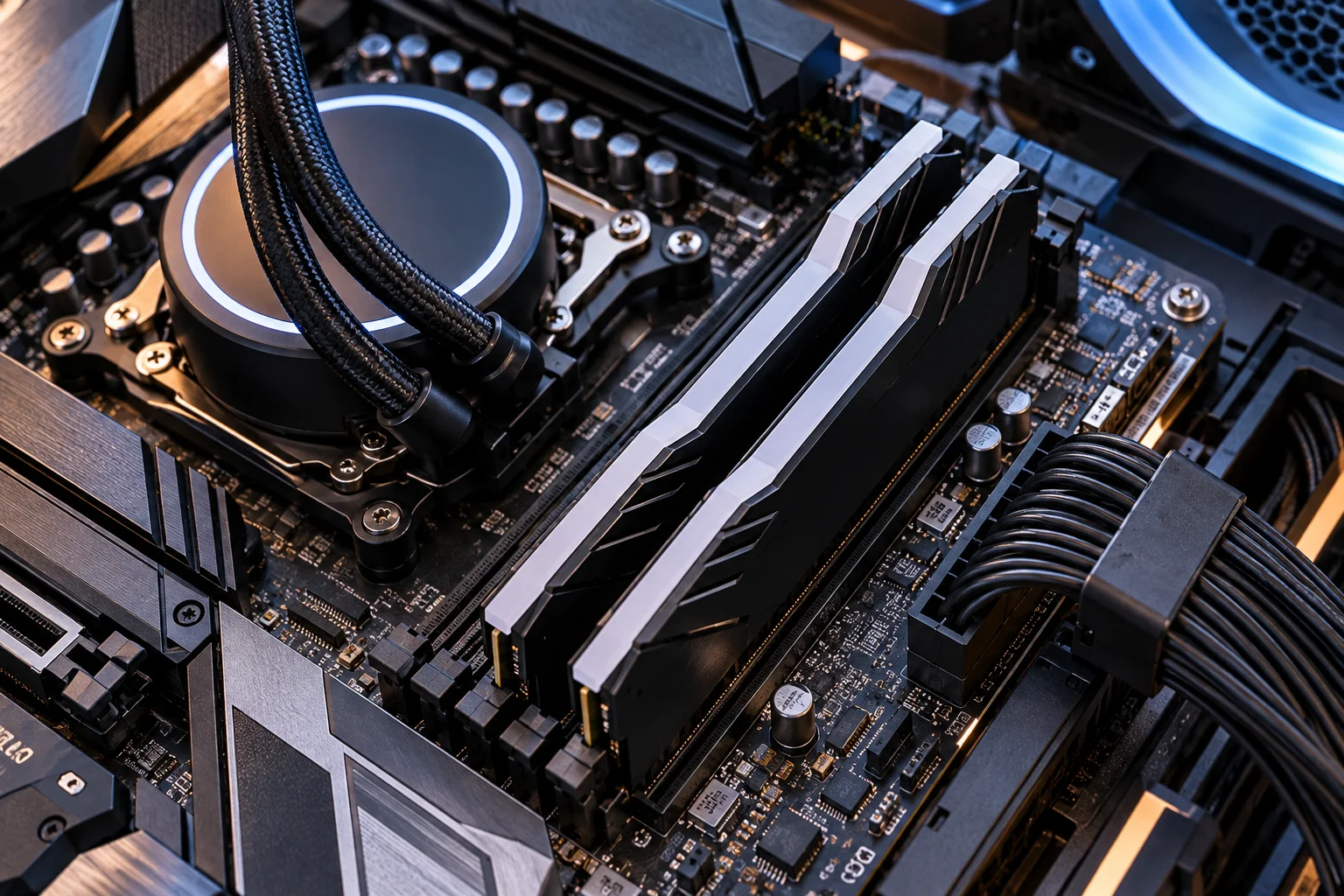
Yes, you can often mix different RAM brands or speeds in a desktop PC, provided the modules are otherwise compatible with your motherboard. But that does not mean the combination will always deliver the same performance or stability as a matched memory kit.
For example, a PC may be able to run one DDR5-5600 module alongside a DDR5-4800 module. In many cases, the system will simply operate both at the slower supported speed. However, differences in memory timings, capacity, chip density, module type, or overclocking profiles can make mixed configurations less predictable.
The safest approach is to use matching modules from the same kit. If you're upgrading an existing PC, though, replacing everything is not always necessary. Understanding what actually matters can help you decide whether adding another module is worth the risk.
Can You Mix RAM From Different Brands?
Yes, different RAM brands can work together if their specifications and the platform are compatible. RAM does not have to come from the same manufacturer simply because it is installed in the same PC.
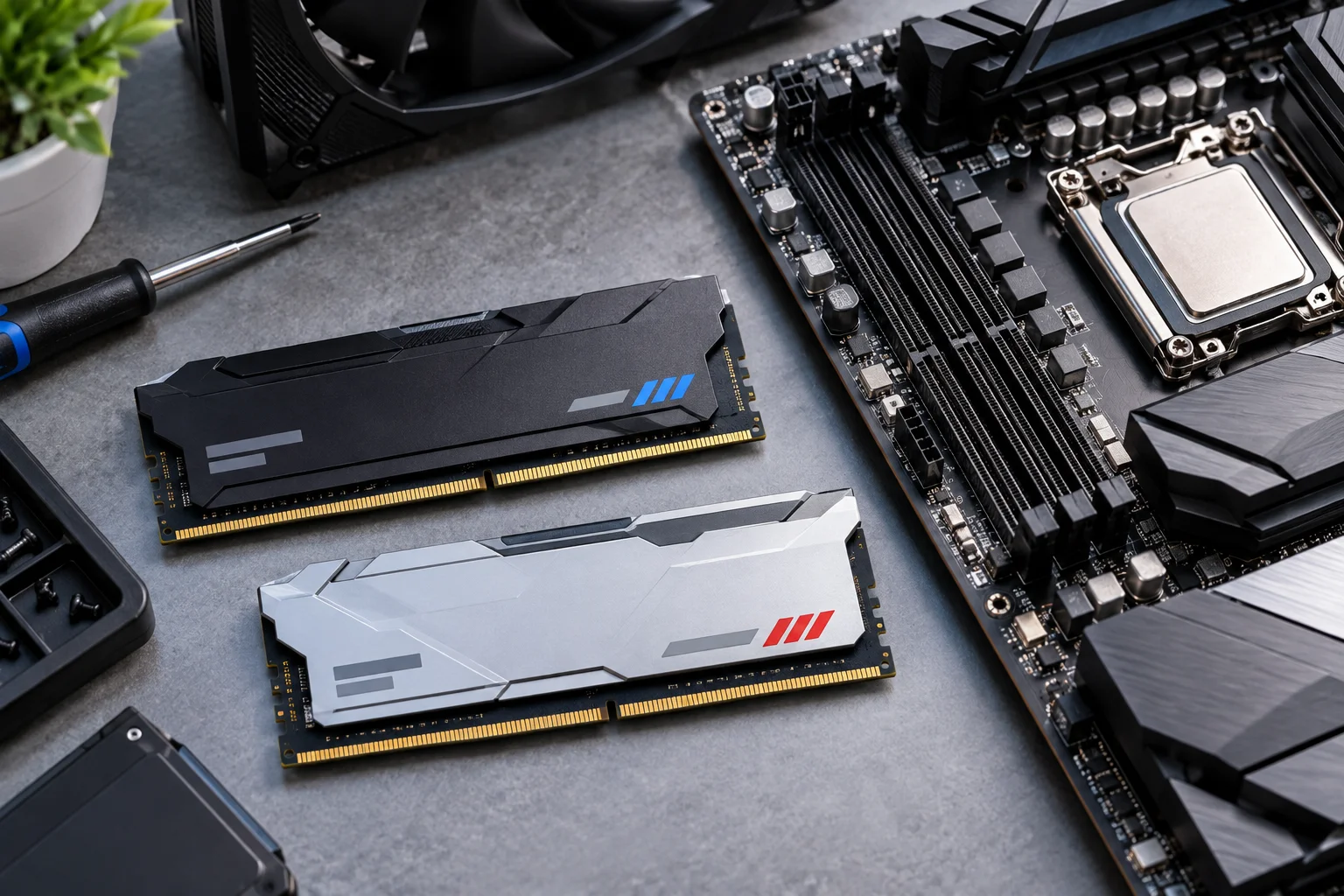
For example, a Crucial module and a Kingston module can potentially operate together if both are the correct DDR generation and compatible DIMM type, capacity and specifications.
The brand itself is usually less important than the underlying specifications.
Check:
DDR4 or DDR5 generation
Desktop DIMM type
Capacity
Rated speed
Voltage
Timings
ECC or non-ECC
UDIMM, RDIMM or other module type
Motherboard and CPU compatibility
Even two modules carrying similar specifications can use different memory components internally. Kingston notes that modules sold separately can contain different components, which is one reason matched kits are recommended for multi-channel configurations.
What Happens If You Mix Different RAM Speeds?
The faster RAM will generally run at the slower supported speed.
Suppose your desktop has:
16GB DDR5-5600
16GB DDR5-4800
If the modules work together, the system will normally configure memory around the slower supported speed rather than allowing one module to run at 5600 MT/s while the other runs at 4800 MT/s.
Kingston specifically states that when different memory speeds are mixed, systems generally default to the slower speed. Motherboard and processor population rules can reduce the supported speed even further.
So buying extremely fast RAM to pair with slower existing RAM may not give you the benefit you expect.
Example
Configuration | Likely result |
|---|---|
2 × DDR5-5600 | Both can run at 5600 MT/s if the platform supports it |
DDR5-5600 + DDR5-4800 | Usually runs at 4800 MT/s |
DDR5-6000 + DDR5-5600 | Usually runs at 5600 MT/s |
4 × high-speed DDR5 modules | May run considerably slower depending on the platform |
The exact result depends on the CPU, motherboard, BIOS and memory configuration.
Does Mixing RAM Brands Reduce Performance?
Not automatically. Two different brands can perform normally when their modules are compatible and configured correctly.
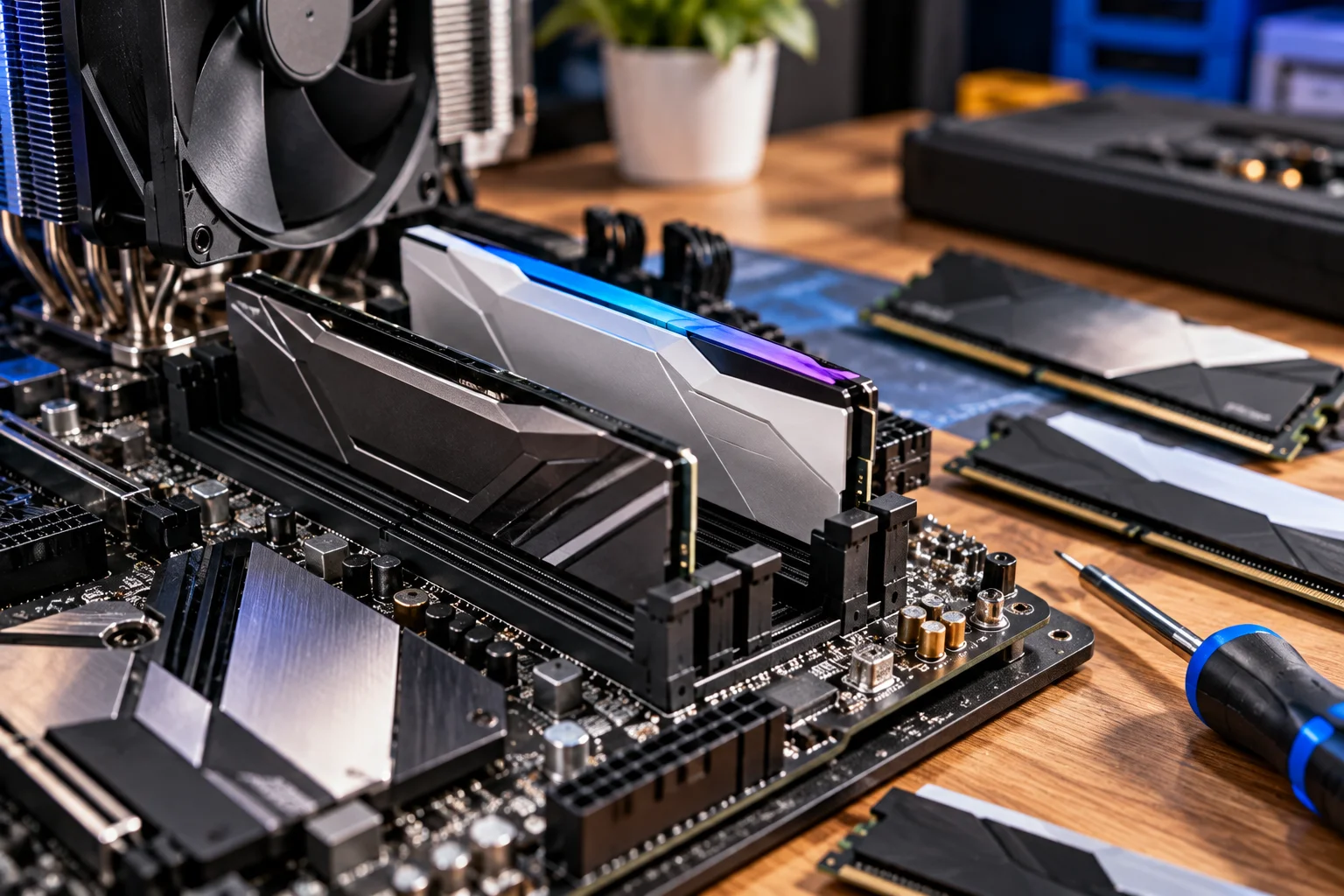
The bigger issue is that mixed memory can force the system to use more conservative settings.
For example, if one module supports a higher speed but another does not, the system may operate both at the lower speed. Adding more DIMMs can also reduce the maximum supported memory speed because of the electrical load on the memory controller.
This means a configuration with four modules isn't automatically faster than one with two.
In fact, current DDR5 platforms can have significantly lower supported speeds when two DIMMs are installed per memory channel. Intel's documented population rules show examples where adding a second DIMM per channel reduces the supported memory speed substantially.
Can You Mix Different RAM Capacities?
Sometimes, but matching capacities is preferable.
You might be able to run:
8GB + 16GB
16GB + 32GB
16GB + 16GB + 32GB + 32GB
But the exact behavior depends on the platform and memory architecture.
Matching pairs are generally easier for the memory controller to handle and are the preferred configuration for maximizing multi-channel performance. Kingston recommends using identical modules in multi-channel configurations where possible.
If you're building a new PC, buying a matched 2-stick kit is usually simpler than assembling a combination of individual modules.
What Happens to Dual-Channel Performance?
It depends on how the modules are arranged and what the motherboard supports.
Mainstream desktop processors generally use a dual-channel memory architecture. Installing a matching pair in the motherboard's recommended slots allows the memory controller to use both channels efficiently.
A mismatched configuration can sometimes still operate in a multi-channel arrangement, but the exact behavior depends on the platform and module capacities.
This is one reason simply asking "Will the PC recognize all my RAM?" isn't enough. The computer may recognize the full capacity while still operating under less-than-ideal memory settings.
Can Mixing RAM Cause Crashes or Failure to Boot?
Yes, although compatibility problems are not guaranteed.
A mixed configuration can sometimes result in:
Failure to boot
Automatic memory downclocking
BIOS memory-training delays
Random application crashes
Blue screens
Game crashes
Instability when using XMP or EXPO
Memory errors under heavy workloads
The problem isn't necessarily that the RAM brands are different. Differences in memory chips, density, timings, voltage requirements or overclocking profiles can make certain combinations difficult for the motherboard to configure reliably. Kingston also notes that mixing modules can result in degraded performance, instability or incompatibility.
If a new RAM installation causes instability, updating the motherboard BIOS is one troubleshooting step worth checking because newer memory technologies and DRAM densities can require updated compatibility support.
What About Mixing RAM With Different Timings?
The system may use more conservative timings so that all installed modules can operate together.
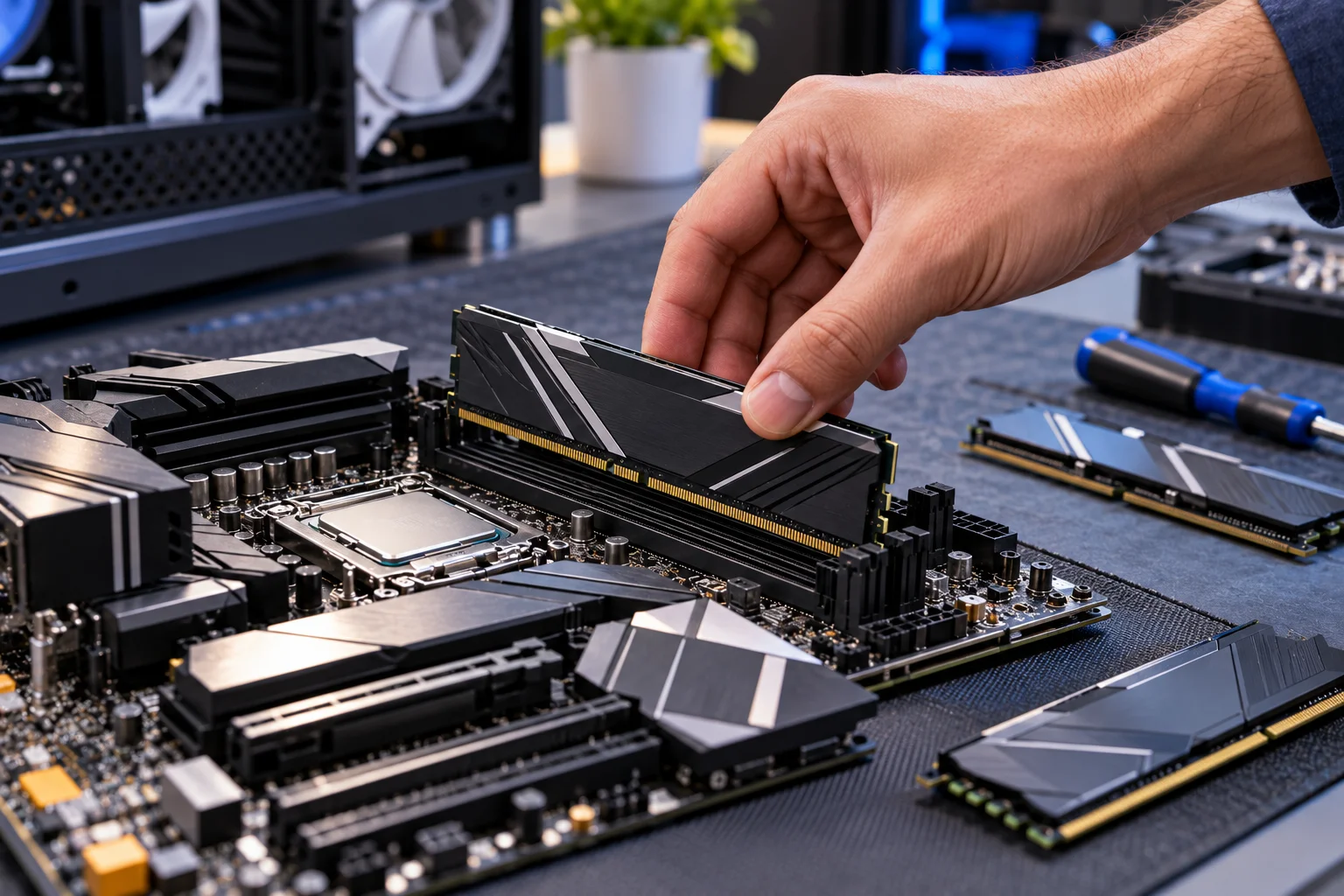
RAM specifications include timings such as CL, tRCD, tRP and tRAS. Two modules can have identical capacities and speeds while having different timings.
For example:
DDR5-6000 CL30
DDR5-6000 CL36
They may work together, but you should not assume the combined configuration will operate at the faster module's advertised timings.
The motherboard has to find settings that all installed modules can handle.
For a basic upgrade, this is another reason matching the existing module as closely as possible is preferable.
What Happens When You Mix XMP or EXPO RAM?
This is where mixed RAM becomes more complicated.
XMP and EXPO are memory performance profiles designed to make supported RAM operate beyond basic JEDEC settings.
A matched kit is tested as a combination. Two separately purchased kits may have different chips and profiles even when their specifications look identical.
If you mix them, the system may:
Run at default JEDEC settings
Run at a lower speed
Require manual BIOS adjustments
Become unstable when the performance profile is enabled
Fail memory training or boot
Kingston specifically recommends buying memory as a kit for multi-module configurations and warns that mixing modules can cause instability or prevent expected overclocking behavior.
Should You Mix RAM or Buy a New Kit?
For an existing PC, adding compatible RAM can make sense if the current modules are still useful and the new modules closely match them.
But if you're building or substantially upgrading a system, a matched kit is generally the cleaner choice.
Situation | Sensible approach |
|---|---|
Same brand, same model and specifications | Usually straightforward |
Different brands, same specifications | Can work |
Different speeds, same DDR generation | Usually runs at slower speed |
Different capacities | May work, but configuration matters |
Different timings | May work at conservative settings |
Mixing XMP/EXPO kits | More potential for instability |
DDR4 + DDR5 | Not compatible |
ECC + non-ECC | Requires platform-specific compatibility |
UDIMM + RDIMM | Not interchangeable in mainstream desktop use |
DDR4 and DDR5 cannot be mixed because they use different physical and electrical specifications.
How to Check RAM Before Mixing It
Before buying another module, find the exact specifications of your existing RAM and motherboard.
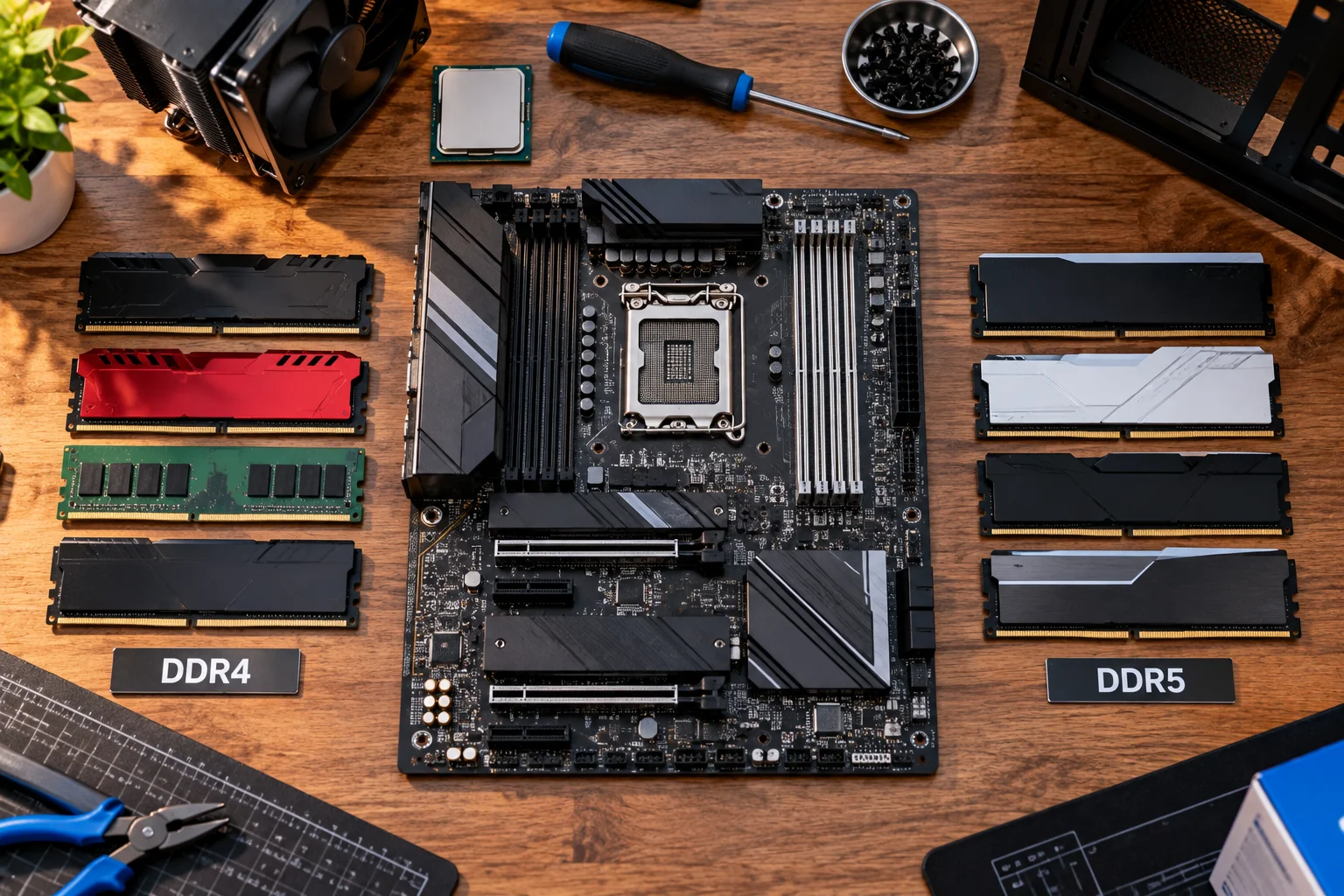
Check:
DDR generation — DDR4 or DDR5
Capacity — 8GB, 16GB, 32GB, etc.
Speed — measured in MT/s
Timings — particularly CAS latency
Voltage
Module type — typically UDIMM for consumer desktops
ECC support
Number of occupied DIMM slots
Motherboard maximum capacity
CPU and motherboard memory-speed limits
Then check the motherboard manufacturer's recommended memory population order.
If you can find the exact same RAM module already installed, matching it is usually preferable to choosing another module based only on capacity and advertised speed.
Frequently Asked Questions
Can I mix 3200MHz and 3600MHz RAM?
Yes, if both modules are otherwise compatible. The system will generally operate at the slower supported speed, although motherboard and CPU rules can affect the final speed.
Can I mix 8GB and 16GB RAM?
It can work on some systems, but matching capacities is preferable. The exact multi-channel behavior depends on the CPU and motherboard.
Is mixing RAM brands bad?
No. Different brands can work together. Compatibility depends more on the memory generation, module type, capacity, speed, timings and platform than the logo printed on the module.
Should all RAM sticks be identical?
They don't absolutely have to be, but identical modules or a matched kit generally give you the most predictable configuration.
Will adding more RAM make my PC faster?
Only if your existing RAM is limiting your workload. More memory primarily gives the system more capacity for applications and multitasking. It doesn't automatically increase CPU or GPU performance.
What is the safest way to upgrade RAM?
Use a matched kit supported by your motherboard. If you're adding to existing RAM, match the DDR generation, capacity, speed and major specifications as closely as possible, then follow the motherboard's recommended DIMM configuration.
Final Takeaway
Mixing RAM brands is usually less concerning than mixing incompatible specifications. Different brands can work together, and different speeds can often coexist, but the system normally has to operate around the slower or more conservative settings.
For the most predictable performance, use a matched kit. If you're upgrading an existing desktop, however, you don't necessarily need to throw away perfectly good RAM. Check the motherboard's compatibility information, match the specifications closely, and understand that adding more modules can sometimes reduce the maximum memory speed.
The goal isn't simply to make the PC recognize more RAM. It's to make the entire memory configuration stable, compatible and capable of running at the performance level your platform can actually support.