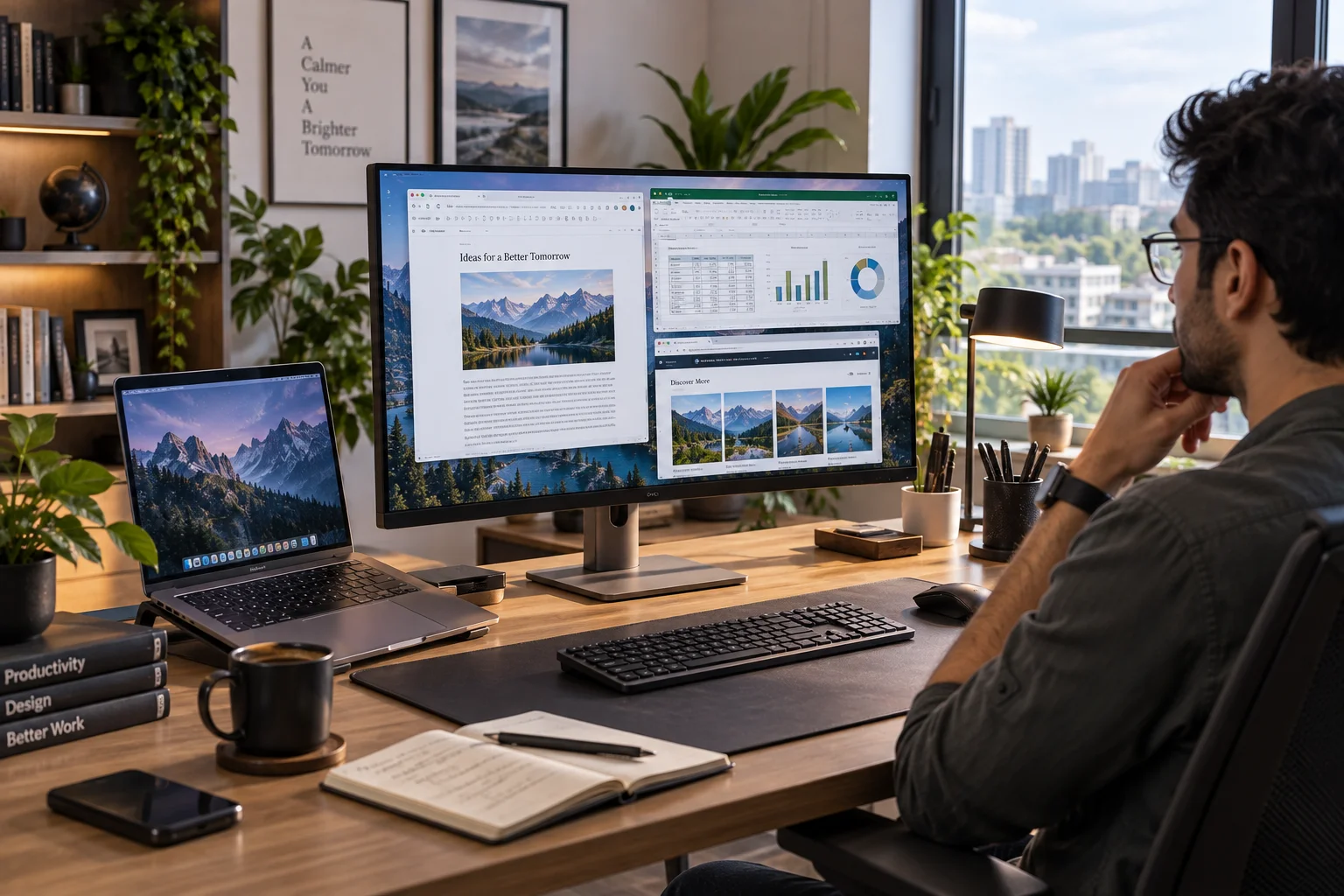
A good work-from-home monitor should make your work easier, not simply make your desk look more impressive.
The right screen gives you enough room for documents, spreadsheets, browser tabs and video calls without constantly switching between windows. It can also reduce desk clutter when it includes USB-C connectivity, charging and a built-in hub.
For most home offices, a 27-inch QHD or 4K monitor with an adjustable stand and USB-C connectivity is the sweet spot. Larger 32-inch and ultrawide displays make more sense when your work involves multiple applications or large spreadsheets.
Current options worth considering include the Dell UltraSharp U2724DE, BenQ PD2706U, HP Series 7 Pro 727pk and Samsung ViewFinity S8.
What is the best monitor for working from home?
The Dell UltraSharp U2724DE is one of the strongest all-round choices because it combines a 27-inch QHD display with 120Hz refresh rate, USB-C connectivity, 90W power delivery, Ethernet and a built-in KVM switch.
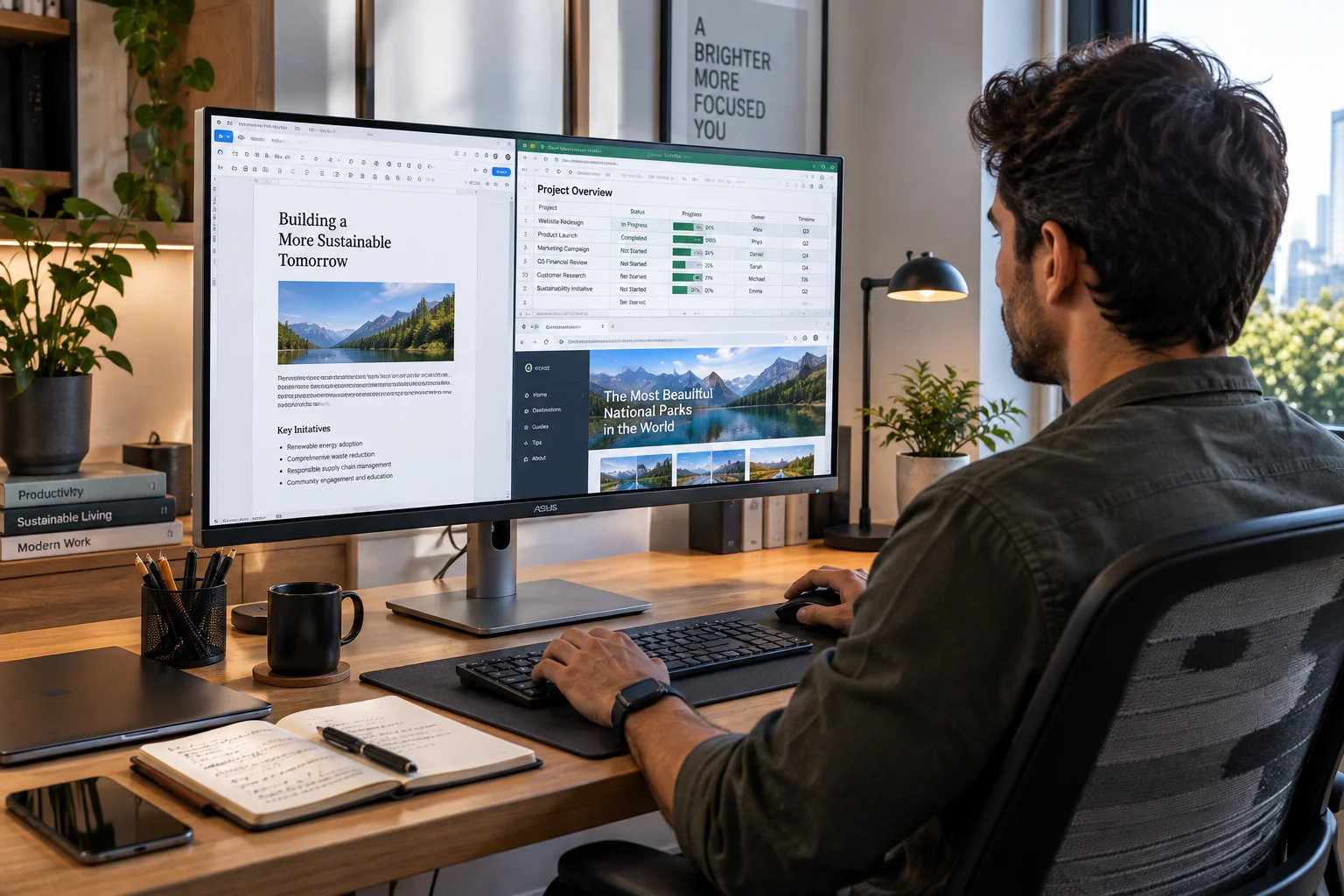
For different priorities, these are the standout choices:
Monitor | Best for | Resolution | Standout feature |
|---|---|---|---|
Dell UltraSharp U2724DE | Best overall | QHD | USB-C, 90W charging, KVM and Ethernet |
BenQ PD2706U | Creative work | 4K | Excellent color accuracy and 90W USB-C |
HP Series 7 Pro 727pk | Premium home office | 4K | Thunderbolt 4, 120Hz and KVM |
Samsung ViewFinity S8 | Large-screen productivity | 4K | USB-C, 90W charging and built-in LAN |
LG UltraFine 27UQ850 | Color-focused work | 4K | Nano IPS Black and wide color coverage |
The best choice depends on how you actually work rather than which monitor has the longest specification list.
Is 27 inches the best monitor size for working from home?
For most home offices, 27 inches is the best balance between workspace and desk size.
A 27-inch display gives you substantially more room than a typical laptop screen without taking over a small desk.
It is large enough to keep a browser, email and document visible together, particularly at QHD or 4K resolution.
The Dell U2724DE uses a 27-inch QHD panel, while both the BenQ PD2706U and HP Series 7 Pro 727pk use 27-inch 4K displays.
A 32-inch monitor becomes more attractive when you regularly work with large spreadsheets, timelines or multiple windows.
An ultrawide can go further, but it also requires more desk space.
Do you need a 4K monitor for office work?
Not necessarily. QHD is already excellent for general office work, while 4K is worth paying for when sharper text, more workspace or detailed creative work matters.
At 27 inches, 4K gives you substantially higher pixel density than 1080p.
That can make small text and detailed graphics look cleaner, although operating-system scaling means you may not always see four times as much usable workspace.
The BenQ PD2706U is a good example of a productivity-oriented 4K monitor. It has a 3840 by 2160 IPS display, 350 nits typical brightness and 163 pixels per inch.
For spreadsheets, documents and coding, QHD is often enough.
For photography, design, video editing and anyone who spends much of the day reading fine text, 4K becomes easier to justify.
Is USB-C worth paying more for?
Yes, especially when your work laptop supports USB-C charging and video output.
This is one of the most useful premium monitor features because a single cable can potentially handle the display connection, data and laptop charging.
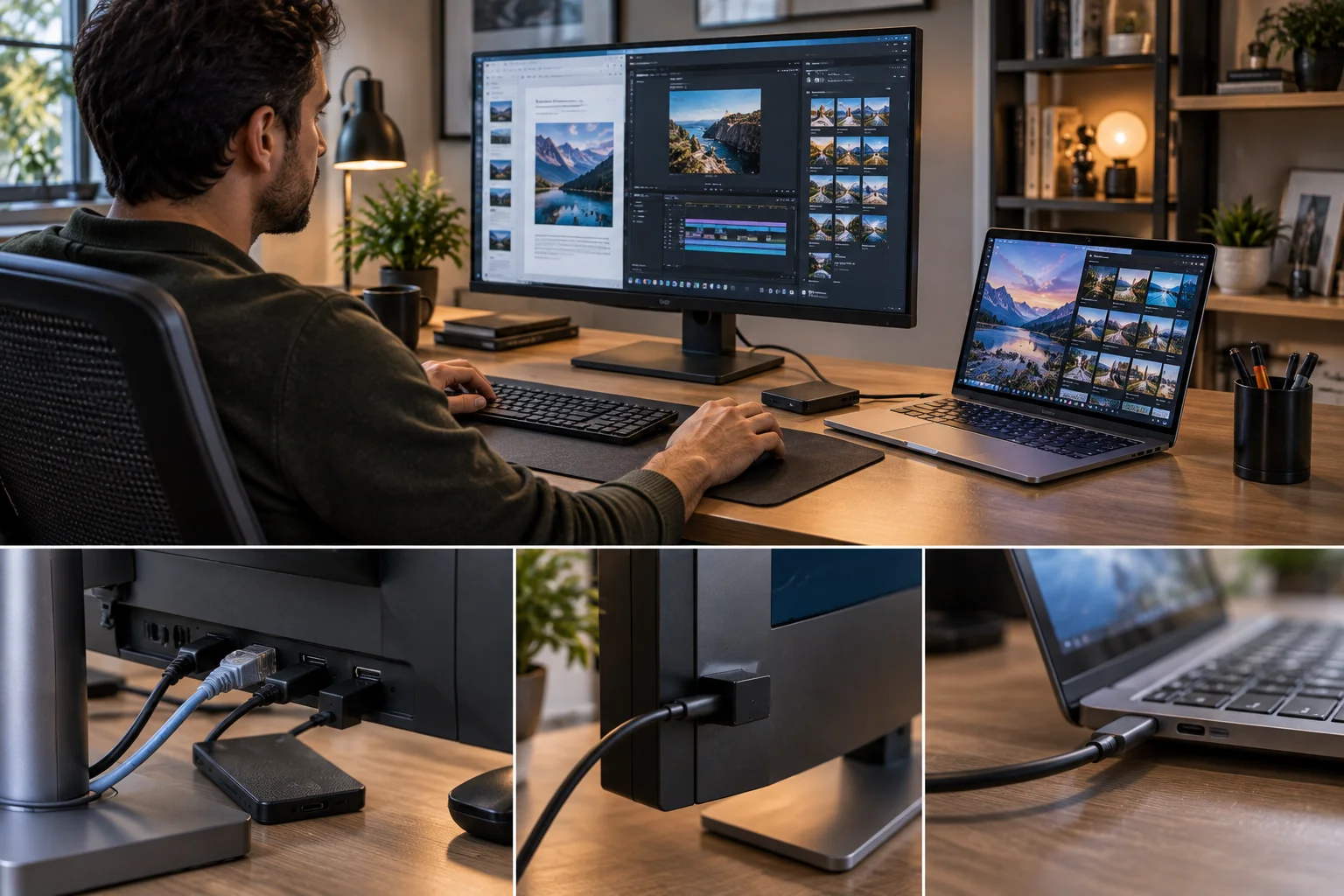
The Dell U2724DE provides up to 90W of USB-C power delivery and includes several USB ports plus 2.5GbE Ethernet.
The BenQ PD2706U also provides 90W USB-C power delivery alongside its USB hub.
Samsung's ViewFinity S8 S80UD similarly combines USB-C with 90W charging and a built-in LAN port.
For a desk where you regularly connect a laptop, keyboard, mouse and external storage, this can be worth considerably more than upgrading from one good panel to another slightly better panel.
Is an adjustable stand important?
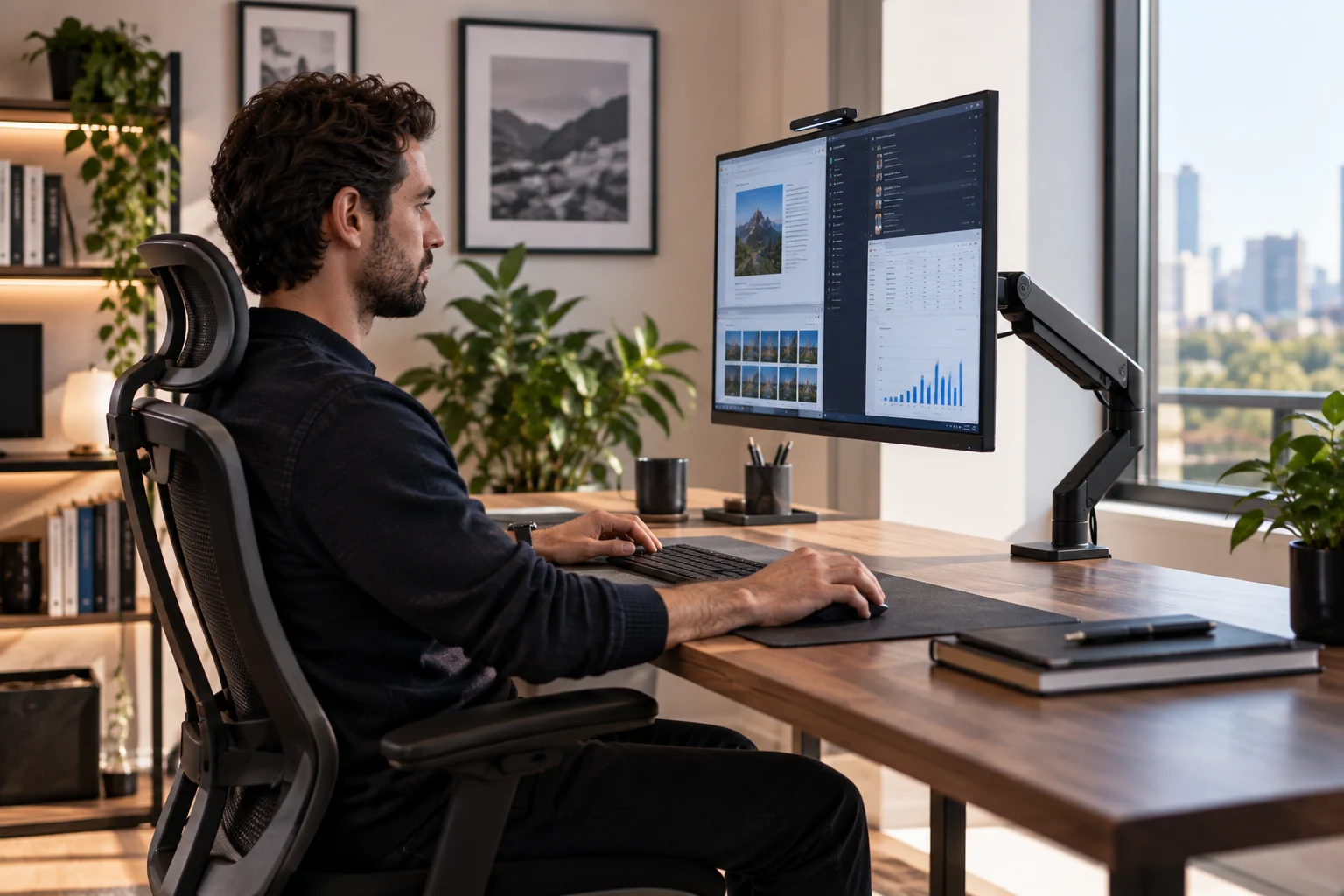
Yes. An adjustable stand is one of the features that is easy to overlook until you spend several hours using a monitor that does not have one.
Ideally, you want height adjustment, tilt and swivel. Pivot can also be useful for reading long documents or working with code.
The Dell U2724DE offers height, tilt, swivel and pivot adjustment.
BenQ's PD2706U also has a height-adjustable stand with tilt, swivel and 90-degree pivot.
This matters because the correct monitor position depends on your chair, desk and viewing distance.
A beautiful display that sits too low can still make for an uncomfortable workstation.
What monitor is best for a two-laptop home office?
A monitor with a built-in KVM switch can be extremely useful when you regularly work across two computers.
KVM allows one keyboard and mouse setup to control multiple connected systems, reducing the need to unplug peripherals every time you switch computers.
Dell includes a KVM in the U2724DE.
Samsung's ViewFinity S8 S80UD also includes a built-in KVM and supports Picture in Picture and Picture by Picture modes.
This is particularly useful for people who use a personal computer alongside a work laptop.
Does refresh rate matter for working from home?
Yes, but you do not need a gaming-level refresh rate.
A 60Hz monitor is perfectly usable for documents, spreadsheets and email.
However, 100Hz, 120Hz or higher can make scrolling, moving windows and general desktop interaction feel noticeably smoother.
The Dell U2724DE runs at 120Hz, as does the HP Series 7 Pro 727pk.
That makes higher refresh rate one of those features you may not consider essential until you start using it every day.
For a work monitor, however, I would spend on resolution, connectivity and ergonomics before paying a large premium purely for refresh rate.
Is color accuracy important for home office work?
It matters much more for creative professionals than it does for ordinary office work.
If your day consists mostly of email, documents, spreadsheets and meetings, a good IPS display with accurate everyday color is generally enough.
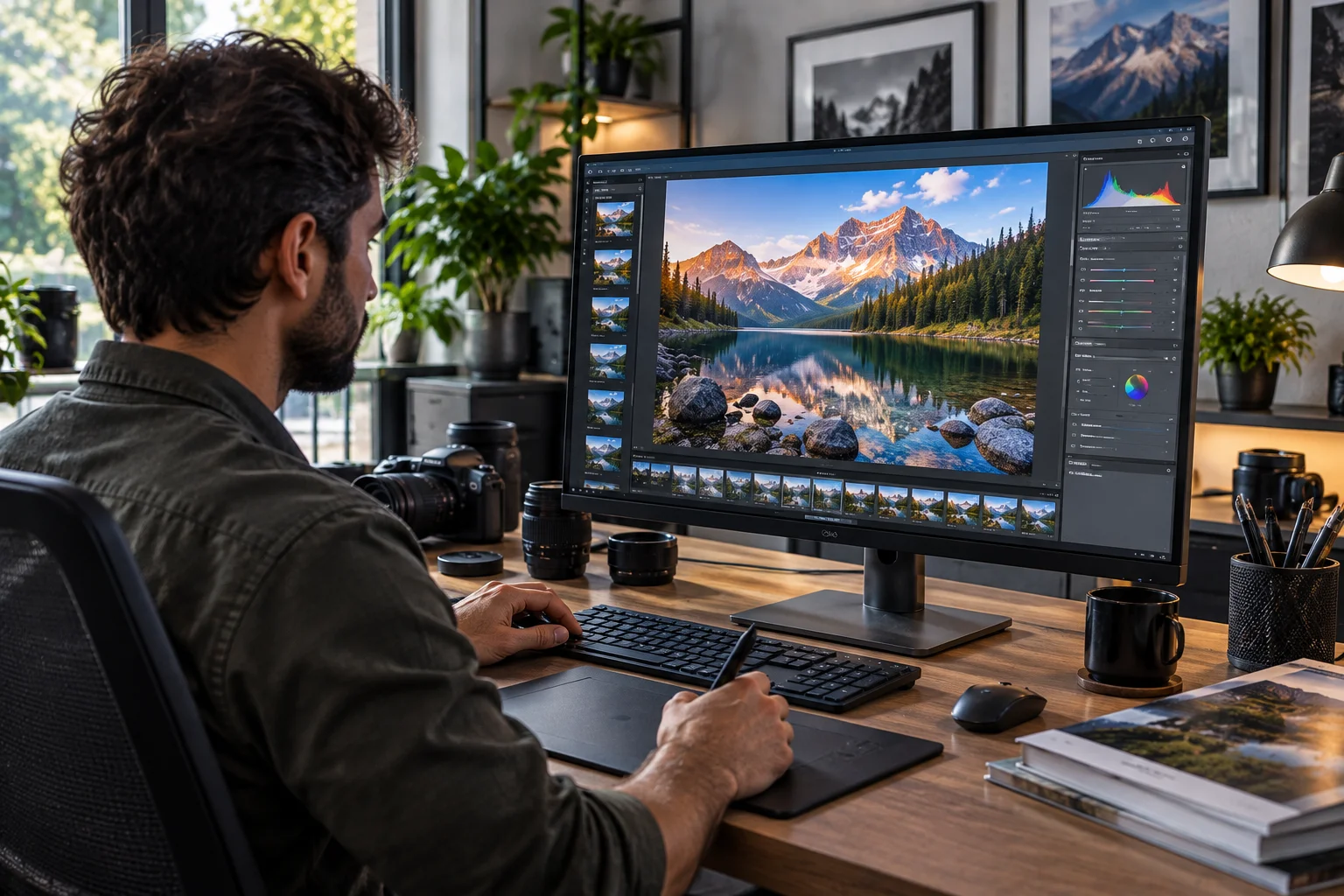
For photographers, designers and video editors, color coverage and factory calibration become much more important.
BenQ's PD2706U covers 100 percent of sRGB and 95 percent of P3, includes a factory calibration report and is Pantone Validated.
HP's Series 7 Pro 727pk covers 100 percent sRGB and 98 percent Display P3, with factory calibration and Pantone validation.
This is an area where paying more can produce a meaningful difference.
Should you buy a monitor with built-in speakers?
Useful, but not a priority.
Built-in speakers are convenient for occasional meetings and videos, particularly when you do not want additional speakers on a small desk.
But dedicated speakers or headphones will normally provide a better audio experience.
Do not sacrifice display quality, connectivity or ergonomics simply to get slightly better built-in audio.
What about eye comfort features?
Flicker-free operation, low blue light options, anti-glare coatings and good brightness control are more useful for long working sessions than flashy display features.
The Dell U2724DE is TÜV certified for 5-star eye comfort and includes an ambient light sensor that can adjust brightness and color temperature.
BenQ's PD2706U includes flicker-free technology, low blue light modes and an ePaper mode.
These features cannot eliminate the effects of sitting at a screen all day, but they can make the display easier to work with in different lighting conditions.
Which monitor is best for creative professionals?
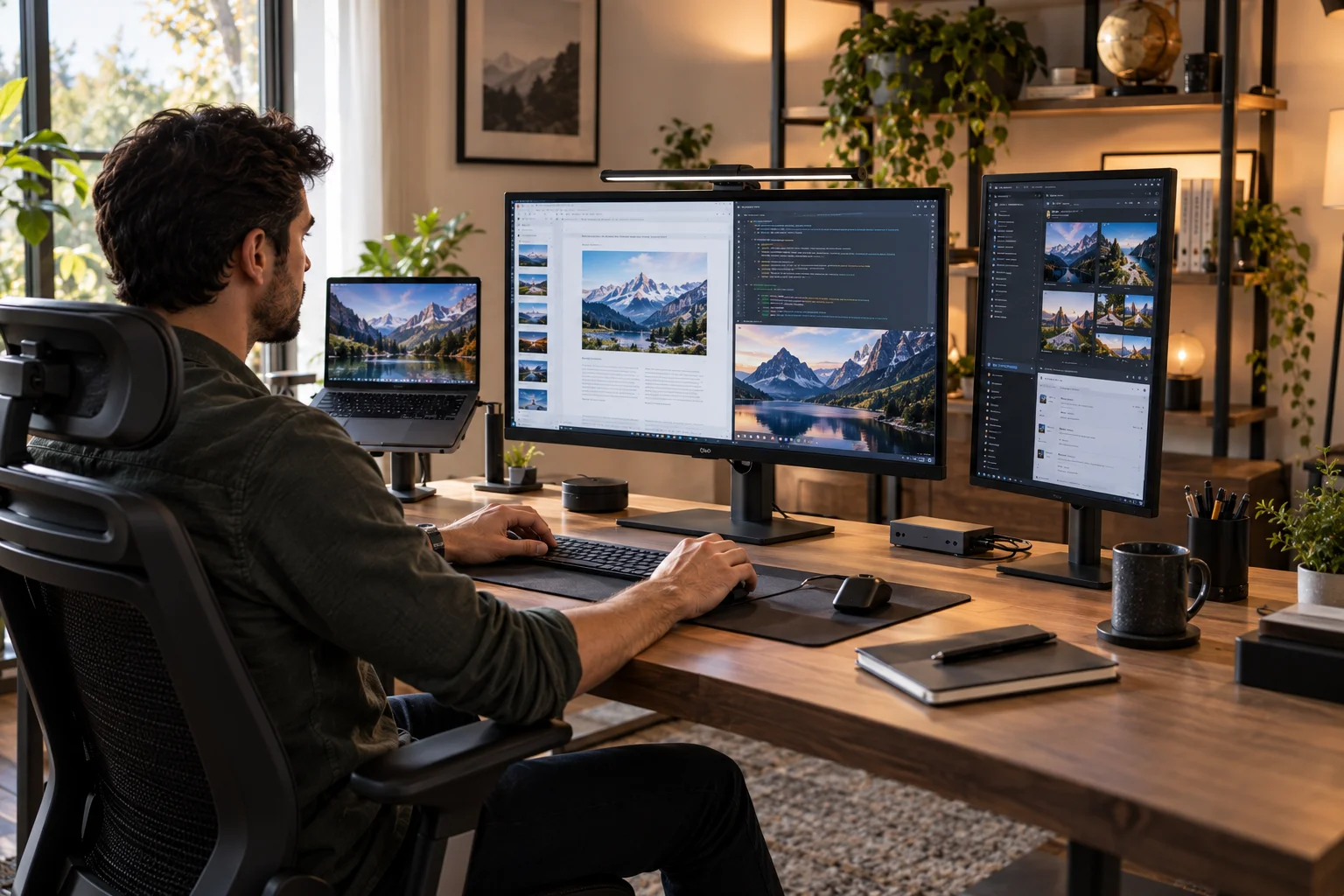
The BenQ PD2706U is particularly compelling for designers, photographers and other color-sensitive work.
Its 27-inch 4K IPS panel covers 95 percent of P3 and 100 percent of sRGB, with Delta E average of 3 or below. It also includes hardware calibration support, KVM and 90W USB-C power delivery.
That combination makes it more than simply an office monitor.
It is designed for people who care about how images and colors actually appear on screen.
Which monitor is best for a premium home office?
The HP Series 7 Pro 727pk is aimed at users who want a sophisticated workstation display with fast connectivity and room for expansion.
It combines a 27-inch 4K IPS Black panel with a 120Hz refresh rate, Thunderbolt 4, five USB-A ports, Ethernet, KVM and the ability to daisy-chain up to two additional 4K monitors.
That makes it particularly interesting for people who are building a permanent home office rather than a basic laptop workstation.
Which monitor offers the easiest laptop setup?
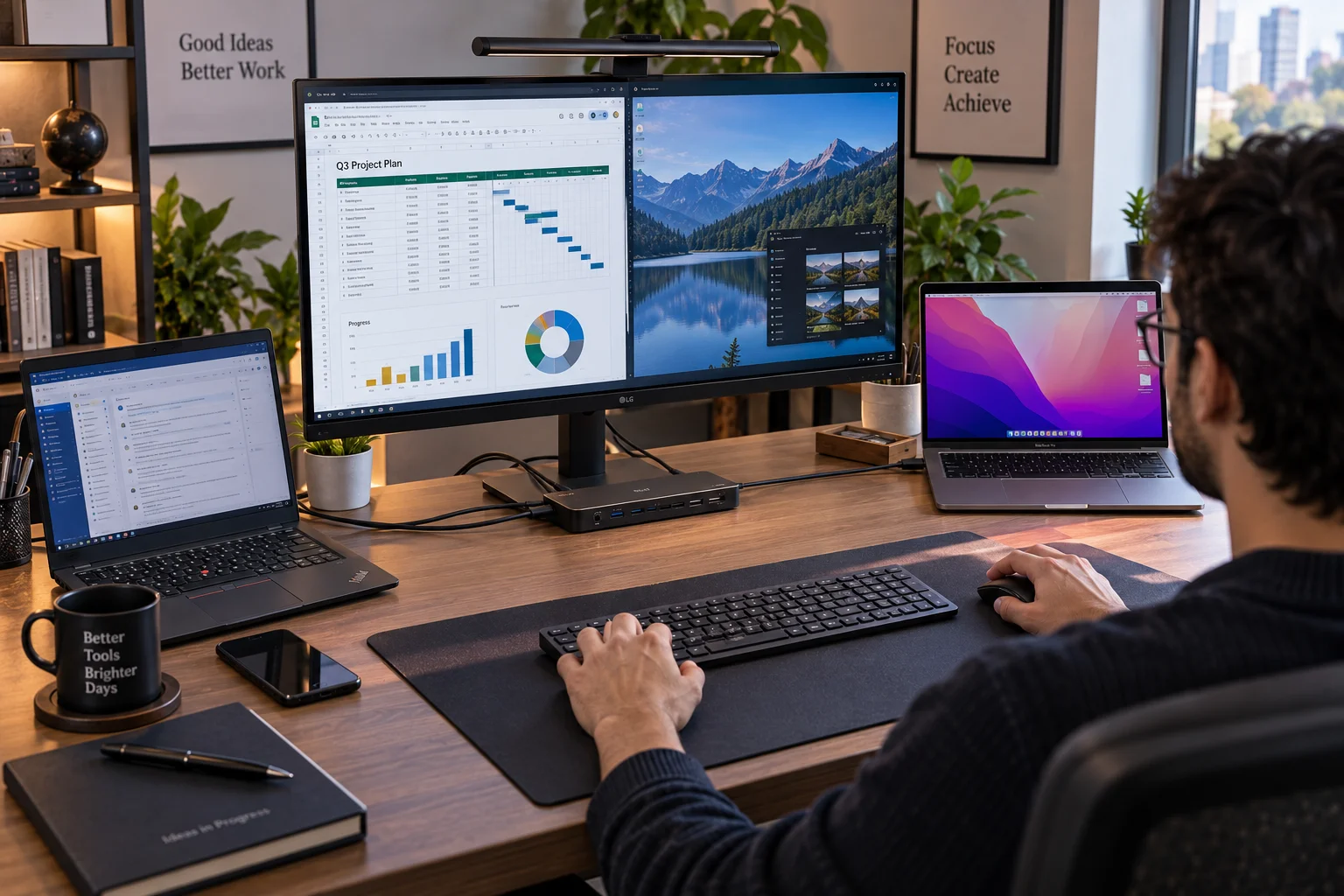
USB-C docking monitors are generally the most convenient choice.
Instead of connecting a laptop to a separate monitor, dock, Ethernet adapter and USB hub, a suitable monitor can consolidate much of that functionality.
A monitor such as the Samsung ViewFinity S8 can provide 4K resolution, USB-C charging up to 90W, Ethernet, USB connectivity and KVM in one setup.
That can dramatically reduce cable clutter.
It is especially useful for people who regularly disconnect their laptop and take it elsewhere.
What monitor features are actually worth paying for?
Spend more on features that affect your everyday workflow.
The most valuable upgrades are usually:
Worth paying for: USB-C with laptop charging, an adjustable stand, QHD or 4K resolution, good text clarity, reliable connectivity and a quality panel.
Worth paying for in specific situations: KVM, Ethernet, Thunderbolt 4, accurate color, 120Hz refresh and daisy chaining.
Usually lower priority for office work: extremely high refresh rates, gaming-specific features and HDR specifications that you will rarely use.
This is why a well-designed productivity monitor can be a better investment than a cheaper display with a huge specification sheet.
Which monitor should you buy for working from home?
Choose the Dell U2724DE if you want the best overall combination of productivity features, connectivity and ergonomics.
Choose the BenQ PD2706U if color accuracy and 4K detail are particularly important.
Choose the HP Series 7 Pro 727pk if you are building a premium, multi-device workstation.
Choose the Samsung ViewFinity S8 if you want a larger 4K productivity display with USB-C, Ethernet and KVM.
The best option is the one that improves the way you work every day.
Monitor FAQs
Is 27 inches enough for working from home?
For most people, yes. A 27-inch monitor provides a good balance of workspace, sharpness and desk footprint.
Is 4K worth it for office work?
It can be, especially for text-heavy work, creative work and people who want a very sharp display. QHD is still an excellent choice for general productivity.
Do I need USB-C on my monitor?
Not necessarily, but it is highly useful with modern laptops because one cable can handle display output, data and charging on compatible systems.
Is 120Hz worth it for productivity?
It is not essential, but it can make scrolling and general desktop movement feel smoother. It should usually come after resolution, panel quality and connectivity in your priorities.
Do I need an ultrawide monitor for working from home?
No. An ultrawide can be excellent for multitasking, but a 27-inch or 32-inch monitor is enough for many people.
Is an IPS monitor good for office work?
Yes. IPS displays generally offer wide viewing angles and good image quality, making them well suited to productivity.
Do I need HDR for a work monitor?
Usually not. HDR can be useful for media and creative work, but it should not be a primary buying criterion for ordinary office tasks.
Is a built-in KVM useful?
Yes, particularly when you switch between two computers. It can let you use one keyboard and mouse setup across multiple systems.
Final Thoughts
The best home-office monitor is not necessarily the biggest or most expensive one.
For most people, the smartest purchase is a 27-inch QHD or 4K display with an adjustable stand and USB-C connectivity. Those features have a direct effect on how much you can see, how easily you can connect your laptop and how comfortable the workstation feels over a long day.
The Dell UltraSharp U2724DE is an excellent all-rounder, while the BenQ PD2706U makes more sense for color-sensitive creative work. The HP Series 7 Pro 727pk is better suited to a premium multi-device setup, and the Samsung ViewFinity S8 is attractive for people who want a larger 4K workspace with integrated connectivity.
The key is to pay for improvements you will notice every day.
A sharper screen, better ergonomics and fewer cables are usually more valuable for home working than specifications designed primarily to win a product comparison.