If your gaming PC feels slower than it should, the problem isn't always the graphics card. A powerful GPU can be held back by a CPU that cannot prepare frames quickly enough. Insufficient RAM can cause stuttering and slowdowns, while a struggling storage drive can make game loading and asset streaming feel sluggish.
The important part is that there is no single component that bottlenecks every game. The limiting component can change depending on the game, resolution, graphics settings, frame-rate target and what else your computer is doing in the background.
The easiest way to find the problem is to monitor your PC while the game is actually running. Windows Task Manager can show CPU, memory, disk and GPU activity, while tools such as NVIDIA's FrameView and AMD's performance-monitoring features can provide more detailed gaming information. Microsoft also recommends Task Manager as a way to identify processes consuming significant system resources. (support.microsoft.com)
What Does a PC Bottleneck Actually Mean?
A bottleneck occurs when one part of the system limits the performance that the rest of the hardware could otherwise deliver.
Think of a game as a production line. The CPU prepares game logic, physics, AI and instructions. The GPU renders the images. RAM provides working space for active data, while storage supplies files when they need to be loaded.
If one stage cannot keep up, another component may spend time waiting.
For example, a powerful GPU running at only 60% utilization while the CPU is struggling near full capacity could indicate a CPU limitation. Conversely, a GPU sitting close to 100% utilization while the CPU has plenty of spare capacity is usually a sign that the GPU is doing the work it was designed to do.
A bottleneck isn't automatically a problem. Every PC has a limiting component at a particular workload. The question is whether that limitation is preventing you from reaching the performance you actually want.
How Can You Tell Which Component Is Bottlenecking Your PC?
Monitor CPU utilization, GPU utilization, individual CPU-core usage, RAM usage, VRAM usage, frame rate and frame-time behaviour at the same time.
Don't rely on overall CPU usage alone. A game may heavily load a few CPU cores while leaving others relatively idle, so the total CPU percentage can look moderate even when the processor is limiting performance.
A useful diagnostic sequence is:
Start the game.
Reproduce the area where performance drops.
Monitor CPU and GPU utilization.
Check RAM and VRAM usage.
Watch frame rate and frame times.
Look for storage activity during stutters or loading.
Change one setting at a time and observe what happens.
The pattern is more informative than any single number.
How Do You Know If the GPU Is the Bottleneck?
A GPU bottleneck is usually the easiest one to identify.
If your graphics card is consistently operating at or near full utilization during gameplay, while the CPU has available capacity, the GPU is probably limiting frame rates.
This is especially common when playing at higher resolutions or using demanding graphics settings such as ray tracing.
Typical signs of a GPU bottleneck
GPU utilization stays very high.
Lowering graphics settings increases FPS.
Lowering resolution increases FPS significantly.
CPU utilization remains comparatively lower.
Increasing visual quality reduces FPS further.
The most useful test is simple: lower the resolution or GPU-heavy graphics settings.
If moving from 1440p to 1080p produces a substantial frame-rate increase, your GPU was likely doing most of the limiting work.
If changing resolution barely affects FPS, the limitation may be elsewhere.
How Do You Know If the CPU Is the Bottleneck?
CPU bottlenecks are slightly harder to diagnose because total CPU utilization can be misleading.
A game may depend heavily on one or several CPU threads. That means you could see overall CPU usage around 50–70% while one or more individual cores are close to their limits.
A CPU limitation is more likely when:
GPU utilization repeatedly drops below its potential.
One or more CPU cores are heavily loaded.
Lowering resolution produces little FPS improvement.
Increasing GPU settings barely changes FPS.
Frame rates improve after reducing CPU-heavy game settings.
The same GPU produces noticeably different results with a faster CPU.
CPU-heavy settings can include view distance, NPC density, simulation quality, physics and certain forms of world detail, although the exact impact varies from game to game.
A useful CPU bottleneck test
Keep the resolution and GPU settings fixed, then lower settings that affect CPU workload.
If reducing things such as crowd density or simulation detail produces a meaningful FPS improvement while GPU utilization remains relatively low, the CPU may be limiting performance.
Can RAM Bottleneck a Gaming PC?
Yes, although RAM capacity and RAM speed are different issues.
If your system doesn't have enough RAM, Windows and applications can become dependent on other forms of memory management, potentially causing performance problems. Microsoft notes that insufficient memory can contribute to system slowdowns and that Task Manager can be used to monitor memory usage. (support.microsoft.com)
Typical signs of insufficient RAM include:
Frequent stuttering.
Slowdowns when switching between applications.
High memory utilization.
Noticeable performance changes when background applications are closed.
Heavy disk activity accompanying memory pressure.
However, high RAM usage by itself doesn't prove that RAM is the bottleneck. Modern operating systems deliberately use available memory for caching.
The more useful question is whether the system is experiencing memory pressure and whether performance improves when you reduce the memory workload.
What About RAM Speed?
RAM speed can affect gaming performance, particularly on systems where CPU performance is sensitive to memory latency and bandwidth.
But it is usually a mistake to assume that buying dramatically faster RAM will fix a PC with inadequate CPU or GPU performance.
Before upgrading memory speed, check:
Supported memory type.
Motherboard compatibility.
Supported speeds.
Capacity.
Memory configuration.
CPU platform.
A capacity problem and a memory-speed problem are not the same thing.
Can Storage Be a Gaming Bottleneck?
Yes, but storage usually affects loading and asset streaming more than average FPS.
An SSD can dramatically improve game loading compared with a traditional hard drive. Microsoft recommends SSD storage for gaming PCs and notes that SSDs can provide faster loading and system responsiveness. (microsoft.com)
Storage can become particularly noticeable when a game is constantly loading assets during gameplay.
Signs that storage may be involved include:
Long loading screens.
Slow game launches.
Stuttering while entering new areas.
Heavy disk activity during asset streaming.
Extremely low free space.
A mechanical hard drive being used for a modern game.
But don't assume an SSD upgrade will increase your average FPS dramatically. If your GPU is already the limiting component, moving from one fast SSD to another may have little effect on frame rate.
What Is the Difference Between a CPU Bottleneck and GPU Bottleneck?
The easiest distinction is to observe what happens when you change resolution.
What you observe | Likely limitation |
|---|---|
GPU stays near full utilization | GPU |
Lowering resolution substantially increases FPS | GPU |
GPU utilization is low while CPU thread(s) are heavily loaded | CPU |
Lowering resolution barely changes FPS | Possibly CPU |
High RAM pressure and stuttering | RAM |
Long loading and asset-streaming problems | Storage |
FPS is limited by a deliberate frame cap | Neither hardware may be the issue |
These are diagnostic clues rather than absolute rules.
For example, a game can be GPU-limited in one scene and CPU-limited in another.
Why Does GPU Usage Sometimes Drop to 60% or 70%?
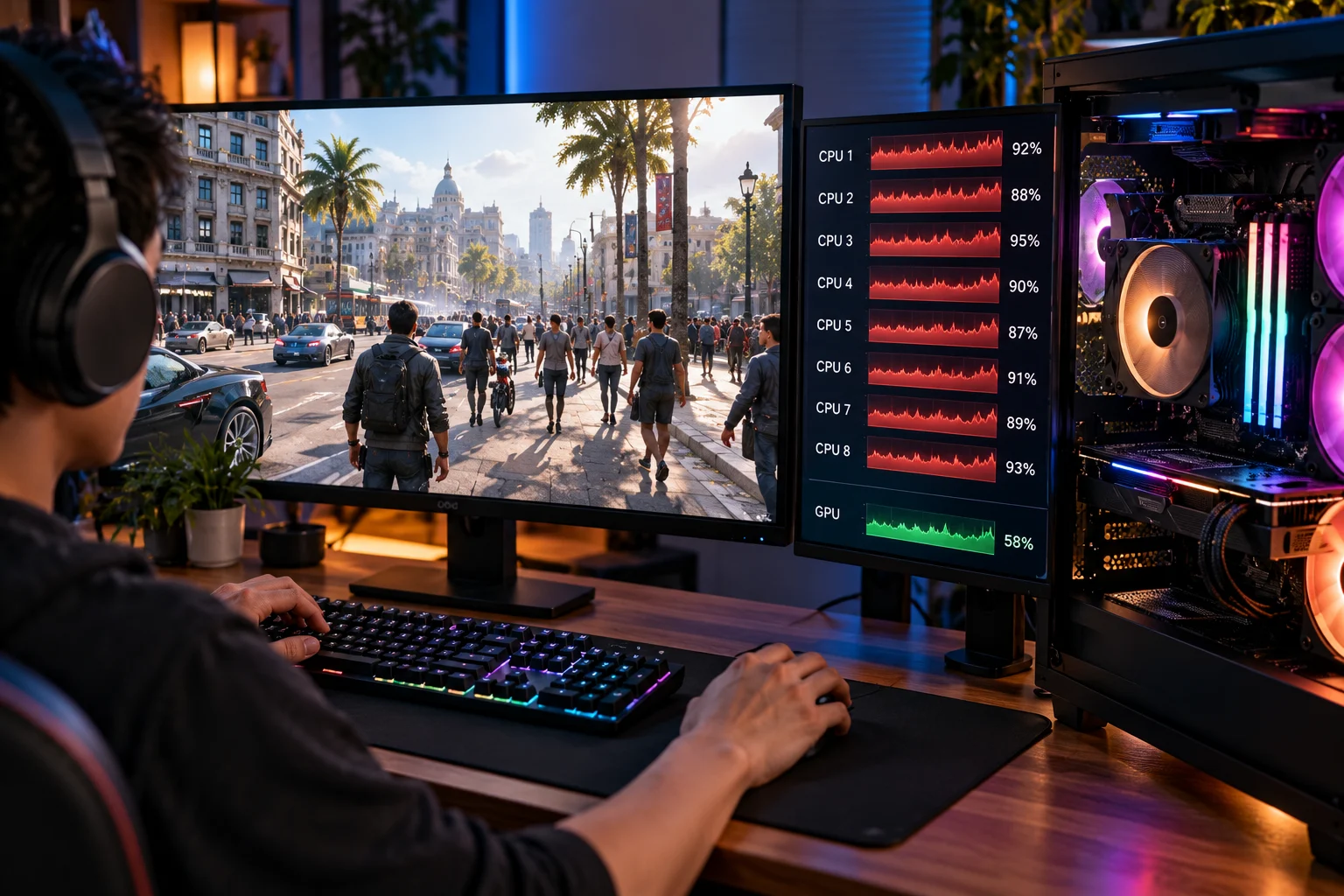
Low GPU utilization doesn't automatically mean something is wrong with the graphics card.
If the CPU cannot deliver frames quickly enough, the GPU can finish its work and wait for the next batch of instructions.
Other possibilities include:
A frame-rate cap.
V-Sync.
CPU-heavy game logic.
Background processes.
Thermal or power limits.
A game engine limitation.
A poorly optimized game.
A rendering setting that shifts work between components.
Check the game's frame-rate cap and synchronization settings before assuming your hardware is failing.
How Do Frame Times Help Find a Bottleneck?
Average FPS tells you how fast the game is running. Frame time tells you how consistently it is producing frames.
For example, a game averaging 100 FPS can still feel unpleasant if individual frames occasionally take much longer to render.
This is why 1% low FPS and frame-time graphs are useful when investigating stuttering.
NVIDIA's FrameView, for example, can measure performance metrics including average frame rate and 1% low frame rate. (developer.nvidia.com)
If average FPS looks good but 1% lows are poor, investigate CPU spikes, RAM pressure, background applications, shader compilation, asset streaming and thermal behaviour rather than simply buying a faster GPU.
Can Overheating Create a Bottleneck?
Absolutely.
A CPU or GPU may initially perform normally and then reduce its operating performance when temperatures or power limits are reached.
This is known as thermal throttling or power-related throttling.
Signs can include:
Performance starts strong and drops after several minutes.
Clock speeds decrease during extended gaming.
Temperatures remain very high.
Fans operate at high speed.
Performance improves after the system cools down.
A laptop is particularly susceptible because it has much less physical cooling capacity than a desktop PC.
Before replacing hardware, check temperatures and clock speeds under load.
How Can You Test Your PC Without Installing Complicated Software?
Windows Task Manager provides a useful first diagnostic.
Press:
Ctrl + Shift + Esc
Then open the Performance tab.
You can monitor:
CPU
Memory
Disk
GPU
Network
Microsoft also recommends Task Manager and Windows performance tools when investigating applications and processes that consume significant resources. (support.microsoft.com)
For deeper gaming analysis, dedicated monitoring tools can display CPU/GPU utilization, temperatures, clocks, frame rates and frame times while the game is running.
The important thing is to monitor the system during the actual performance problem, not while sitting at the desktop.
What Happens If You Lower Graphics Settings?
This is one of the most useful troubleshooting experiments.
Suppose your game runs at 55 FPS.
Lower the graphics settings substantially.
If performance jumps to 85 FPS, the GPU was probably doing much of the limiting.
If it stays around 55–60 FPS, the limitation may be CPU-related, a frame cap, game-engine behaviour or another system issue.
You can perform the same experiment with resolution scaling.
Big FPS improvement after lowering resolution = investigate GPU limitation.
Little FPS improvement = investigate CPU, software, frame limits or other constraints.
Should You Use a Bottleneck Calculator?
Treat online bottleneck calculators as rough estimates rather than definitive diagnostics.
A calculator cannot know exactly how a particular game behaves on your PC, what resolution you use, which settings are enabled, whether your CPU is being limited by temperature, or whether a game engine has a particular performance characteristic.
Real-world monitoring is much more useful.
Your PC isn't permanently "CPU bottlenecked" or "GPU bottlenecked." The limiting component can change with the workload.
What Should You Upgrade First?
Upgrade the component that is actually limiting the performance you want.
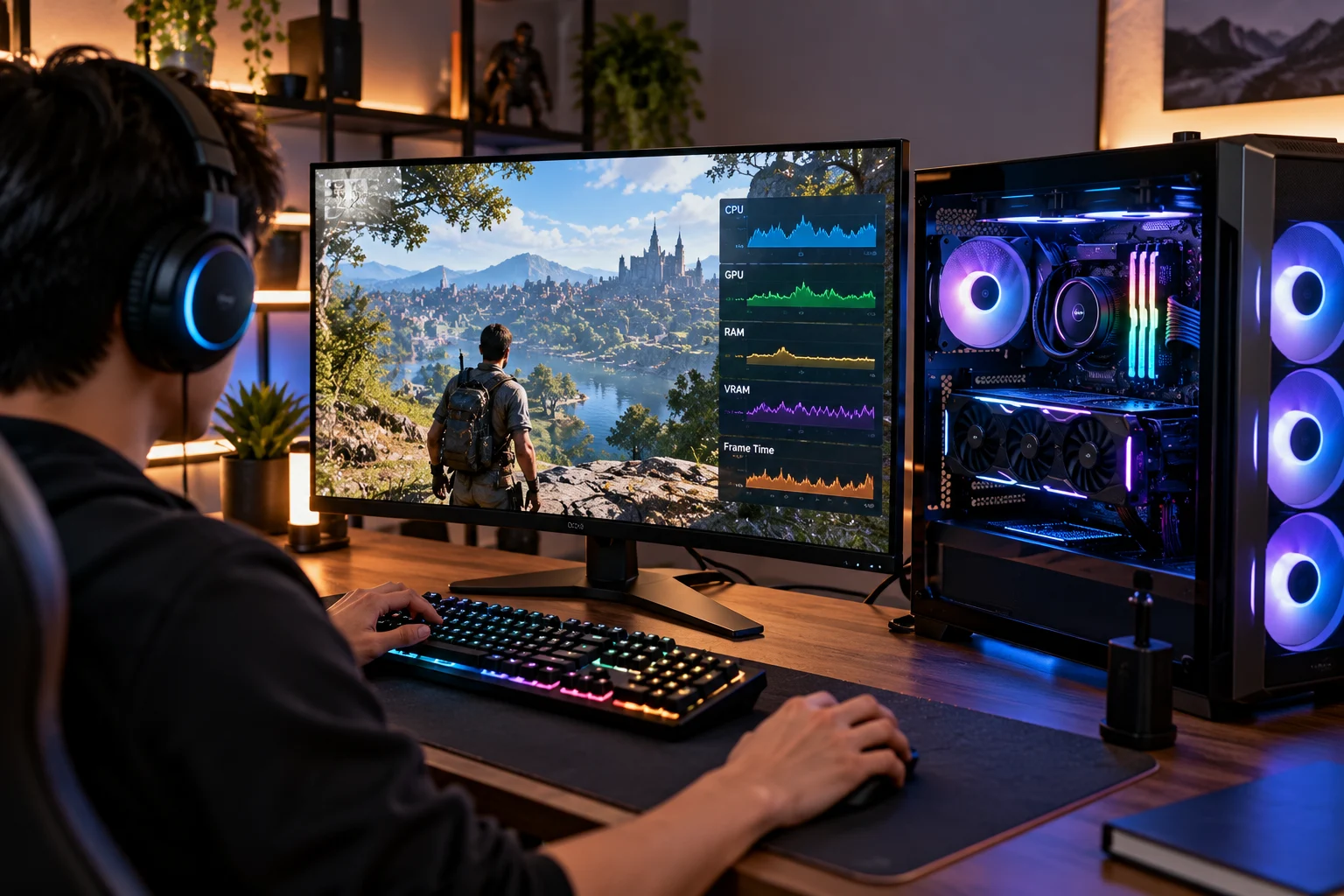
If your GPU is consistently maxed out and you're targeting higher graphical quality or resolution, a faster GPU is the logical place to investigate.
If your GPU is underused while CPU threads are saturated and your frame rate is limited, a CPU upgrade may make more sense.
If you're experiencing memory pressure, adding compatible RAM can help.
If loading and asset streaming are the problem, moving the game to a suitable SSD may provide a more meaningful improvement than upgrading the GPU.
Don't upgrade simply because one component is older. Upgrade based on the performance limitation you can actually reproduce.
Frequently Asked Questions
How do I know if my CPU or GPU is bottlenecking my PC?
Monitor both while gaming. A GPU consistently near full utilization usually indicates a GPU-limited workload, while low GPU utilization combined with heavily loaded CPU threads can indicate a CPU limitation.
Is 100% GPU usage bad?
No. During a GPU-limited game, high GPU utilization is generally expected. It means the graphics card is being fully used.
Is 100% CPU usage bad for gaming?
Not necessarily, but consistently saturated CPU threads can limit frame rates or cause stuttering. Check individual core/thread usage rather than relying only on total CPU utilization.
Can 16GB of RAM bottleneck gaming?
It can in some modern games and multitasking situations, but RAM capacity requirements vary. High memory usage alone doesn't prove that RAM is responsible for poor performance.
Does an SSD increase FPS?
Usually not by a large amount once you're already using a suitable SSD. An SSD can substantially improve loading times and may help with some asset-streaming situations, but average FPS is primarily determined by the game's CPU and GPU workload.
Why does my FPS stay the same when I lower graphics settings?
That can indicate that the GPU isn't the limiting component. Investigate CPU utilization, individual CPU threads, frame-rate caps, V-Sync, temperatures and game-engine limitations.
Can a bottleneck damage my PC?
A performance bottleneck itself doesn't normally damage hardware. Modern CPUs and GPUs have thermal and power-management mechanisms designed to protect the hardware. However, unusually high temperatures or abnormal system behaviour should still be investigated.
Final Takeaway
Finding a gaming PC bottleneck isn't about discovering one component that is "bad." It's about finding which component is preventing the system from delivering the performance you want in a particular workload.
Start by monitoring the PC while the problem is happening. Look at GPU utilization, individual CPU usage, RAM pressure, storage activity, temperatures, clocks and frame times. Then change one setting at a time and see how performance responds.
If lowering resolution dramatically increases FPS, investigate the GPU. If the GPU is sitting underutilized while CPU threads are heavily loaded, investigate the CPU. If memory pressure accompanies stuttering, look at RAM. If loading and asset streaming are slow, investigate storage.
The most useful upgrade is rarely the one that looks best on a specification sheet. It's the one that removes the limitation you can actually measure.