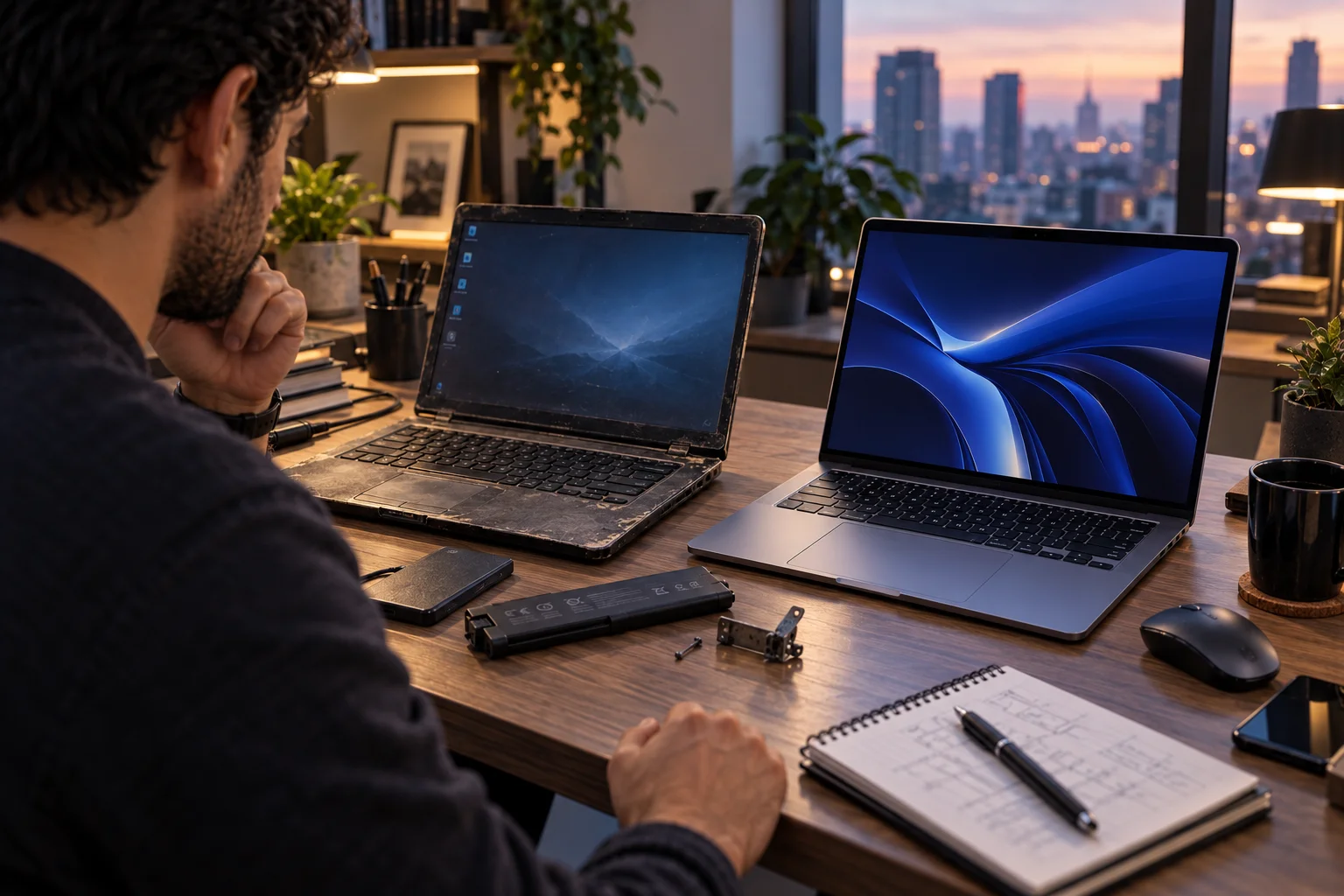
When a laptop starts feeling slow, the obvious reaction is often: "I need a new laptop."
Sometimes that's absolutely true. But sometimes you're looking at a perfectly usable computer with one or two components holding it back.
A laptop with too little RAM can struggle when you have dozens of browser tabs, Teams or Zoom, documents and other applications open simultaneously. A laptop still running an old mechanical hard drive can feel painfully slow even when its processor is perfectly adequate. In those situations, adding RAM or replacing the storage drive with an SSD can extend the laptop's useful life for a fraction of the cost of a new PC.
But an upgrade isn't always the smarter financial decision.
If the processor is too slow for your workload, the GPU can't handle your applications, the battery is failing, the display is poor, or the laptop can't meet current operating-system requirements, spending money on upgrades can simply delay an inevitable replacement.
The key is to identify what is actually causing the slowdown, check which components are upgradeable, and compare the total upgrade cost with the price of a replacement laptop.
When Should You Upgrade a Laptop Instead of Replacing It?
Upgrade your laptop when the hardware is still adequate for your workload and a replaceable component is clearly causing the problem.

This is the ideal upgrade scenario.
For example, imagine a four-year-old laptop with:
A still-capable Core i5 or Ryzen 5 processor
8GB RAM
A 256GB SSD
A good display
A healthy motherboard
Windows 11 compatibility
If you're constantly running out of memory and storage, moving to 16GB RAM and a 1TB SSD could make the machine feel dramatically better.
You haven't fixed the processor because it wasn't the problem.
That's the basic principle:
Fix the bottleneck, not the age of the laptop.
How Do You Know What Is Making Your Laptop Slow?
Check CPU, memory, disk and GPU usage before spending money on an upgrade.
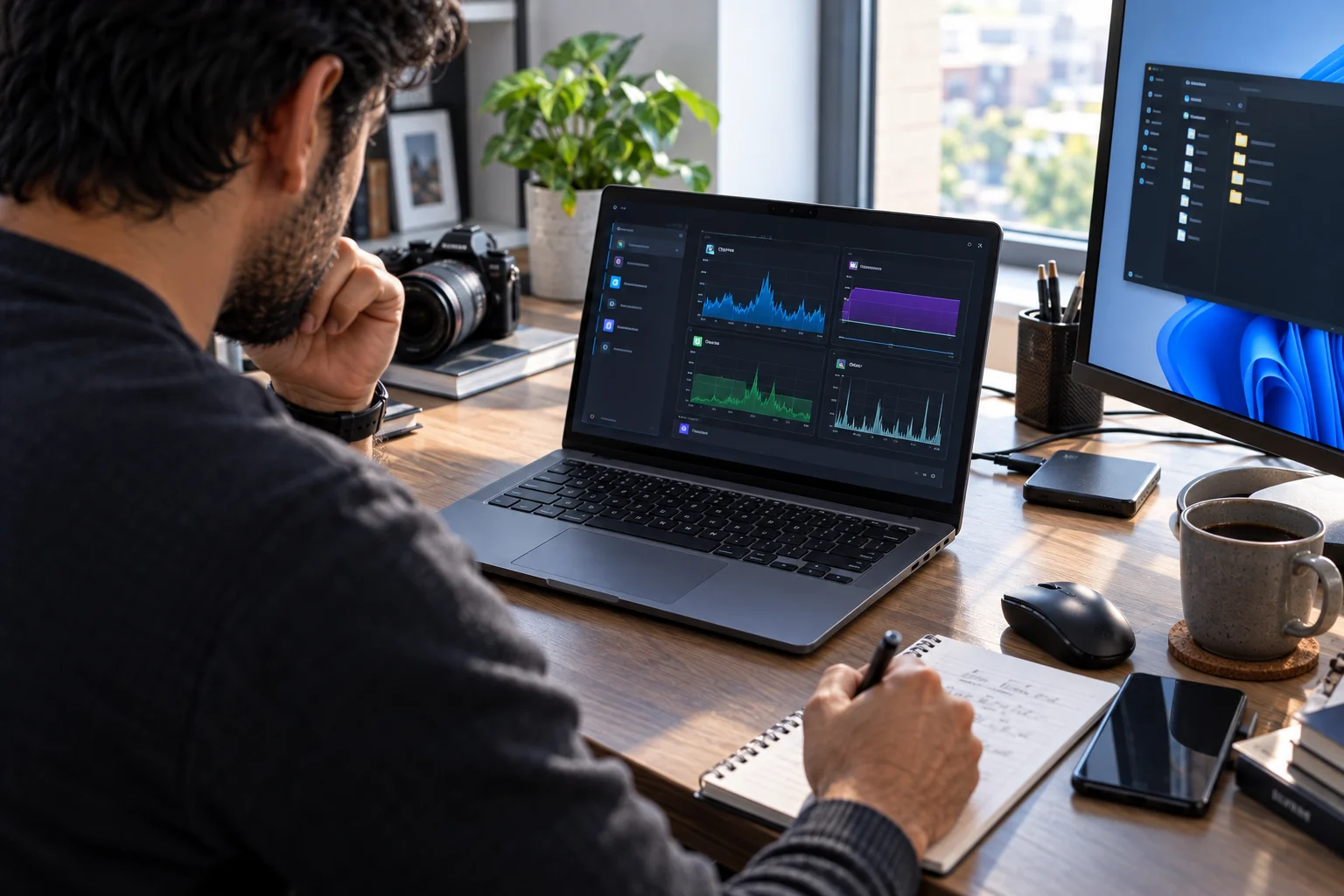
On Windows, open Task Manager while performing the activities that normally make your laptop feel slow.
Look at:
What you see | What it may indicate |
|---|---|
RAM consistently near maximum | More RAM could help |
Disk usage frequently at 100% | Storage drive or background activity may be the bottleneck |
CPU consistently near 100% | Processor may be limiting performance |
GPU near 100% | Graphics workload may require a newer GPU |
Plenty of free RAM but CPU maxed out | RAM upgrade probably won't solve the problem |
SSD nearly full | More storage could improve usability |
High temperatures + falling clock speeds | Thermal throttling may be the issue |
This is much more useful than simply saying, "My laptop is five years old."
Age is a clue.
It isn't a diagnosis.
When Does Adding RAM Make the Most Sense?
A RAM upgrade makes the most sense when your laptop regularly runs out of memory during your normal workload.
Microsoft describes RAM as a PC's short-term memory and notes that having more memory allows a device to handle more things simultaneously without slowdowns. Microsoft currently recommends 8GB for long-term general use and 16GB or more for higher-performance photo and video editing workloads.
The practical difference can be significant.
With 8GB, you might notice:
Browser tabs reloading
Applications closing in the background
Slow multitasking
Frequent disk activity
Lag when switching between programs
Moving to 16GB can give the operating system considerably more room.
RAM upgrade makes sense when:
You're using 8GB or less.
Memory usage frequently approaches the installed capacity.
Your processor is still adequate.
Your laptop has a replaceable RAM slot.
The upgrade is reasonably priced.
You don't need significantly better graphics performance.
RAM probably won't help when:
CPU usage is constantly maxed out.
Your GPU is the bottleneck.
Your laptop has thermal problems.
You already have sufficient RAM.
Your workload requires a substantially newer processor.
The important point is that more RAM doesn't make every computer faster.
It helps when insufficient memory is actually causing the slowdown.
Is 16GB RAM Enough for an Older Laptop?
For general productivity, 16GB is a useful target for an upgraded Windows laptop, while demanding creative workloads may benefit from 32GB or more.
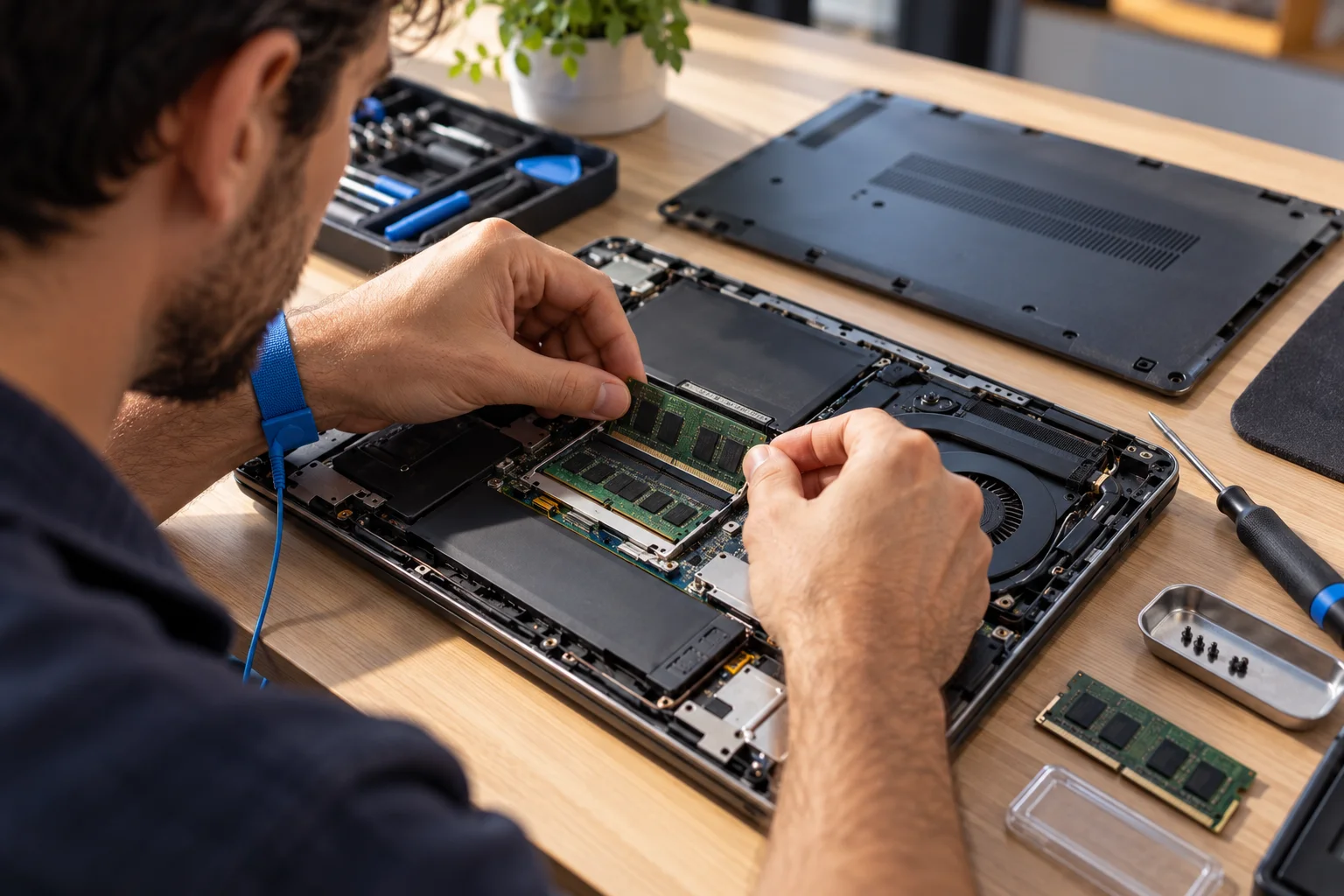
For example:
Workload | Reasonable RAM target |
|---|---|
Web, email, documents | 8–16GB |
Office + heavy multitasking | 16GB |
Programming | 16–32GB |
Photo editing | 16–32GB |
1080p video editing | 16–32GB |
Heavy 4K video work | 32GB+ |
Virtual machines | 32GB+ |
Large professional workloads | 32GB+ |
These aren't hard requirements. Software, operating system and workload all matter.
The key is to avoid paying for memory you won't actually use.
When Does Replacing an HDD With an SSD Make More Sense?
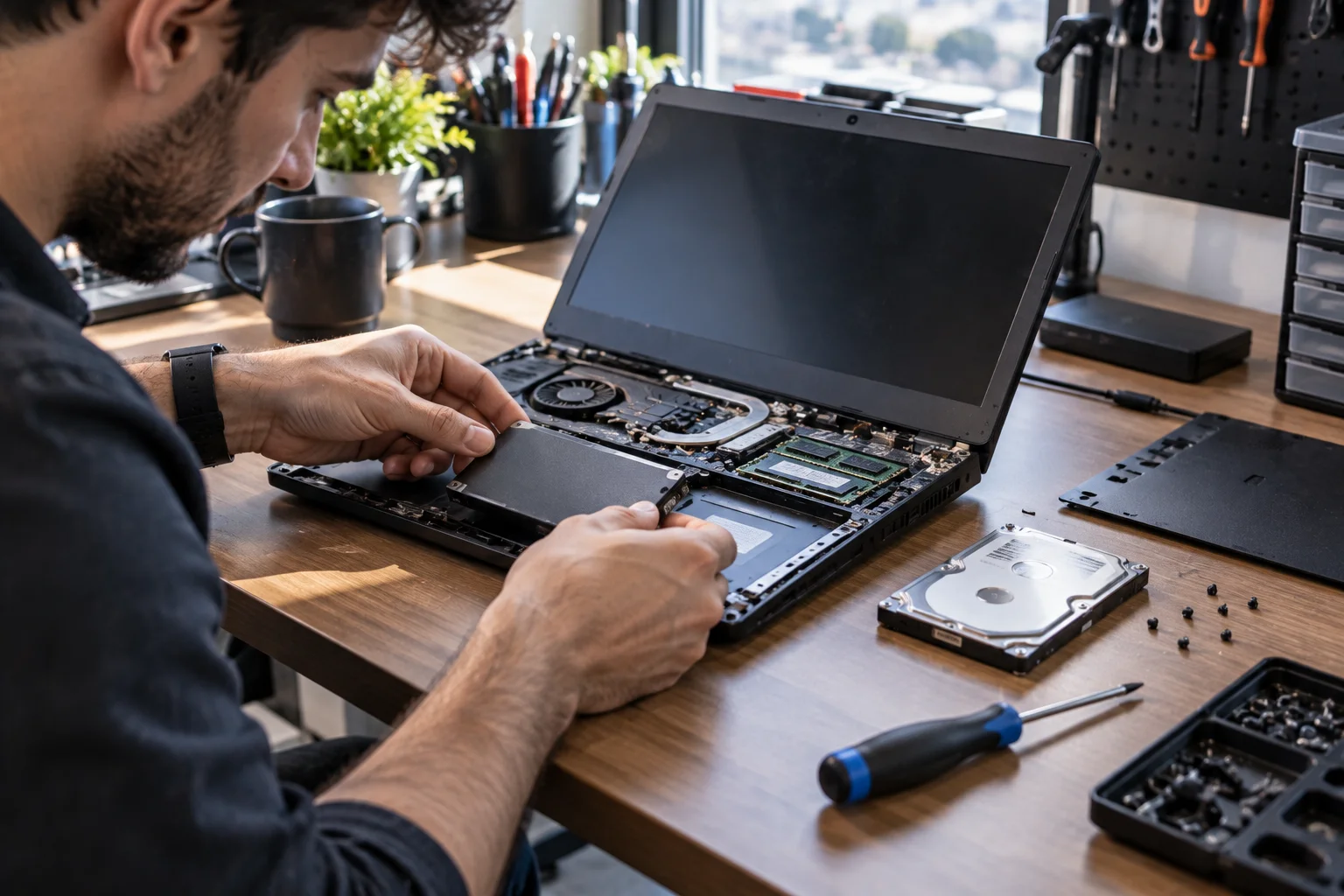
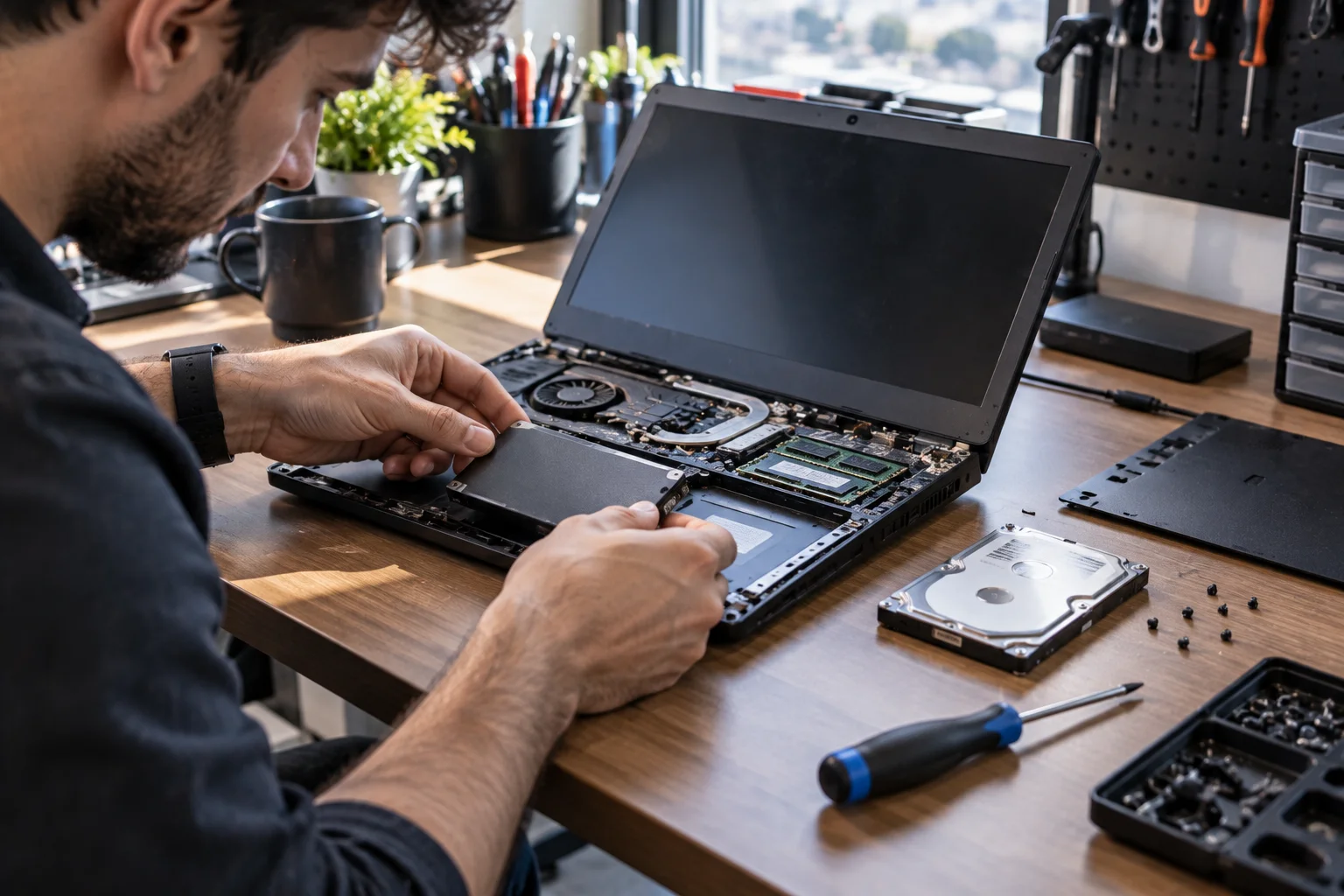
Replacing a mechanical hard drive with an SSD is one of the most worthwhile upgrades for an older laptop that still uses an HDD.
If your laptop takes several minutes to boot, applications take a long time to open and the system becomes unresponsive while files are being loaded, an HDD can be a major bottleneck.
An SSD can dramatically improve the responsiveness of the operating system.
You may notice:
Faster boot times
Faster application launches
Faster file access
Less waiting during updates
Better general responsiveness
Lower mechanical noise
This doesn't turn an old CPU into a new one.
But it can remove a major storage bottleneck.
For an older laptop with a traditional hard drive, an SSD upgrade can sometimes provide a more noticeable everyday improvement than a processor upgrade would.
Should You Upgrade to an NVMe SSD?
If your laptop supports NVMe storage, an NVMe SSD can be an excellent replacement for an older HDD or SATA SSD, but compatibility should be checked first.
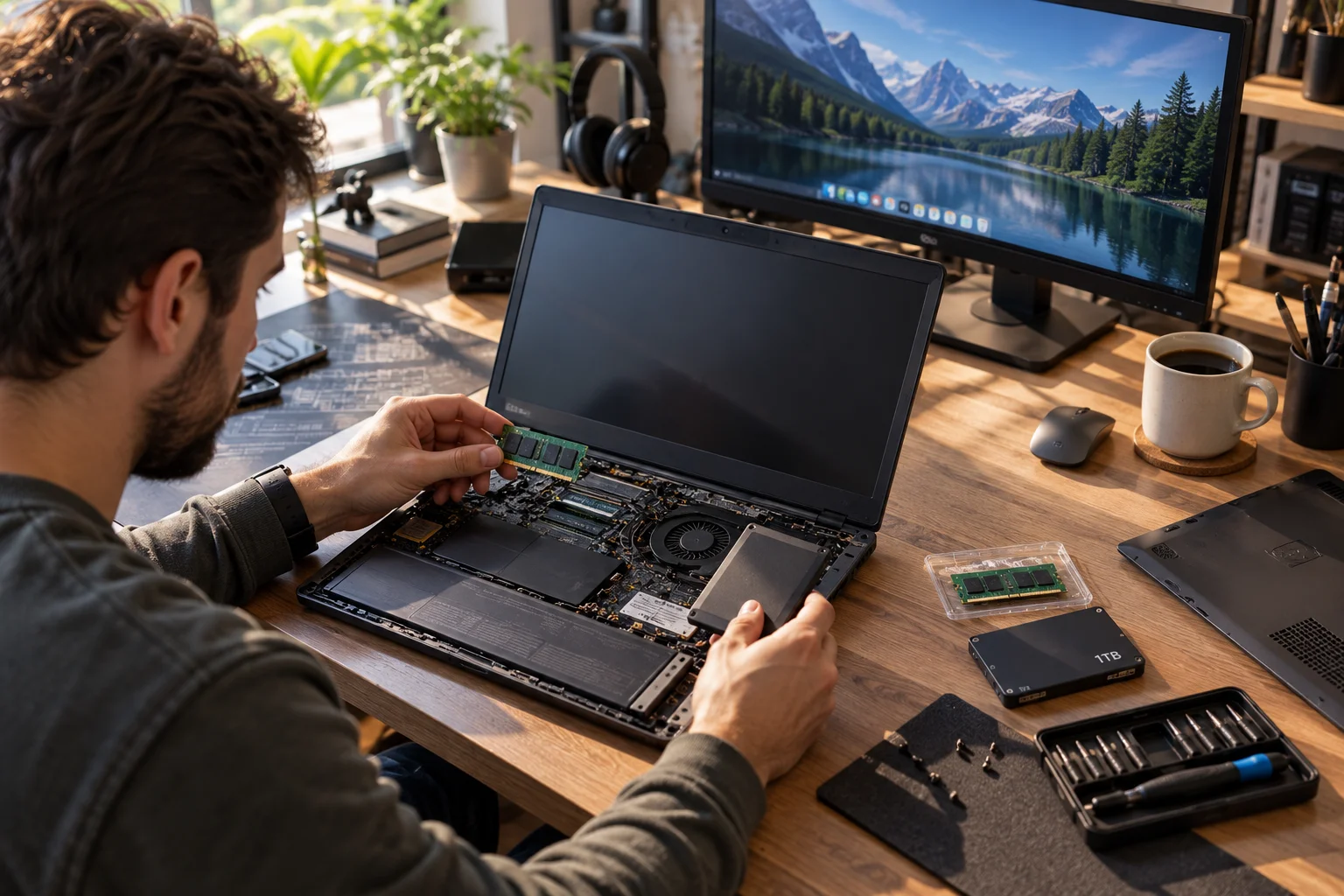
Not every laptop supports every SSD format.
Before buying, identify:
2.5-inch SATA drive
M.2 SATA SSD
M.2 NVMe SSD
Supported M.2 length
PCIe generation
Maximum supported capacity
An M.2 slot doesn't automatically mean that every M.2 NVMe drive will work.
Check the laptop manufacturer's service manual or specifications for the exact model.
Also remember that upgrading from an already-fast SATA SSD to a much faster NVMe SSD may produce a smaller everyday improvement than upgrading from an HDD to an SSD.
When Should You Upgrade Both RAM and Storage?
Upgrading both makes sense when the laptop is short on memory and still relies on slow or insufficient storage.
Consider an older laptop with:
8GB RAM + 500GB HDD
If the processor is still suitable for your work, upgrading to:
16GB RAM + 1TB SSD
can address two major bottlenecks simultaneously.
The result can feel much closer to a modern computer without replacing the entire machine.
This is particularly attractive when the laptop already has other qualities you like, such as a good keyboard, display, ports or build quality.
When Does an SSD Upgrade Not Make Financial Sense?
An SSD upgrade becomes harder to justify when the laptop already has a reasonably fast SSD and the processor or graphics hardware is the real limitation.
For example, if your laptop has:
16GB RAM
512GB NVMe SSD
Modern enough storage performance
CPU constantly at 100%
Buying a faster SSD isn't going to solve the CPU bottleneck.
Similarly, if you're running out of GPU performance in games or 3D applications, neither additional RAM nor a faster SSD will turn an integrated GPU into a gaming GPU.
That's when replacement becomes more logical.
When Is a Laptop Too Old to Upgrade?
A laptop is usually approaching replacement territory when several core components are simultaneously outdated or non-upgradeable.
Look for multiple warning signs:
Unsupported operating system
Incompatible processor
Insufficient RAM with no upgrade path
Slow or failing CPU
Inadequate GPU
Failing battery
Damaged display
Poor thermals
Broken hinges
Storage soldered to the motherboard
RAM soldered with no expansion slot
Expensive replacement parts
No manufacturer support
One problem can often be fixed.
Five problems usually aren't worth chasing individually.
Does Windows 11 Compatibility Affect the Upgrade Decision?
Yes. For a Windows laptop, operating-system eligibility should be part of the upgrade calculation.
Microsoft's current Windows 11 requirements include:
Compatible 64-bit processor
At least 4GB RAM
At least 64GB storage
UEFI firmware with Secure Boot capability
TPM 2.0
Compatible DirectX 12 graphics hardware
Microsoft also states that Windows 10 support ended on October 14, 2025, meaning Windows 10 no longer receives free Windows Update security fixes and technical support.
That changes the calculation for older laptops.
If your computer is still running Windows 10 and isn't eligible for Windows 11 because of its processor or security hardware, adding RAM and an SSD doesn't solve the underlying support problem.
You might get better performance.
You don't necessarily get a better long-term platform.
What If the Laptop Fails Windows 11 Because of the CPU?
If the processor itself isn't supported, a RAM or SSD upgrade won't make the laptop officially eligible for Windows 11.
This is an important distinction.
Microsoft's Windows 11 requirements include supported processor generations, and Microsoft describes the processor as a component that isn't considered upgradeable in the normal PC upgrade path.
You can upgrade:
RAM → potentially
Storage → potentially
CPU → usually not in a practical modern laptop
That's why processor age matters much more than storage capacity when deciding whether an old laptop has a future.
When Is a New Laptop the Better Financial Choice?
Replace the laptop when the cost of fixing multiple limitations approaches the cost of a significantly better new machine.
Suppose your five-year-old laptop needs:
16GB RAM: $60
1TB SSD: $80
New battery: $100
Keyboard repair: $120
Cooling repair: $100
You're already around $460 before considering labor.
If a new laptop that meets your requirements costs $700–$800, the upgrade calculation becomes much less attractive.
But if your laptop only needs an $80 SSD, the economics are completely different.
A useful rule
Don't compare:
Upgrade cost vs original laptop price
Compare:
Upgrade + repair cost vs cost of a replacement that meaningfully improves your situation
The original purchase price is sunk.
How Much Should You Spend Upgrading an Old Laptop?
A reasonable upgrade budget depends on the laptop's remaining useful life, but the upgrade should create enough value to justify keeping the existing hardware.
A simple way to think about it:
Low-cost upgrade
$50–$150
RAM, SSD or both.
Usually easy to justify if the laptop is otherwise good.
Medium upgrade
$150–$300
RAM + SSD + battery or another repair.
Worth considering if the laptop is still capable and well maintained.
High-cost upgrade
$300–$500+
Multiple repairs plus upgrades.
At this point, compare carefully with current replacement options.
These aren't universal thresholds because laptop prices vary considerably by category and market.
The principle matters more than the exact dollar amount.
What About Battery Replacement?
A worn battery doesn't automatically mean you need a new laptop if the rest of the hardware remains capable.
Battery replacement can be one of the easiest ways to extend the useful life of a laptop.
But check whether the battery is:
User-replaceable
Internally mounted
Still available
Reasonably priced
Available from the manufacturer or a reputable supplier
A laptop that performs well while plugged in but has a worn battery may still be worth repairing.
A laptop with a worn battery plus an outdated CPU plus poor display plus unsupported software is a different story.
Can You Upgrade the CPU in a Laptop?
Usually, no, and this is one of the biggest differences between laptops and desktop PCs.
Most modern laptop processors are soldered directly to the motherboard.
That means you generally can't treat the CPU like a desktop component that you simply remove and replace.
Some older or specialized laptops used socketed processors, but they are the exception rather than the normal upgrade path.
This is why buying a laptop with the right processor at the beginning matters so much.
RAM and storage can sometimes be upgraded later.
The CPU usually can't.
Can You Upgrade a Laptop GPU?
In most mainstream laptops, the GPU is also not practically upgradeable.
Gaming laptops and professional workstations may use more modular designs in some cases, but modern laptop graphics hardware is generally integrated into the motherboard or processor platform.
So if your problem is:
"My laptop can't run the games or creative applications I need."
RAM and SSD upgrades may not solve it.
You may simply need a newer laptop with a more capable GPU.
How Much Does RAM Actually Improve Performance?
RAM can make multitasking dramatically smoother when your system is running short of memory, but adding RAM beyond what your workload needs produces diminishing returns.
Imagine you're editing a document while keeping:
30 browser tabs
Slack
Spotify
Photoshop
Excel
Teams
open simultaneously.
If the laptop has 8GB and is constantly swapping data between RAM and storage, moving to 16GB can make the system feel considerably more responsive.
But if you're using only 6GB of RAM, adding another 16GB won't suddenly make the processor twice as fast.
RAM solves memory pressure.
It doesn't solve every performance problem.
How Can You Tell If Your SSD Is the Problem?
Look for slow boot times, long application launches and sustained disk activity, but don't assume 100% disk usage automatically means you need a new SSD.
A nearly full SSD can also affect usability.
Start by checking:
Free storage space
Drive health
Drive type
Read/write performance
Task Manager disk usage
Whether Windows is performing background tasks
Whether the drive is showing errors
If the laptop still has an HDD, an SSD upgrade is much easier to justify.
If it already has a healthy NVMe SSD, investigate other bottlenecks first.
Is a New Laptop Always Faster Than an Upgraded Old One?
Not necessarily for every task, but a new laptop can provide improvements that RAM and storage upgrades cannot.
A new system can give you:
Newer CPU architecture
Better integrated or discrete graphics
More efficient power management
Faster wireless connectivity
Better display technology
Newer ports
Better webcam
Hardware AI acceleration
Longer software support
New battery
An SSD can make an old laptop feel faster.
It can't give the machine a new processor architecture.
That's the line between refreshing an existing system and moving to a new platform.
Laptop Upgrade vs Replacement: A Simple Decision Table
Situation | Upgrade | Replace |
|---|---|---|
8GB RAM causing slow multitasking | ✓ | |
HDD makes the system sluggish | ✓ | |
SSD nearly full | ✓ | |
Old battery but good hardware | ✓ | |
CPU is adequate for your work | ✓ | |
Laptop has a good display and keyboard | ✓ | |
CPU is consistently too slow | ✓ | |
GPU is insufficient | ✓ | |
Windows 11 incompatible due to CPU | ✓ | |
RAM is soldered and insufficient | ✓ | |
Multiple expensive repairs needed | ✓ | |
Motherboard is failing | ✓ | |
Screen/hinge/chassis badly damaged | ✓ | |
No reasonable parts availability | ✓ |
The 30-Minute Laptop Upgrade Test
Before spending money, identify your bottleneck and confirm that the relevant component is actually upgradeable.
Follow these steps:
Step 1: Check your hardware
Find your:
CPU
RAM
Storage type
GPU
Laptop model
Step 2: Monitor Task Manager
Use the laptop normally and watch CPU, memory, disk and GPU usage.
Step 3: Check Windows 11 eligibility
Use Microsoft's PC Health Check tool or Windows Update to determine whether the laptop meets current requirements.
Step 4: Check upgradeability
Search the manufacturer's service manual for:
"[exact laptop model] RAM upgrade
"[exact laptop model] SSD upgrade
Step 5: Price the parts
Get the cost of:
RAM
SSD
Battery
Labor if necessary
Step 6: Price a replacement
Compare the total upgrade cost against a new laptop with the performance, display and battery life you actually want.
Step 7: Decide based on the bottleneck
If one inexpensive component fixes the problem, upgrade.
If the entire platform is outdated, replace.
The Bottom Line: Should You Upgrade or Replace Your Laptop?
Upgrade when the laptop's core platform is still good and RAM, storage or battery is the problem. Replace it when the processor, GPU, operating-system compatibility or several major components are holding it back.
An SSD upgrade can breathe new life into an older laptop that still uses a mechanical hard drive.
A RAM upgrade can make a system with insufficient memory much more comfortable for multitasking.
A battery replacement can extend the life of a perfectly capable computer.
But there's a limit.
You can't turn an unsupported processor into a supported one by installing more RAM. You can't transform an integrated GPU into a modern gaming GPU with an SSD. And there's little financial logic in putting several hundred dollars into a laptop that also needs a screen, motherboard and battery.
The smartest approach is therefore simple:
Find the bottleneck first. Price the fix second. Compare it with a replacement third.
If a $100–$200 upgrade solves the actual problem, keeping your existing laptop may be the financially sensible move.
If you're spending hundreds of dollars just to keep an aging platform alive, that money may be better put toward a newer PC.
FAQs
Is it cheaper to upgrade a laptop or buy a new one?
It depends on the problem. RAM and SSD upgrades are often relatively inexpensive when the existing CPU, display and motherboard are still suitable. Replacement makes more sense when several major components are outdated or failing.
Is upgrading RAM worth it on an old laptop?
Yes, if the laptop is regularly running out of memory and the RAM is upgradeable. Moving from 8GB to 16GB can make multitasking considerably smoother for many users. Microsoft currently recommends 8GB for long-term general use and 16GB or more for demanding workloads.
Will an SSD make an old laptop faster?
Replacing a mechanical hard drive with an SSD can substantially improve boot times, application launches and general responsiveness. The improvement is much smaller if the laptop already has a healthy SSD.
Should I upgrade RAM or SSD first?
Check the bottleneck. If RAM is consistently full, upgrade RAM. If the laptop uses an HDD or has inadequate storage, an SSD may produce the larger improvement.
Can I upgrade the CPU in a laptop?
Usually not. Most modern laptop CPUs are soldered to the motherboard, making CPU replacement impractical.
Can I upgrade a laptop GPU?
Usually not in mainstream laptops. Graphics hardware is generally integrated into the processor platform or motherboard.
How much RAM should an older laptop have?
For general Windows use, 8GB can work, but 16GB is a more comfortable target for a laptop you want to keep for several years. More demanding creative workloads may benefit from 32GB or more.
Is a five-year-old laptop worth upgrading?
It can be. Age alone isn't enough to decide. If the CPU remains adequate, the laptop supports your current operating system, and an inexpensive RAM or SSD upgrade fixes the bottleneck, upgrading can make sense.
Should I replace a laptop that cannot run Windows 11?
If the laptop is incompatible because its processor or security hardware doesn't meet Microsoft's requirements, replacement deserves serious consideration, particularly because Windows 10 support ended on October 14, 2025.
How do I know if my laptop needs more RAM?
Open Task Manager while doing your normal work. If memory usage is frequently near maximum and applications slow down or reload, insufficient RAM may be the bottleneck.
Is upgrading an SSD worth it if I already have an NVMe drive?
Usually only if you need more capacity or the existing drive is failing. Moving from one fast NVMe SSD to another often produces a smaller everyday improvement than replacing an HDD with an SSD.
What's the biggest mistake when upgrading an old laptop?
Spending money on a component that isn't causing the slowdown. Diagnose CPU, RAM, disk and GPU usage first, then upgrade the actual bottleneck.