The cheapest way to upgrade a gaming PC is usually not to replace the entire computer. It is to identify the component limiting performance and replace only what needs replacing. A graphics card can transform gaming performance while allowing you to keep your case, storage, power supply and even CPU. In other situations, adding RAM or replacing an old hard drive can make more sense than buying a new GPU.
The important part is compatibility.
An older component may still work perfectly, but that doesn't automatically make it suitable for a modern upgrade. A new graphics card might need more power than your existing PSU can deliver. A new CPU might require a different motherboard socket. An SSD can be reused across many systems, but an old SATA drive won't deliver the same performance as a modern NVMe SSD.
The goal is therefore simple:
Reuse everything that remains compatible, reliable and fast enough, and spend new money on the component creating the biggest bottleneck.
Intel's current gaming-PC guidance similarly recommends prioritizing the CPU and GPU for gaming performance while noting that RAM and storage are often components that can be upgraded later.
Start by Finding the Gaming Performance Bottleneck
Before buying anything, determine whether your CPU, GPU, RAM, storage or thermals are actually limiting your games.
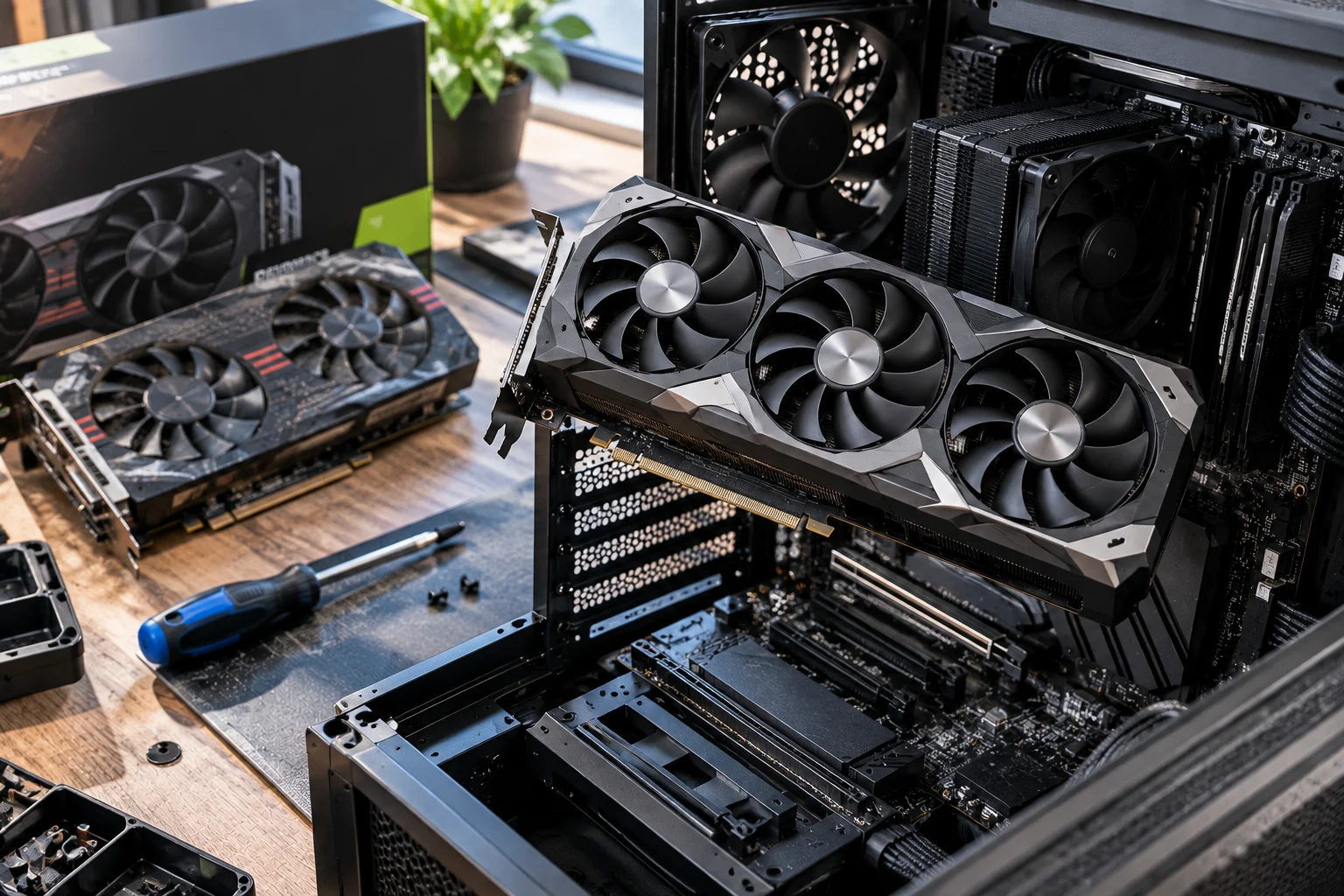
This prevents one of the most expensive upgrade mistakes: replacing a component that wasn't causing the problem.
For example, imagine a PC with:
A reasonably modern 6-core CPU
16GB RAM
An older mid-range GPU
A 1TB SSD
A good 650W PSU
If games are running at low frame rates while the GPU remains close to full utilization, replacing the CPU may do very little.
A faster graphics card could make a much larger difference.
On the other hand, if the GPU isn't fully utilized and the CPU is consistently hitting high utilization in a CPU-heavy game, a graphics-card upgrade may not solve the problem.
Check these before spending money
Symptom | Component worth investigating |
|---|---|
Low GPU utilization + high CPU load | CPU |
GPU consistently near maximum | GPU |
Games stutter when memory fills | RAM |
Very long loading times | Storage |
Performance drops after several minutes | Cooling |
Random shutdowns under load | PSU or thermals |
Low frame rates only at high resolution | GPU |
Low frame rates at low resolution too | CPU/GPU depending on workload |
Don't upgrade based solely on age.
Upgrade based on the workload.
The GPU Is Often the Best Place to Spend Upgrade Money
For a gaming-focused PC, the GPU is often the component where an upgrade produces the most obvious performance improvement, particularly at higher resolutions and graphics settings.
The graphics card handles most of the rendering workload.
If your current GPU is several generations old, replacing it can improve:
Average frame rates
Higher-resolution gaming
Ray-tracing performance
Upscaling quality
Frame-generation support
Texture settings
Visual effects
VRAM capacity
Intel's current gaming guidance specifically identifies the CPU and GPU as the components most directly tied to in-game performance.
But there's an important money-saving opportunity here.
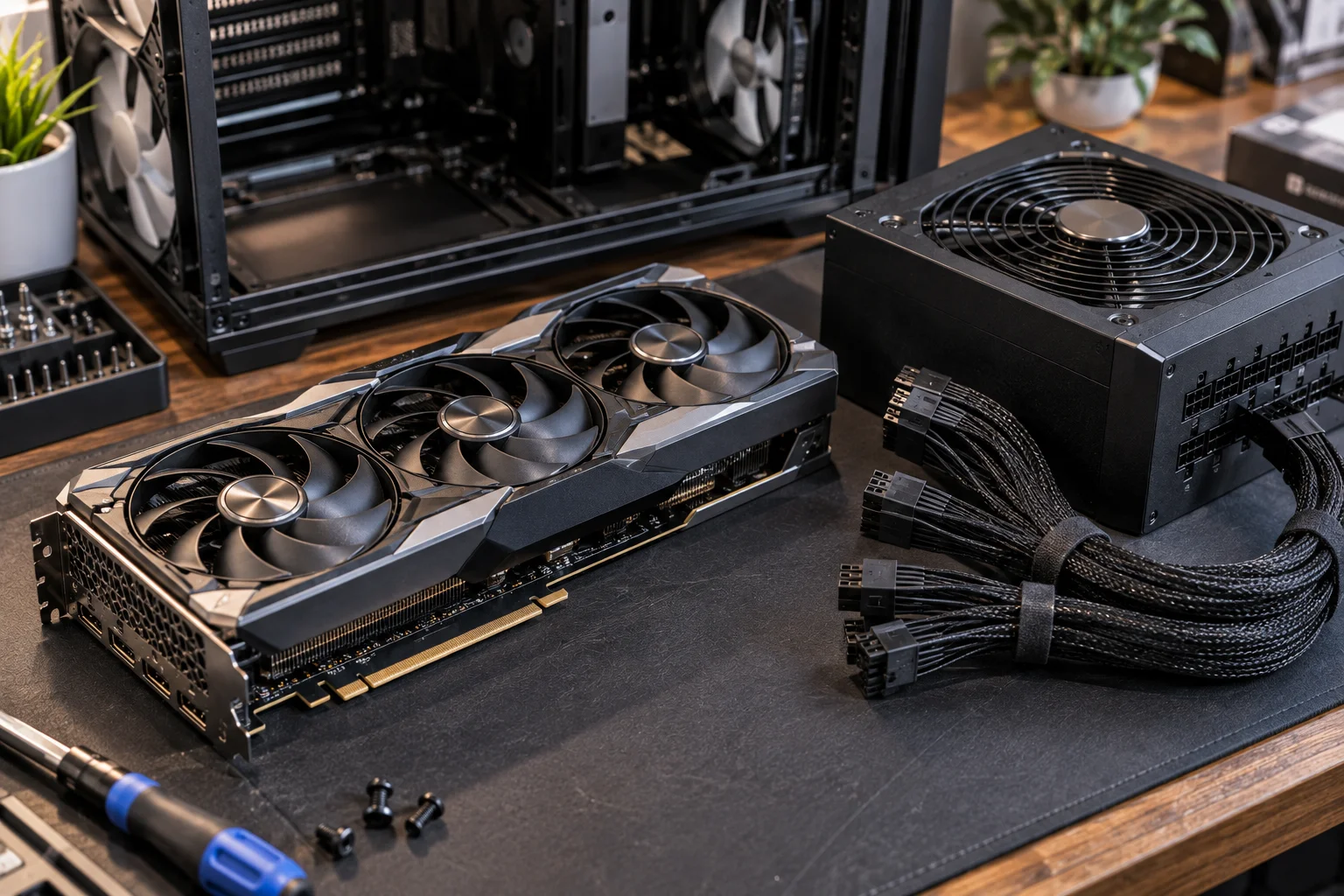
You don't necessarily need to replace the rest of the PC when upgrading the GPU.
You may be able to keep your:
CPU
Motherboard
RAM
SSD
Case
CPU cooler
Operating system
The major exception is the power supply.
Check the PSU Before Buying a New Graphics Card
A graphics-card upgrade can force a PSU upgrade if the existing unit lacks sufficient capacity, appropriate connectors or adequate quality.
This is one component you shouldn't treat as an afterthought.
Intel recommends selecting a PSU powerful enough for both current and future components and emphasizes that PSU quality and appropriate wattage matter when building a gaming PC.
Check:
PSU wattage
Manufacturer and model
Age
Efficiency rating
Available GPU power connectors
GPU manufacturer's power recommendation
CPU power requirements
Overall PSU quality
A five-year-old high-quality PSU isn't automatically unusable.
But an old, low-quality unit that was barely adequate for your previous GPU is a poor candidate for a substantially more powerful graphics card.
When should you replace the PSU?
Consider replacing it when:
The new GPU exceeds its practical capacity
Required power connectors are missing
The unit is very old
It is a low-quality model
It has exhibited instability
You are moving to a substantially higher-power platform
Don't save $100 on the PSU if it means putting an expensive new GPU behind an unsuitable power supply.
RAM Is One of the Cheapest Upgrades When Memory Is the Problem
RAM is worth upgrading when your games and background applications are actually running short of memory.
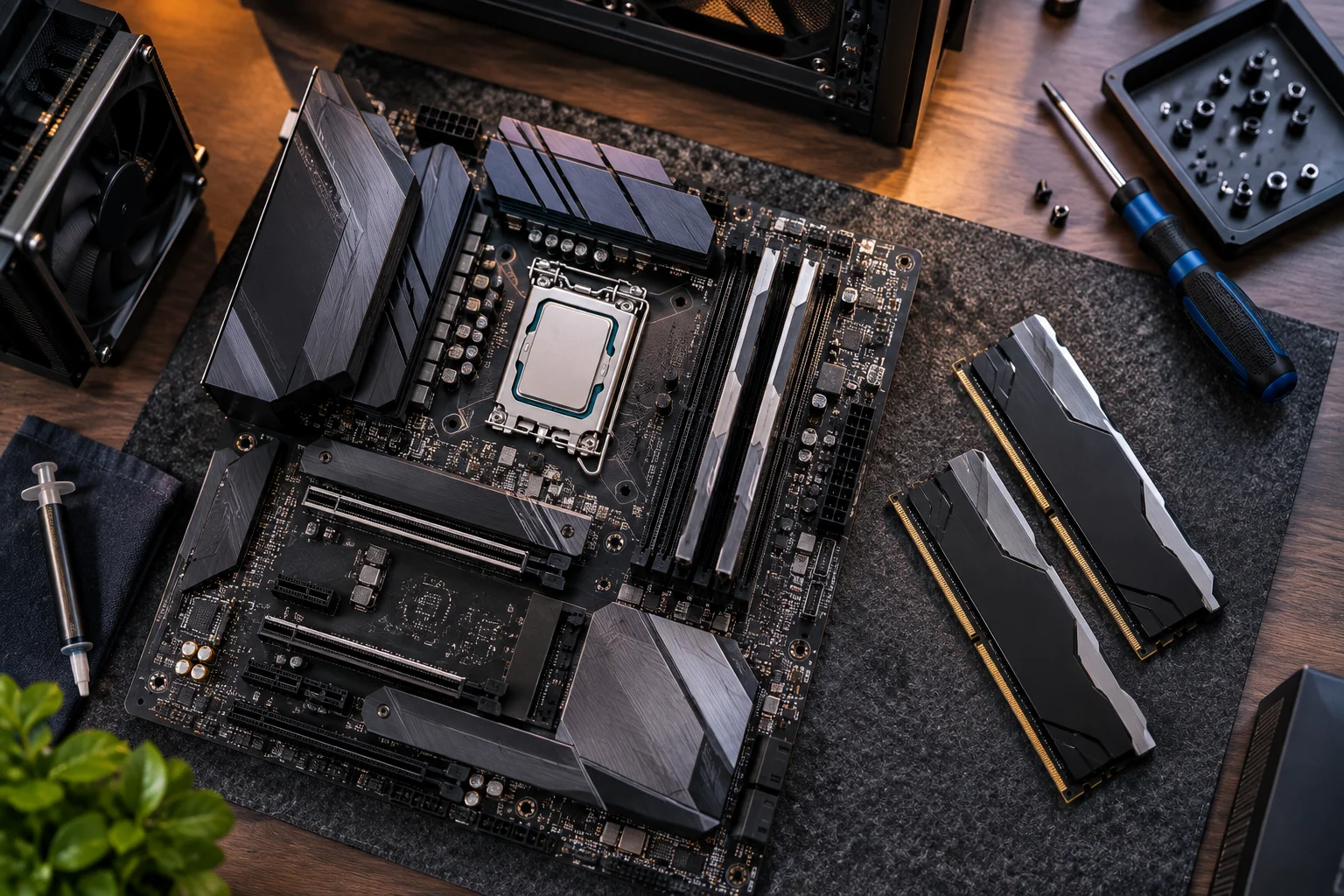
Intel's current guidance identifies 16GB or more as a good target for gaming systems, while noting that 8GB can still be sufficient for many games.
If your system already has 16GB and games aren't exhausting it, moving to 32GB may not transform frame rates.
But if Windows, the game, browser tabs, Discord and other applications are collectively pushing memory usage toward the limit, additional RAM can reduce memory pressure and improve consistency.
Before buying:
Check your motherboard's supported RAM type
Check the number of free slots
Check existing module configuration
Check maximum supported capacity
Match the appropriate generation and specifications
Don't buy DDR5 simply because it's newer if your existing platform uses DDR4 and replacing the motherboard and CPU would be required.
A RAM upgrade makes sense when the platform can accept it without forcing a much larger upgrade.
Your SSD Can Often Be Reused
An existing SSD is one of the easiest components to carry into an upgraded gaming PC.
If your current SSD has enough capacity and remains healthy, there is little reason to replace it simply because you're upgrading your GPU.
You can often reuse:
SATA SSDs
M.2 NVMe SSDs
Secondary game drives
Windows 11 itself doesn't require NVMe storage. However, Microsoft's documentation notes that DirectStorage-compatible games require an NVMe SSD along with a compatible DirectX 12 GPU.
That makes an NVMe SSD a useful upgrade if you're still using a mechanical hard drive or need faster storage for modern workloads.
When should you replace your SSD?
Replace it when:
Capacity is becoming a problem
Health indicators show deterioration
It's an old mechanical HDD used for games
You need substantially faster storage
Your motherboard supports a faster NVMe interface
You want to move Windows to a newer drive
Otherwise, keep the existing SSD and put the money toward the GPU or CPU.
Your CPU May Be Worth Keeping Longer Than You Think
A CPU doesn't need to be replaced simply because a newer generation exists.
This is particularly important for saving money.
A relatively capable CPU can continue supporting a faster GPU for years, especially when you're gaming at higher resolutions where the graphics card becomes the dominant limitation.
You should consider replacing the CPU when:
CPU utilization is consistently limiting frame rates
Minimum/1% low frame rates are poor because of CPU limitations
You play CPU-heavy simulation or strategy games
You want substantially higher high-refresh-rate performance
The existing CPU platform blocks the GPU upgrade you're considering
The motherboard doesn't support the CPU you need
The last point is important.
A CPU upgrade can become expensive because the new processor may require:
New CPU + new motherboard + potentially new RAM + possibly new cooler
That's very different from a GPU upgrade that requires only the graphics card.
The Motherboard Is Often Worth Reusing
If your motherboard supports the CPU, RAM, storage and connectivity you need, keeping it can save a substantial amount of money.
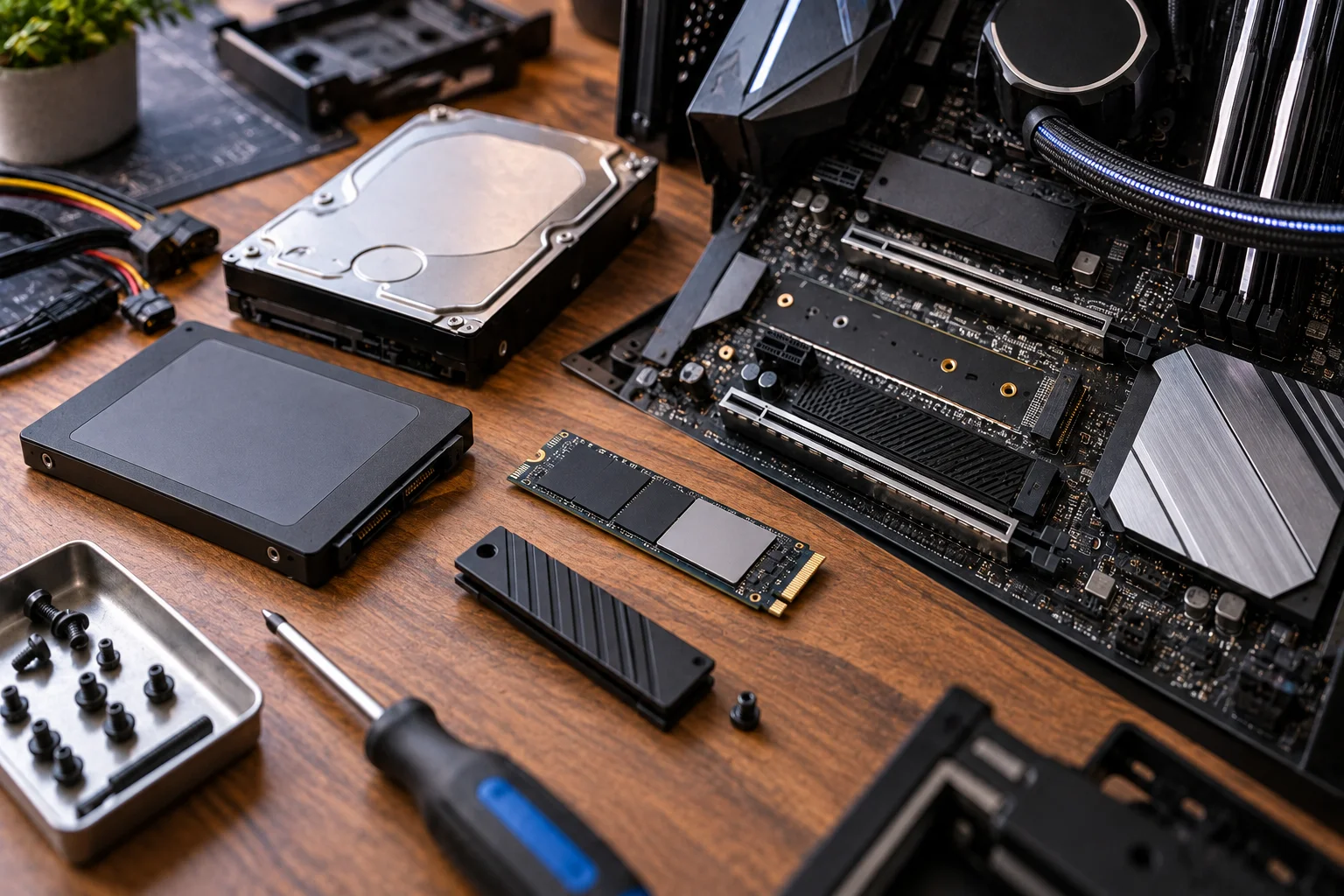
A motherboard doesn't directly determine gaming frame rates in the same way as the CPU or GPU, but it determines what you can install.
Before replacing it, check:
CPU socket compatibility
BIOS support
RAM type
PCIe slots
M.2 slots
USB connectivity
Wi-Fi/Bluetooth
VRM capability
Storage expansion
If everything you need is already available, there's little reason to replace it simply for cosmetic reasons.
When should you replace the motherboard?
Replace it when:
Your new CPU isn't supported
You need a different RAM generation
Expansion options are inadequate
The motherboard is malfunctioning
You need newer connectivity
Your existing platform has reached a practical upgrade limit
Don't replace the motherboard just because you're installing a new GPU.
Modern graphics cards generally use PCIe interfaces designed to work across multiple PCIe generations, although the exact performance and compatibility situation depends on the card and platform.
The Case Is Usually One of the Best Parts to Reuse
A good PC case can survive multiple complete hardware upgrades.
If your case has:
Adequate GPU clearance
Good airflow
Standard motherboard support
Enough fan mounts
Suitable radiator support
Adequate PSU space
Useful cable-management room
there may be no reason to replace it.
A new case can make the PC look dramatically different, but appearance isn't the same as performance.
Before installing a larger GPU, measure its:
length + width + thickness
and compare those measurements with the case's actual clearance.
Also check whether front-mounted radiators or drive cages reduce the available GPU space.
Your CPU Cooler May Also Survive the Upgrade
An existing CPU cooler can often be reused if its mounting hardware supports the new CPU socket and its cooling capacity is adequate.
This is an easy place to save money.
A good tower air cooler can potentially remain useful across multiple CPU upgrades.
But compatibility matters.
Check:
Socket mounting hardware
CPU thermal design
Cooler capacity
RAM clearance
Case height clearance
Fan condition
If you're moving from a low-power CPU to a significantly hotter processor, your existing cooler may no longer provide enough thermal headroom.
Don't assume that because the cooler physically fits, it is automatically sufficient.
Don't Reuse a Weak or Failing Component Just to Save Money
The goal is to reuse suitable hardware, not old hardware at any cost.
Some components are cheap enough that replacement is sensible if reliability is questionable.
Examples include:
Noisy case fans
Worn-out CPU cooler fans
Failing hard drives
Damaged cables
Extremely old low-quality PSUs
Faulty storage drives
A $20–$40 replacement fan is very different from replacing a $1,000 graphics card.
You want to avoid turning a performance upgrade into a troubleshooting project.
What Should You Buy New?
For most gaming upgrades, prioritize the component that is actually limiting performance and replace supporting hardware only when compatibility or reliability requires it.
A useful hierarchy looks like this:
Component | Reuse? | Buy new when... |
|---|---|---|
GPU | Sometimes | It is the gaming bottleneck |
CPU | Often | CPU limits frame rates or platform is obsolete |
RAM | Often | Capacity is insufficient |
SSD | Usually | Capacity, health or speed is inadequate |
Motherboard | Usually | CPU/platform/connectivity requires it |
PSU | Maybe | Power, connectors, quality or age is a concern |
Case | Usually | Poor airflow or component clearance |
CPU cooler | Often | Compatibility or thermal capacity is insufficient |
Case fans | Usually | Damaged, noisy or inadequate airflow |
Windows license | Usually | Existing license can't be transferred or reused |
This approach can turn a potentially expensive full rebuild into a much smaller targeted upgrade.
When Does a Full PC Rebuild Make More Sense?
A full rebuild makes sense when several major components have reached the end of their useful upgrade path at the same time.
For example:
Old CPU + old motherboard + old RAM + weak PSU + outdated GPU
At that point, upgrading one part at a time may create compatibility problems without delivering a balanced system.
A rebuild is also sensible if you're moving between major platform generations that require several components to change together.
Before starting over, calculate the cost of a targeted upgrade versus a new system.
Example
Suppose your existing PC has:
Good case
Good PSU
32GB RAM
2TB NVMe SSD
Capable CPU
Old GPU
Replacing only the GPU might give you most of the performance improvement you want.
But if you have:
Old CPU
Old motherboard
16GB outdated RAM
Old GPU
Aging PSU
Small SATA SSD
a platform rebuild becomes much easier to justify.
Don't Forget Windows Compatibility
An older gaming PC can still be worth upgrading, but you should verify Windows 11 compatibility before investing heavily in a platform that may be difficult to support.
Microsoft's current Windows 11 requirements include a compatible 64-bit processor, at least 4GB RAM, 64GB storage, UEFI with Secure Boot capability, TPM 2.0 and a DirectX 12-compatible GPU with a WDDM 2.0 driver.
Windows 10 support ended on October 14, 2025, so compatibility is now a more important consideration for older gaming PCs.
That doesn't mean an old PC automatically needs to be replaced.
It means you should check the platform before spending substantial money upgrading it.
The Cheapest Upgrade Strategy Is Usually a Staged Upgrade
You don't have to upgrade every component simultaneously.
A smart upgrade can happen in stages:
Stage 1: Diagnose
Monitor CPU, GPU, RAM and storage usage while playing the games you actually care about.
Stage 2: Upgrade the bottleneck
Replace the component producing the biggest limitation.
Stage 3: Recheck the system
After installing the new hardware, test performance again.
Stage 4: Upgrade supporting components only if necessary
If the new GPU exposes a CPU bottleneck, upgrade the platform later.
If the new CPU requires a different motherboard, address that when necessary.
This approach spreads the cost over time instead of forcing you into a complete rebuild.
How to Save the Most Money on a Gaming PC Upgrade
The biggest savings usually come from keeping your functional platform components and spending new money only where gaming performance actually changes.
Before ordering anything, ask:
What is limiting my current games?
Can I solve it with one component?
Is my PSU sufficient?
Does my motherboard support the upgrade?
Can I reuse my RAM?
Can I reuse my SSD?
Does my case fit the new hardware?
Is my CPU cooler compatible?
Is Windows 11 support still available?
Would selling the old component reduce the upgrade cost?
That last question is easy to overlook.
If you're replacing a GPU, CPU or RAM module that's still functional, selling it can turn the old hardware into part of the upgrade budget.
FAQ: Saving Money on a Gaming PC Upgrade
What should I upgrade first on a gaming PC?
Start with the component that is actually limiting performance. For many gaming systems this is the GPU, but CPU, RAM and storage can be the bottleneck depending on the game and configuration.
Can I upgrade my GPU without upgrading my CPU?
Yes. You can often install a significantly faster GPU while keeping your existing CPU. However, a CPU bottleneck can prevent the new graphics card from reaching its full potential.
Can I reuse my old SSD in a new gaming PC?
Usually, yes. An SSD can generally be reused if it is healthy and compatible with the new motherboard. You may need to reinstall Windows or adjust the boot configuration depending on the system change.
Should I upgrade from 16GB to 32GB RAM?
If your games and background applications are regularly approaching your available memory, 32GB can be useful. If you're nowhere near the limit, putting the money toward a GPU or CPU upgrade may have a larger gaming impact.
Can I keep my old power supply?
Possibly. Check its wattage, quality, age and connectors against the requirements of your new hardware. Intel recommends choosing a PSU that can support both current and future components.
Should I replace my motherboard when upgrading my GPU?
Usually not. If the motherboard supports the CPU, RAM and expansion requirements of your new graphics card, there may be no reason to replace it.
Is it cheaper to upgrade a gaming PC or build a new one?
A targeted upgrade is usually cheaper when the existing platform is still capable. A complete rebuild becomes more sensible when several major components need replacement simultaneously.
How do I know if my gaming PC needs more RAM?
Monitor memory usage while playing your normal games with your usual background applications. If available memory becomes very low and the system starts relying heavily on storage, additional RAM may improve consistency.
Is an old gaming PC still worth upgrading in 2026?
It can be, particularly if the case, PSU, storage and motherboard remain useful. But check CPU compatibility, Windows 11 requirements and the cost of upgrading several components before committing money to an older platform. Microsoft's current Windows 11 requirements include TPM 2.0, UEFI/Secure Boot capability and a compatible CPU.
The best gaming PC upgrade is rarely the one with the longest shopping list.
If your GPU is the bottleneck, buy a GPU. If RAM is full, add RAM. If the platform is holding back everything else, then replace the platform.
Keeping a perfectly good case, SSD, cooler, motherboard or RAM kit isn't cutting corners. It's one of the most effective ways to put more of your budget into the hardware that actually changes how your games run.