
Buying a laptop isn't just about finding the fastest processor or the biggest screen. The right laptop is the one that fits how you actually work, study, create, travel, play and store files.
A student who mainly uses Google Docs and streams Netflix doesn't need the same hardware as a video editor. A remote worker may care more about webcam quality, battery life and ports than graphics performance. A gamer needs a dedicated GPU, while someone who travels frequently may be willing to sacrifice screen size for a lighter design.
The good news is that you don't need to understand every specification on a laptop listing. You mainly need to know which specifications affect your everyday experience.
For most US buyers in 2026, a sensible starting point is 16GB of RAM, a 512GB SSD and a modern processor, then adjusting upward or downward depending on your workload. Microsoft similarly recommends considering your actual activities first and notes that 8GB can suit lighter tasks, while 16GB or more is more appropriate for demanding multitasking, gaming and creative work.

Here are the 10 things to check before you buy.
1. Decide What You Will Actually Use the Laptop For
Your workload should determine the laptop's specifications, not the other way around.
Before comparing Intel, AMD, Apple or Snapdragon chips, decide what the laptop needs to do.
Main use | What to prioritize |
|---|---|
Web browsing and email | Good CPU, 8GB–16GB RAM, SSD |
College or school | Battery, portability, webcam, 16GB RAM |
Office and remote work | CPU, RAM, webcam, ports, battery |
Programming | CPU, 16GB+ RAM, keyboard, display |
Photo editing | 16GB+ RAM, good display, SSD |
Video editing | Powerful CPU, 16GB–32GB+ RAM, GPU, fast SSD |
Gaming | Dedicated GPU, CPU, cooling, high-refresh display |
Travel | Low weight, battery life, durable build |
Creative professional work | CPU/GPU, color-accurate display, RAM, storage |
This first step can prevent one of the most common laptop-buying mistakes: paying for specifications that don't improve your particular workflow.
2. Check the Processor Before Anything Else
The CPU affects how quickly a laptop handles applications, multitasking and many demanding workloads, but processor names matter more than simply counting cores or looking at GHz.
Intel Core, AMD Ryzen, Apple silicon and Qualcomm Snapdragon processors all use different architectures and naming systems.
Instead of asking whether a processor has the highest number in its name, look at the specific processor generation and class.
For example, a modern performance-oriented processor is generally a better choice for sustained editing or heavy multitasking than an entry-level chip, even if both laptops technically have similar core counts.
For everyday users, you generally don't need the most expensive processor available.
Microsoft's current laptop guidance similarly recommends matching the processor level to the intended workload rather than simply choosing the highest specification.
3. Get Enough RAM for the Way You Multitask
RAM determines how comfortably your laptop can keep multiple applications, browser tabs and files active at the same time.
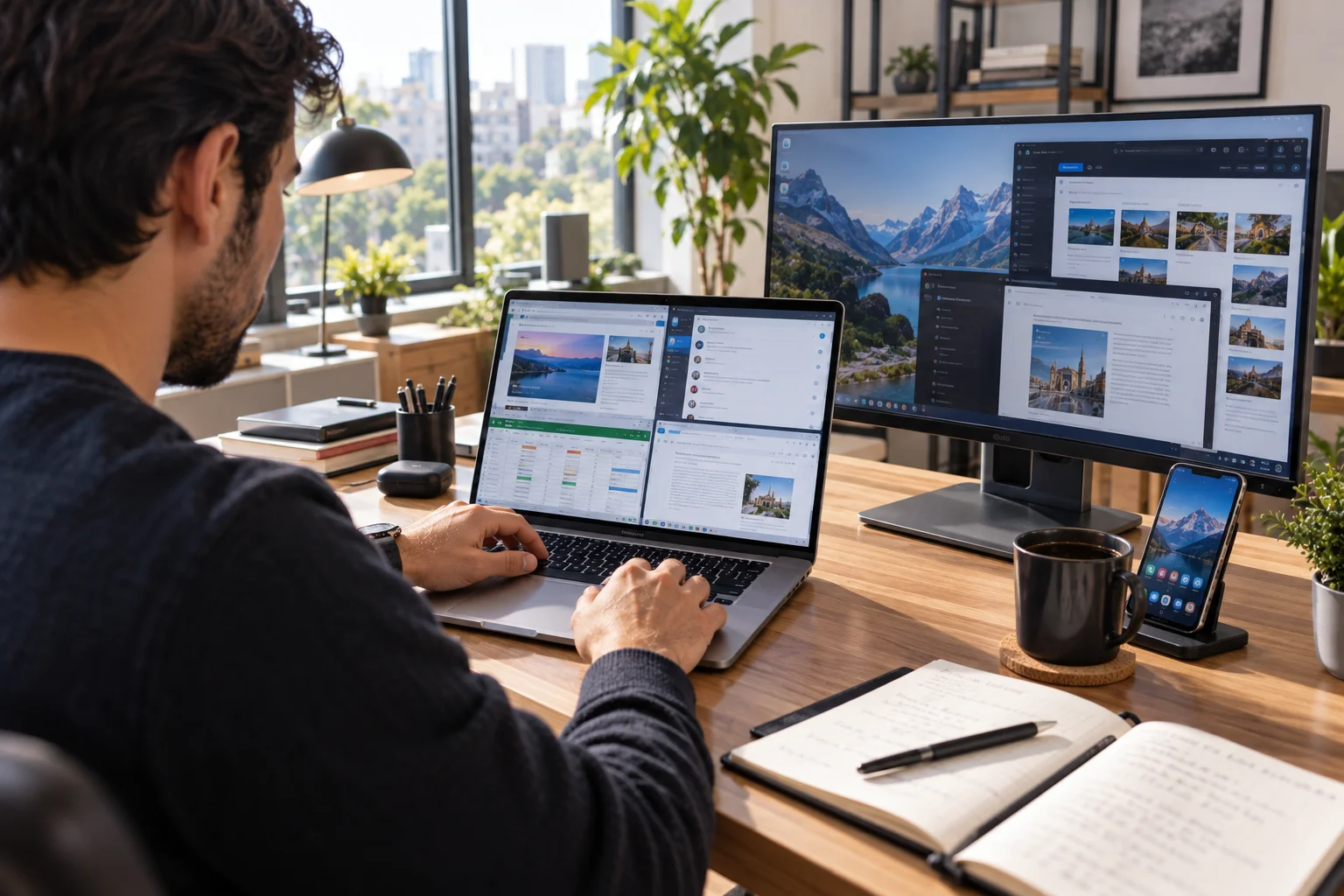
Think of RAM as your laptop's working space.
If you have a browser with 25 tabs open, Slack or Teams running, a spreadsheet, Spotify and several other applications, RAM can become more important than you might expect.
A practical guide:
8GB: Fine for basic browsing, email, streaming and light office work.
16GB: A strong starting point for most new laptops.
32GB: Better for demanding creative work, programming, heavy multitasking and some professional applications.
64GB+: Mainly for specialized professional workloads.
Microsoft's current Windows guidance says 8GB can work well for light tasks, while photo/video editing and gaming may call for 16GB or more.
For a laptop you expect to keep for several years, 16GB is a safer starting point than buying 8GB simply because it's cheaper.
4. Choose an SSD and Get Enough Storage
An SSD should be the default choice for a modern laptop, and 512GB is a practical starting point for many buyers.
Solid-state storage is considerably better suited to modern laptops than traditional mechanical hard drives because it offers faster access to applications and files.
Storage capacity is a separate question.
Storage | Best for |
|---|---|
256GB | Basic users who rely heavily on cloud storage |
512GB | Best general-purpose starting point |
1TB | Gamers, creators and people with large local libraries |
2TB+ | Video production and large professional files |
Remember that the operating system and preinstalled applications already consume some of the advertised capacity.
If you regularly download large games, shoot high-resolution video or keep thousands of photos locally, 512GB can disappear surprisingly quickly.
Microsoft recommends SSD storage and identifies 512GB or more as useful for photos, videos, games and creative projects.
5. Don't Ignore the Display
The display affects your experience every time you use the laptop, so resolution, panel quality, brightness and refresh rate can matter more than a small CPU upgrade.
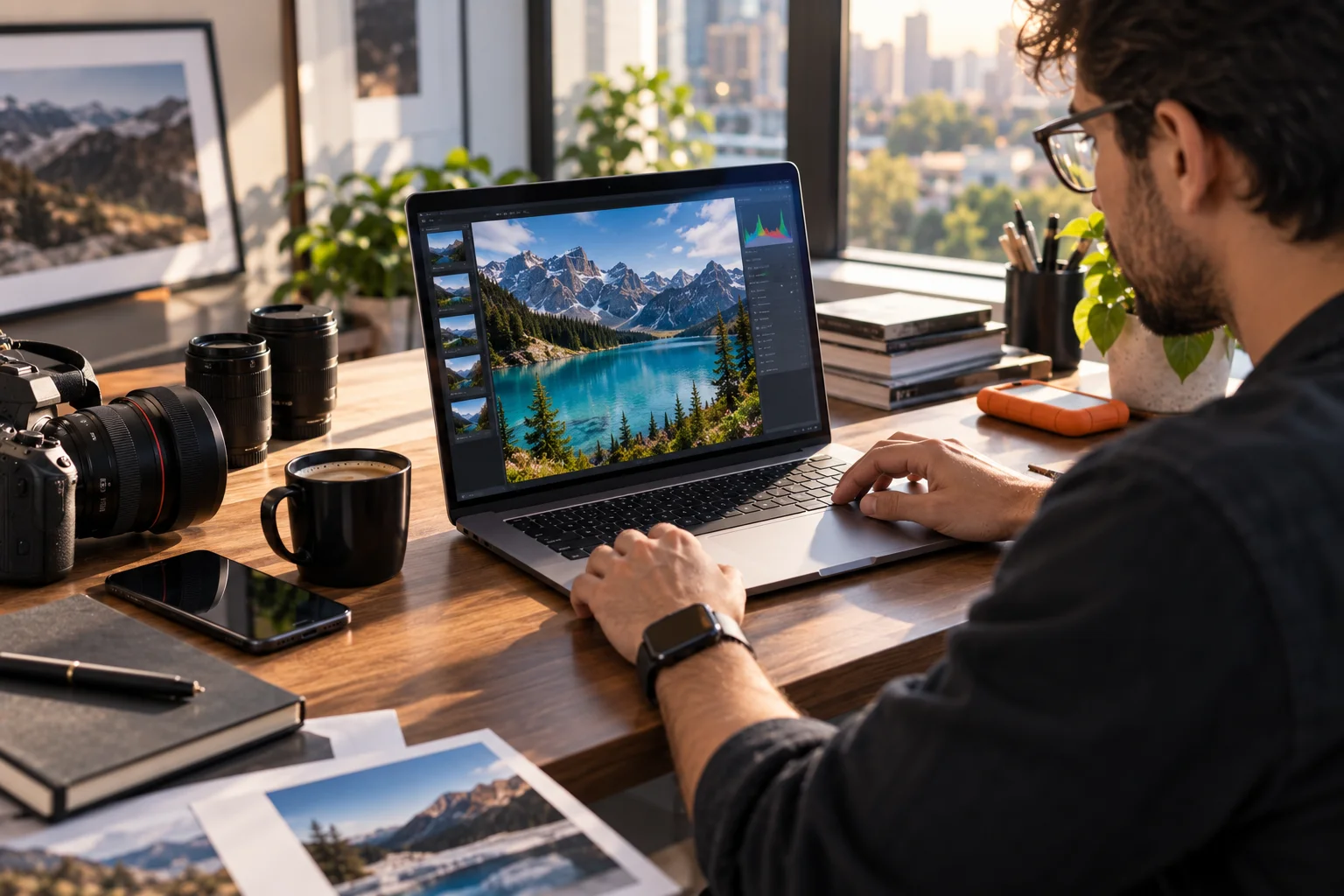
A laptop can have excellent internal hardware and still feel disappointing if its screen is dim, cramped or poorly suited to your work.
Consider:
Screen size
13–14 inches: Better for portability.
15–16 inches: Better for multitasking and entertainment.
17 inches+: Useful when screen space matters more than portability.
Resolution
Full HD is still perfectly usable for many laptops, but higher-resolution displays can make text and images look sharper.
Refresh rate
A 60Hz display is adequate for office work, browsing and streaming. Higher refresh rates can make scrolling and gaming feel smoother.
Panel quality
For photo and video work, look beyond resolution. Color accuracy, brightness, contrast and viewing angles matter.
If you edit photos professionally, a mediocre high-resolution screen isn't necessarily better than a well-calibrated lower-resolution panel.
6. Check the Graphics Hardware
Integrated graphics are enough for many everyday users, while gamers and serious creators may need a dedicated GPU.
This is one area where you shouldn't spend extra money unless your workload benefits from it.
Integrated graphics are generally suitable for:
Web browsing
Office work
Streaming
Video calls
Basic photo editing
Casual gaming
A dedicated GPU becomes more relevant for:
Modern PC gaming
3D rendering
Advanced video editing
AI workloads
GPU-accelerated creative applications
If gaming is your priority, don't buy a laptop based solely on its CPU. The GPU can have a much bigger effect on gaming performance.
7. Look at Battery Life, Not Just the Battery Size
Real-world battery life matters more than the battery's watt-hour rating on the specification sheet.
Two laptops with similar battery capacities can have dramatically different battery life because of differences in processor efficiency, display brightness, software and workload.
If you're frequently away from a charger, look for:
Efficient processor
Good manufacturer battery estimates
Smaller or moderate display
Lower power consumption
USB-C charging
Independent battery-life testing
Modern ARM-based Windows laptops and Apple silicon Macs have also made efficiency an important part of the laptop conversation.
For example, Apple's current 13-inch MacBook Air with M5 combines a 10-core CPU, integrated GPU options and a 16-core Neural Engine in a fanless design.
Don't assume a bigger battery automatically means longer battery life.
8. Check the Ports and Connectivity
A laptop can have excellent performance and still be inconvenient if it doesn't have the ports you need.
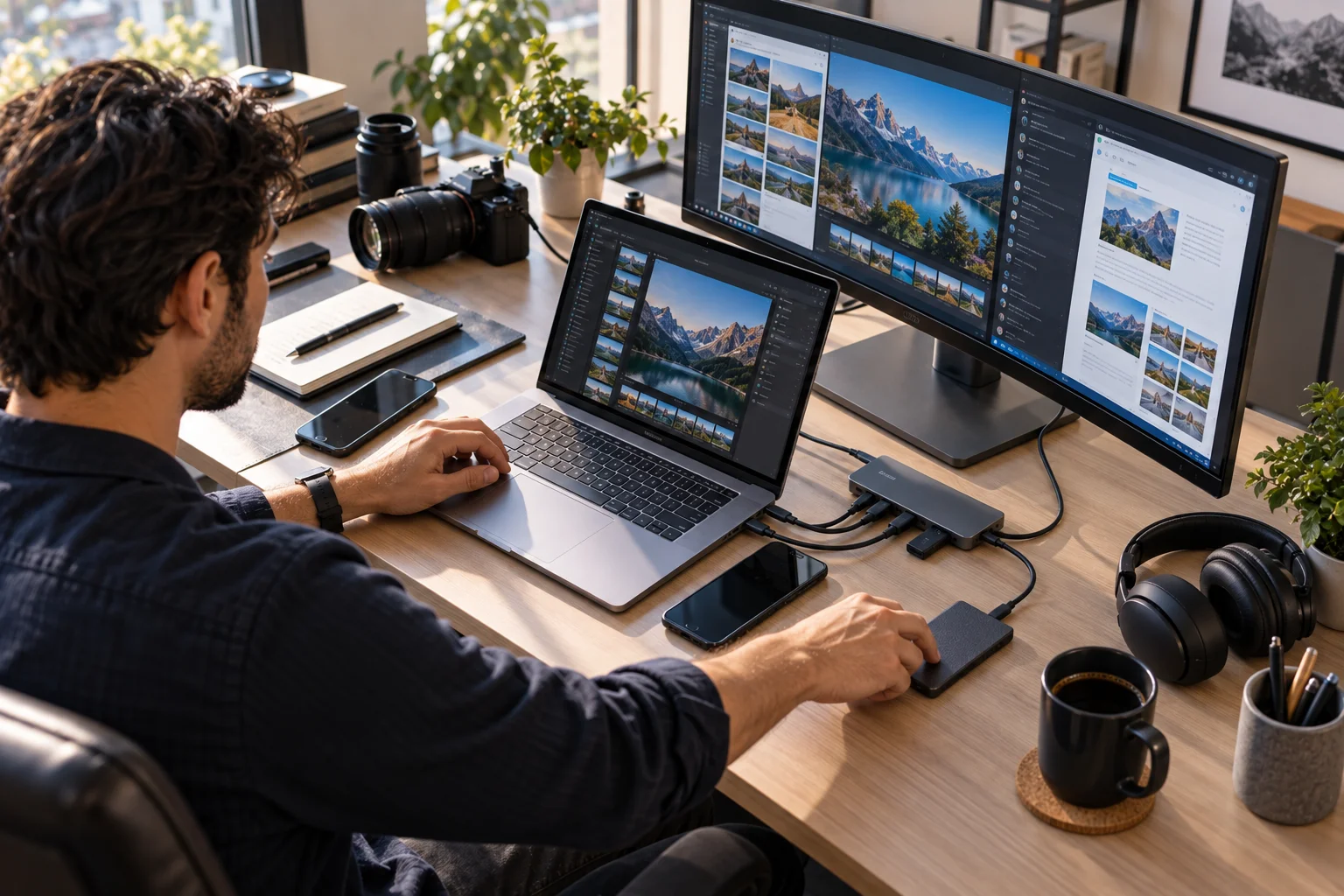
Before buying, think about everything you regularly connect.
You might need:
USB-A
USB-C
Thunderbolt or USB4
HDMI
Headphone jack
SD or microSD card slot
Ethernet through an adapter or built-in port
If you regularly connect an external monitor, camera, storage drive or accessories, port selection becomes much more important.
USB-C is increasingly useful, but USB-C does not automatically mean every USB-C port has the same capabilities.
Check the exact specification for charging, display output and data-transfer speeds.
9. Decide Between Windows, macOS and ChromeOS
The operating system should fit your existing software, devices and workflow.
Windows
Windows offers the widest range of laptop hardware, including traditional notebooks, gaming laptops, 2-in-1 devices and business machines.
It is particularly useful if you need broad software compatibility or PC gaming.
Windows 11 also supports a growing category of Copilot+ PCs with dedicated NPUs for on-device AI features. Microsoft defines Copilot+ PCs as systems with an NPU capable of at least 40 TOPS, alongside minimum requirements including 16GB RAM and 256GB storage.
macOS
MacBooks are particularly attractive if you already use an iPhone and other Apple devices.
Apple's current Mac lineup includes M5-based MacBook Air and MacBook Pro models, with the Air available in 13-inch and 15-inch configurations.
ChromeOS
Chromebooks can make sense for users whose computing happens mainly through web applications, cloud storage and browser-based services.
The right choice depends less on which operating system is "best" and more on whether it supports the applications and devices you already use.
10. Check the Keyboard, Webcam, Build Quality and Weight
Specifications don't tell you everything about a laptop, and physical design can determine whether you enjoy using it every day.
This is especially important if you're buying a laptop for work or school.
Look for:
Comfortable keyboard
Accurate trackpad
Good webcam
Useful microphone quality
Strong hinges
Comfortable palm rest
Reasonable weight
Solid chassis
Fingerprint reader or facial recognition where available
For remote workers, webcam quality deserves more attention than it usually gets.
Windows laptops can support Windows Hello through compatible fingerprint or facial-recognition hardware, while Apple's MacBooks use Touch ID on supported models.
And if you carry the laptop to a coffee shop, campus or office every day, an extra pound in your backpack matters much more than it does on a specification sheet.
What Laptop Specs Should You Look for in 2026?
For a general-purpose laptop, 16GB RAM, a 512GB SSD and a modern processor are a sensible starting point, with higher specifications for gaming and professional workloads.
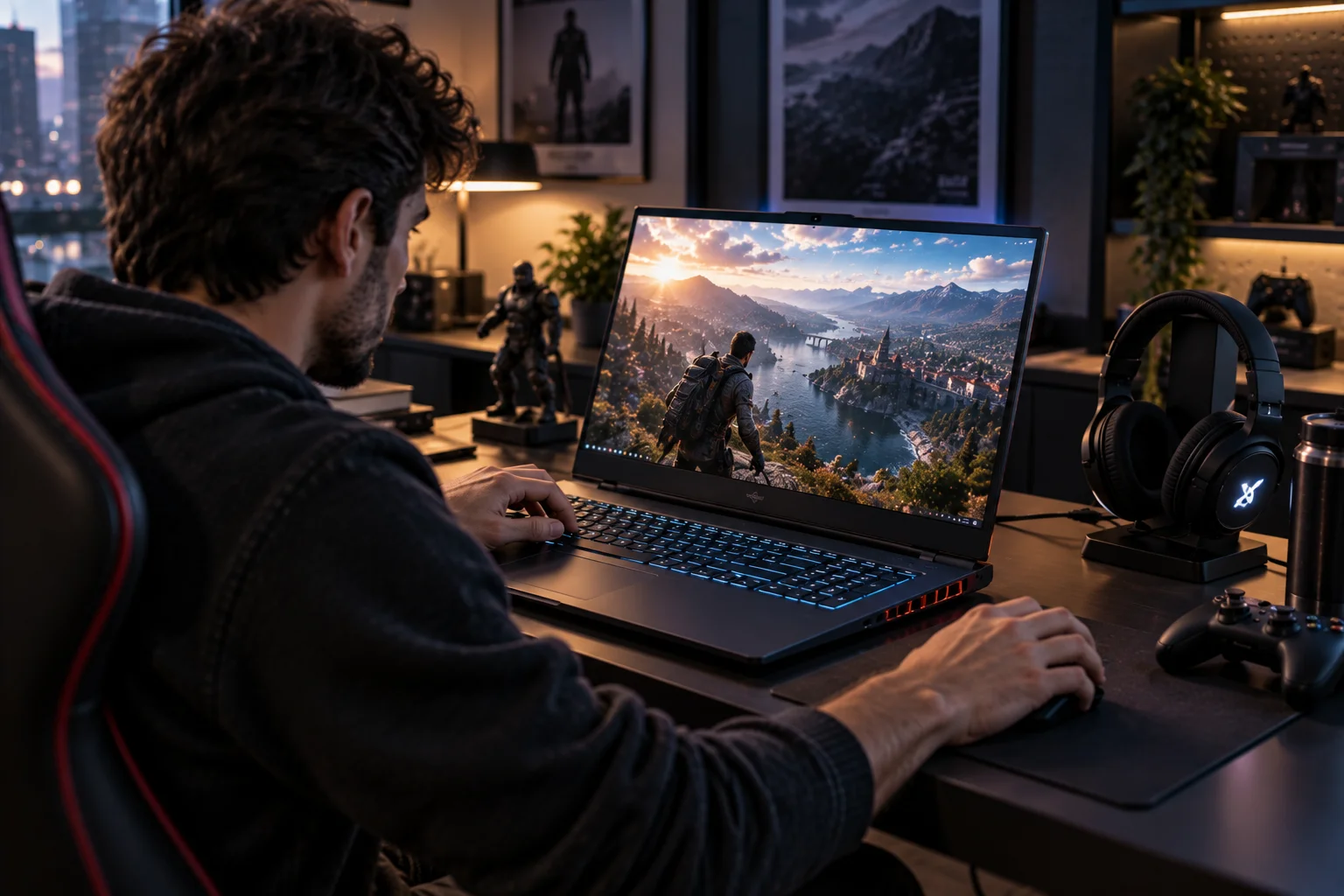
Here's a practical starting point:
User | CPU | RAM | Storage | GPU |
|---|---|---|---|---|
Basic user | Modern entry-level/midrange | 8GB–16GB | 256–512GB SSD | Integrated |
Student | Modern midrange | 16GB | 512GB SSD | Integrated |
Office/remote work | Modern midrange | 16GB | 512GB SSD | Integrated |
Programmer | Midrange/performance | 16GB–32GB | 512GB–1TB | Integrated/dedicated |
Photo editor | Midrange/performance | 16GB–32GB | 1TB | Integrated/dedicated |
Video editor | Performance | 32GB+ | 1TB+ | Dedicated/high-end integrated |
Gamer | Performance | 16GB–32GB | 1TB | Dedicated |
AI/advanced creator | Performance | 32GB+ | 1TB+ | Depends on workload |
These aren't hard rules. They're starting points.
For example, someone doing light photo editing doesn't automatically need 32GB of RAM and a high-end GPU.
Do You Need a Copilot+ PC?
You should consider a Copilot+ PC if you specifically want Microsoft's latest on-device AI features, but you don't need one simply because a laptop is marketed as an AI PC.
Copilot+ PCs have dedicated NPUs capable of at least 40 TOPS and currently require at least 16GB of RAM and 256GB of SSD or UFS storage.
The important distinction is between AI branding and useful AI hardware.
Ask:
Will I actually use on-device AI features?
Do my applications support the NPU?
Is battery life important to me?
Do I need traditional x86 Windows software compatibility?
Does the laptop's processor offer enough performance for my other workloads?
AI capabilities can be useful, but they shouldn't replace the fundamentals of a good laptop.
How Much Should You Spend on a Laptop?
Spend according to your workload, not the prestige of the brand or the number printed on the processor.
A sensible way to think about the US laptop market is by use case rather than arbitrary price brackets.
A budget laptop can be perfectly adequate for web browsing and schoolwork. A midrange model usually makes more sense for someone who wants several years of comfortable everyday use. Gaming and professional creative work can justify significantly higher spending because dedicated graphics, cooling and larger memory configurations add real hardware costs.
Before buying, set your budget and identify the two or three specifications you actually need most.
Don't spend $300 extra for a feature you'll never use.
How to Avoid Buying the Wrong Laptop
The easiest way to avoid buyer's remorse is to check compatibility and upgradeability before you pay.
Before checkout, ask:
Is the processor appropriate for my workload?
Does it have enough RAM?
Is the SSD large enough?
Is the display good enough for what I do?
Do I need a dedicated GPU?
Will the battery last through my typical day?
Does it have the ports I need?
Does my software work on this operating system?
Is the keyboard comfortable?
Can I upgrade the RAM or storage later?
That last question can be particularly important.
Some modern thin laptops have memory or storage that isn't user-upgradable. If you think you'll need more RAM later, buying the larger configuration upfront may be the safer choice.
How to Choose a Laptop: The Bottom Line
The best laptop is the one that gives you enough performance for your workload without making you pay for hardware you don't need.
Start with your use case. Then work through the CPU, RAM, storage, display, graphics, battery, ports, operating system and physical design.
For many people, a modern midrange processor, 16GB RAM, 512GB SSD, a good-quality display and solid battery life will provide a much better balance than an expensive laptop loaded with specifications they never use.
If you're a gamer, prioritize the GPU. If you're a creator, look closely at memory, graphics and display quality. If you're a student or frequent traveler, portability and battery life can matter more than raw performance. And if you're considering an AI laptop, make sure the NPU and AI features solve an actual problem in your workflow.
The smartest laptop purchase isn't the one with the longest specification sheet.
It's the one whose specifications match the way you actually use your computer.